Why does a screenshot tool just stop opening? You press Windows + Shift + S. There is nothing happening on your screen. Sometimes, the Snipping Tool opens, you drag a box, and it vanishes before it saves a thing. Annoying doesn’t cover it. But it’s rarely broken for real. Usually something it leans on got switched off.
Where This Comes From
Basically? Snipping Tool is a thin app that depends on other parts of Windows. Clipboard history holds the image. The notification system shows you the little saved pop-up. And the Store keeps the app itself updated.
Turn off clipboard history and the capture has nowhere to go. Why does a screenshot depend on notifications at all? No idea. But it does.
The rest of the time it’s the app itself. A stuck copy in the background, or a corrupted install after an update. Not uncommon.
Fix 1 – End the Stuck Copy
Simply refresh the Snipping tool by ending it and restarting the app.
1 – At first, hit the Ctrl + Shift + Esc to open Task Manager.
2 – Scroll down the list and find SnippingTool.exe (or Snipping Tool).
3 – Right-click it and pick End task.
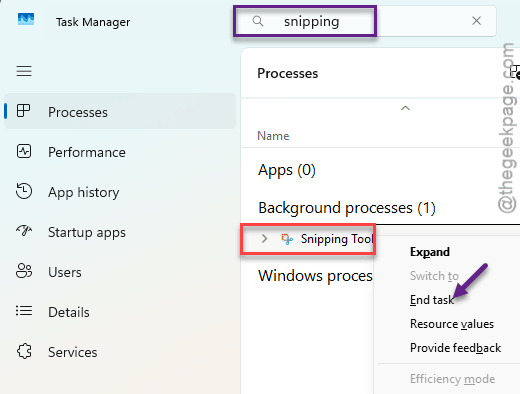
4 – Press Windows + Shift + S to open it again.
If it opens, you’re done. If not, keep going.
Fix 2 – Turn On Clipboard History
Snipping Tool parks every capture on the clipboard first. With clipboard history off, there’s nowhere to park it, and the capture dies without a word.
1 – Press Windows + V.
2 – If you see a Turn on button, click it.
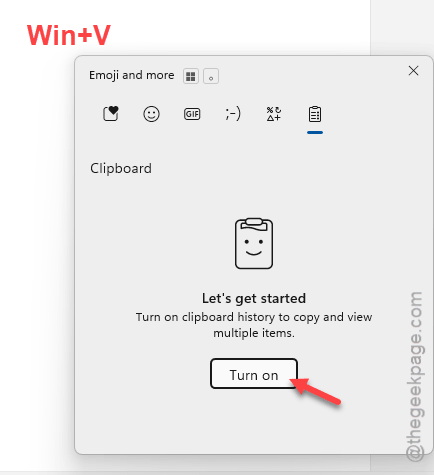
Do check if this works out for you.
Fix 3 – Repair the App and Reset It
Repair keeps your settings. Reset wipes them.
1 – Press Windows + I to open Settings.
2 – Click Apps in the left sidebar, then Installed apps.
3 – Type Snipping in the search box at the top.
4 – Click the three dots next to Snipping Tool and pick Advanced options.
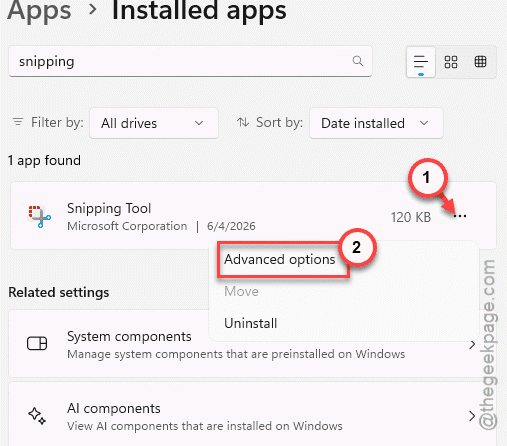
5 – Scroll down to the Reset section and click Repair.
6 – Test the tool. You can try resetting, if that does not work.
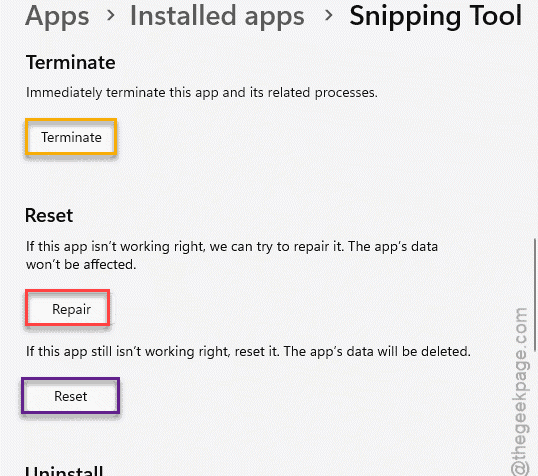
See if this works.
Fix 4 – Turn Off Do Not Disturb
Disable the Do Not Disutrb mode and retry.
1 – Press Windows + I.
2 – Click System, then Notifications.
3 – Switch Do not disturb off.
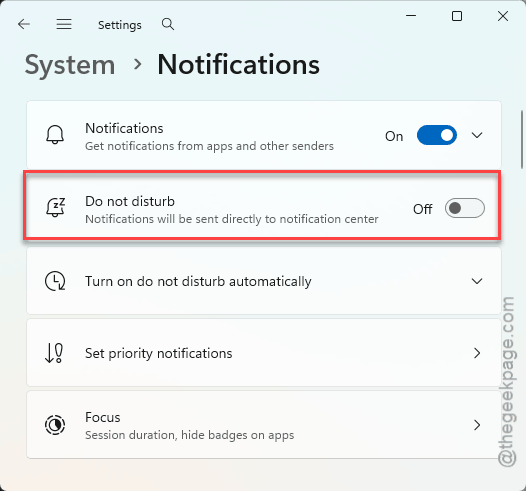
Check that the capture landed in your clipboard with Windows + V. It usually did.
Fix 5 – Reinstall It With PowerShell
We recommedn you try reinstalling the tool using PowerShell.
1 – Right-click Start and pick Terminal (Admin). That opens PowerShell with the rights it needs.
2 – Paste this line and press Enter:
get-appxpackage Microsoft.ScreenSketch | remove-appxpackage
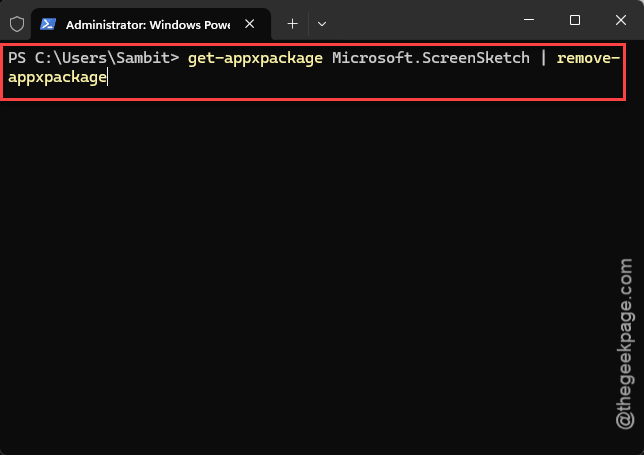
3 – Wait for the prompt to come back. There’s no success message, which is normal.
4 – Open the Microsoft Store.
5 – Search for Snipping Tool and click Install.
6 – Open it from Start once the install finishes.
So It Doesn’t Happen Again
- Leave clipboard history on. Always. Half of Snipping Tool’s weirdness traces back to it.
- Check Do Not Disturb after big updates. Windows likes to flip it on for you.