No Man’s Sky Worlds Part 1 update swapped out the game’s water and cloud rendering. Your PC might be still holding graphics files built for the old engine which is causing the stuttering and crashing effect you are facing in the game. Huge free update, gorgeous new planets, but you, as the end-user, busy finding that tweak that is going to make the game playable for you. Here are the fixes that should make your life easier.
The Short Version
Three separate problems hide under one symptom. Stale shaders (pre-built graphics instructions your PC saved for the old renderer) collide with the new clouds and water. Nvidia’s frame generation files crash the game before it even opens. And the servers are buckling under launch traffic, which drags your frame rate down with them.
Sorting out which one is yours takes less time than just running the fixes in order. So run them in order.
Fix 1 – Delete the Graphics Config File
One file forces the game to rebuild its shader cache and graphics settings from scratch. Deleting it is the single highest-value fix here.
1 – Press Windows + R, type %appdata%, and press Enter.
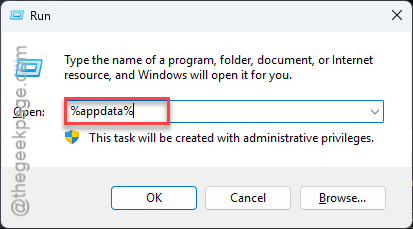
2 – In the folder that opens, go to HelloGames, then NMS, then DefaultUser.
3 – Find TKGRAPHICSSETTINGS.MXML and delete it.
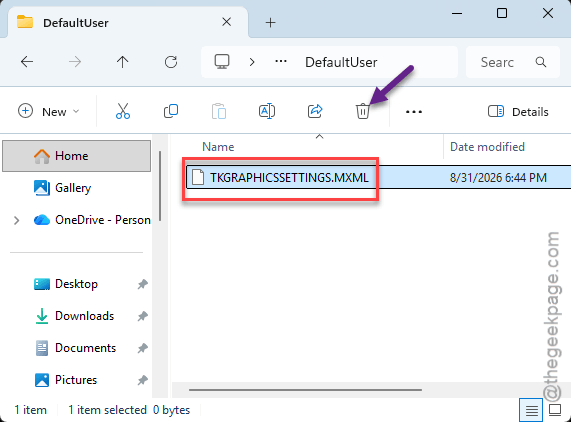
4 – Launch the game.
The first launch takes noticeably longer while everything rebuilds. Let it sit. Your graphics options reset to defaults too — redo them once you’re in.
Fix 2 – Pull the Frame Generation Files
Game crashing instantly at startup? On Nvidia cards, the bundled frame-generation files are the usual killer, and players on Reddit pinned down exactly which ones.
1 – Open your Steam Library, right-click No Man’s Sky, select Manage, and click Browse local files.
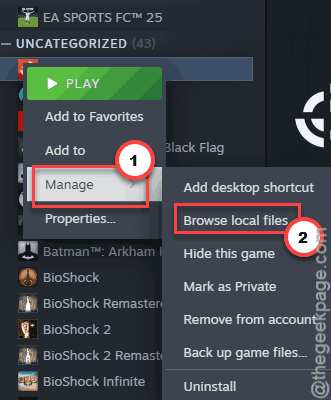
2 – Open the Binaries folder.
3 – Move these four files to your desktop: sl.pcl.dll, nvngx_dlssg.dll, sl.dlss_g.dll, and vulkan-1.dll. Moving beats deleting — you can put them back after a patch.
4 – Launch the game normally through Steam.
And if a future update restores the files and the crashing returns? Same four files, same desktop.
Fix 3 – Turn Off DLAA and Frame Generation In-Game
Made it into the game but it dies mid-session? Then the same tech is crashing you from the settings side.
1 – Open the Options menu, then Video Options.
2 – Find the Anti-Aliasing setting and turn off DLAA.
3 – Find Frame Generation and disable it. Standard DLSS on Quality mode is fine to keep.
4 – Apply, restart the game, and load your save.
Yes, frame generation is the feature you paid a fancy GPU for. But it’s not much use if the game will not stay open. Turn it back on when a patch settles things.
Fix 4 – Clear Steam’s Shader Cache
Steam keeps its own pile of pre-built shaders, and it happily serves the game year-old ones from before the update. And atmospheric-entry stutter is this fix’s signature — that hitching as you dive toward a planet.
1 – Open Steam and go to Settings, then Storage.
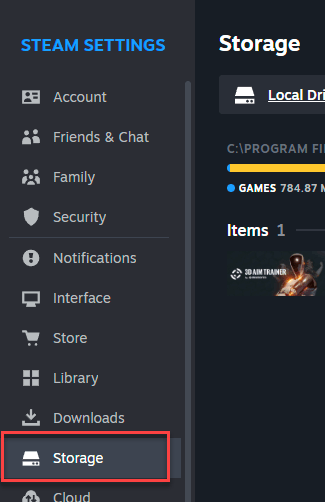
2 – Find the shader cache entry for No Man’s Sky and delete it.
3 – No sign of it there? Open File Explorer and go to C:\Program Files (x86)\Steam\steamapps\shadercache instead — delete the folder named 275850 (that’s the game’s Steam ID).
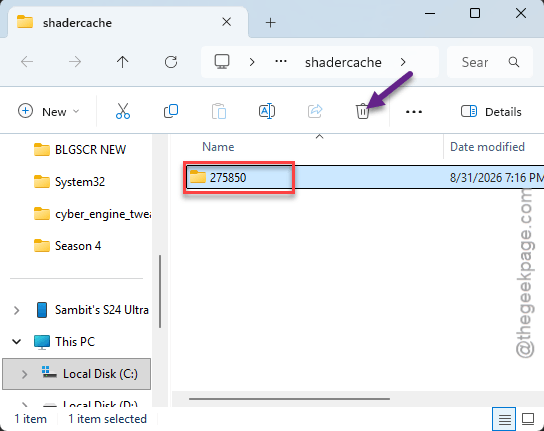
4 – Launch the game and expect some early stutter while fresh shaders build. That part’s normal and passes within a session.
Fix 5 – Switch the Window Mode to Full Screen
Quick micro-stutter fix straight from the community.
1 – Open the Video Options in the game.
2 – Find Window Mode there.
3 – Change it from Borderless to Full Screen.
Apply and jump back in — the difference shows immediately.
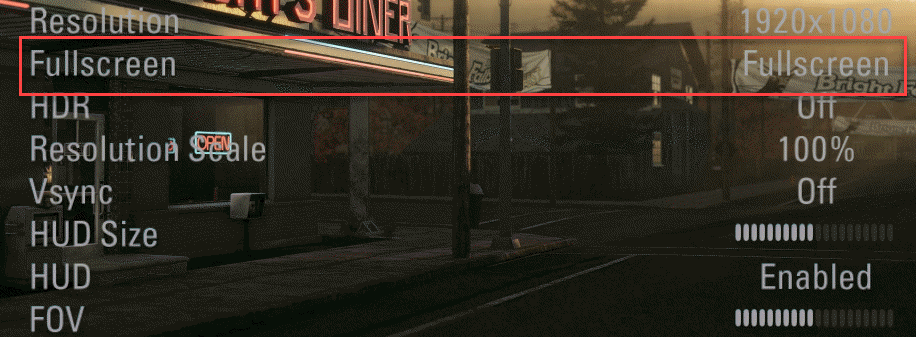
And here’s the funny part — in most games this advice runs the other way. Not here.
Fix 6 – Turn Off Multiplayer
The servers are drowning in Worlds Part 1 traffic. And while your client waits to sync other players’ planets, it stutters — your connection is fine, the far end isn’t.
1 – Open the in-game Options menu.
2 – Go to the Network tab.
3 – Toggle Multiplayer to Disabled.
Solo exploring feels identical, minus other players’ bases. Flip it back on in a few weeks when the launch rush thins out.
Fix 7 – Move the Game to Your Fastest Drive
The update’s new file compression is dense. Too dense for hard drives and older SATA SSDs, which is where the hard lockups come from.
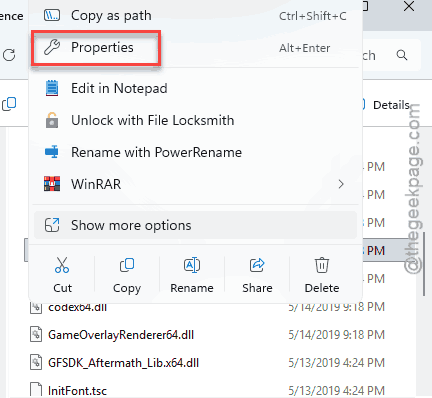
1 – Open Steam, right-click No Man’s Sky, and select Properties.
2 – Go to Installed Files and click Move install folder.
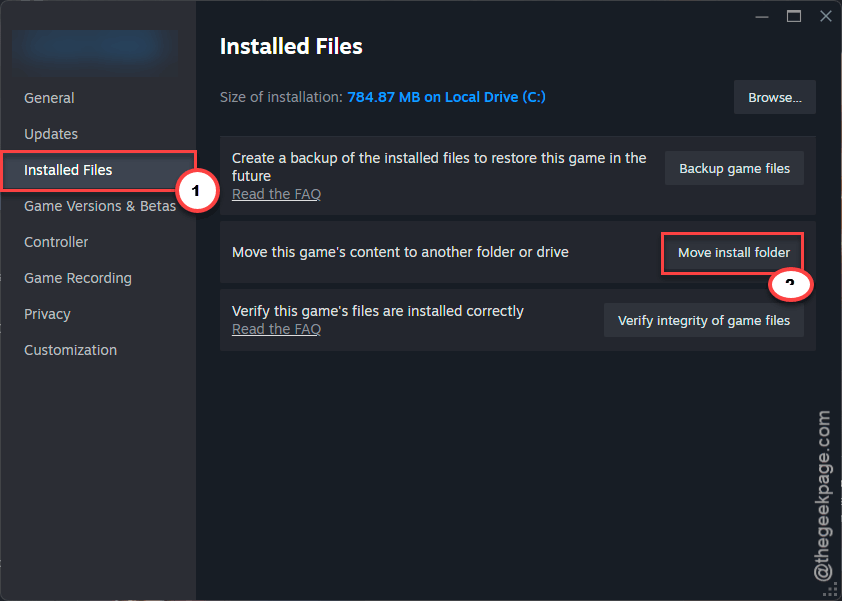
3 – Pick a library folder on your fastest NVMe drive (the M.2 stick, if you have one).
4 – Wait for the transfer to finish — several minutes, depending on the drives — then launch.
If everything you own is a hard drive, this game just outgrew it. Rough but true. And no settings menu fixes storage speed.
People Also Ask
How can I fix stuttering in No Man’s Sky?
Delete TKGRAPHICSSETTINGS.MXML from AppData\Roaming\HelloGames\NMS\DefaultUser to force a shader rebuild, clear Steam’s shader cache for the game, and switch Window Mode to Full Screen. Disabling multiplayer helps too while the Worlds Part 1 servers stay overloaded.
Why does my No Man’s Sky keep crashing?
Since Worlds Part 1, the top cause on Nvidia systems is frame generation — both the DLL files in the Binaries folder and the DLAA and Frame Generation settings in-game. Remove the files or disable the settings, and most startup and mid-session crashes stop.
Is No Man’s Sky CPU or GPU heavy?
Both, in different moments. Planet generation leans on the CPU, while the Worlds Part 1 clouds and water lean hard on the GPU and on storage speed. That’s why a fast NVMe drive now matters almost as much as the graphics card.