HDR packs far more brightness and color into your screen than a normal PNG file can hold. So when Snipping Tool grabs the raw HDR picture and saves it the old way, everything gets squashed flat. That’s the gray, faded screenshot you’re staring at. The game looked great. But the capture won’t be that flashy. Annoying, and very common on 25H2. There is a simple very simple tweak to fix that issue. Even if that does not work, there are some more.
Why This Happens
Snipping Tool just copies the pixels as they are. Bright whites turn gray. Deep reds turn pink. Why does Windows allow that? Because the translation step (it’s called tone mapping) was only added to Snipping Tool recently, and it’s a toggle that’s off on plenty of PCs.
Browsers make it worse. Chrome and Edge do their own color handling, so a snip of a web page can look wrong even when a snip of the desktop looks fine. Not ideal.
And if HDR was never calibrated on your PC, the mismatch gets bigger. Windows is guessing at your monitor’s range. It guesses badly.
Fix 1 – Turn On the HDR Screenshot Color Corrector
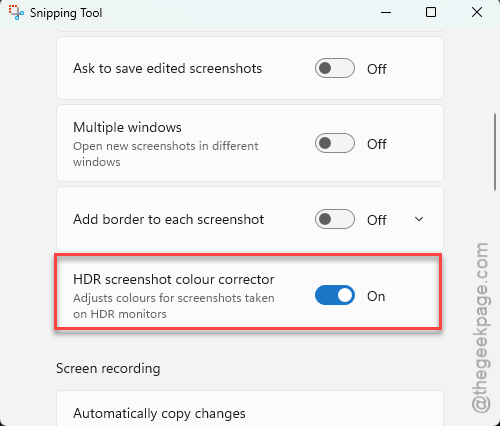
Try enabling the HDR screenshot color collector.
1 – At first, press the Windows key. Then, type Snipping Tool, and open it.
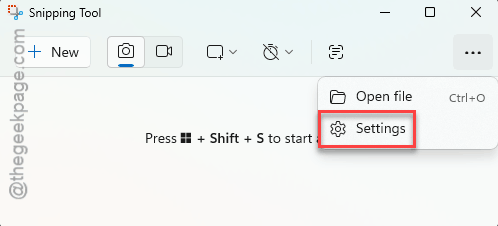
2 – Click the three dots (⋯) in the top right corner.
3 – Click Settings.
4 – Scroll down to HDR screenshot color corrector and switch it on.
5 – Take a new screenshot with Windows + Shift + S and check the colors.
Already on and still faded? Switch it off, take a snip, then switch it back on. Two seconds. And sometimes that’s all it needed.
Fix 2 – Turn On Automatic Color Management
The automatic color management can be causing this problem at your end.
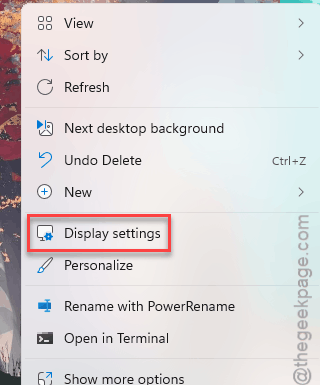
1 – Right-click an empty spot on your desktop and pick Display settings.
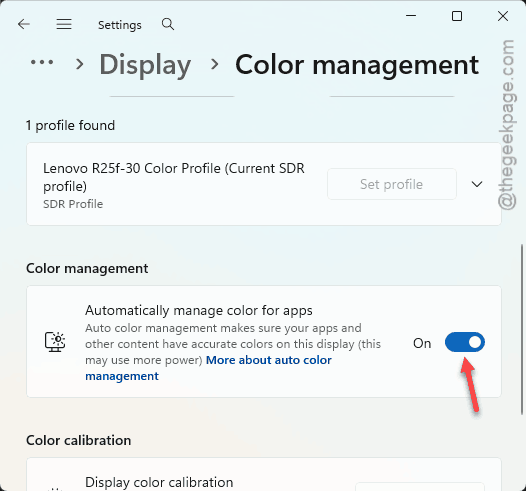
2 – Scroll down and click Color profile. On some builds it’s called Color management instead.
3 – Switch on Automatically manage color for apps.
4 – Close and reopen whatever app you’re pasting the screenshot into.
No toggle there? Your monitor or graphics driver does not support it yet. Move on to Fix 3.
Fix 3 – Turn HDR Off and On, Then Calibrate
Sounds dumb. Works, though. Toggling HDR forces Windows and your graphics card to redo the handshake that decides what color range gets sent.
1 – Press Windows + I to open Settings.
2 – Click System, then Display.
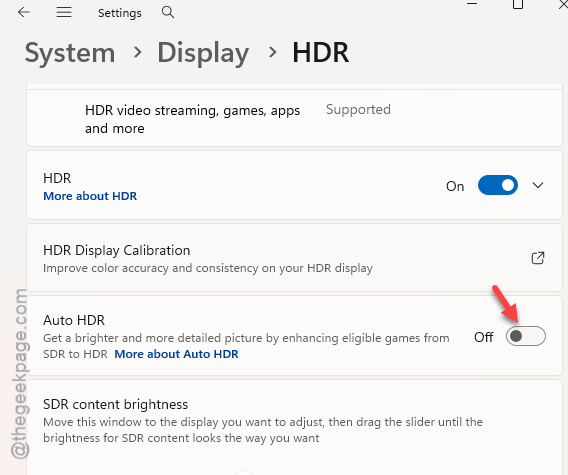
3 – Switch Use HDR off. The screen flickers and looks dimmer for a second.
4 – Wait about ten seconds and switch it back on.
5 – If you see Auto HDR underneath, switch that off and on too.
Still washed out?
Run the Windows HDR Calibration app (it’s in the Microsoft Store).
It walks you through three test patterns and lines up the color spaces properly.
You drag a slider until a shape fades into the background, three times over.
Takes about two minutes. And most people have never run it once.
Fix 4 – Force Your Browser to sRGB
If the washout only shows up when you snip Chrome or Edge, this is your fix. The browser is doing its own color conversion on top of what Windows does. Two conversions, one bad result.
1 – Open Chrome or Edge.
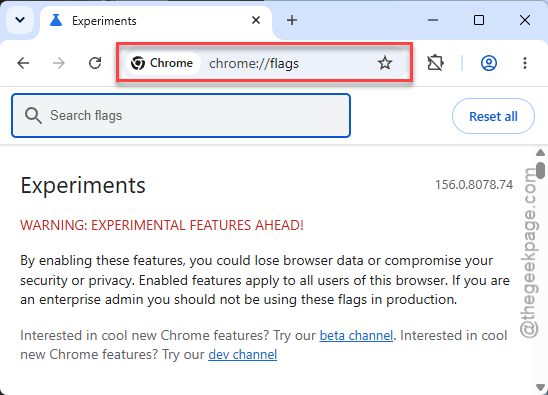
2 – Type chrome://flags (or edge://flags in Edge) in the address bar and press Enter.
3 – Type Force color profile in the search box at the top.
4 – Change the dropdown from Default to sRGB.
5 – Click Relaunch in the bottom right corner.
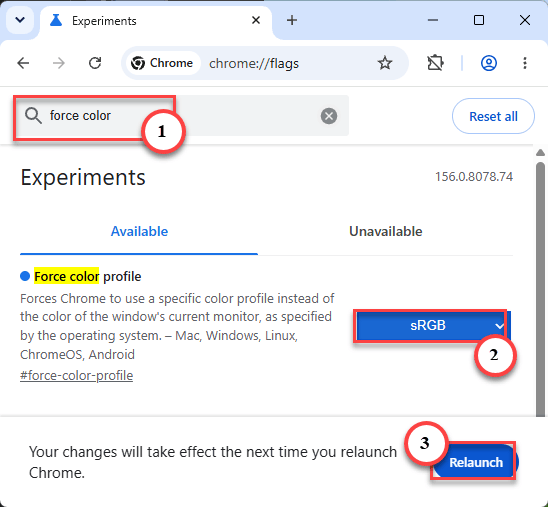
The browser closes and comes back on its own with your tabs still open. Snip the same page again and compare.
Some people pick HDR10 in that dropdown instead. Try sRGB first. It’s the safe one.
Fix 5 – Turn Off Browser Hardware Acceleration
Same browsers, different cause. Hardware acceleration hands the drawing to your graphics card, and the card renders the page in HDR. Snipping Tool then grabs that HDR frame. Turn it off and the browser draws in plain SDR.
1 – Click the three dots in the top right of Chrome or Edge and pick Settings.
2 – Click System in the left sidebar. In Edge it’s System and performance.
3 – Switch off Use graphics acceleration when available.
4 – Click Relaunch.
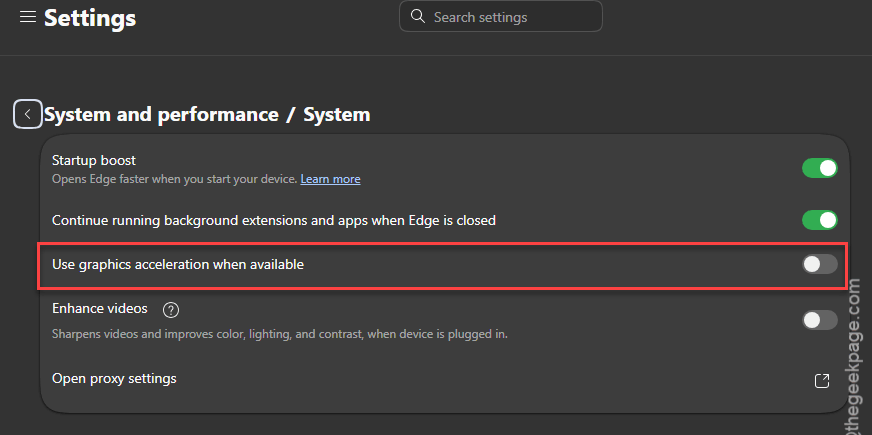
Video might stutter a little with this off. So if that bugs you, turn it back on and stick with Fix 4.
Fix 6 – Install HDR Screenshot Syncer
Here’s the catch with Fix 1. The corrector only makes sense while your display is actually in HDR. Switch HDR off for a movie and you’re supposed to flip the corrector off too. Nobody remembers.
So that’s what HDR Screenshot Syncer is for. It’s a small tray tool from the Microsoft Store that watches your display and flips the Snipping Tool toggle for you.
1 – Open the Microsoft Store.
2 – Type HDR Screenshot Syncer in the search box at the top.
3 – Click Get and wait for the install to finish.
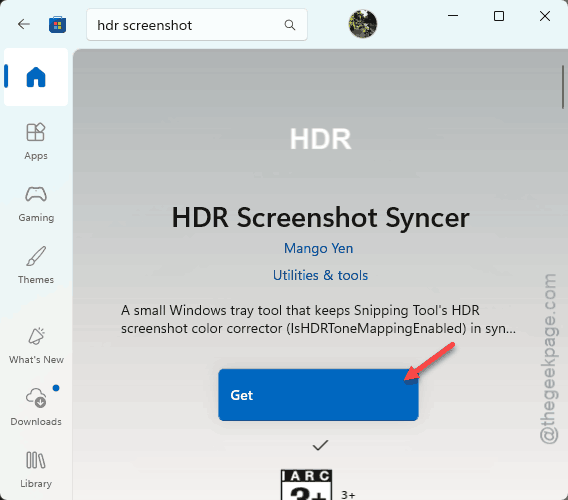
4 – Open it once. It parks itself in the tray by the clock and does the rest.
Fix 7 – Capture Real HDR Screenshots With Game Bar
There is an alternative approach to this issue, where using Game Bar can give you JXR file, which holds the real-HDR data.
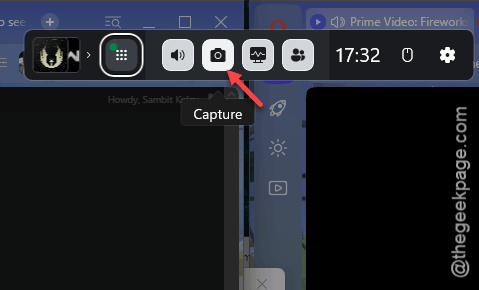
1 – Press Windows + G to open Game Bar.
2 – Click the Capture panel. It has a camera icon.
3 – Click the camera button inside it.
Or skip the overlay and press Windows + Alt + PrtScn from anywhere.
4 – Open File Explorer, go to Videos, then Captures.
Your JXR file is sitting there. Do this alongside Fix 1, not instead of it.
Fix 8 – Reset Your Color Profile to the System Default
Last resort. Resetting puts things back to stock.
1 – Press Windows + R.
2 – Type colorcpl and press Enter.
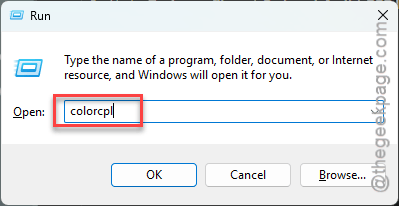
The old Color Management window opens.
3 – Click the Advanced tab at the top.
4 – Click Change system defaults at the bottom.
5 – Under Device profile, pick System default (sRGB IEC61966-2.1).
6 – Click Close, then Close again.
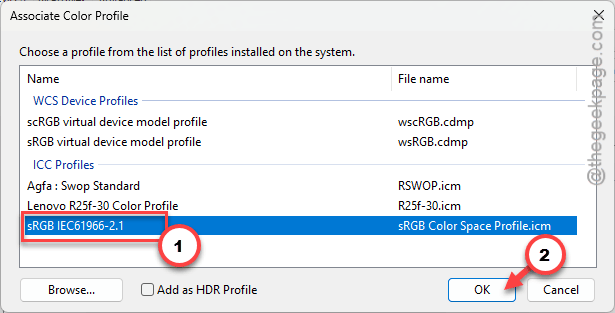
7 – Sign out and back in so the profile reloads.
Then take a snip and compare. If it’s still off after all eight, the monitor itself is probably the odd one out, and its own menu has an HDR mode worth checking.
How to Prevent This
- Leave the HDR screenshot color corrector on while you’re in HDR. And switch it off when you go back to SDR, or let Syncer do it.
- Run Windows HDR Calibration once after any big Windows update.
- Keep Automatically manage color for apps on if your PC offers it.
- Snipping web pages a lot? Set the browser to sRGB and leave it there. Period.
- Don’t install random monitor color profiles from the internet. One bad profile and every color shifts.
People Also Ask
Why are my HDR screenshots washed out?
Because the screenshot is saved as a normal SDR image, but the pixels came from an HDR screen. HDR has more brightness range, and squashing it into a PNG without tone mapping leaves everything gray and flat. Turn on the HDR screenshot color corrector in Snipping Tool settings.