Does the Windows 11 widgets board looks blank and continously drain CPU power? You may find the fans spinning, CPU pinned at 30 percent by something called WebView2, and the Widgets board opens to a blank white rectangle. It’s actually just a web page that failed to load. That’s the whole secret. The Widgets board isn’t a real app. It’s a web page, drawn by Microsoft Edge’s engine (that’s WebView2), inside a shell called the Windows Web Experience Pack. So when the page can’t load, the engine keeps trying.. That endless retry is your CPU spike. Why does it fail to load? Usually a corrupted cache or a broken Web Experience Pack. All fixable from your side, no reinstall of Windows needed.
Fix 1 – Restart the Widgets Process (and Explorer)
Start here, since it takes under a minute. The Widgets process gets stuck in its retry loop, and ending it forces a clean start. Restarting Explorer clears the taskbar side of things too.
1 – Start by hitting the Ctrl + Shift + Esc to open Task Manager.
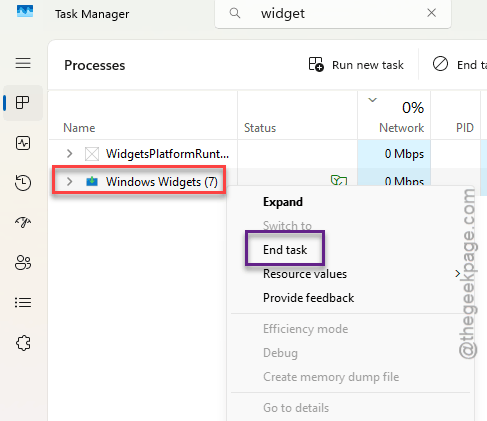
2 – Find Windows Widgets (it may show as Widgets.exe). Look under Background processes if it’s not near the top.
3 – Right-click it and pick End task.
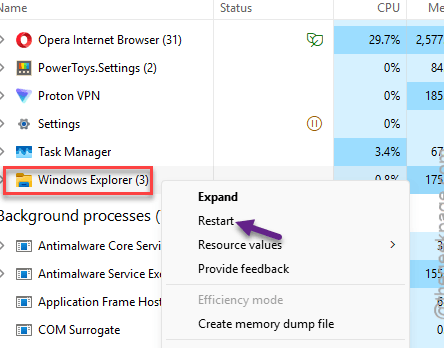
4 – Scroll to Windows Explorer in the same list.
5 – Right-click it and pick Restart. Your taskbar vanishes for a second or two and comes back.
6 – Click the Widgets icon on the taskbar (bottom left, usually the weather) to open the board again.
See if this works.
Fix 2 – Clear the WebView2 Cache
When the cache gets corrupted, the rendering threads lock up.
1 – Press Windows + R.
2 – Paste this and press Enter:
%localappdata%\Packages\MicrosoftWindows.Client.WebExperience_cw5n1h2txyewy\LocalState\EBWebView
3 – Press Ctrl + A to select everything in the folder, then press Delete.
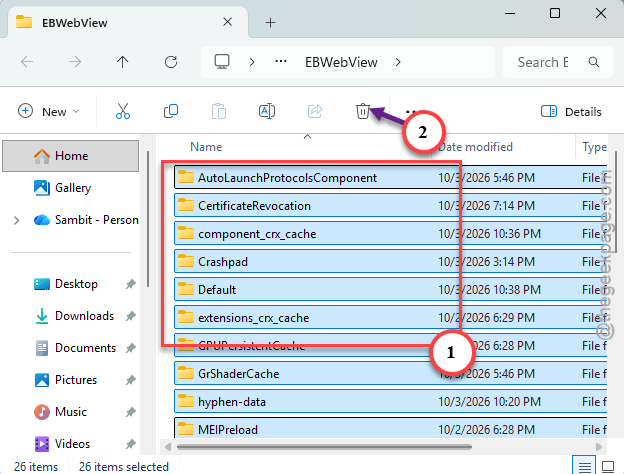
Windows says a file is in use? Open Task Manager, end every msedgewebview2.exe you see, and press Delete again.
4 – Back in Task Manager, end Windows Widgets like in Fix 1.
5 – Click the Widgets icon on your taskbar.
The board takes a bit longer to open this first time while it rebuilds the cache. That’s expected (and a good sign).
Fix 3 – Toggle Widgets Off and On
Sounds too simple. But flipping the taskbar switch unloads the whole Widgets package and loads it again, which is a deeper restart than Fix 1.
1 – Press Windows + I to open Settings.
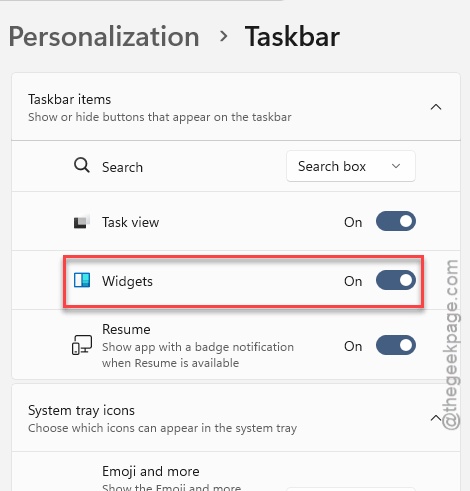
2 – Click Personalization in the left sidebar, then Taskbar.
3 – Switch Widgets off.
4 – Wait a few seconds, then switch it back on.
5 – Click the Widgets icon and check the board.
Fix 4 – Repair the WebView2 Runtime
WebView2 is the engine that draws the board. And if its files are damaged, nothing above it works. Windows has a repair option for it, but it does not make it obvious.
1 – Press Windows + I.
2 – Click Apps, then Installed apps.
3 – Type WebView2 in the search box at the top.
4 – Click the three dots next to Microsoft Edge WebView2 Runtime and pick Modify.
5 – Click Yes if Windows asks for permission.
6 – Click Repair.
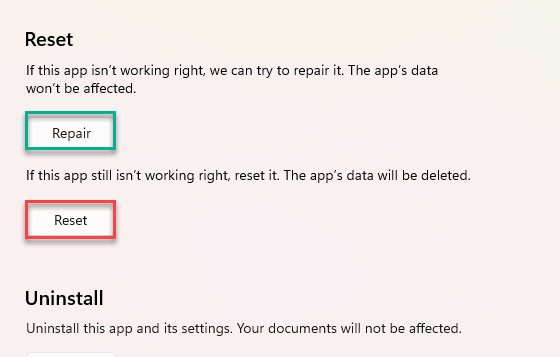
It downloads fresh copies of any damaged files. Wait for it to say it’s finished (a minute or two on a normal connection), then open the board.
Fix 5 – Update or Reinstall the Web Experience Pack
The Web Experience Pack is the shell around the web page. A corrupted copy leaves the board blank no matter what WebView2 does. Try the gentle route first.
1 – Open the Microsoft Store.
2 – Click Library in the bottom left.
3 – Find Windows Web Experience Pack and click Update next to it.
No Update button there? Click Get updates at the top right to force a check.
If it’s still blank afterward, reinstall it completely. This uses winget, Windows’ built-in package tool. So you’ll type two commands.
4 – Right-click Start and pick Terminal (Admin).
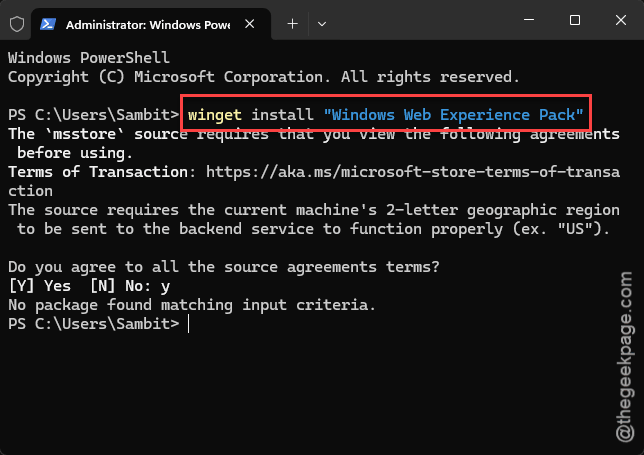
5 – Type winget uninstall "Windows Web Experience Pack" and press Enter. Press Y if it asks you to agree to the source terms.
6 – When it finishes, type winget install "Windows Web Experience Pack" and press Enter.
7 – Restart your PC.
8 – Open the Widgets board and give it a moment to set itself up.
Fix 6 – Sign In With a Microsoft Account
Using a local account? The board loads your feed from Microsoft’s servers, and on some PCs it just shows blank with no account to load for. Not everyone wants to do this, and that’s fair. But it fixed it for a chunk of people.
1 – Press Windows + I.
2 – Click Accounts, then Your info.
3 – Just tap the Sign in with a Microsoft account instead.
4 – Later, follow the prompts to sign in or create an account.
Your files and apps will not move. Only the sign-in changes.
Keep It From Coming Back
- Let the Store update apps on its own. The Web Experience Pack gets its fixes there, not through Windows Update.
- If the board ever goes blank again, end Windows Widgets in Task Manager right away. Don’t let it sit and churn your CPU for an hour.
- Clear the EBWebView cache once in a while if you use Widgets daily. Takes thirty seconds.
- Don’t want Widgets at all? Turn them off in Taskbar settings instead of trying to uninstall WebView2. And lots of other apps need it.
People Also Ask
How do I fix high CPU usage from WebView2 in Windows 11?
WebView2 spikes when a web page it’s drawing fails to load, and the Widgets board is the usual culprit. Open Task Manager, end Windows Widgets, then restart Windows Explorer. If it comes back, clear the EBWebView cache folder and repair the WebView2 Runtime from Settings under Installed apps.
Can I permanently disable WebView2 on Windows 11?
You can, but you shouldn’t. WebView2 isn’t just for Widgets. Outlook uses it. Teams too. Plenty of other apps draw their windows with it, and they break without it. Turn off Widgets in Taskbar settings instead. That stops the CPU spike and leaves everything else working.