You install Ace Combat 8, launch it, and sit back for the prologue. Cope takes you up, the music swells, and then a gray box pops up reading UE Live Error 01. Then, you are back to the desktop. You launch it again, but that same spot, same box returns. Sound familiar? You are far from the only one. Here’s what’s going on. That box is Unreal Engine’s crash reporter, and it shows up when the graphics side gives out. Most of the time that means the NVIDIA driver fell over (one player’s exact words: the crashes were caused by display driver failure). The intro cutscene is the stress test. Frames run uncapped, the effects are heavy, and a config file sometimes auto-detects a resolution your monitor has never heard of. Any one of those tips the driver over. So the fixes below take load off the GPU and clear out bad settings, starting with the quickest.
Fix 1 – Cap the Frame Rate at 60
Start here. It got the most people through the prologue. And it takes under a minute. With frames uncapped, the cutscenes push the engine as hard as it will go. Cap them and the GPU gets to breathe.
Crashing before you even reach the menu? Do Fix 2 first, then come back.
1 – Launch the game and open Options from the main menu.
2 – Go to the Graphics settings (on some builds it’s under Display).
3 – Find the frame rate limit and set it to 60.
4 – Save and start the prologue again.
Wondering if you’re stuck at 60 forever? No. Once you’re past the intro, try raising it. But if the crashes come back, you have your answer.
Fix 2 – Delete the Graphics Config File
The game writes its settings to a file called GameUserSettings.ini. But when that file goes wrong, it goes wrong in weird ways.
1 – Close the game completely.
2 – Press Windows + R.
3 – Paste this and press Enter.
%localappdata%
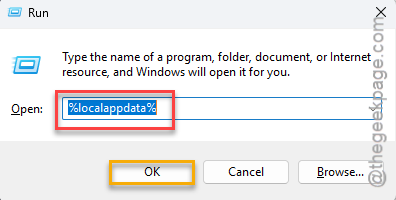
A File Explorer window opens in your hidden AppData folder.
Hidden folders are normal here. Windows tucks app settings away so nobody deletes them by accident, which is exactly what we’re about to do on purpose.
4 – Then, open BANDAI NAMCO Entertainment,
5 – Next, go this way –
ACE COMBAT 8 > Saved > Config > Windows
5 – Right-click GameUserSettings.ini and pick Delete.

6 – Launch the game. It rebuilds the file with safe defaults on the first run.
Expect the game to start in a lower resolution, and possibly in a window. Set it back to your monitor’s native resolution in Options once you’re in, then cap the frame rate like in Fix 1 before touching anything else.
Fix 3 – Turn Off Async Compute With Launch Options
This one sounds technical. But the idea is simple. What’s async compute? It lets the GPU run two kinds of work at the same time. Ace Combat 8 sometimes gets those two queues stuck waiting on each other (a deadlock), and the driver gives up. Two launch options switch it off.
1 – Open Steam and right-click ACE COMBAT 8 in your library.
2 – Click Properties.
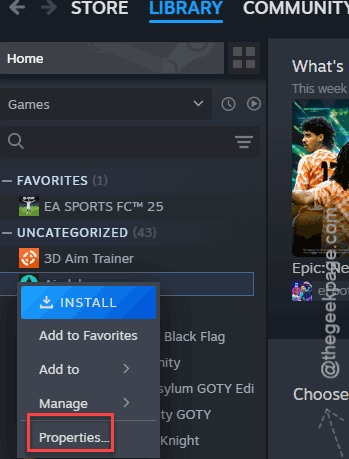
3 – On the General tab, click inside the Launch Options box.
4 – Paste this exactly:
-DisableAsyncCompute -dpcvars="r.D3D12.AllowAsyncCompute=0"

5 – Close the window and launch the game.
You might lose a few frames per second. For a prologue that actually plays, that’s a trade worth making.
Fix 4 – Verify the Game Files
A missing shader file or a damaged asset archive can throw the same error. So rule it out.
1 – At first, right-click ACE COMBAT 8 in Steam and pick Properties.
2 – Click Installed Files in the left list.
3 – Click Verify integrity of game files.
4 – Wait for the check to finish.
If it replaced anything, launch the game and let it rebuild shaders before you judge. That first load is slow on purpose.
Fix 5 – Roll Back the NVIDIA Driver to 610.74
If you’re on an NVIDIA card and the crash started after a driver update, this is the one to try. One player who finally got through the prologue did exactly this: back to driver 610.74, from July 7th, 2026 (the release from before the trouble started).
1 – Go to NVIDIA’s driver download page and search for your card.
2 – Open the older drivers list (sometimes labeled Beta and Older Drivers) and download version 610.74.
3 – Run the installer you downloaded.
4 – Pick Custom (Advanced) when it asks about the install type.
5 – Tick Perform a clean installation and click Next.
6 – Restart your PC when it finishes, then launch the game.
The install takes a few minutes and your screen may go black once or twice while it swaps drivers. Normal.
And then check the NVIDIA App’s settings so it doesn’t quietly download the newer driver again tonight. Otherwise you’ll be doing this twice.
Fix 6 – Underclock the GPU by About 500 MHz
Here’s the counterintuitive one. Your graphics card is probably fine in every other game. But this game is an accidental stress test, and it finds instability nothing else does. Even a factory overclock can be enough. Pulling the clocks down gives the card headroom. And two separate players reported it made the game playable.
You’ll need MSI Afterburner (free). It works with AMD and NVIDIA cards both.
1 – Download and install MSI Afterburner, then open it.
2 – Find the Core Clock slider and drag it down by about 500. The number next to it should read roughly minus 500.
3 – Do the same with the Memory Clock slider.
4 – Click the checkmark button to apply.
5 – Launch the game and play the prologue.
Did it work? Then creep the sliders back up by 100 at a time over later sessions until the crash returns, and settle one notch below that. Didn’t help? Click the reset button (the circular arrow) and move on. Nothing here is permanent.
Fix 7 – Raise Virtual Memory and Finish Windows Updates
Two small things, bundled because one player did both alongside the frame cap and finally got through. Virtual memory is the slice of your drive Windows uses as spare RAM. If it’s too small, a heavy cutscene can run out.
1 – Press Windows + R.
2 – Type sysdm.cpl and press Enter.
3 – Click the Advanced tab, then the Settings button under Performance.
4 – Click the Advanced tab in the new window, then Change under Virtual memory.
5 – Untick Automatically manage paging file size for all drives.
6 – Select the drive Ace Combat 8 is installed on and pick Custom size.
7 – Type 16385 for Initial size and 24576 for Maximum size.
8 – Click Set, then OK, and restart your PC.
See if this helps.
Keep It From Coming Back
- Leave the 60 FPS cap on until a patch says otherwise. The cutscenes are the weak spot, not the dogfights.
- Don’t let the NVIDIA App auto-install a driver on launch week of a big game. Wait a week.
People Also Ask
Why am I getting UE Live Error in Ace Combat 8?
UE Live Error 01 is Unreal Engine’s crash message, and here it usually means your graphics driver gave out under load. The intro cutscene is the trigger.