Some of the Xbox users have seen this 0x87e0000f error code while downloading games via Xbox game pass. This particular error code and message only appears while downloading games via the Xbox app on Windows. These are only solutions that you will need to counter this problem on your computer.
Fix 1 – Repair or reset the Xbox app
You can repair or reset the Xbox application on your Windows, because this error is directly linked to the Xbox.
Step 1 – Start the process by loading up the Win+I buttons together.
Step 2 – Later, reach the “Apps” tab. Load up the “Installed Apps” module.
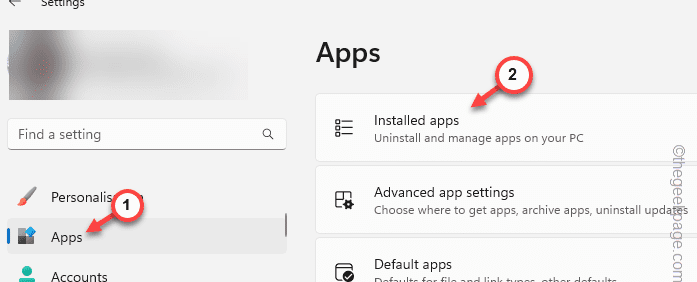
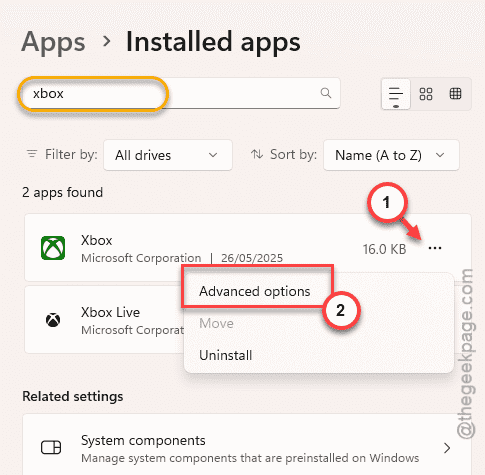
Step 3 – Find the “Xbox” app using the search box.
Step 4 – Next, right-click the “Advanced options” and load up the Xbox module.
Step 5 – Later, use the “Repair” option to make an attempt to fix the problem.
Step 6 – But, if repairing the Xbox app doesn’t solve the problem, you have to use the “Reset” to reset the Xbox app.
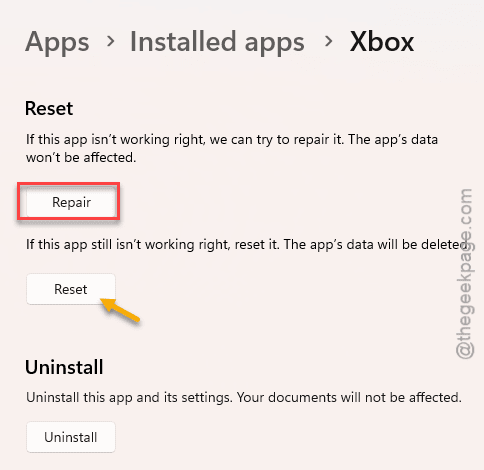
After resetting the Xbox app, try to install that game again. You won’t get the 0x87e0000f problem again.
Fix 2 – Retry downloading the games
Some users have suggested sticking to the game downloading process. You have to brute-force the download. If you are encountering this error code, cancel the download and restart it once more. Do this for twice or thrice, and then finally, you can install the game completely.
Fix 3 – Use the Gaming Services Repair tool
There is a services repair tool in the Xbox tool to repair your Xbox app.
Step 1 – Open up the Xbox app on your computer.
Step 2 – In the Xbox console, tap your profile photo on the right-top corner.
Step 3 – Then, tap to load up the Xbox settings console. Tap the “Support” option.
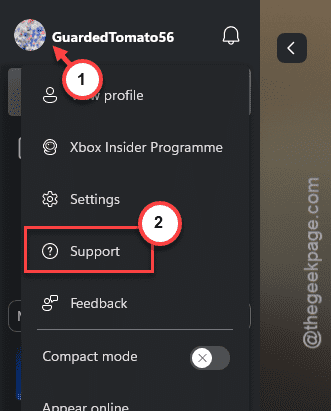
Step 4 – In the Xbox Support page, tap to use the “Gaming Services Repair Tool” to repair the gaming services.
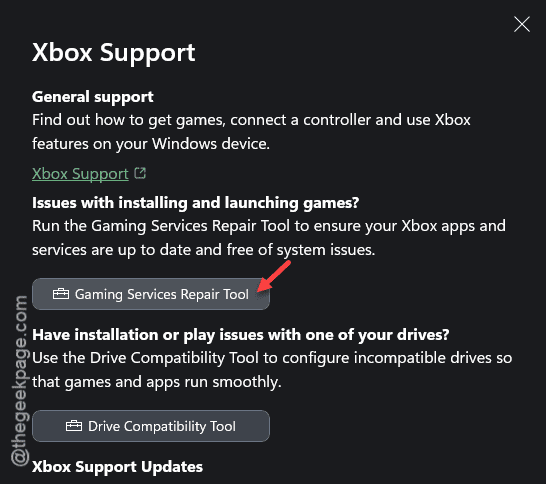
The Gaming Services Repair tool will scan the system for any fault and fix it accordingly. This way, you won’t face the error code 0x87e0000f again.
Fix 4 – Re-register the apps
Use the PowerShell terminal to re-register your apps.
Step 1 – Search for the “PowerShell” from the search box.
Step 2 – Next, right-click the “Windows PowerShell” and tap “Run as administrator“.
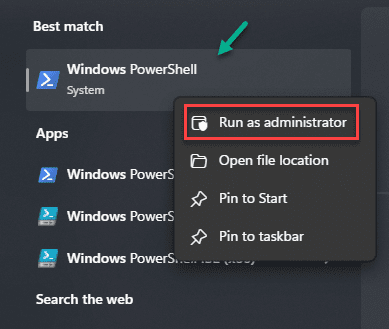
Step 3 – Paste these command one at a time and press Enter to execute both the codes.
Get-AppXPackage WindowsStore -AllUsers | Foreach {Add-AppxPackage -DisableDevelopmentMode -Register “$($_.InstallLocation)\AppXManifest.xml”}
Get-AppXPackage | Foreach {Add-AppxPackage -DisableDevelopmentMode -Register “$($_.InstallLocation)\AppXManifest.xml”}
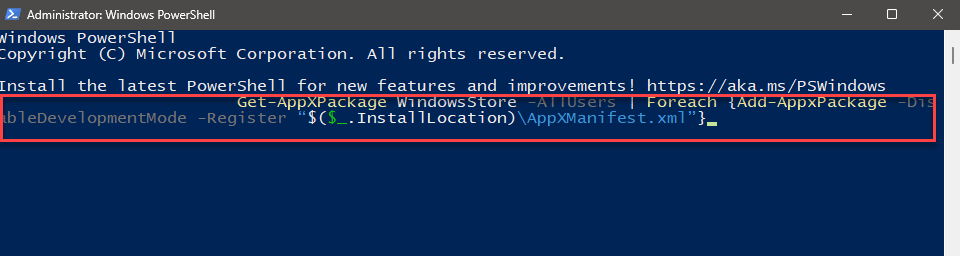
After passing these two commands, close the PowerShell and restart the machine.
Try to reinstall the games now.
Fix 5 – Reset the Microsoft Store cache
Resetting the Microsoft Store cache should help you resolve this problem, provided this was originating from the corruption in the Microsoft Store console.
Step 1 – Tap the Windows button once.
Step 2 – Then, search for the “wsreset” from the search bar.
Step 3 – Tap the “wsreset.exe” run command from the search results to run the command.
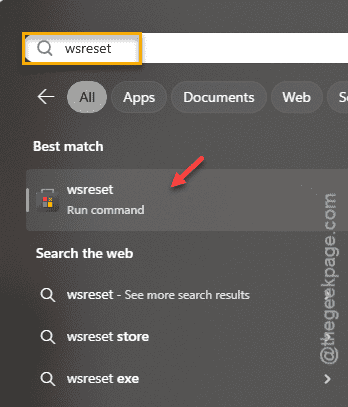
This action does clear up the stored Microsoft Store cache on your device.
Later, try downloading the same game on your device.
NOTE – Possible corruptions in the game files on your local drive may lead to this problem. So, if you are getting frequent loss of network, or pausing the downloading process or any other reasons, cancel the whole installation process and redo it afresh. Try to install the game at one go, without hindering it in any way. This is the only sure shot way of getting rid of the 0x87e0000f error.