Whenever you play any Microsoft Store games on your PC, it saves all the game progress that you have made are accomplished in the Xbox cloud. So, if the Xbox PC cloud data is not syncing for the games, it can be annoying for you. The game save data is the progress that you have made in the game. In the worst case scenario, you may have to start from the beginning again unless you fix this cloud data synchronization issue first.
Fix 1 – Kill the Gaming Services executable and retry
The gaming services are an essential component to run the games from game pass are you a purchase directly from Microsoft Store or Xbox. But the same executable can cause problem sometimes.
Step 1 – Load up the Task Manager utility. To do that, right-click the Windows icon and tap the Task Manager option to load it up.
Within a few seconds, you will see the Task Manager console has opened up.
Step 2 – Then, go to the Details tab. Find the gamingservices.exe process in there.
Step 3 – Right-click the same process and tap End task to kill the process.
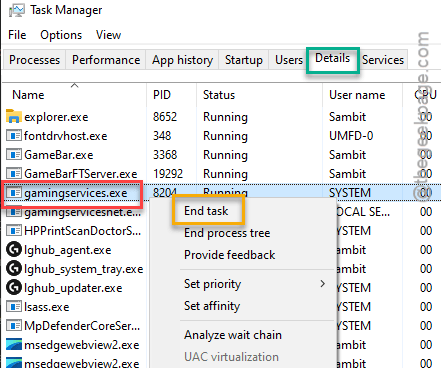
Wait for a few seconds. Gaming services executable process will show up in the same Details tab of the Task Manager page.
It is important that gamingservices.exe subprocess restarts automatically.
Step 4 – If you can’t see gaming services executable, close Task Manager. Then, relaunch the Task Manager console once again.
Step 5 – Go to the Details tab and check whether the gamingservices.exe subprocess has surfaced there or not.
Later, go to the Xbox app and relaunch the same application in there.
Fix 2 – Run the Gaming Services Repair tool
If killing the gaming services executable is not working, you must use the gaming services repair tool to fix the issue.
Step 1 – Launch the Xbox app on your system.
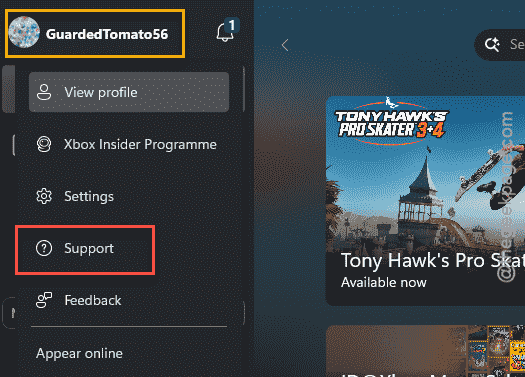
Step 2 – In the Xbox application, locate your Xbox profile in the app. Click that on the Xbox app.
Step 3 – Tap the Support option to load up the Xbox Support page.
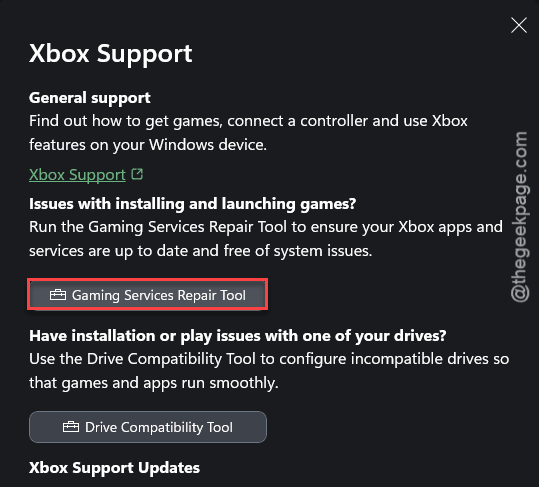
Step 4 – In the Xbox Support page, find and run the Gaming Services Repair tool.
Step 5 – Tap the Start Repairing to initiate the repairing process.
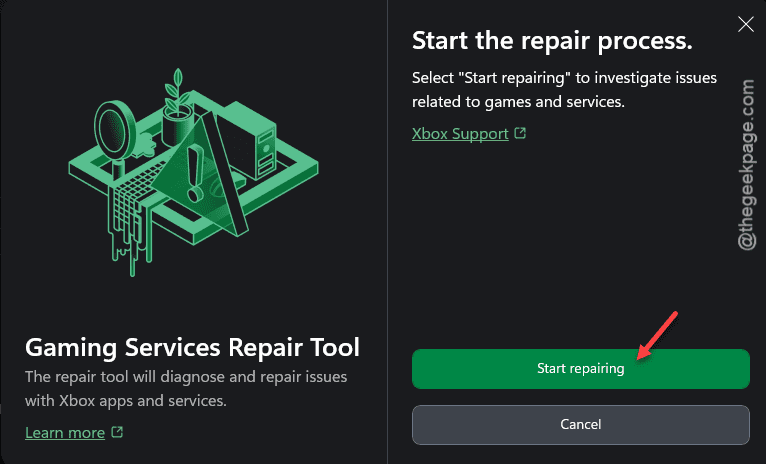
Give it a few seconds. It will scan for some activity and restart a few services.
Fix 3 – Make sure the Xbox services are running
The cloud synchronization process needs several Xbox services to work properly. These services must be running automatically in that case.
Step 1 – Press the Win+R buttons at once.
Step 2 – Type the services.msc and click OK.
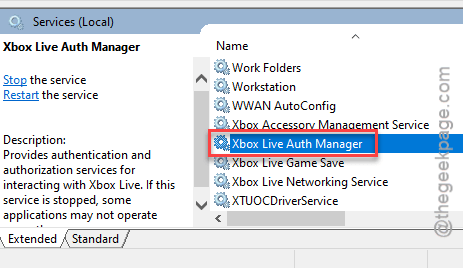
Step 3 – In the Services window, locate the Xbox Live Auth Manager service. Double-tap the service to load it up.
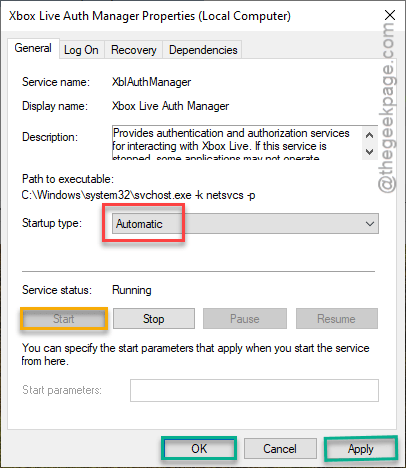
Step 4 – Set this particular ‘Startup type:’ to Automatic module. Tap the Start button to start the service.
Step 5 – Next, you may use the Apply and OK to save the changes in the services.
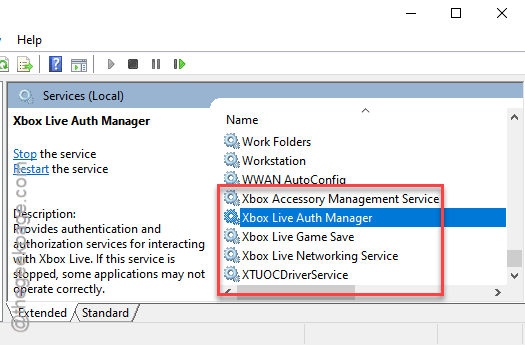
Step 6 – Now, you must follow the same steps on these services and make them to automate it.
Xbox Live Game Save
Xbox Accessory Management Service
Xbox Live Networking Service
After this, close the Services panel. Then, retry playing the Xbox game and check if this works.
Fix 4 – Sign out and sign in to the Store, Xbox
Make sure that you are using the same accounts across the Microsoft Store and the Xbox app.
Step 1 – Open up the Microsoft Store.
Step 2 – Then, find the profile icon on the top of the MS Store. Then, tap the Sign out to sign out from your account.
Step 3 – Wait for a few seconds and tap the profile icon. Tap the Sign in option there to sign in to your account.
Step 4 – Now, make sure to log in with the correct Microsoft account.
Step 5 – Then, proceed to the Xbox app.
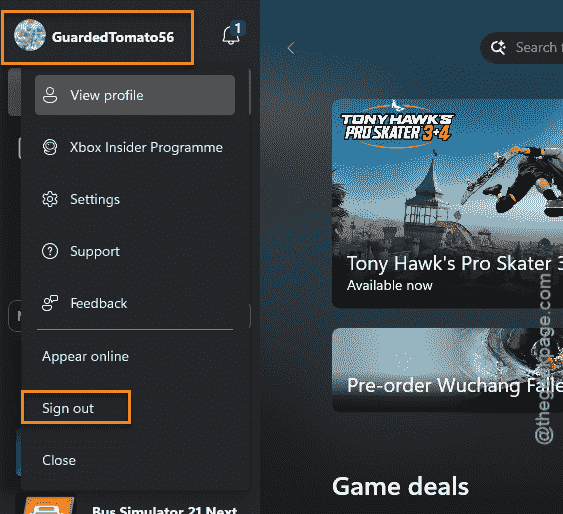
Step 6 – Check which account you are using there. Tap the profile icon on the Xbox and use the Sign out option there.
Step 7 – Once you have logged out of there, tap the Sign in option to sign in using the Microsoft account credentials.
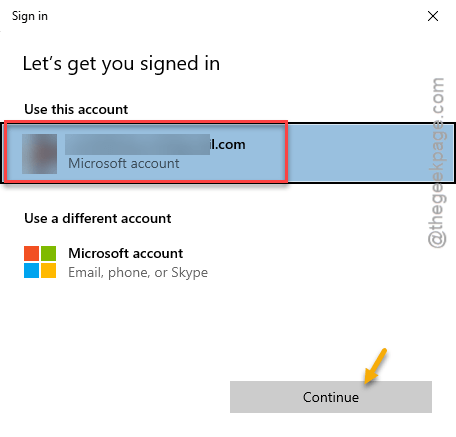
Step 8 – It will show up the Microsoft account that you have logged in with before. If you have multiple MS accounts logged into the device, select the one that is associated to the game pass, or you have used to play before. Tap Continue to proceed and complete the log in process.
This will solve the synchronization issue with the Xbox app.