The File Explorer update on the Windows 11 offers a unique drop-down feature to view the recently visited file paths. But, what if the drop-down section starts to stick in the File Explorer. It can be quite distracting and annoying for the users. This otherwise beneficial addition can quickly become a point of headache if you have to use the address bar on a regular basis. But, don’t worry. You can counter this problem using the following fixes on your machine.
Fix 1 – Modify the Explorer registry
The definite solution that is going to fix this problem on your machine is to edit the Explorer-related registry.
NOTE – Keep a backup of your system registry before proceeding to the main steps of editing the system. Wondering how to do that? Follow the steps mentioned here.
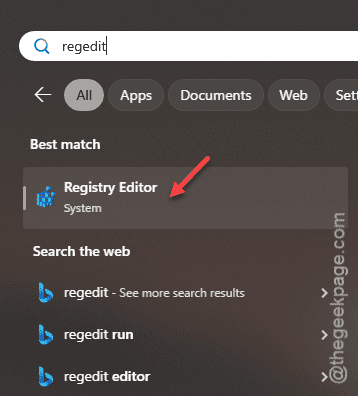
Step 1 – Start the search for “regedit” from the search box.
Step 2 – Next, open up the “Registry Editor” to load up the console.
Step 3 – Get to the following address in the Registry Editor –
Computer\HKEY_CURRENT_USER\SOFTWARE\Microsoft\Windows\CurrentVersion\Explorer
Step 4 – Look for the “AutoComplete” key in there. If you don’t see the key there, you have to create that.
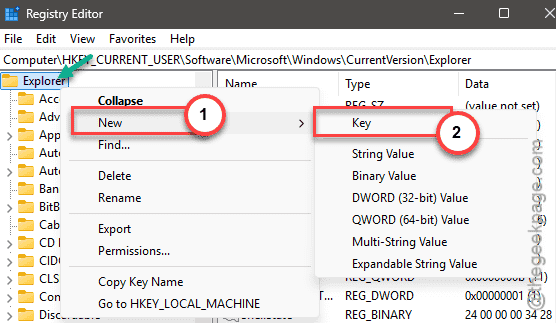
Step 5 – So, right-click the “Explorer” key and tap “New>” and “Key” to create the new key.
Step 6 – Name the key “AutoComplete“.
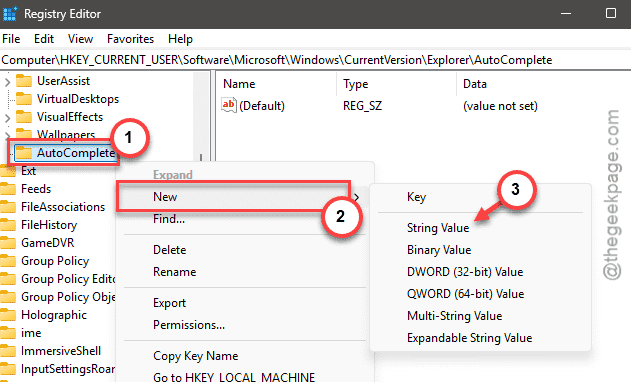
Step 7 – Now, you must create a new string value in there. So, right-click the “AutoComplete” and then tap “New>String Value” to create the value.
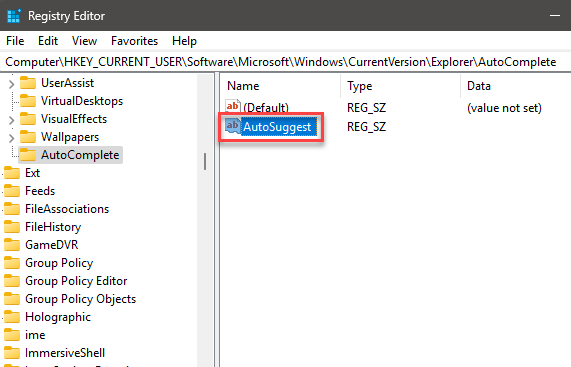
Step 8 – Name the value “AutoSuggest“.
Step 9 – Double-tap the same value.
Step 10 – Set the value to “No” and click “OK“.
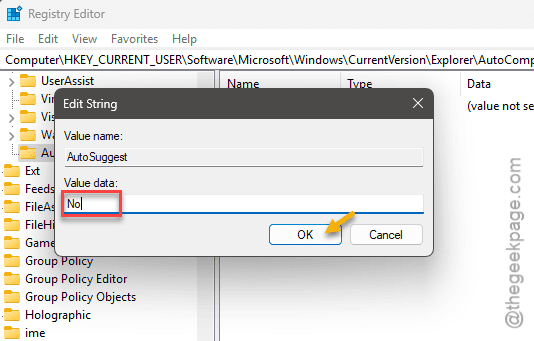
After changing the value in the Registry Editor, close everything and restart the system.
Fix 2 – Clear the address bar history from registry
The stuck drop-down panel in the File Explorer only shows up the file path history on the File Explorer.
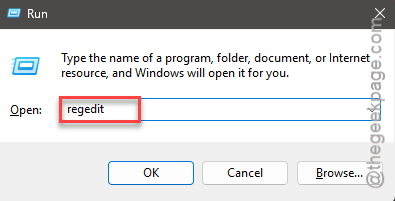
Step 1 – Hold the Win+R keys together.
Step 2 – Type this there and hit Enter.
regedit
Step 3 – Then, navigate to this point –
Computer\HKEY_CURRENT_USER\SOFTWARE\Microsoft\Windows\CurrentVersion\Explorer\TypedPaths
Step 4 – On the right-hand side, you shall find several URLs.
Step 5 – You have to delete all the URLs from the right-hand side.
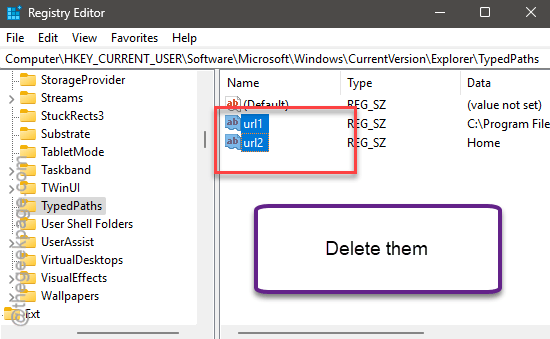
After deleting all the url files, you may close the Registry Editor. Do restart your system once.
Fix 3 – Hide the pop-up description for folder
According to some user reports, the Pop-up description that shows up around a folder has caused this problem.
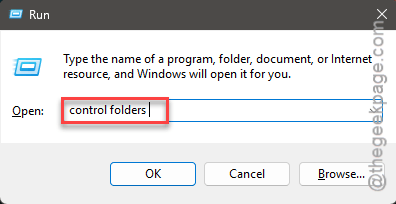
Step 1 – Hold the Win+R buttons briefly.
Step 2 – Then, type this and click “OK“.
control folders
Step 3 – Reach the “View” mode.
Step 4 – Uncheck the “Show pop-up description for folder and desktop items” option.
Step 5 – Save the changes.
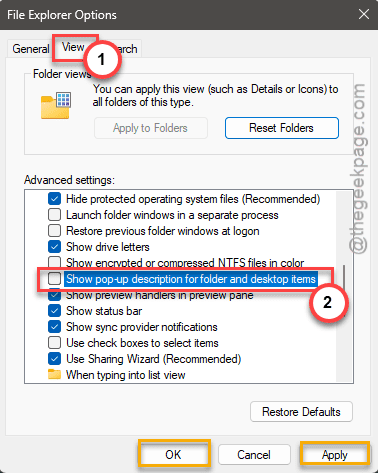
Close the File Explorer and launch it again. Try to use the address bar in the File Explorer. See if this works!
Fix 4 – Remove the file path
You can manually remove the file paths from the address bar to stop the drop-down from appearing upon using the File Explorer.
Step 1 – Tap the address bar of the File Explorer.
Step 2 – When you see the file path hovering on the address bar to select it.
Step 3 – Delete the file path from there. Tap the Esc button to quit it.
Step 4 – This way, delete all the file paths from there.
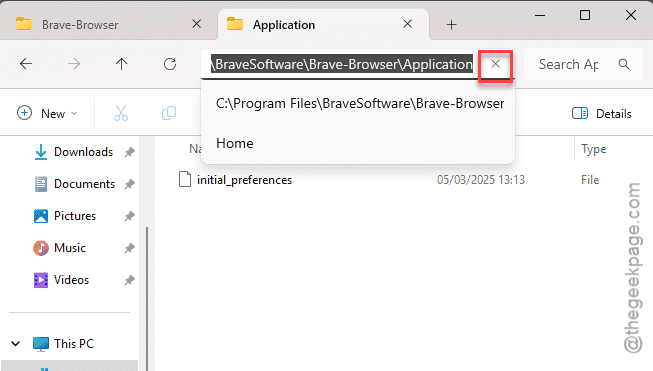
After deleting the entire file path history, the same address bar drop-down won’t get stuck into your File Explorer view.
But, you have to remember that is just a temporary workaround that solves the problem briefly. Once you have opened multiple files in multiple locations on your drive, the same hovering address bar will start appearing on the File Explorer tabs.
See if this helps!