You open the Xbox App. Library tab. Empty. Or missing the games you bought. Or showing a few but not the ones you actually want to play. The collection you spent real money on — gone. Apparently. Game Pass titles missing too. So weird.
Why This Happens
Gaming Services is the usual suspect. It’s a hidden Windows component that brokers everything between Xbox App, Microsoft Store, and your purchases. When it breaks? Library goes blank. Even though everything is fine on Microsoft’s side.
Account mismatches do this too. If your Microsoft Store and Xbox App are signed in with different accounts, the Xbox App pulls licenses for the wrong one. So your library shows up empty. Or only partial.
And there’s a license type thing nobody mentions. Console-only purchases don’t show up on PC. Ever. Only Xbox Play Anywhere titles include both console and PC licenses. Most older console games are console-only. So if you bought Halo MCC on Xbox 360 in 2014? It probably doesn’t show on PC. Not a bug.
On top of that, broken Windows services (Xbox Live, IP Helper, Microsoft Store Install Service) can stop the library from loading. And nobody tells you which service.
Fix 1 – Sync Microsoft Store and Xbox App Accounts
Quickest check. The two apps need to be on the exact same Microsoft account. Sign-in mismatch is the #1 cause of empty library.
1 – Open the Microsoft Store.
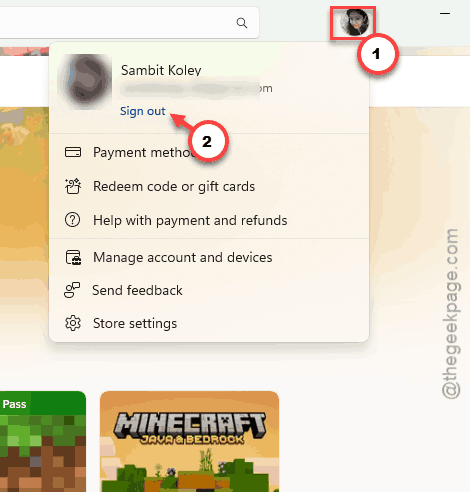
2 – Click your profile picture in the top-right.
3 – Click Sign out.
4 – Open the Xbox App.
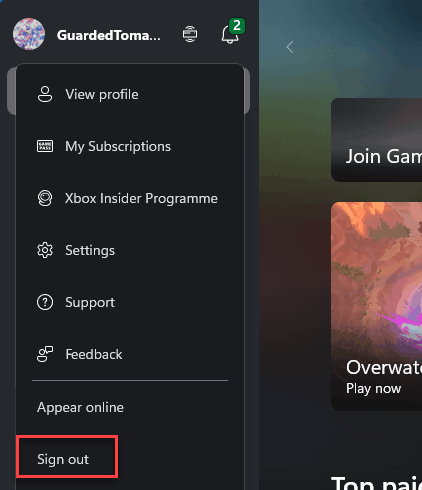
5 – Click your profile picture in the top-left. Click Sign out.
6 – Now go back to the Microsoft Store first. Sign in with the account that owns the games or has the active Game Pass.
7 – Then go to the Xbox App. Sign in with the same account.
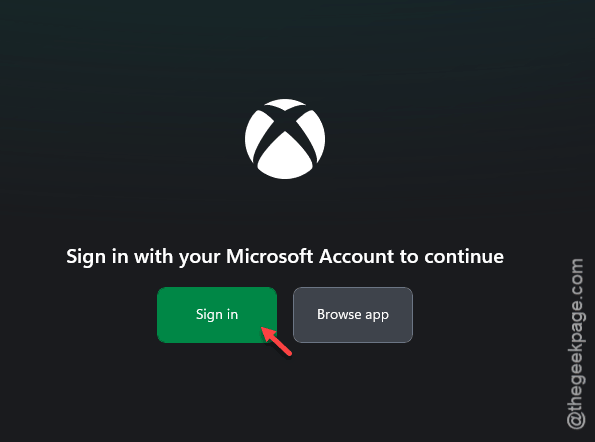
Order matters. Store first. Xbox App second. Otherwise license sync gets confused.
Fix 2 – Run the Gaming Services Repair Tool
Microsoft built a tool specifically for this. It runs through the common Gaming Services failures and fixes them. Worth trying before any of the manual stuff.
1 – Open the Xbox App.
2 – Click your profile picture in the top-left.
3 – Click Support.
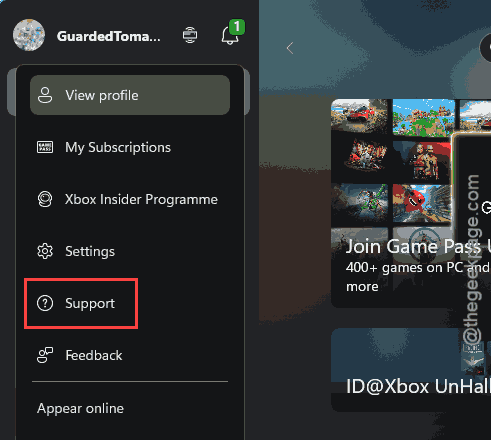
4 – Look for Gaming Services Repair Tool. Click it.
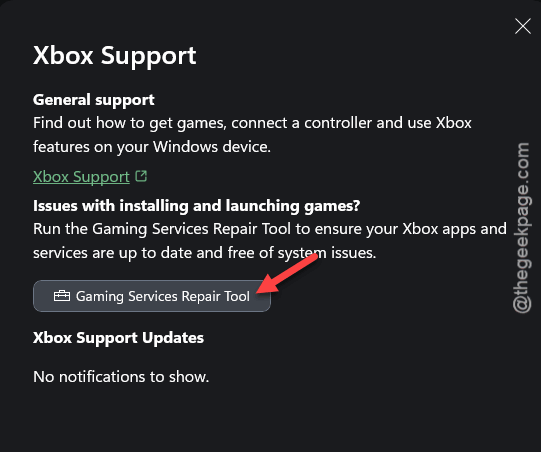
5 – Let it run. Takes a few minutes. Don’t close the Xbox App while it’s running.
6 – Restart your PC when it finishes.
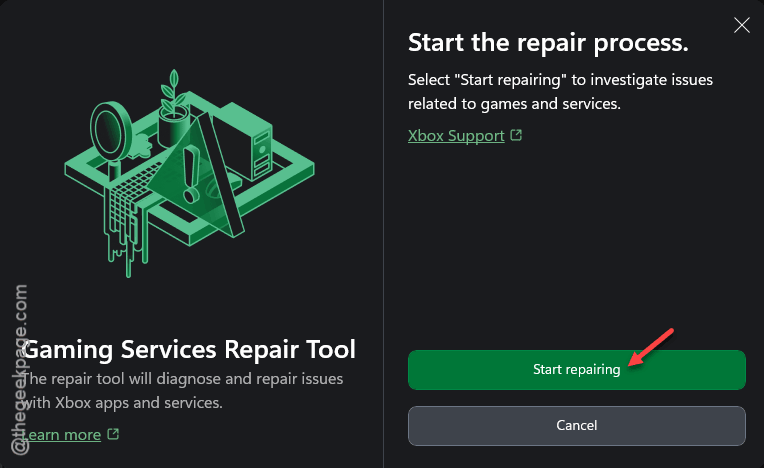
Can’t find the tool inside the Xbox App? Search Gaming Services Repair Tool on Microsoft’s official Xbox support page. Download the standalone .exe. Run it. Same result.
Fix 3 – Re-Register Gaming Services Manually
Repair tool didn’t fix it? Time to nuke Gaming Services and reinstall it from scratch. PowerShell required.
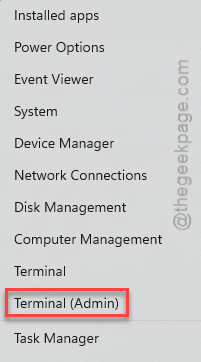
1 – Press Windows + X and click Terminal (Admin). Click Yes on the UAC prompt.
2 – Make sure you’re on PowerShell (not Command Prompt). Use the dropdown at the top to switch if needed.
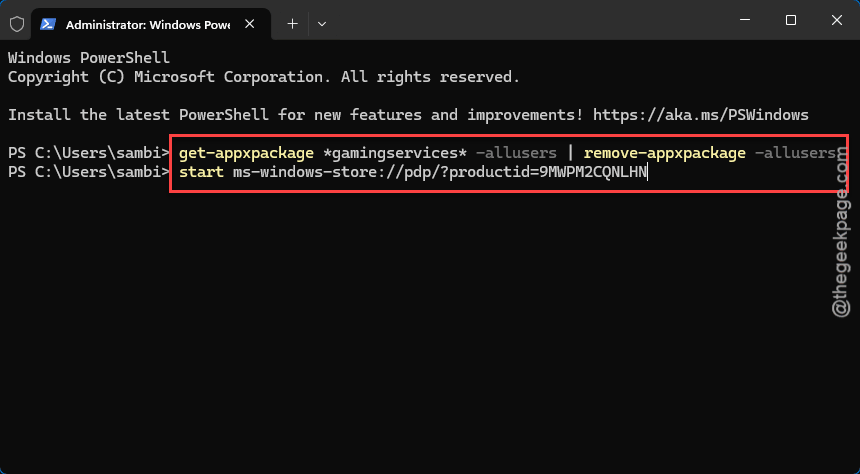
3 – Paste this and press Enter:
get-appxpackage *gamingservices* -allusers | remove-appxpackage -allusers
4 – Wait until it finishes. A few seconds usually.
5 – Now run this to open the Store page for Gaming Services:
start ms-windows-store://pdp/?productid=9MWPM2CQNLHN
6 – In the Store, click Install.
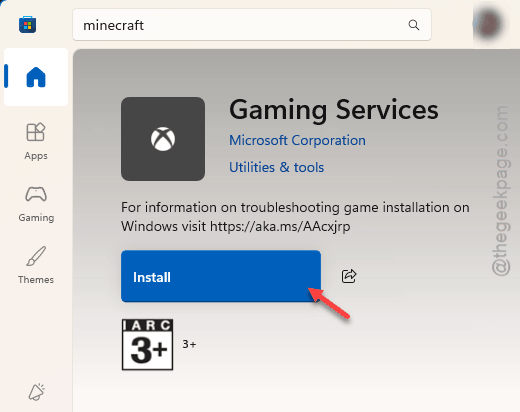
7 – Restart your PC. Not optional.
Open Xbox App. Library should populate now.
Fix 4 – Restart the Required Windows Services
Several Windows services have to be running for Xbox library to load properly. If any are stopped or set to manual? Library breaks.
1 – Press Windows + R to open the Run box.
2 – Type services.msc and press Enter.
3 – In the Services window, find each of these. They’re in alphabetical order:
-
IP Helper -
Xbox Live Auth Manager -
Xbox Live Game Save -
Xbox Live Networking Service -
Xbox Accessory Management Service -
Microsoft Store Install Service -
Windows Update -
Gaming Services
4 – For each one, double-click each of the service.
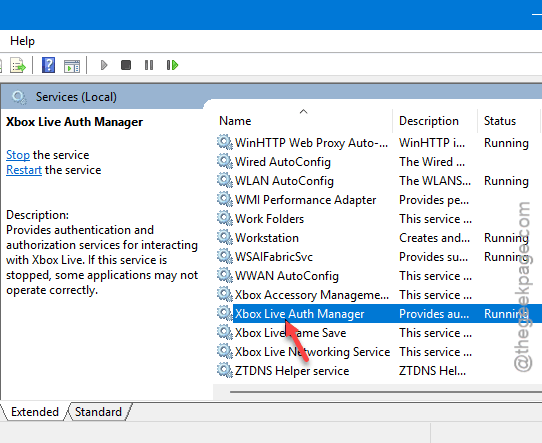
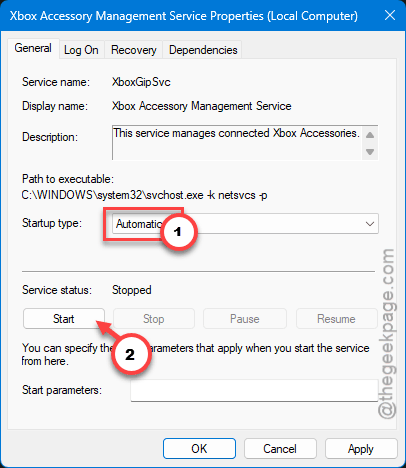
5 – Set Startup type to Automatic.
6 – Click Start if the service status is stopped.
7 – Click OK.
For Gaming Services specifically, if it shows as already running, right-click it, click Stop, then right-click again and click Start. Forces a clean restart.
Restart your PC after. Then check the Xbox App.
Fix 5 – Check the Microsoft Store Library Directly
Sometimes the Xbox App library is broken but the Store library shows everything. If your games are visible in Store, you can launch them from there as a workaround. While you sort out the Xbox App.
1 – Open the Microsoft Store.
2 – Click Library at the bottom-left.
3 – At the top, filter for Games.
4 – If your games show up here? They’re not actually missing. The Xbox App just can’t see them. Click any game to Install or Open directly from the Store.
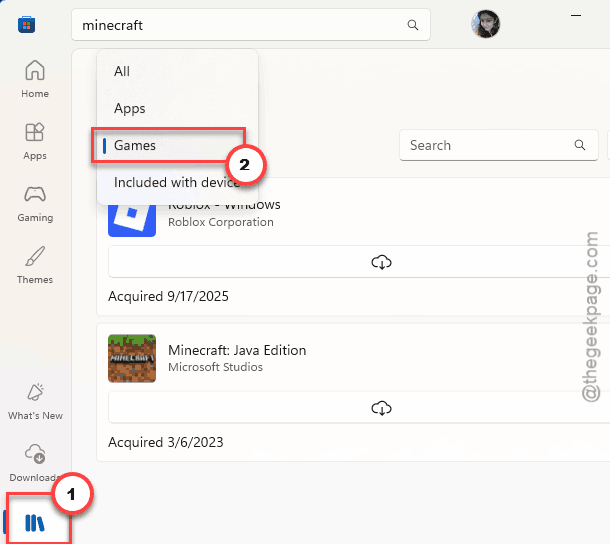
5 – Games still missing here too? Sign-in is on the wrong account. Go back to Fix 1.
Fix 6 – Re-Register All Windows Apps
Nuclear option for Windows-side problems. Re-registers every UWP app on your system. Takes 5-10 minutes. Fixes a lot of weird Windows app issues including missing Xbox library.
⚠️ This affects every Microsoft Store app on your PC. Don’t run it casually.
1 – Press Windows + X, click Terminal (Admin).
2 – Switch to PowerShell mode if you’re not there.
3 – Paste this entire command in one go:
Get-AppxPackage -AllUsers | Foreach {Add-AppxPackage -DisableDevelopmentMode -Register "$($_.InstallLocation)\AppXManifest.xml"}
4 – Press Enter. Wait. You’ll see a wall of text scrolling. Some red errors are normal — they mean an app was already registered or doesn’t need re-registering.
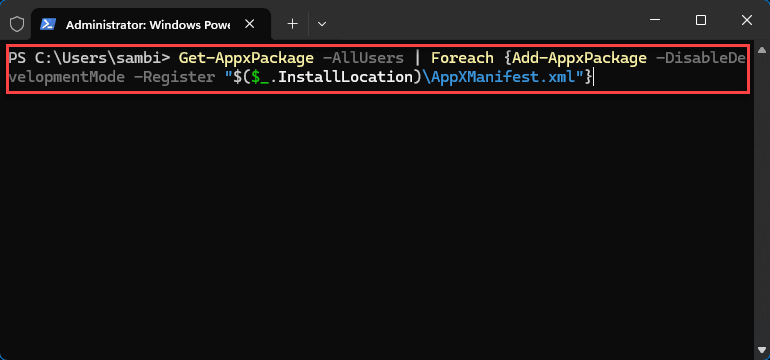
5 – When the prompt returns to a clean line, it’s done.
6 – Restart your PC.
Open Xbox App. Sign in. Library should be back.
Fix 7 – Check If the Game Is Xbox Play Anywhere
Important reality check. Not every game you bought on Xbox console works on PC. And vice versa.
Only games marked as Xbox Play Anywhere include both console AND PC licenses. Older Xbox 360, Xbox One titles? Almost always console-only. They will never appear in the Xbox App on PC, no matter what you fix.
To check what’s Play Anywhere:
1 – Open a browser. Go to Xbox Play Anywhere page.
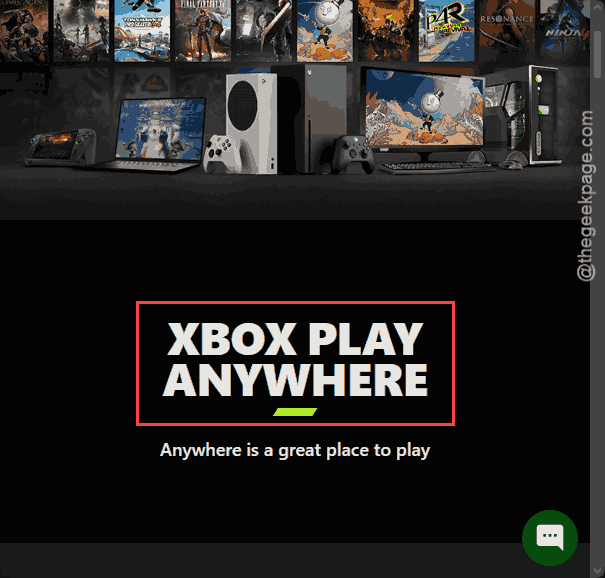
2 – Search the list for your game.
3 – Not on the list? It doesn’t have a PC license. Sorry.
Microsoft-published Xbox games tend to be Play Anywhere. Third-party games usually aren’t. The branding gets confusing — “Xbox” is a platform name on PC too. Different licenses though.
How to Prevent This
- Use the same Microsoft account on Xbox App and Microsoft Store. Forever. Sign-in mismatches are the #1 cause of missing library.
- Leave Gaming Services and the Xbox-related Windows services on Automatic startup. Manual startup means they sometimes don’t run. And the library breaks.
- Restart your PC after Windows updates. Especially big cumulative ones. Gaming Services often needs the reboot to register properly.
- Check the Play Anywhere list before getting upset about missing games. Sometimes the library is fine — the game just doesn’t have a PC license.
People Also Ask
How to fix Xbox games not showing up?
Start with sign-in. Make sure Microsoft Store and Xbox App use the same account. Sign in to Store first, then Xbox App. If still missing, run the Gaming Services Repair Tool from inside Xbox App > profile icon > Support. Restart afterward. Fixes most cases.
How to get the Xbox app to recognize installed games?
Re-register Gaming Services. Open Terminal as admin, switch to PowerShell, run: get-appxpackage *gamingservices* -allusers | remove-appxpackage -allusers. Then reinstall it from the Store. Restart. The Xbox App rebuilds its install cache and finds your games again.
Where have all my Xbox games gone?
Check three things. One — same account on Store and Xbox App. Two — Gaming Services running. Three — are the games actually licensed for PC? Console-only purchases never show on PC. Only Xbox Play Anywhere titles include the PC license. Check xbox.com/games/xbox-play-anywhere.