Having some problem playing games directly from the Game Pass for PC? The games that are available on the game pass at all accessible for the active Game Pass users. This should not be any limiting factor that restricts you from playing any of the games available on the game pass. Don’t worry. Just connect the solutions on a system, and you can enjoy the games from the game pass in no time.
Fix 1 – Stop the license manager
The license manager seems to be causing this issue on your system.
Step 1 – At first, search for CMD from the search box. Then, right-click the Command Prompt in the search results and tap, Run as Administrator option.
Step 2 – When the command prompt window opens up, paste this command and hit the Enter key.
sc.exe stop licensemanager
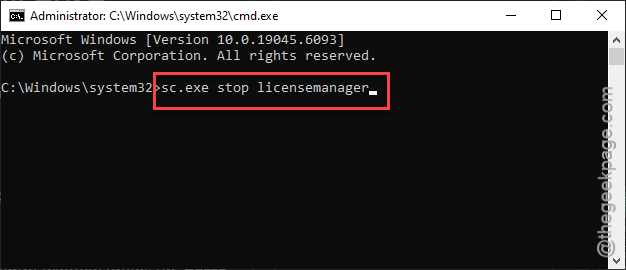
Close the Command Prompt window. Then try to launch the game again. This should take care of the problem.
Fix 2 – Synchronize the clock on Windows automatically
Wrong time, date and timezone settings may lead to this problem where you can’t launch any of the games from the game pass on PC.
Step 1 – Open up the windows Settings and go to the Time and Language settings.
Step 2 – Go to the Date and time tab from the left pane. Then switch the Set time automatically toggle to On mode.
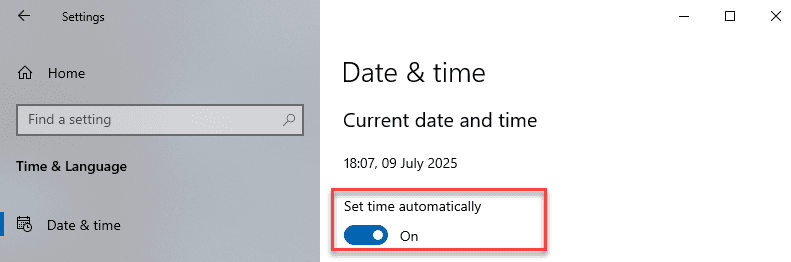
Step 3 (Optional) – now, you should change the Set time zone automatically toggle to On mode as well.
Later, close the settings page and relaunch the game from the Xbox app or directly. Check if this works.
Fix 3 – Repair the game file
if you are experiencing this problem with a single game, there must be some problem with the game files that is causing this problem.
Step 1 – Open up the Xbox client on your system. Then, go to My Library section.
Step 2 – Find the game that you are having this problem with in there. Next, right-click the game and tap Manage.
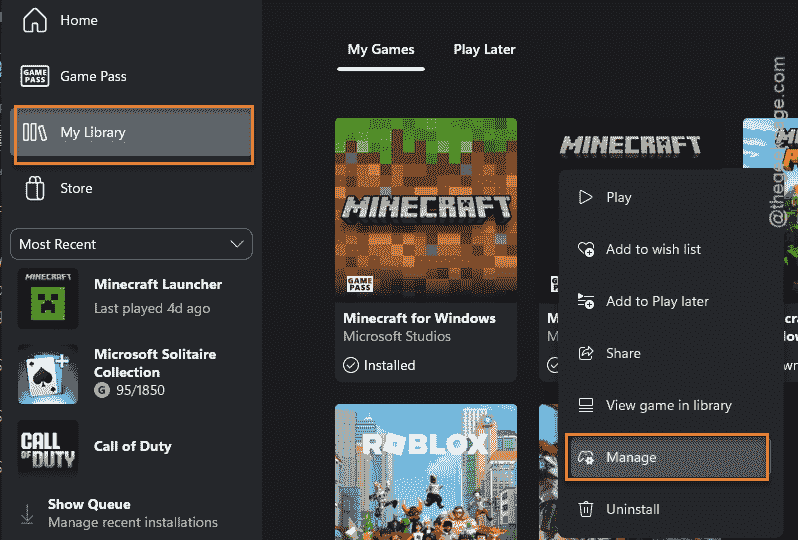
Step 3 – Finally, go to the Files tab and use the Verify and repair option to run an integrity check.
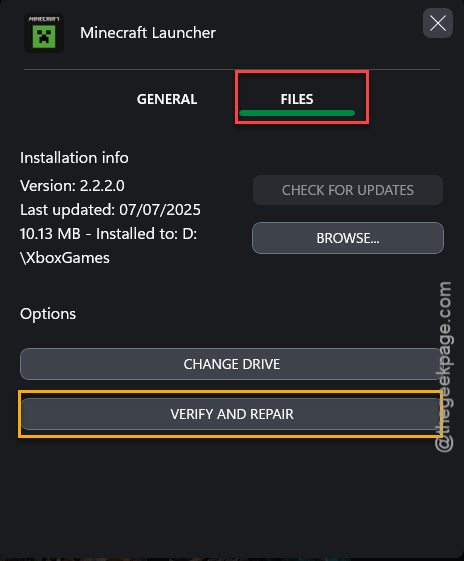
Allow sometimes for the Xbox to scan and repair any missing files. Then, give it another go.
Fix 4 – Automate Xbox related services
Some of the Xbox services essential for the games from the game pass to function properly on your system.
Step 1 – Look for the services from the search box and open up the Services utility.
Step 2 – Locate these services –
IP Helper
Gaming Services
Xbox Live Auth Manager
Xbox Live Game Save
Xbox Live Networking Service
Step 3 – You must execute the following steps to automate these services and start them, if they have not started yet.
Step 4 – Double-tap one of the mentioned service to load its properties page.
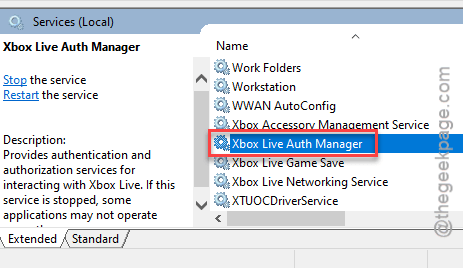
Step 5 – Simply, switch the Startup type to Automatic mode.
Step 6 – Start the service.
Step 7 – Save the changes.
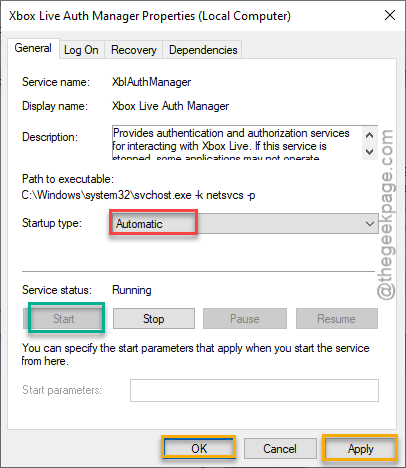
Step 8 – Repeat these three steps to automate the aforementioned services.
Once you have saved these changes, you can change the services tab. Check if this works out.