You set your install drive to D:. Or E:. Or whatever. The Xbox App says “OK.” Then it installs the game on C: anyway. Or worse — the dropdown to pick a drive is grayed out. No options.
And your SSD is filling up fast. Annoying.
Why This Happens
Short version: the Xbox App is fussy about drive permissions. And drive formats. And whether Windows itself “approves” of the drive for app installs.
Game Pass installs use protected folders called WindowsApps. Those folders only work on NTFS-formatted drives. If your secondary drive is exFAT — common on external drives or drives that came preformatted — the Xbox App can’t install there. So it silently falls back to C:. No error. No warning.
There’s also a permissions thing. Sometimes the WindowsApps folder on your target drive ends up with corrupted security entries. The Xbox App tries to write there, hits the bad permission, and quietly defaults back to C:.
And there’s a chicken-and-egg problem. Windows needs to know that drive can hold app installs before the dropdown will show it. But it only registers that fact after the first successful install. So the dropdown stays empty until you trick it.
Most of these have quick fixes. Start with Fix 1.
Fix 1 – Set the Drive in Xbox App Settings
Easy first step. The Xbox App has its own install location dropdown. Sometimes it just hasn’t been set.
1 – Open the Xbox App.
2 – Click your profile picture in the top-left, then click Settings.
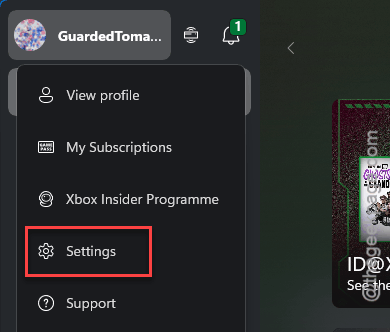
3 – Click Install Options in the left sidebar.
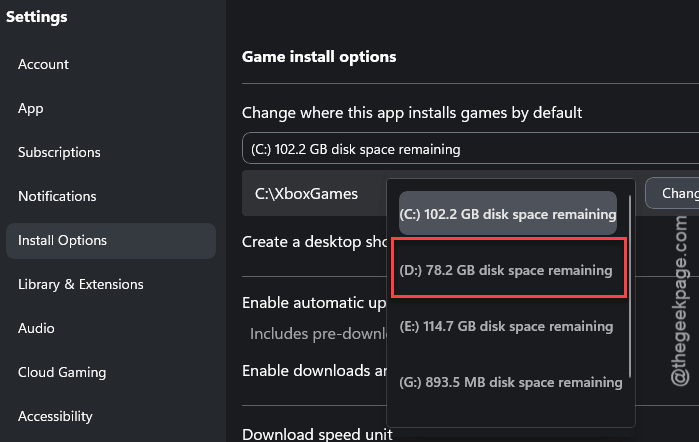
4 – Under Game install options, click the dropdown.
5 – Pick your desired drive.
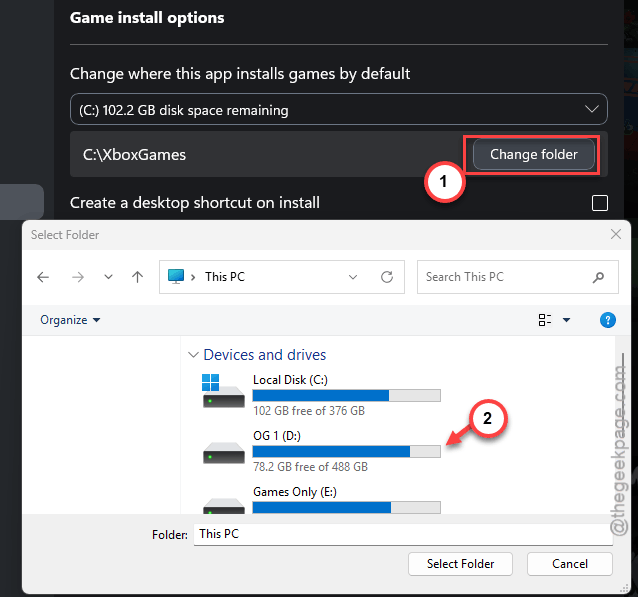
6 – Click Change folder if you want a specific folder, not the drive root.
7 – Click Apply. Close and reopen the Xbox App.
Drive missing from the dropdown? Skip to Fix 5. That’s the workaround for the chicken-and-egg problem.
Fix 2 – Set the Windows Default Save Location Too
Even after you set Xbox App’s install drive, Windows might keep saving new apps to C: by default. The two settings need to match.
1 – Press Windows + I to open Settings.
2 – Click System in the left sidebar.
3 – Click Storage.
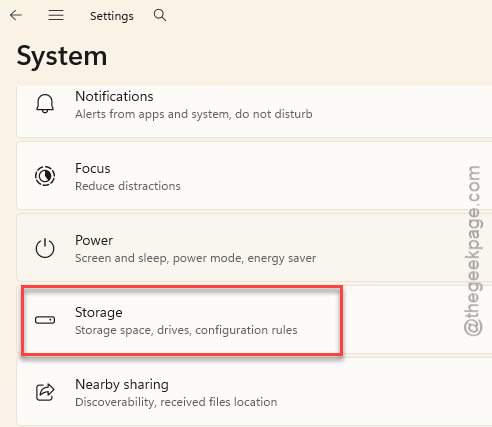
4 – Scroll down to Advanced storage settings. Click it.
5 – Click Where new content is saved.
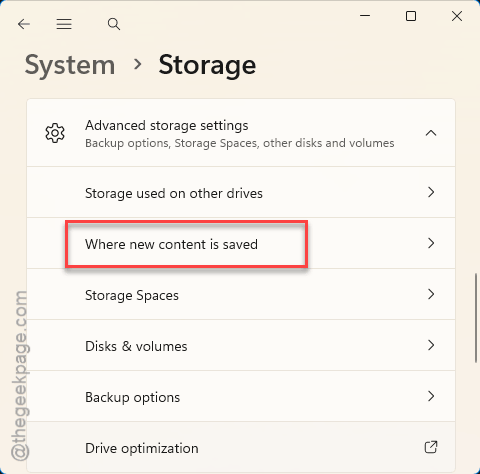
6 – Change New apps will save to to your target drive.
7 – Click Apply.
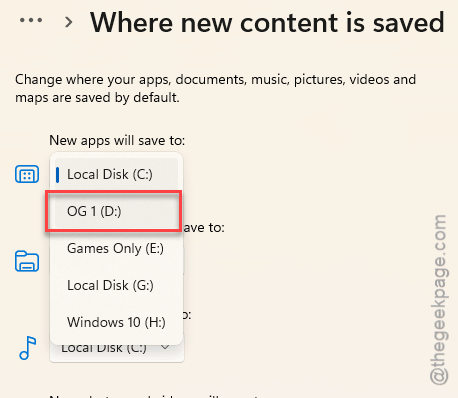
Now both layers agree. The Xbox App should respect the drive.
Fix 3 – Make Sure the Drive Is NTFS, Not exFAT
Common one. exFAT drives can’t hold WindowsApps installs. Period. Doesn’t matter what you set in the Xbox App.
1 – Open File Explorer.
2 – Click This PC in the left sidebar.
3 – Right-click your target drive (e.g. D: or E:).
4 – Click Properties.
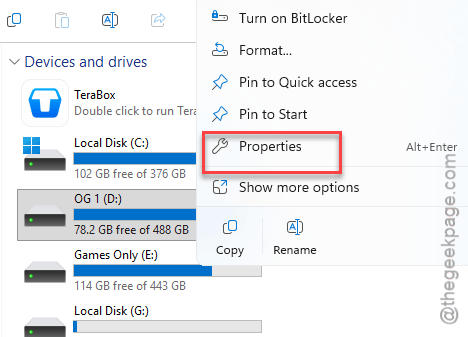
5 – Look at File system. If it says NTFS, you’re good — go back to Fix 1. If it says exFAT or FAT32, you need to reformat.
⚠️ Reformatting wipes everything on the drive. Move your data off first. Cannot stress this enough.
To reformat:
6 – Move all data off the drive to somewhere safe.
7 – Right-click the drive in File Explorer. Click Format.
8 – Set File system to NTFS.
9 – Click Start. Confirm the warning.
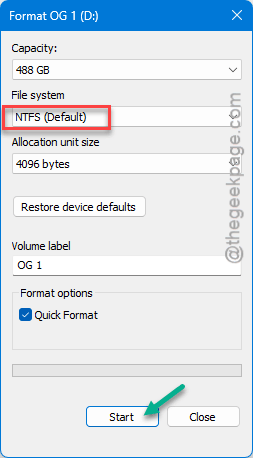
Once done, copy your data back. Now Xbox App can install there.
Fix 4 – Repair Corrupted WindowsApps Permissions
Trickiest fix. Worth it if Fixes 1-3 didn’t help. Corrupted security entries on WindowsApps will silently break Xbox installs to that drive.
1 – Open File Explorer. Go to your target drive (e.g. F:\).
2 – You may need to enable Show hidden items from the View menu to see WindowsApps.
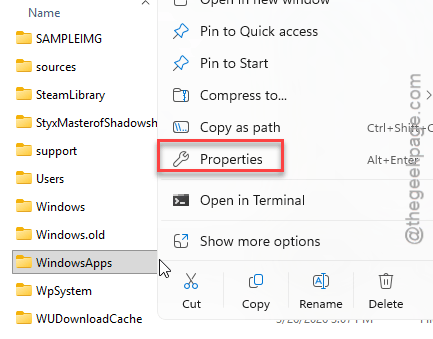
3 – Right-click the WindowsApps folder. Click Properties.
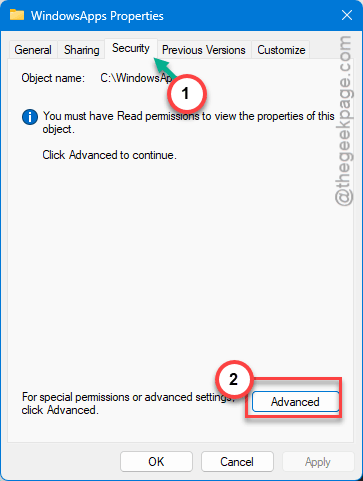
4 – Click the Security tab.
5 – Click Advanced at the bottom.
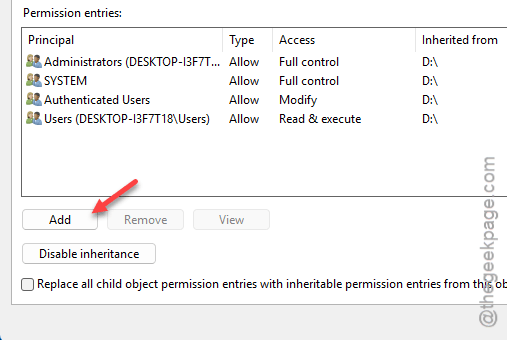
6 – Click each entry under Principal one at a time. After clicking, hit View.
7 – Look for a big yellow box with red text saying the entry is corrupted. Hard to miss.
8 – If you find a corrupted entry, close out, select it, click Remove.
9 – Click Add.
10 – Click Select a principal at the top.
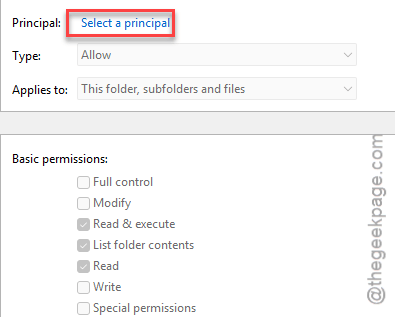
11 – Type whatever was corrupted (often Users). Click Check Names, then OK.
12 – Tick Full control. Click OK all the way back out.
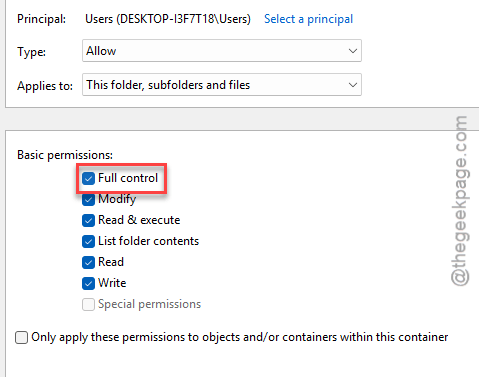
Restart your PC. Try installing a game to that drive. Should work now.
Fix 5 – The Workaround That Just Works
If your target drive doesn’t show up in the dropdown at all? This is the trick. Slightly silly. But it works.
Install something small to C: first. Then move it to your target drive. The act of moving registers that drive with the Xbox App’s storage system. Suddenly it shows up everywhere.
1 – Open the Xbox App.
2 – Search for any small Game Pass title. Indie games under 5GB are best. Try 9 Kings or Pentiment.
3 – Install it to C:. Let it finish.
4 – Once installed, go to your library in the Xbox App. Right-click the game.
5 – Click Manage → Change Drive.
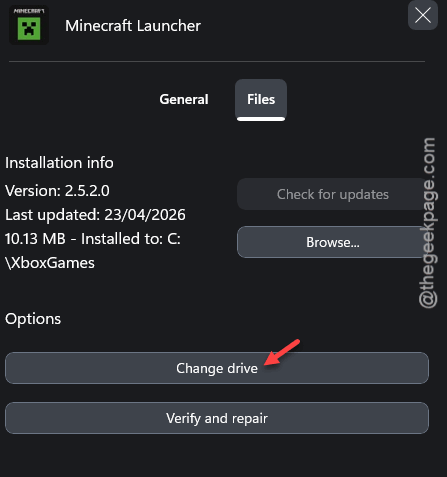
6 – Pick your target drive. Confirm the move.
7 – Wait for the move to finish. Now go back to Settings → Install Options.
Your drive will now be selectable as the default. Set it. Done.
Fix 6 – Reset Xbox App and Gaming Services
Last resort. Wipes Xbox App state including saved drive settings. You’ll need to sign back in. Worth it if nothing else worked.
1 – Press Windows + I to open Settings.
2 – Click Apps → Installed apps.
3 – Search “Xbox” in the search box at the top.
4 – Click the three dots (⋯) next to Xbox, then Advanced options.
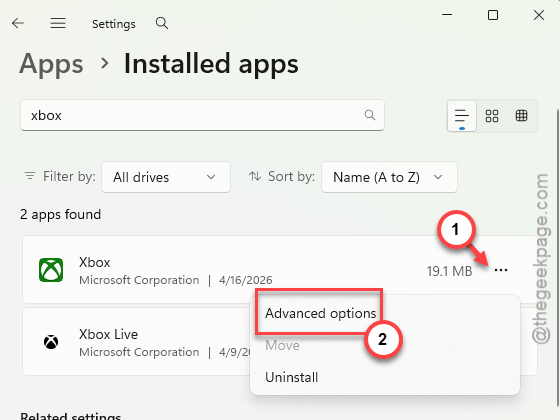
5 – Scroll down and click Reset.
6 – Do the same for Gaming Services.
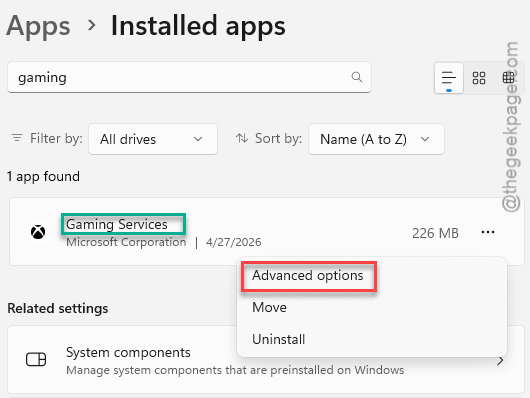
7 – Restart your PC.
Open Xbox App. Sign in. Set your install drive again. Should stick this time.
How to Prevent This
- Format any drive you want to use for games as NTFS. exFAT is for cross-platform external drives, not Windows app installs.
- Set both the Xbox App install location AND the Windows default save location to the same drive. Mismatched settings cause weird fallback behavior.
- Don’t manually mess with the WindowsApps folder. The permissions are fragile. Touch them only when fixing a real problem.
- After adding a new drive, do the install-and-move trick once. That registers the drive properly with the Xbox App’s storage system.
People Also Ask
Why does the Xbox app install games to the C drive?
It defaults to C: when it can’t write to your chosen drive. Common reasons — the drive is exFAT instead of NTFS, the WindowsApps folder permissions are corrupted, or Windows hasn’t registered the drive as eligible for app installs yet. Format the drive as NTFS first. Then check Settings > Install Options in the Xbox App.
How do I change the Xbox install drive on PC?
Open the Xbox App, click your profile picture, click Settings, then Install Options. Use the Game install options dropdown to pick a drive. Also change the Windows default — Settings > System > Storage > Advanced storage settings > Where new content is saved. Both layers need to match.
Why won’t the Xbox app let me change the install location?
The dropdown stays empty if Windows hasn’t registered your target drive as installable. Workaround — install a small game to C: first, then right-click it in your library and choose Move. Pick your target drive. After the move completes, the drive shows up in the install location dropdown.