You open the Xbox app on your PC. And it just says “Updating.” Forever. The bar doesn’t move.
Or it refuses to update at all. Either way you can’t get to your games. Maddening. Let’s break the loop.
Why This Happens
Short version: it’s almost always Gaming Services. And it corrupts easily. A Windows update interrupts it. A bad shutdown mid-install. Suddenly the app’s stuck in a loop, talking to a broken service.
But it’s not always that. Sometimes your PC clock is off, and that quietly blocks the app from authenticating the update. Sounds unrelated. It isn’t — the servers reject the connection if your time is wrong.
And sometimes the app just froze. A stuck process sitting in memory, doing nothing. Killing it and reopening is enough. So we’ll start easy and escalate.
Fix 1 – Kill the App in Task Manager
Easiest first. The app might just be a frozen process pretending to update.
Quick one. Press Ctrl + Shift + Esc to open Task Manager. Find Xbox in the list, click it, and hit End task.
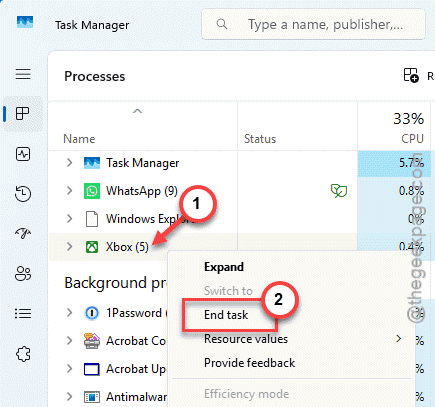
Now reopen the Xbox app. For some people a new update prompt pops up right away and finishes clean. Takes ten seconds. Always try it before the heavier stuff.
Fix 2 – Reinstall Gaming Services
This is THE fix.
1 – Press the Windows key, type PowerShell, right-click it, and choose Run as administrator.
2 – Type this command and press Enter to remove Gaming Services:
get-appxpackage *gaming-services* | remove-appxpackage -allusers
3 – Now type this and press Enter to open the Gaming Services page in the Store:
start ms-windows-store://pdp/?productid=9MWPM2CQNLHN
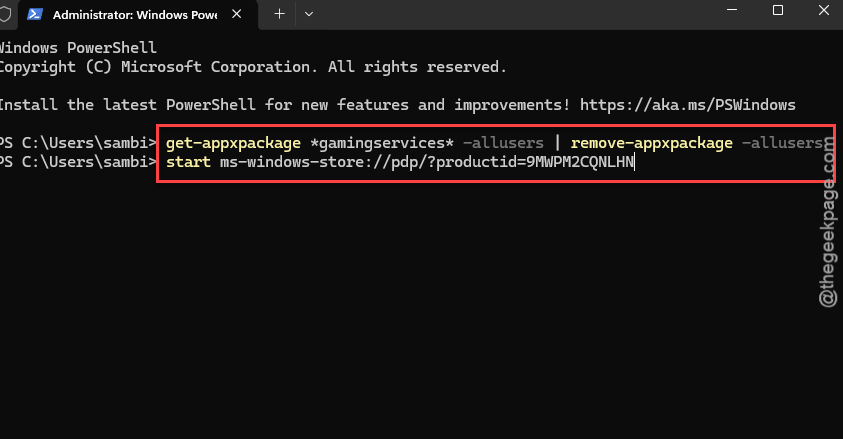
4 – On that Store page, click Get or Install to put a fresh copy back.
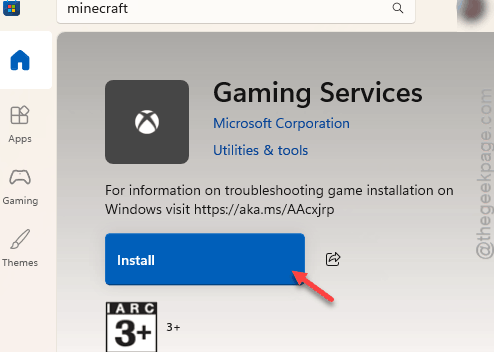
5 – Restart your PC, then open the Xbox app.
And honestly? For a lot of people, just uninstalling Gaming Services and reopening Xbox is enough — the app reinstalls it automatically. This is the one that fixes the most cases.
Fix 3 – Repair and Reset the Xbox App
Windows can repair the app without touching your data, or fully reset it. Try repair first.
1 – Press Windows + I to open Settings.
2 – Go to Apps > Installed apps.
3 – Search for Xbox, click the three dots next to it, and choose Advanced options.
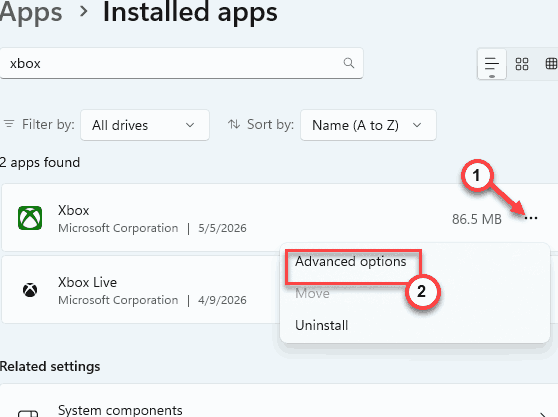
4 – Scroll down to the Reset section. Click Repair first. This keeps your data.
5 – Still stuck? Come back and click Reset. This wipes the app’s data and starts it fresh.
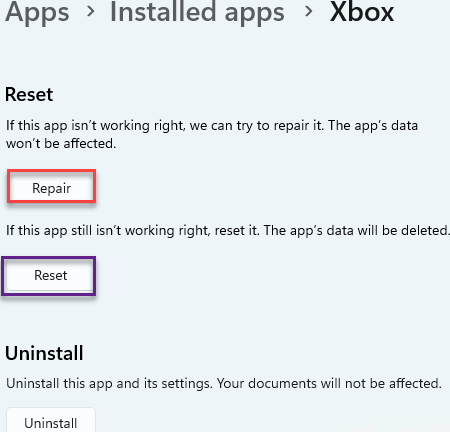
Try the repairing option. Reset is the firmer one. Try them in that order so you don’t lose settings unless you have to.
Fix 4 – Sync Your Date and Time
A wrong clock blocks the update from authenticating.
1 – Press Windows + I, go to Time & language > Date & time.
2 – Turn on Set time automatically.
3 – Turn on Set time zone automatically.
4 – Scroll to Additional settings and click Sync now.
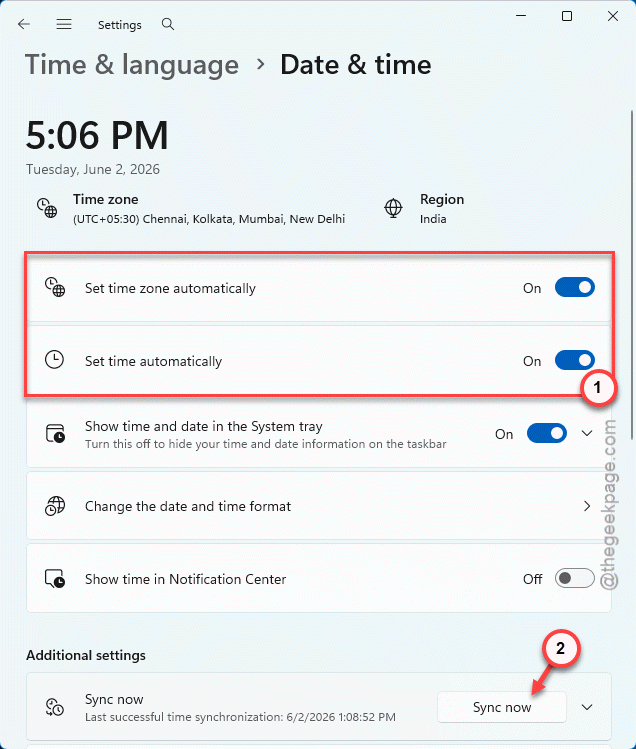
Done. Check if this works.
Fix 5 – Install Pending Windows Updates
An outdated Windows can choke the Xbox app’s update. Get current.
1 – Press Windows + I, go to Windows Update.
2 – Click Check for updates.
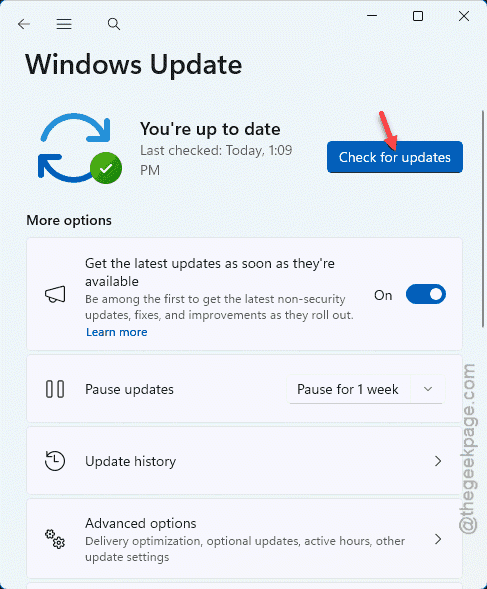
3 – Install anything it finds.
4 – Restart if it asks.
Then reopen the Xbox app. A system that’s behind on updates often can’t talk to the gaming services properly.
Fix 6 – Uninstall and Reinstall the Xbox App
Last resort. Try uninstalling and reinstalling the Xbox app.
1 – Press Windows + I, go to Apps > Installed apps, find Xbox, click the three dots, and choose Uninstall.
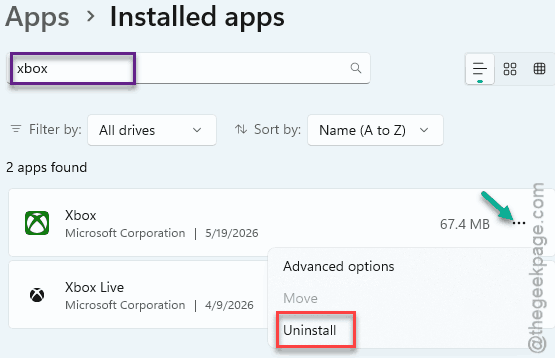
2 – Open the Microsoft Store.
3 – Search for Xbox and click Get to redownload it.
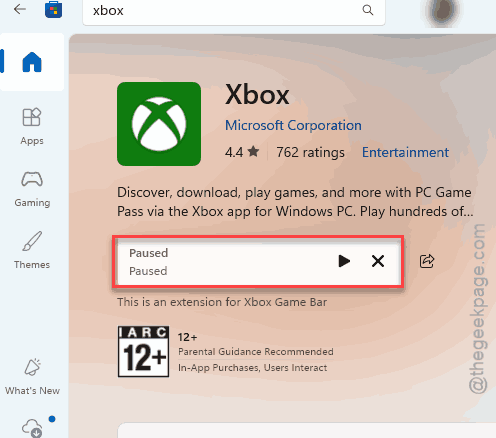
4 – Once installed, open the Store’s Library and click Get updates so every component is current.
A fresh install pulls clean files and usually finishes updating without a hitch.
How to Prevent This
– Keep Windows updated. A lagging system is the root of half these Gaming Services breakages.
– Leave your clock on automatic. A drifting time setting quietly blocks updates more often than you’d guess.
– Don’t force-shut your PC mid-update. That’s how Gaming Services gets corrupted in the first place.
– If the app starts acting up, kill it in Task Manager early. Catching it before it loops saves the bigger fixes.
People Also Ask
Why is my Xbox app stuck on updating?
Almost always corrupted Gaming Services — the hidden component the app relies on. Use the Task Manager method to kill the stuck Xbox update thread and retry.
Why isn’t my game on my Xbox updating when it says it’s updating?
It’s usually stuck in the queue or waiting on a broken Gaming Services component. Cancel the update, restart the app or console, and try again. On PC, reinstalling Gaming Services fixes it.