You open the Game Bar overlay, pull up the FPS widget, and where the number should be? Just “N/A”. Frame after frame. Nothing.
And you’ve already given it admin rights. Tried different games. Still N/A. So the privilege thing everyone tells you to check isn’t the problem here. Something deeper is jammed.
Why This Happens
Here’s the deal. The FPS counter doesn’t measure frames by magic. It reads them through Windows performance counters — a built-in system that tracks how your hardware is doing.
And those counters break. A lot. A bad update, a half-finished install, a corrupted registry entry — any of them can scramble the counter data. When that happens, Game Bar asks for the frame rate and gets nothing back. So it shows N/A.
The other big one? Gaming Services. That’s the background app that powers a chunk of the Game Bar. When it gets corrupted, the FPS hook is usually the first thing to die. Quietly. No error popup, just a blank widget.
Fix 1 – Reinstall Gaming Services
Try reinstalling the Gaming Services to fix the issue.
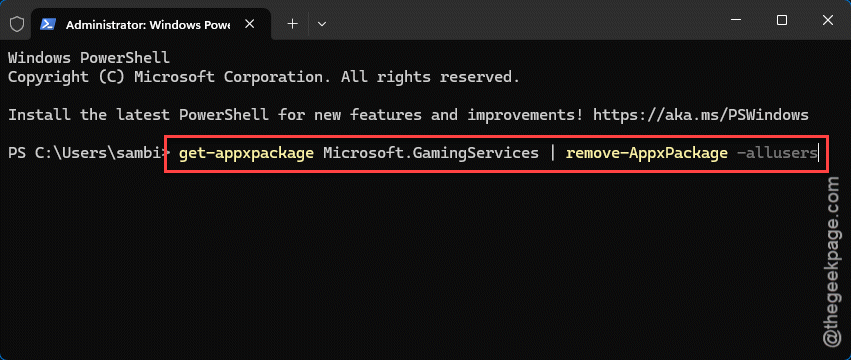
1 – At first, right-click the Start button and pick Terminal (Admin) or PowerShell (Admin) from there.
2 – Then, type this down and press Enter to remove it:
get-appxpackage Microsoft.GamingServices | remove-AppxPackage -allusers
3 – Now type this to jump straight to its Store page:
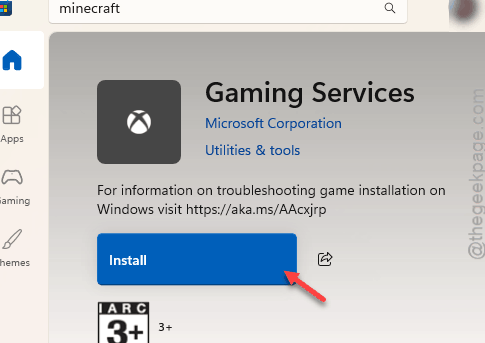
start ms-windows-store://pdp/?productid=9MWPM2CQNLHN
4 – The Microsoft Store opens on the Gaming Services page. Click Install and wait for it to finish.
5 – Reboot your PC.
6 – Open Game Bar and switch the FPS widget back on.
Check your number now. For a lot of people, that’s the whole fix.
Fix 2 – Repair or Reset the Xbox Game Bar App
1 – Open Settings with Windows + I.
2 – Go to Apps, then Installed apps.
3 – Type Xbox Game Bar in the search box at the top.
4 – Click the three dots (…) next to it and choose Advanced options.
5 – Scroll down and click Repair. This keeps your settings — it just patches broken files.
Test the FPS widget. Still N/A? Come back to this same screen and click Reset instead.
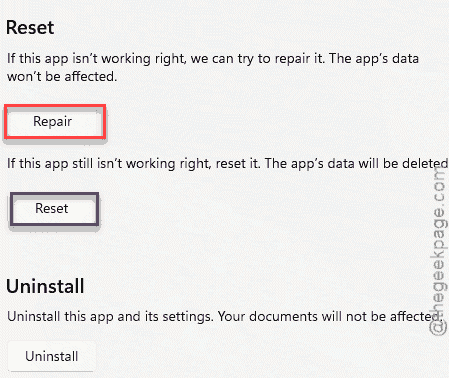
That wipes the app’s data and starts it clean.
Fix 3 – Rebuild Your Windows Performance Counters
Remember those performance counters? If they’re the broken piece, this rebuilds them from scratch.
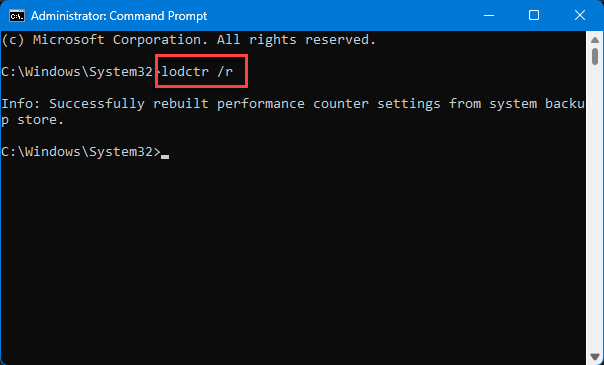
1 – Click Start, type cmd, right-click Command Prompt, and choose Run as administrator.
2 – Type this and press Enter:
lodctr /r
3 – Restart your PC.
Get an “Unable to rebuild” error? It happens. Do this –
1 – Open the C:\Windows\SysWOW64 folder.
2 – Then, run Command Prompt as admin from there, and try the same command again.
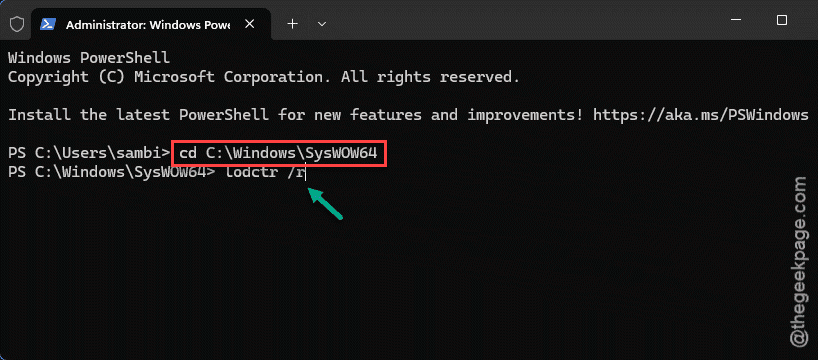
The 32-bit version sometimes takes when the other won’t.
Fix 4 – Re-Register the Game Bar Package
Try re-repairing the Game Bar package in the powershell terminal.
1 – Right-click Start and open PowerShell (Admin).
2 – Paste this in exactly, then press Enter:
Get-AppxPackage -AllUsers -Name Microsoft.XboxGamingOverlay | Foreach {Add-AppxPackage -DisableDevelopmentMode -Register "$($_.InstallLocation)\AppXManifest.xml"}
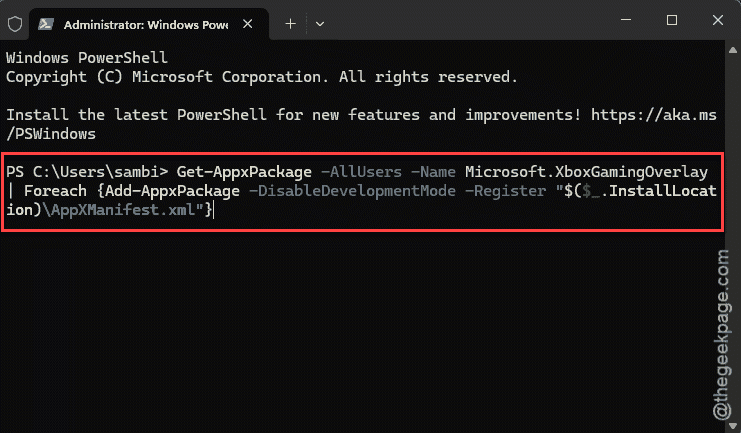
3 – Restart your computer once it’s done.
Fix 5 – Switch On AppCapture in the Registry
Try this registry fix to solve the issue.
1 – Press Windows + R, type regedit, and press Enter.
2 – In the bar at the top, paste this path and press Enter:
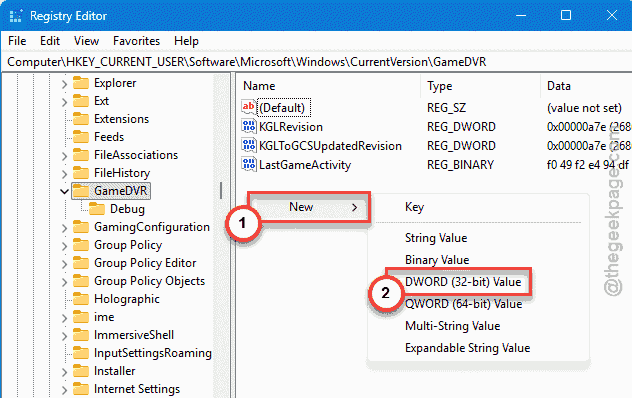
HKEY_CURRENT_USER\Software\Microsoft\Windows\CurrentVersion\GameDVR
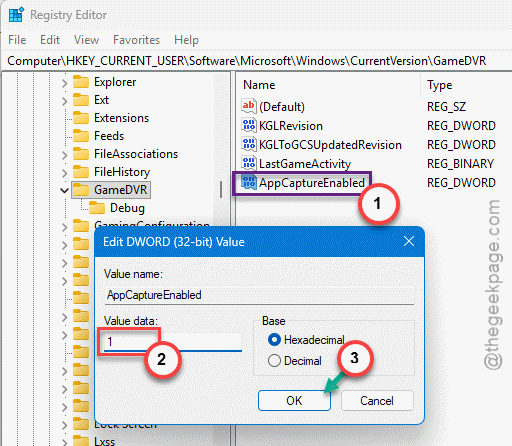
3 – On the right, look for an entry called AppCaptureEnabled.
4 – Don’t see it? Right-click the empty space, pick New, then DWORD (32-bit) Value, and name it exactly AppCaptureEnabled.
5 – Double-click it, set the Value data to 1, and click OK.
6 – Close the editor and restart your PC.
How to Prevent This
– Keep Gaming Services updated through the Microsoft Store. It’s the piece that breaks most, so don’t let it fall behind.
– After a big Windows feature update, open Game Bar and check the FPS widget early.
People Also Ask
Why does my FPS say N/A?
Game Bar reads your frame rate through Windows performance counters. When those get corrupted — usually by an update or a bad install — it asks for the number and gets nothing, so it shows N/A. Reinstalling Gaming Services or rebuilding the counters with the lodctr /r command fixes it most of the time.
How do I get rid of the Xbox Game Bar FPS counter?
Open Game Bar with Windows + G, find the Performance widget, and turn off the FPS line — or close the widget entirely.