You run SFC to fix Windows. It crawls to 100%. And then — error. “Could not repair.” Same story with DISM.
The repair tools themselves won’t repair. Which feels like a cruel joke. But there’s a way through. Let’s fix the fixers.
Why This Happens
Here’s the deal. SFC doesn’t repair files out of thin air. It pulls clean copies from a local store on your PC. And DISM is the tool that keeps that store healthy by downloading good files from Windows Update.
So if DISM can’t reach Windows Update — or the local store is itself corrupted — SFC has no clean source to copy from.
Then there’s the quiet one. A failing hard drive. If your disk has bad sectors, the repair files get corrupted the moment they’re written. No software fix touches that. So we’ll check the drive too.
Fix 1 – Run Them in the Correct Order
This alone fixes most cases.
1 – Press the Windows key, type CMD, right-click Command Prompt, and choose Run as administrator.
2 – First, check the store’s health. Type this and press Enter:
dism /online /cleanup-image /scanhealth
3 – If it reports corruption, repair it. Type this and press Enter:
dism /online /cleanup-image /restorehealth
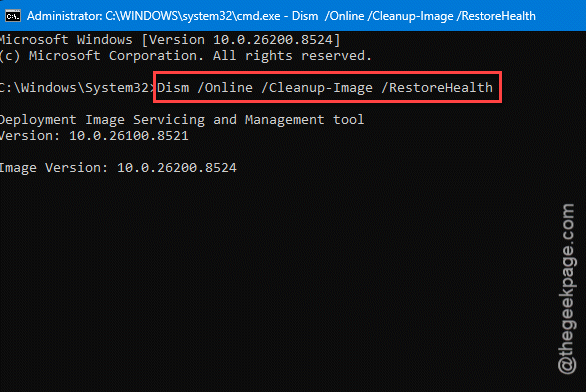
4 – Let it reach 100%. It can stall around 20% — leave it, that’s normal.
5 – Now, and only now, run sfc /scannow and press Enter.
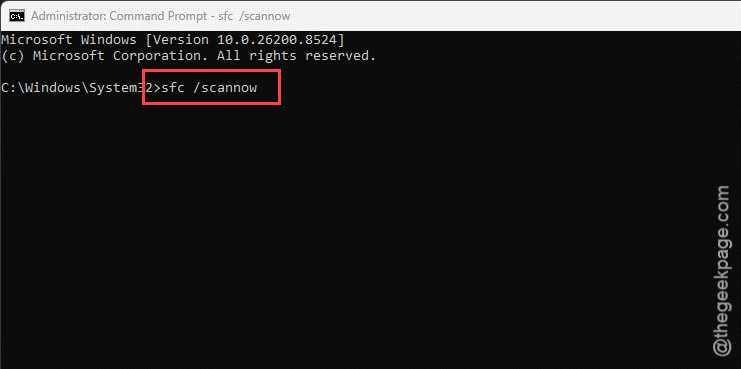
6 – Restart when it’s done.
DISM heals the source. SFC then has clean files to copy from. Backwards just doesn’t work.
Fix 2 – Give DISM a Local Source (ISO)
If DISM keeps failing, it usually can’t reach Windows Update. So you hand it a clean copy yourself — a Windows ISO. This is the fix when the online repair won’t go.
1 – You need a Windows ISO. So, download it from official page on a working system.
2 – After downloading it, just right-click the ISO file and choose Mount. Note the drive letter it gets (say, D:).
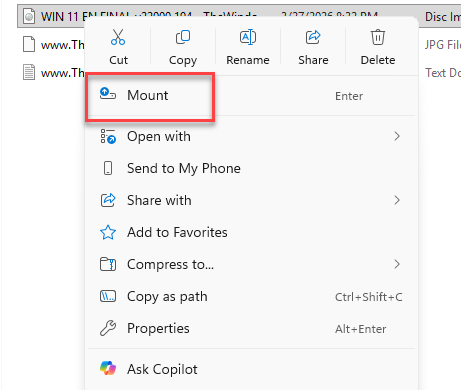
3 – Open that drive, go into the sources folder, and look for install.esd or install.wim.
4 – In an admin Command Prompt, run the matching command (swap D: for your actual drive letter).
5 – For an install.esd file:
dism /online /cleanup-image /restorehealth /source:D:\sources\install.esd /limitaccess
6 – For an install.wim file:
dism /online /cleanup-image /restorehealth /source:D:\sources\install.wim /limitaccess
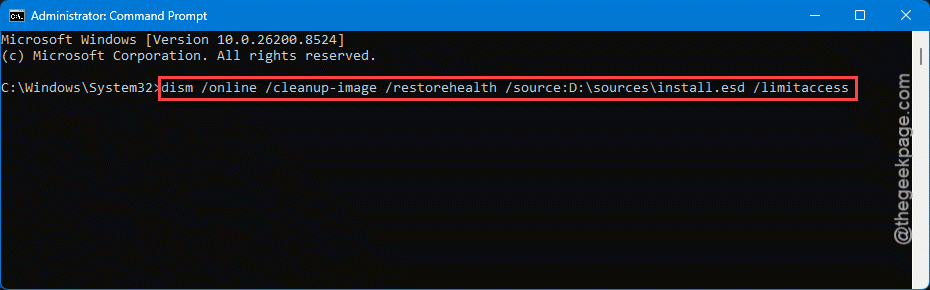
7 – When it finishes, run sfc /scannow again.
One catch — the ISO version should match your installed Windows version. A mismatched ISO won’t supply the right files.
Fix 3 – Clean Up the Component Store
Sometimes the store is just clogged with old, broken files. Cleaning them out lets a fresh repair succeed.
1 – Open Command Prompt as administrator.
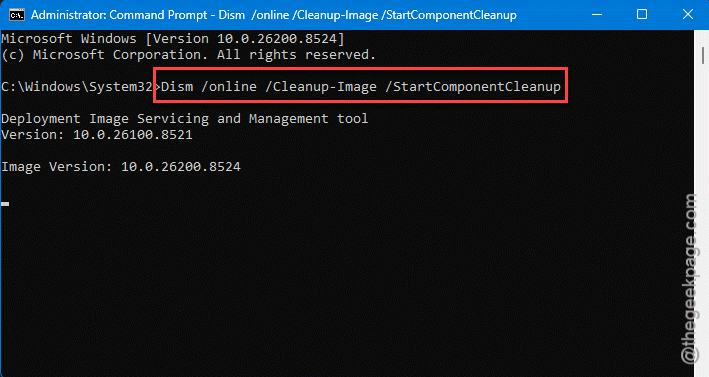
2 – Type this and press Enter:
Dism /online /Cleanup-Image /StartComponentCleanup
3 – Let it finish completely.
4 – Follow it with
dism /online /cleanup-image /restorehealth
5 – Then run sfc /scannow one more time.
Worth doing if RestoreHealth keeps failing on its own. Clearing the junk first gives it a clean slate.
Fix 4 – Check Your Drive’s Health
Here’s the one techs skip and regret. If the disk is failing, no repair sticks — the files corrupt as fast as they’re written.
Get a disk freeware, like CrystalDiskInfo, and run it. It reads your drive’s health status in plain language — look for a big Good, Caution, or Bad indicator. Caution or Bad? Your drive is on its way out. That’s almost certainly why SFC and DISM can’t win. Back up your files immediately and plan to replace the drive. This matters most on older spinning hard drives, but even a worn-out SSD can do it.
Fix 5 – Reset or Refresh Windows
Tried it all and the corruption won’t clear? Then rebuild Windows itself. Honestly, this has the highest success rate for stubborn, random breakage.
Quick path.
Press Windows + I, go to System > Recovery, and click Reset PC.
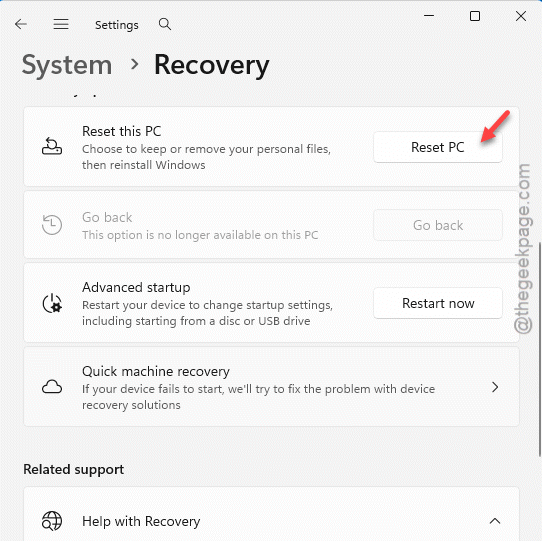
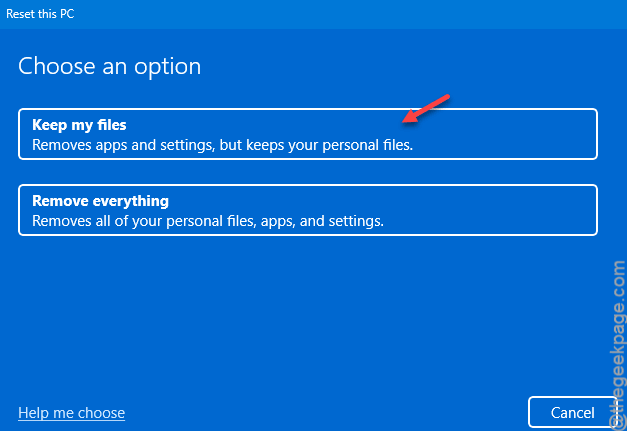
Choose Keep my files so your documents survive — it just reinstalls Windows underneath.
Takes a while and you’ll reinstall some apps after. But a fresh Windows beats fighting a broken component store forever. Sometimes the clean slate is the smart move.
How to Prevent This
– Always run DISM RestoreHealth before SFC. Half the failures are just people doing it in the wrong order.
– Keep a matching Windows ISO handy. When Windows Update is the broken thing, a local source saves the day.
– Check your drive health a couple times a year. A dying disk is the silent reason repairs never hold.
– Don’t pile up failed update attempts. They clog the component store, which makes repairs fail more.
People Also Ask
What to do if SFC and dism fail?
DISM or deplyoment scan is the only potent weapon in your arsenal that can solve the SFC failures. And check your drive health, because a failing disk makes repairs impossible. When all that fails, a Reset PC with “keep my files” is the reliable last resort.
What happens if DISM fails?
If DISM fails, it usually means it can’t download clean files from Windows Update, or the component store is too damaged to repair online. The fix is to give it a local source — a matching Windows ISO — using the /source switch. If even that fails, the drive or the Windows install itself likely needs replacing or resetting.