You open the Xbox app on Windows. Try to launch a game. And up pops: An update is required before you can continue. You click update. Nothing happens. Or it loops. Forever.
Painful. Especially when the game’s already installed.
Why This Happens
Basically? The Xbox app on PC relies on a bunch of background services. Gaming Services, Xbox Identity Provider, and the Microsoft Store itself. When any one of those breaks, you get the Update Required loop.
Most common cause? Gaming Services gets corrupted. It happens after every other Windows Update for some reason. Microsoft pushes a patch, Gaming Services crashes silently, and the Xbox app loses track of what’s installed.
The Microsoft Store cache plays a part too. Stale cache files trick the Store into thinking updates are pending when they’re not. Or the opposite — it skips updates that actually need to install.
And sometimes the Xbox Identity Provider just goes missing. It’s a separate Store app that nobody knows exists until it breaks.
Fix 1 – Reset the Microsoft Store Cache
Quick fix. Takes 10 seconds. Worth trying first.
1 – Press Windows + R.
2 – Type wsreset and press Enter.
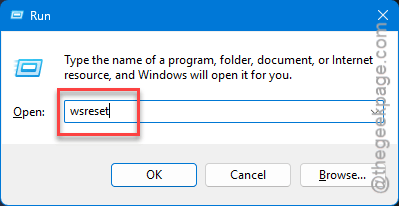
3 – A black window opens. Wait. Don’t close it.
4 – After about 30 seconds, the Microsoft Store opens automatically.
5 – Close the Store.
6 – Open the Xbox app. Try the game again.
Sometimes this is the whole fix.
Fix 2 – Repair the Xbox App
If the cache reset didn’t help, repair the app itself.
1 – Click the Start button.
2 – Type Xbox in the search box at the top.
3 – Right-click the Xbox app result.
4 – Click App settings from the menu on the right.
5 – Scroll down to the Reset section.
6 – Click Repair first. Keeps your data intact.
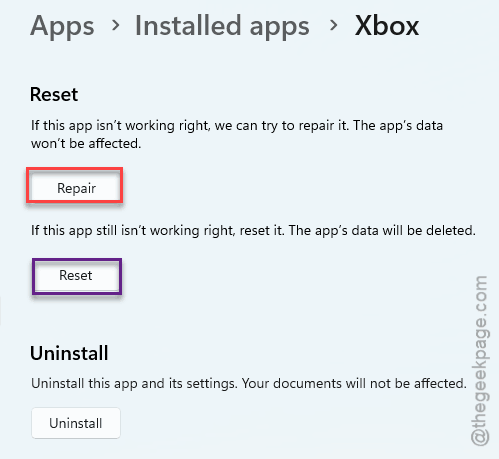
7 – Wait for the green checkmark.
8 – Open the Xbox app and resume the update.
If Repair doesn’t help, come back to this screen and click Reset.
Fix 3 – Reinstall Gaming Services (The Big One)
This is the fix that works when nothing else does. Gaming Services is the layer between Xbox and Windows. When it breaks, everything breaks.
You need PowerShell as admin.
1 – Right-click the Start button.
2 – Click Terminal (Admin) or Windows PowerShell (Admin).
3 – Click Yes on the UAC prompt.
4 – Paste this command exactly:
get-appxpackage *gaming-services* | remove-appxpackage -allusers
5 – Press Enter.
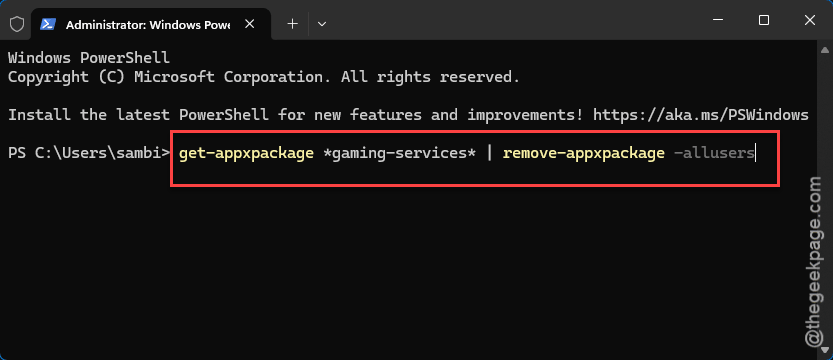
6 – Wait a few seconds. The command finishes silently when it works.
7 – Now paste this:
start ms-windows-store://pdp/?productid=9MWPM2CQNLHN
8 – Press Enter. The Microsoft Store opens to the Gaming Services page.
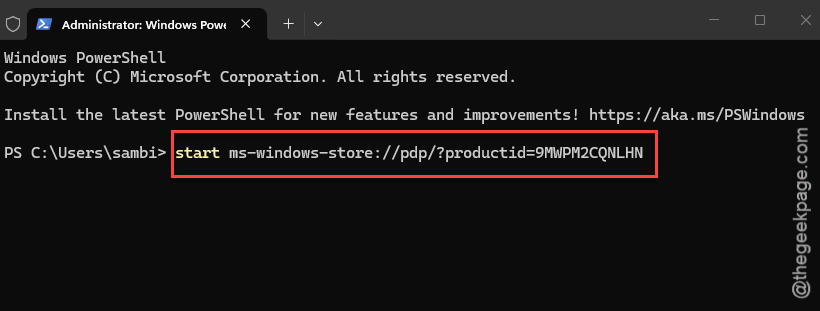
9 – Click Install or Get.
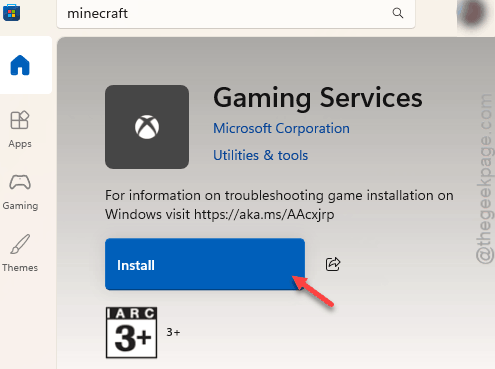
10 – Reboot your PC. (Don’t skip this.)
11 – Open the Xbox app.
This fixes the Update Required error in most cases. The nuclear option that’s actually safe.
Fix 4 – Install the Xbox Identity Provider
The Xbox Identity Provider is a separate Store app that the Xbox app needs to verify your Microsoft account. If it’s missing or broken, the Xbox app can’t update games.
1 – Open the Microsoft Store.
2 – Click the search bar at the top.
3 – Type Xbox Identity Provider.
4 – Click the app in the results (publisher should say Microsoft Corporation).
5 – Click Get or Install.
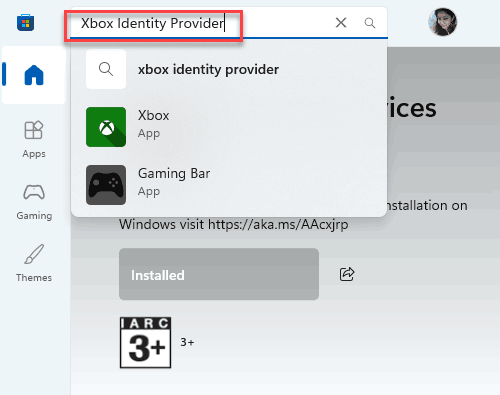
6 – Wait for it to finish.
7 – Reboot.
8 – Open the Xbox app.
Most people never install this manually because it ships with Windows. But on some systems? It got removed during an update. Putting it back fixes the Xbox app.
Fix 5 – Re-Register All Store Apps
If something deeper is broken in the Store stack, this command re-registers every Store app at once. Heavy hammer. But effective.
1 – You have to PowerShell as Admin (right-click Start, pick Terminal (Admin)).
2 – Paste the code exactly in the terminal and hit Enter –
Get-AppXPackage -AllUsers | Foreach {Add-AppxPackage -DisableDevelopmentMode -Register "$($_.InstallLocation)\AppXManifest.xml"}
3 – Press Enter.
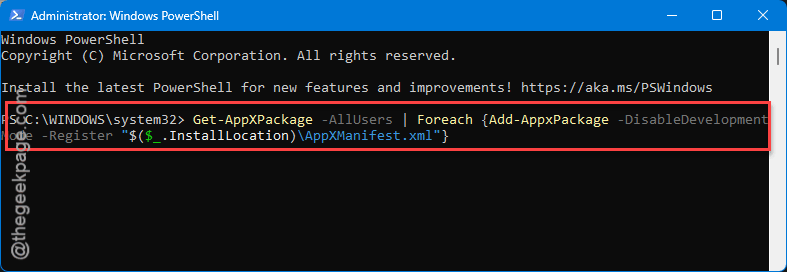
4 – Wait. This takes 3-5 minutes. You’ll see a wall of red text — most of it is harmless.
5 – When the cursor comes back, reboot.
6 – Open the Xbox app.
Ingore any error messages there. The Store and Xbox parts get fixed.
Fix 6 – Uninstall and Reinstall the Xbox App
Last resort. This should fix your issue.
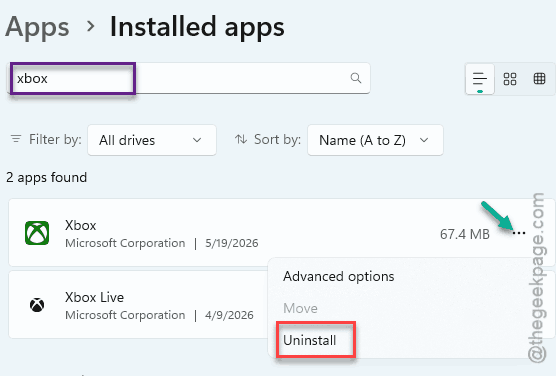
1 – Press Windows + I to open Settings.
2 – Click Apps > Installed apps.
3 – Type Xbox in the search box at the top.
4 – Click the three dots (⋯) next to Xbox.
5 – Click Uninstall.
6 – Confirm.
7 – Reboot.
8 – Open the Microsoft Store.
9 – Search for Xbox.
10 – Click Get.
11 – Wait for install. Open it. Sign in.
Your installed games stay put. They live separately from the Xbox app. So you won’t lose anything.
How to Prevent This
- Keep Gaming Services updated. Open the Microsoft Store occasionally and click Library > Get updates. Catches broken installs early.
- Don’t kill background Microsoft Store processes through Task Manager. They look idle but they’re keeping the Xbox app in sync.
- After every Windows feature update (like 25H2), open the Xbox app right away to verify it still works. Catch issues before you need to play.
People Also Ask
How to fix error code 0x8000000d?
Same playbook. You have to repair the Xbox app from the Settings page on your Windows client. If that does not work, you can try to reset your Microsoft Store cache using wsreset.
Why is my game not updating the Xbox app?
Usually Gaming Services or the Xbox Identity Provider got corrupted. Reinstall both. Then reboot. This should fix the issue.