Got your MS Teams app stuck on updating phase? Microsoft Teams get their updates twice in a month, and usually is an automatic where the app updates in the background. So, it is very unusual for the MS Teams client to get stuck in the middle of an update process. It is usually a corrupted cache issue, and you can solve this following these fixes.
Fix 1 – Clear the MS Teams Update Cache
It is usually a clear case of corrupted Teams cache.
Step 1 – Close the Microsoft Teams client completely. At first, close the main Teams app console.
Step 2 – Next, tap the arrow button on the taskbar. Then, right-tap the Teams app, and tap Quit Teams.
Step 3 – Then, load up a Run box. Simply, press the Win+R keys together. Paste the Teams local directory there, and click OK.
C:\Users\sambi\AppData\Local\Packages\MSTeams_8wekyb3d8bbwe\LocalCache\Microsoft\MSTeams\EBWebView\Default
Step 4 – Delete these folders from there –
Cache
Code Cache
GPUCache
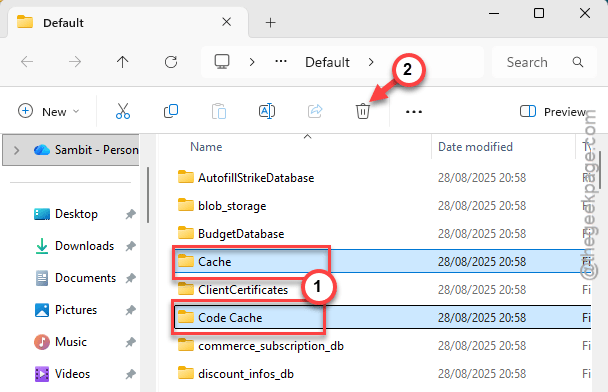
Step 5 – After closing the folder, relaunch MS Teams.
It will now download and install the update package for the Teams app afresh.
There won’t be any further issues related to the Teams app getting stuck during the update.
Fix 2 – Run the MS Teams Update Troubleshooter
The latest versions of Microsoft Teams has an in-built update troubleshooter that offers help in this type of situation.
Step 1 – Open up the MS Teams app. Next, tap the ⋯ button and tap the Settings. Go to the About Teams option in the bottom-left corner.
Step 2 – Find the Troubleshoot Update Issues option.
This particular feature only becomes available if there is some issue with the MS Teams app update process.
It will run some diagnostics scan on the Teams app, detect the issue and prescribe the particular fix for the issue.
Fix 3 – Re-Register the Microsoft Teams app
You should re-register the Microsoft Teams app, because sometimes it may lead to such issues.
Step 1 – At first, right-click the Start button, and choose to launch Terminal (Admin).
Step 2 – Then, paste this command in the Terminal and, hit Enter to re-register the MS Teams app.
get-appxpackage *msteams* | reset-appxpackage
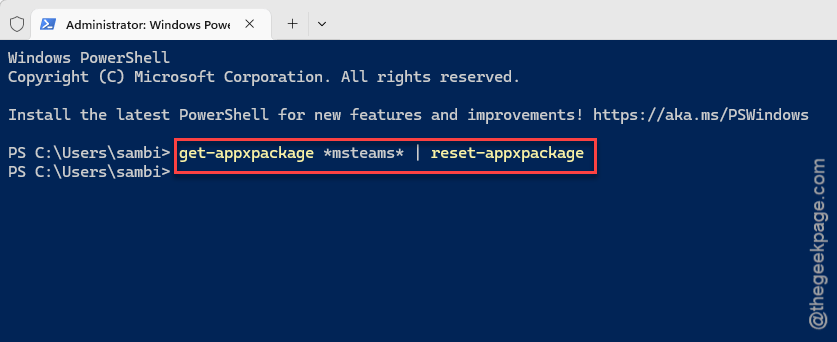
Now, just allow a minute or two for the Microsoft Teams app to get re-registered on your device. Afterward, just relaunch the Teams client and resume the update.
Fix 4 – Install Microsoft Teams via Winget
You may also download and install the Microsoft Teams from the command line.
Step 1 – To do this, right-click Start icon, and tap Terminal (Admin) to load up the terminal with administrative rights.
Step 2 – Then, paste this code and hit Enter.
winget install --silent --accept-source-agreements --id Microsoft.Teams
[NOTE – We have used flags like --silent to minimize the user input during the installation process.
If you encounter any error message, you may use this command –
winget install Microsoft.Teams
]
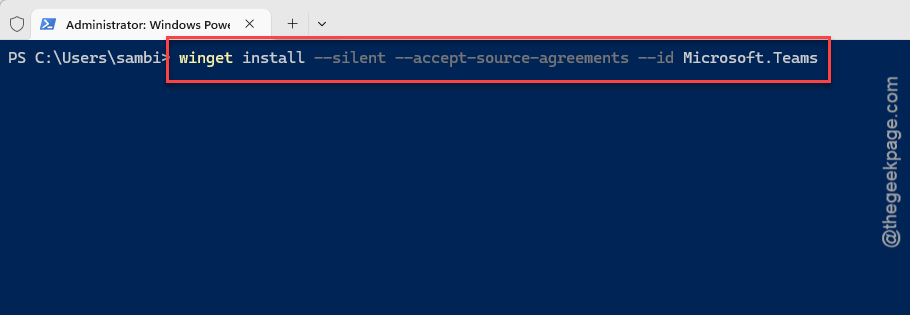
Wait for it to install the latest version of Microsoft Teams on your system.
Fix 5 – Repair the Teams Client from Windows Settings
You should try to repair the Microsoft Teams client to fix that corruption in the update package.
Step 1 – At first, load up the Settings console on Windows. Then, proceed to the Apps tab. Open up the Installed Apps section.
Step 2 – Perform a search using teams to find the Microsoft Teams app.
Step 3 – Then, tap the Microsoft Teams app. Tap the ⋮ button, and tap the Advanced options to proceed to the advanced settings.
Step 4 – Scroll down and go to the Reset tab. Use the Repair button to repair the Teams app.
Once this app is repaired, re-open the Teams client.
Hope these fixes have helped you!