You open Sticky Notes. Instead of your notes — a spinning “We’re getting the update” message. And it never finishes.
Just sits there. Loading forever. Painfully so. The notes are right there on your account, but you can’t get to them. Let’s fix it.
Why This Happens
Short version: the app got stuck mid-update.
Sticky Notes is a Microsoft Store app. So it updates itself in the background. But sometimes that update hangs.
And it shows up a lot on the very first run after a fresh install. You open it, it tries to grab the latest version, and something jams. Why? Hard to say. Could be a flaky connection. Could be a corrupted local cache.
Here’s the good news though. Your notes aren’t lost. They live on your Microsoft account.
Fix 1 – Make Sure You’re Online and Signed In
Quick check first. That update screen needs an internet connection to finish.
While you are connected to your home/office Wi-Fi, open any other Store app and see if it loads. No connection? That’s your answer. Reconnect and reopen Sticky Notes.
Fix 2 – Terminate, Repair, Then Reset the App
This is the main fix. Three buttons, in order, from gentle to nuclear. Do them one at a time.
1 – Click the Start button and type Sticky Notes.
2 – On the right side of the search result, click the down arrow (or App settings).
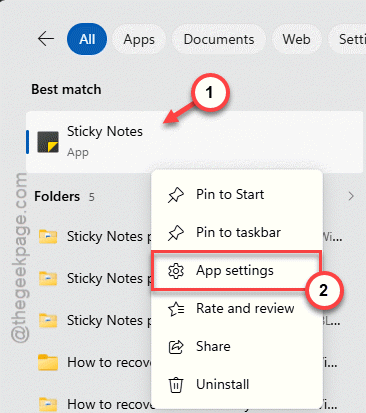
3 – Scroll down and click Terminate. This kills any frozen background process. Reopen Sticky Notes and check.
4 – Still stuck? Go back to the same page and click Repair. Wait for the checkmark. This fixes broken files without touching your notes.
5 – Last resort on this page: click Reset, then Reset again to confirm.

Heads up — Reset clears the local cache and settings. Your notes are safe on your account, but you’ll need to sign in again after.
Fix 3 – Update the Microsoft Store Itself
Sometimes the app can’t update because the Store is the thing that’s behind. So update the Store, and Sticky Notes often follows.
1 – Click Start and open the Microsoft Store.
2 – Click Library in the bottom-left corner.
3 – Click Get updates in the top-right.
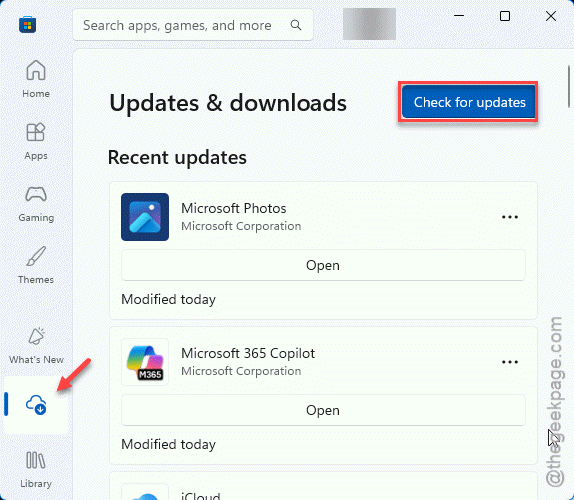
4 – Let everything install. Watch for Microsoft Sticky Notes in the list.
5 – Restart Sticky Notes once it’s done.
Fix 4 – Uninstall and Reinstall From the Store
If resetting didn’t break the loop, a clean reinstall wipes the corrupted version completely. And your notes come right back after sign-in.
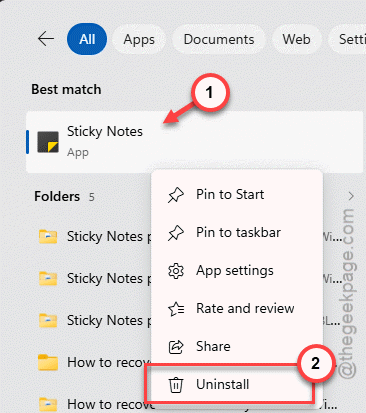
1 – Click Start, type Sticky Notes, and open App settings again.
2 – Scroll all the way down. Click Uninstall. Confirm.
3 – Open the Microsoft Store.
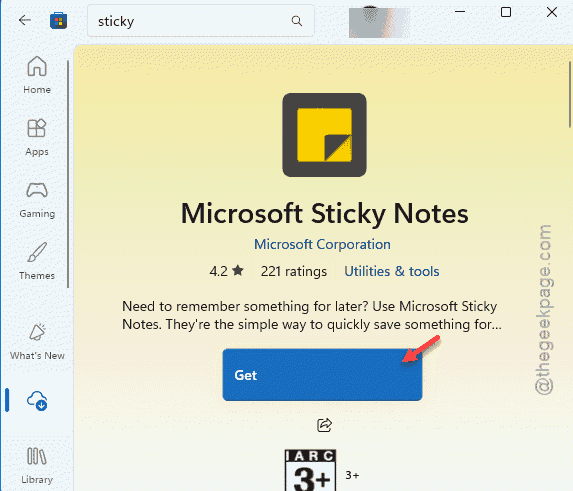
4 – Type Sticky Notes in the search bar at the top.
5 – Click Microsoft Sticky Notes in the results.
6 – Click Install.
7 – Open it and sign in with the same Microsoft account. Your notes sync back down.
Fix 5 – Delete the Leftover App Folder (Advanced)
Reinstall didn’t take? There’s probably a corrupted folder hanging around. This clears it out manually. Slightly techy, but not scary.
1 – Uninstall Sticky Notes first (Fix 4, steps 1-2).
2 – Press Windows + R to open the Run box.
3 – Type this and press Enter:
%LocalAppData%\Packages
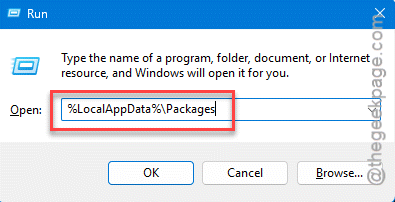
4 – Find the folder named Microsoft.MicrosoftStickyNotes_8wekyb3d8bbwe
5 – Delete that whole folder.
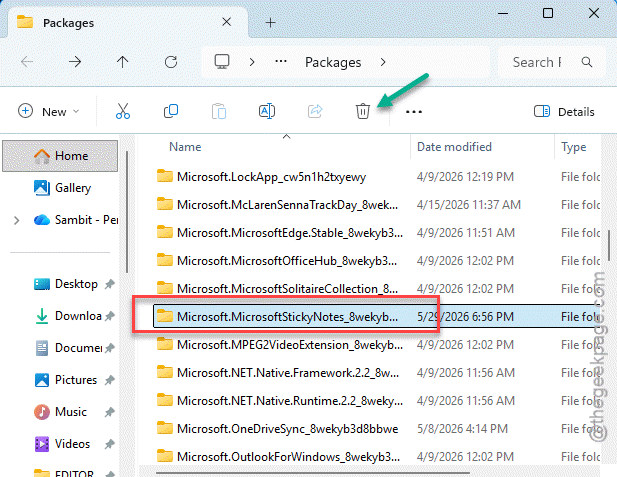
6 – Restart your PC.
7 – Reinstall Sticky Notes from the Store.
Check if this works or not.
How to Prevent This
– Sign in to your Microsoft account in Sticky Notes. That way your notes always sync — and a reset never loses anything.
– After a fresh Windows install, open Sticky Notes while you’re online. Let it finish its first update right then. Don’t yank the connection mid-load.
– Run Store app updates now and then. Takes a minute. Saves the headache.
People Also Ask
How do I fix the Sticky Notes stuck on updating screen?
Check your internet first, since that screen needs a connection to finish. Then update the Microsoft Store from its Library tab. Still spinning? Reset the app, or fully uninstall and reinstall it from the Store. The reinstall almost always breaks the loop.
How can I restore my Sticky Notes after reinstalling?
The sticky notes sync your past notes automatically when you log in using the same Microsoft account that you have used before.