Two monitors. Your main one is fast and smooth. The second one — a plain 60Hz screen — won’t stop flickering. Black flashes, dim pulses, the works.
And it’s worse when a game’s open. The whole thing feels broken. Good news is, this is a known headache with a handful of fixes. Let’s run through them.
Why This Happens
Here’s the deal. VRR (Variable Refresh Rate — the feature that syncs your monitor’s refresh to your game’s frame rate) is built for one screen. Your gaming one.
But Windows tries to apply the timing across both displays at once. And your basic 60Hz monitor can’t keep up with that constantly-shifting refresh. So it flickers.
Why does it spike during games? Because that’s when your frame rate swings the most. The bigger the swing, the harder the second screen struggles. Not ideal.
And mismatched refresh rates make it worse. Windows ends up juggling two timings that fight each other.
Fix 1 – Limit VRR to Full-Screen Games Only
This is the fix that works for most people. You’re telling VRR to kick in only during full-screen games — not on your desktop, where it bleeds onto the second screen.
If you have an NVIDIA card:
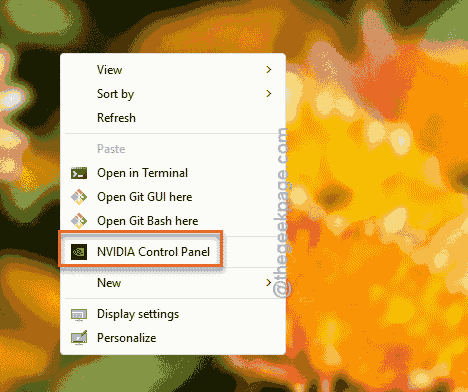
1 – Right-click your desktop and open the NVIDIA Control Panel (or NVIDIA App).
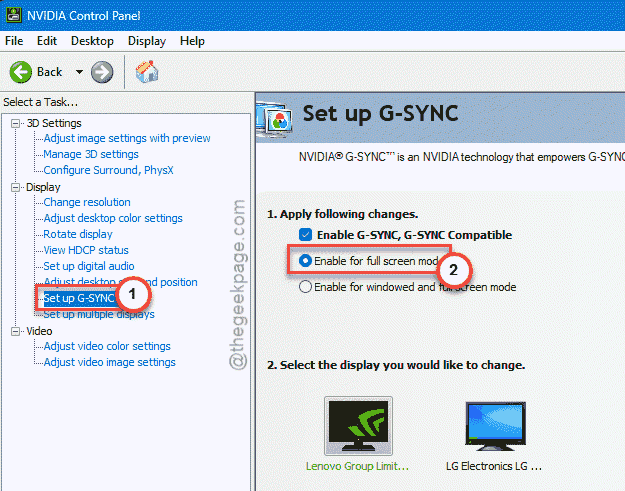
2 – On the left, click Set up G-SYNC.
3 – Switch the option from Enable for windowed and full screen mode to Enable for full screen mode only.
4 – Click Apply.
If you have an AMD card:
1 – open AMD Adrenalin Software,
2 – Go to Gaming section.Then, proceed to the Display, and switch FreeSync to run on full-screen apps only.
Check if this helps.
Fix 2 – Make Your Main Refresh Rate a Multiple of 60
Windows handles two monitors way better when the numbers divide cleanly. 60 goes into 120 and 240 evenly. It does not go cleanly into 144 or 165.
1 – Press Windows + I to open Settings.
2 – Go to System, then Display.
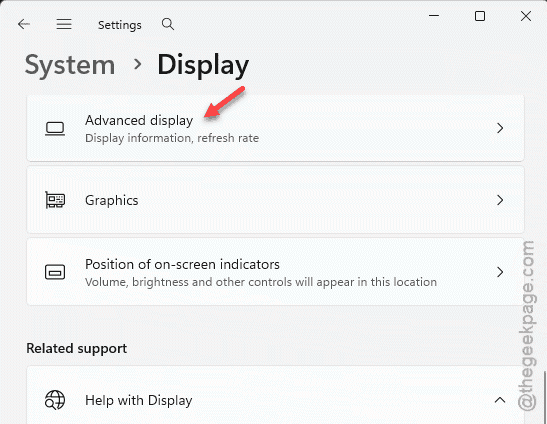
3 – Scroll down and click Advanced display.
4 – Pick your main monitor from the dropdown at the top.
5 – Find Choose a refresh rate. Drop it to 120Hz level.
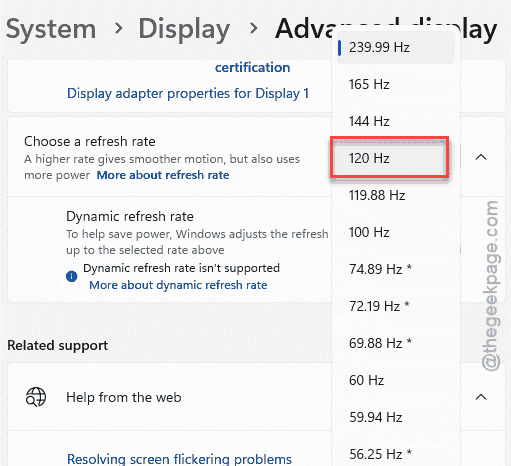
You lose a little smoothness on the main screen. But the flicker on the second one often disappears entirely. Fair trade for most people.
Fix 3 – Turn Off Hardware Acceleration in Background Apps
Apps sitting on your second monitor — a browser, Discord — keep pulling on the GPU.
1 – In Chrome, Edge, or Brave, open Settings and search for Hardware acceleration.
2 – Toggle Use graphics acceleration when available to Off.
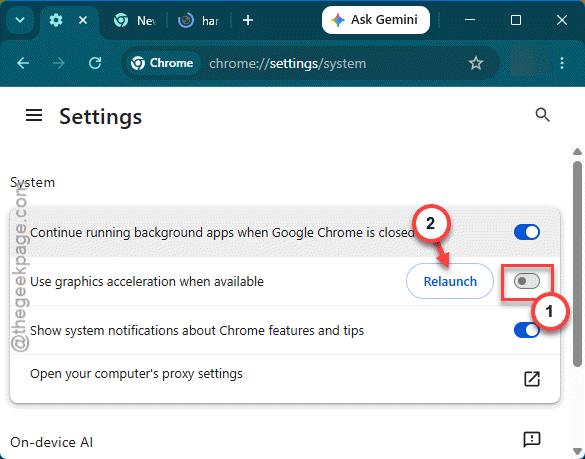
3 – In Discord, go to User Settings > Advanced and turn Hardware Acceleration off.
4 – Restart each app so the change applies.
Then watch your second screen for a few minutes. If the flicker eased up, a background app was the troublemaker.
Fix 4 – Check the Monitor’s Own Anti-Flicker Setting
Quick one, and people forget it.
1 –Press the physical buttons on your monitor to open its on-screen menu (the OSD).
2 – Look for a setting called VRR Control or Anti-Flicker Mode, whiichever you have. Turn it on.
That’s it. It tells the panel itself to smooth out the refresh, and on some models it clears the flicker completely.
Fix 5 – Raise the VRR Floor With CRU
Raising the VRR floor stops the panel from cycling away too much.
1 – Download and run CRU (Custom Resolution Utility — a free tool that edits your monitor’s display timings).
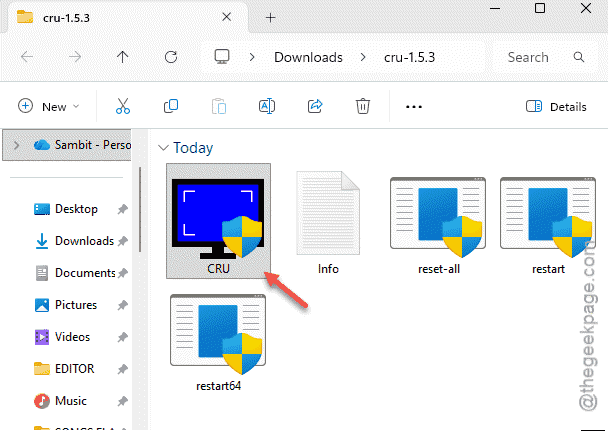
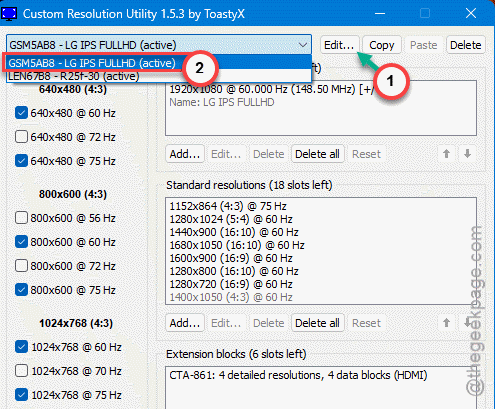
2 – Pick your main VRR monitor from the dropdown at the top.
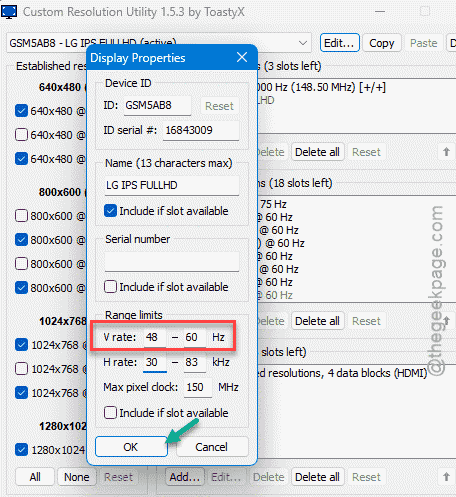
3 – Click Edit next to Range Limits.
4 – Find the V-rate range. If it reads something like 48-144Hz, change the minimum from 48 up to 60.
5 – Click OK.
6 – Run restart.exe from the CRU folder to reload the graphics driver. Your screens will blink as it applies — that’s normal.
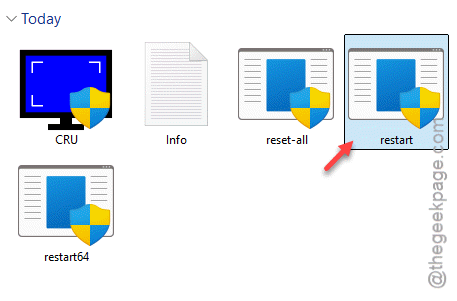
Be careful here — only change the minimum, not the maximum. If the screen goes black, just wait. The driver reverts on its own after a few seconds.
How to Prevent This
– Set VRR to full-screen-only and leave it there. It’s the cleanest setup for a dual-monitor rig.
– Keep your main refresh rate a clean multiple of 60. Saves you the timing headaches before they start.
– Don’t park heavy apps like a browser or Discord on the 60Hz screen while gaming. They tug on the GPU.
– Update your graphics driver now and then. Newer drivers handle mixed-refresh setups better.
People Also Ask
Why does VRR make my screen flicker?
The VRR feature keeps on changing the display refresh rate to match the frame rate. On a basic 60Hz screen, or when frames drop low, the panel can’t keep up and flashes. Limiting VRR to full-screen games and matching your refresh rates usually clears it up.
Should I just turn VRR off?
You can, and it’s the surest fix if nothing else works. But you lose the smooth, tear-free gaming VRR gives you. Try restricting it to full-screen mode first. That keeps the benefit on your main screen while stopping the flicker on the second one.
Why does only my secondary monitor flicker?
Because VRR is meant for one display, and the timing spills onto the second one where it doesn’t belong. Your 60Hz screen can’t handle the shifting refresh. Disable VRR on just that monitor, or set it to activate only in full-screen apps.