OneNote was fine. Then a Windows update landed. And now it freezes. “Not responding” sitting in the title bar.
You click. Nothing. You wait. The little spinner just spins. Painful when you’re mid-study or in a meeting. Here’s how to get it stable again.
Why This Happens
Here’s the deal. A Windows update changes things under the hood. And OneNote, which leans on a bunch of background services, doesn’t always like the change.
The biggest offender? Add-ins. Those little extras you installed months ago and forgot about. They worked fine before the update. After it, they clash with the new OneNote and lock the whole thing up. One person’s freezing vanished the second they switched off just two add-ins.
And there’s a sneaky one with the pen. OneNote’s automatic handwriting recognition runs constantly in the background. After certain updates it starts chewing resources and freezing the app — even if you never touch a stylus. Weird, but it’s a known fix.
Then there’s the cache. OneNote stores a local copy of your notebooks. If that cache got corrupted during the update, OneNote hangs trying to read it. So we’ll clear that too.
Fix 1 – Disable Your Add-ins
Start here. Add-ins are the most common cause after an update, and turning them off is quick to test.
1 – Open OneNote.
2 – Click File in the top left.
3 – Click Options at the bottom of the left sidebar.
4 – Select Add-ins from the list on the left.
5 – At the bottom, next to Manage, pick COM Add-ins and click Go.
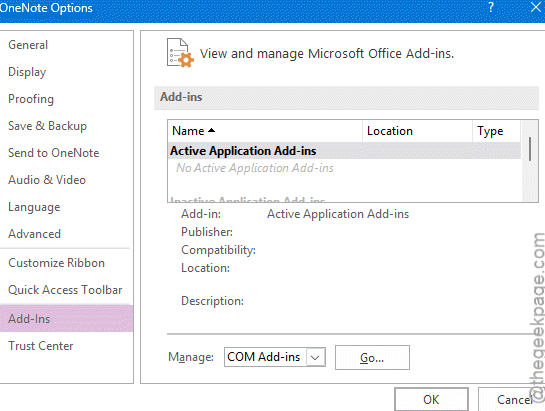
6 – Uncheck every add-in in the list. Click OK.
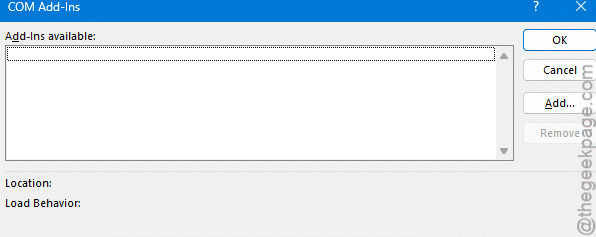
7 – Restart OneNote and see if it’s stable.
Stable now? Then one of those add-ins was the culprit. Turn them back on one at a time to find the bad one. Tedious, but it pins down exactly which one to keep off.
Fix 2 – Turn Off Automatic Handwriting Recognition
This one’s not obvious, but it fixes a surprising number of freezes. The pen feature runs in the background whether you use a stylus or not.
1 – In OneNote, click File, then Options.
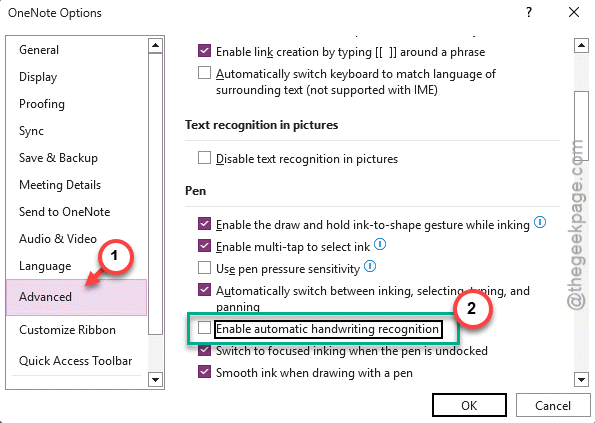
2 – Click Advanced in the left sidebar.
3 – Scroll down to the Pen section.
4 – Uncheck Enable automatic handwriting recognition.
5 – Click OK and restart OneNote.
One user did exactly this and studied for hours afterward with zero freezing. If you’re on a keyboard-and-mouse PC anyway, you lose nothing by switching it off.
Fix 3 – Clear the OneNote Cache
If a corrupted cache is the problem, this clears it out. Don’t panic — your actual notes live in the cloud. This only wipes the local temporary copy, which rebuilds itself.
1 – Close OneNote completely. If it’s frozen solid, restart your PC first.
2 – Press Windows + R, paste this in, and press Enter:
C:\Users\<YourUser>\AppData\Local\Microsoft\OneNote\
3 – Swap <YourUser> for your actual Windows username.
4 – Find the cache folder and delete it.
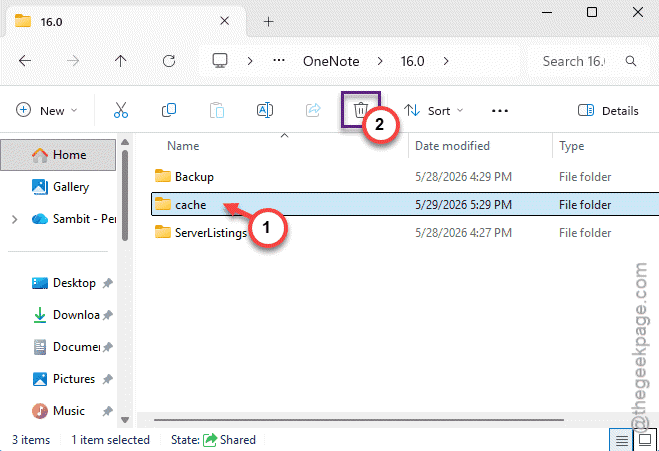
5 – Reopen OneNote. It rebuilds the cache and re-syncs your notebooks.
Give it a minute to re-sync after. The first launch is slow while it pulls everything back down. Normal.
Fix 4 – Install the Latest Office Update
Sometimes the fix is the next update. Microsoft patches these freezes fast once they show up.
1 – Open OneNote and click File.
2 – Click Account (or Office Account) in the left sidebar.
3 – Click Update Options, then Update Now.
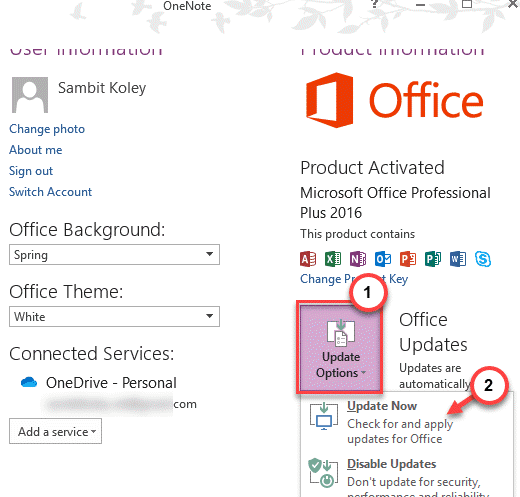
4 – Let it download and install whatever’s pending.
5 – Restart OneNote.
And check Windows Update too (Windows + I > Windows Update).
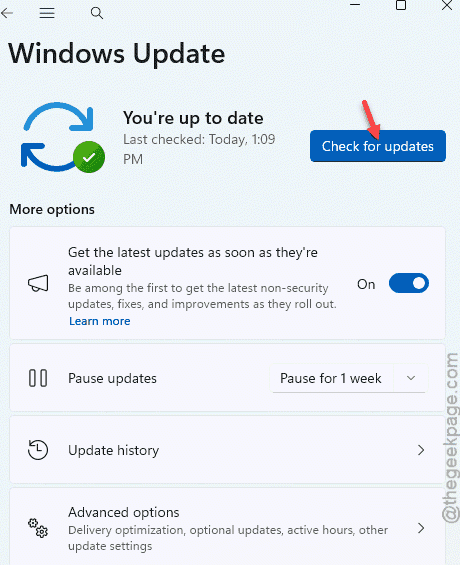
If a bad update caused this, the follow-up update often fixes it.
Fix 5 – Run an Online Repair
Nothing else worked? Then repair the whole Office install. This rebuilds OneNote from clean files.
Quick path. Press Windows + I, go to Apps > Installed apps, find Microsoft 365 (or your Office version), click the three dots, and choose Modify.
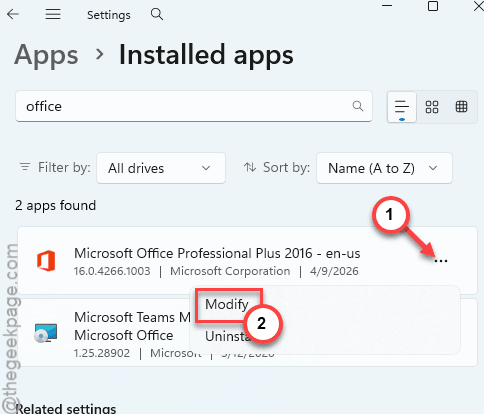
Pick Online Repair and let it run.
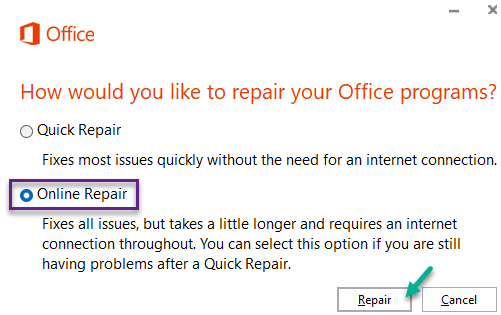
Heads up — it repairs all of Office, not just OneNote, and it takes a while plus needs internet. But it’s the most thorough fix when a freeze just won’t quit.
How to Prevent This
– Keep OneNote and Office on auto-update. Most of these freezes get patched within a few releases.
– Be picky about add-ins. Every one you install is a thing that can break after the next update. Keep only what you actually use.
– If you don’t use a stylus, leave automatic handwriting recognition off for good. It only causes trouble on a keyboard PC.
– Let OneNote finish syncing before you close it. A half-synced cache is more likely to corrupt during an update.
People Also Ask
Why does my OneNote keep saying “not responding”?
Usually a misbehaving add-in or a corrupted local cache, especially right after a Windows update. Try disabling your add-ins first, then clear the OneNote cache folder. If it’s tied to the pen feature, turning off automatic handwriting recognition stops the hang for a lot of people.
Why is my PC freezing after Windows Update?
An update can change drivers and background services that your apps depend on, and the mismatch causes freezes. Make sure you’ve installed any follow-up updates — Microsoft patches these quickly. Updating your drivers and repairing the affected app, like OneNote, usually settles things back down.
How to fix OneNote glitching?
Work through it in order. Disable add-ins, turn off automatic handwriting recognition, and clear the cache folder. If it’s still glitchy, install the latest Office update, then run an Online Repair as a last resort. One of those steps clears up nearly every OneNote glitch.