Open Task Manager and there it is. WSUSBootstrap.exe, chewing through 30 to 50% of your CPU. Just churning away.
Fans spinning. Server sluggish. And it won’t let go.
Why This Happens
Here’s the deal. WSUSBootstrap is part of Windows Server Update Services. It handles update metadata — the giant catalog your clients scan against.
And that catalog balloons over time. Superseded updates pile up. Obsolete ones never get cleaned out. So every time a client checks in, the server grinds through a massive list. CPU spikes.
The IIS app pool behind WSUS doesn’t help. Out of the box it’s tuned for a tiny load. Too many clients hit it at once? It buckles.
Then there’s the database. Fragmented indexes make every single scan slower. The longer you leave it, the worse it gets. Why does it spike out of nowhere? Usually a scan storm — a bunch of clients checking in at the same time. Predictable, but still annoying.
Fix 1 – Run a WSUS Cleanup
Start here. A bloated catalog is the number one cause. Declining superseded and obsolete updates shrinks what the server has to chew on.
1 – Open the WSUS console (Update Services from Administrative Tools).
2 – In the left pane, expand your server and click Options.
3 – Click Server Cleanup Wizard.
4 – Tick every box — especially Unused updates and update revisions and Superseded updates.
5 – Click Next and let it run.
Heads up — on a server that’s never been cleaned, this can take hours. Run it after-hours the first time. Painful once, smooth after.
Fix 2 – Optimize the WsusPool IIS App Pool
The default app pool settings choke under real load. They were never meant for a busy server. A few tweaks and the CPU spikes calm right down.
1 – Open IIS Manager.
2 – Click Application Pools in the left pane.
3 – Select WsusPool, then click Advanced Settings on the right.
4 – Set Queue Length to 25000 (it ships at a measly 1,000).
5 – Set Private Memory Limit (KB) to 0. That stops the pool from recycling mid-scan.
6 – Set Idle Time-out (minutes) to 0 so it stays awake.
7 – Under recycling, turn off the fixed-interval recycle. Instead, schedule a single daily recycle during off-peak hours.
8 – Restart the WsusPool.
And this one change fixes more high-CPU cases than anything else. The default config? Just too small.
Fix 3 – Re-index the WSUS Database
Database fragmentation is a silent CPU killer. Every scan crawls through messy indexes. Re-indexing fixes that — and it needs to happen regularly, not once.
1 – Running more than 500 clients? Move off WID (Windows Internal Database) to a full SQL Server instance. WID just can’t keep up at scale.
2 – Grab Microsoft’s official WSUS DB re-indexing script (the one for SUSDB).
3 – Run it once now to clear the current fragmentation.
4 – Then schedule it weekly as a SQL Agent job or a Task Scheduler task.
So set it and forget it. Weekly re-indexing keeps the CPU spikes from ever coming back.
Fix 4 – Automate the Cleanup With PowerShell
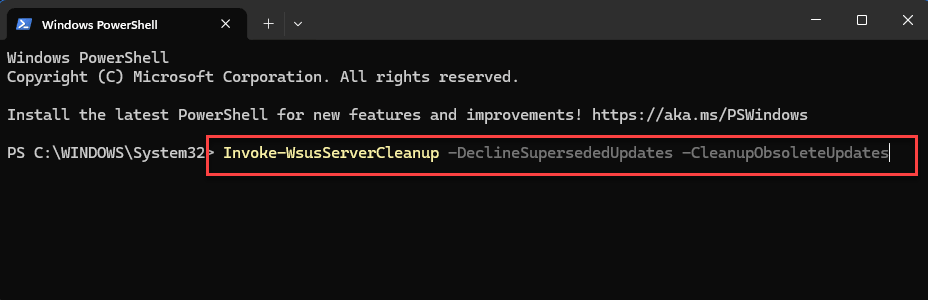
Doing the cleanup by hand gets old fast. Script it instead. One command does the heavy lifting.
1 – Open PowerShell as Administrator on the WSUS server.
2 – Run
Invoke-WsusServerCleanup -DeclineSupersededUpdates -CleanupObsoleteUpdates
3 – Schedule that as a recurring task — weekly works well.
4 – While you’re at it, make sure the .wim and .msu MIME types are registered in IIS. Windows 11 and Server 2026 use the Unified Update Platform, and missing MIME types make scans fail and retry — which spikes CPU.
So automate it once. And then you stop thinking about it.
Fix 5 – Spread the Load With Delivery Optimization
If clients all pull updates straight from the server, the CPU and bandwidth take a beating. Let them share update bits with each other instead. It can cut server load by up to 80%.
1 – Open Group Policy Management.
2 – Edit the GPO for your client machines.
3 – Go to Computer Configuration > Administrative Templates > Windows Components > Delivery Optimization.
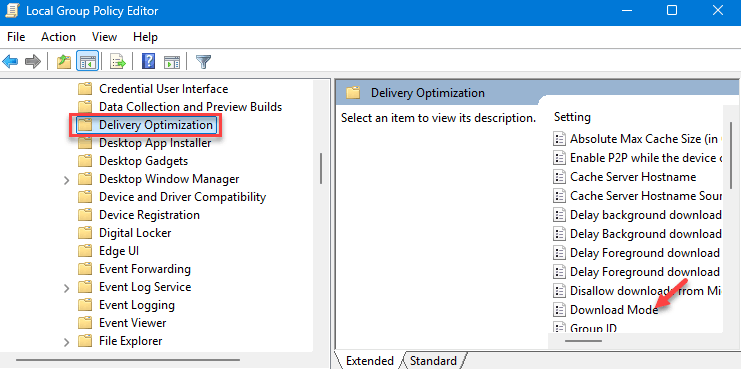
4 – Set Download Mode to HTTP blended with peering behind the same NAT (1).
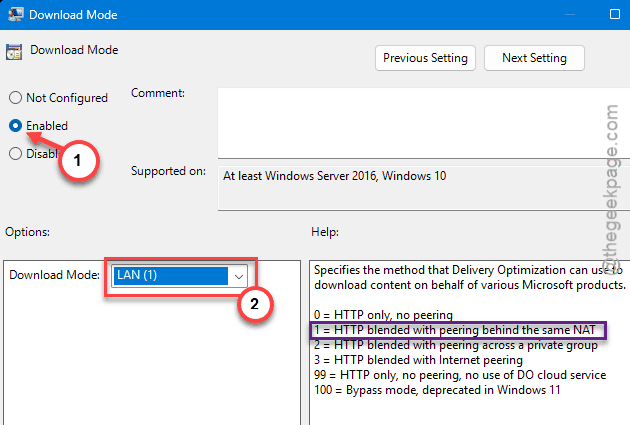
5 – Apply the GPO and let clients pick it up.
And now clients trade update files locally instead of all hammering the server. Big drop in CPU.
Fix 6 – Check Hardware and Scan Intervals
Sometimes the server is just under-spec’d or scanning too aggressively. Two quick things to verify.
1 – Confirm the WSUS role has enough muscle. For medium-to-large environments, give it at least 4 to 8 vCPUs and 16 GB+ RAM.
2 – Dial back the scan frequency. Clients checking in every hour is overkill. A balanced cycle of every 8 to 12 hours eases the constant churn.
3 – Move WSUS to HTTPS on port 8531. Modern clients expect an encrypted metadata channel, and failed scans over plain HTTP just retry and burn CPU.
But right-sized hardware plus a sane scan schedule? That’s the difference between a calm server and a hot one.
How to Prevent This
- Schedule the WSUS cleanup and DB re-index weekly. A neglected catalog is what causes the spikes in the first place.
- Bump the WsusPool queue length and memory limit right after install. The defaults are too small for any real deployment.
- Turn on Delivery Optimization peering via GPO. It takes a huge chunk of load off the server.
- Don’t let clients scan every hour. Stretch it to 8–12 hours and the constant CPU churn drops off.
People Also Ask
Is 30% CPU usage normal?
For a quick background task, no — that’s high. A WSUS server might briefly hit it during a scan, but sustained 30 to 50% from one process means something’s wrong. On WSUS, that usually points to a bloated catalog or a fragmented database that needs cleanup.
How do I fix high CPU usage from a Windows update service?
Clear out the backlog first. On a client, that’s the SoftwareDistribution folder; on WSUS, it’s the cleanup wizard plus a database re-index. Then check whether the service is scanning too often. Cutting the scan frequency takes a lot of pressure off.
How do I fix extremely high CPU usage in general?
Open Task Manager, sort by CPU, and find the exact process. Then target that one — don’t just restart and hope. For service-related spikes like WSUS, the fix is almost always reducing the workload: clean the data, re-index, and spread the load instead of killing the process.