Your backup fails. Or you try to make a restore point and it errors out. Something about Volume Shadow Copy.
VSS is what lets Windows snapshot files while they’re still in use. When it breaks, backups just… stop. And the error codes? Cryptic (0x80042306, Event ID 12289 — real helpful, right?).
Why This Happens
Couple of reasons, usually. VSS leans on a handful of Windows services. If even one is stopped or set to manual, the whole thing falls over.
And it’s hungry for disk space. No room on the drive? No snapshot. Simple as that.
Then there’s corruption. Damaged system files quietly break core services like this one. So do some antivirus tools — they grab the same files VSS needs and won’t let go.
Microsoft just doesn’t support it. So if you’re on a giant array, that’s your whole answer right there.
Fix 1 – Start VSS and Its Helper Services
Start here. If the service is stopped — or one of its dependencies is — nothing else matters.
1 – Press Windows + R, type services.msc, and press Enter.
2 – Scroll down the alphabetical list to Volume Shadow Copy.
3 – Right-click that service, and choose Start if it isn’t already running.
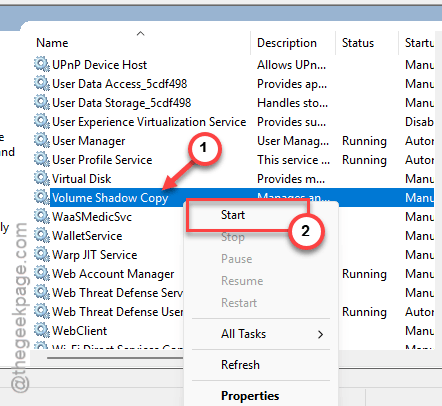
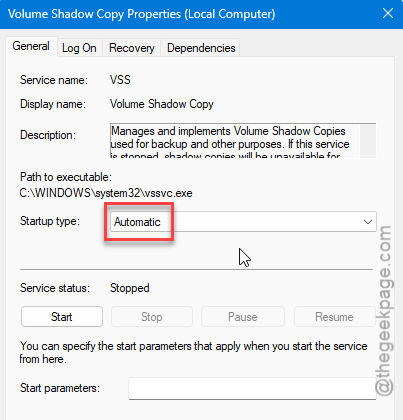
4 – Then, right-click the service again, choose Properties, set Startup type to Automatic, and click OK.
5 – Now locate the Microsoft Software Shadow Copy Provider (it’s the helper VSS depends on) in the services panel and do the exact same thing. Start the service and automate it.
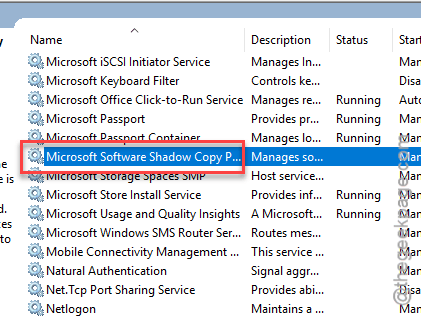
And then rerun your backup. For a lot of people, that’s the whole fix. Two services, both running, both automatic.
Fix 2 – Free Up Disk Space
VSS needs breathing room to write its snapshots. If your system drive is nearly full, it can’t create one. So clear some space.
1 – Press Windows, type Disk Cleanup, and open it.
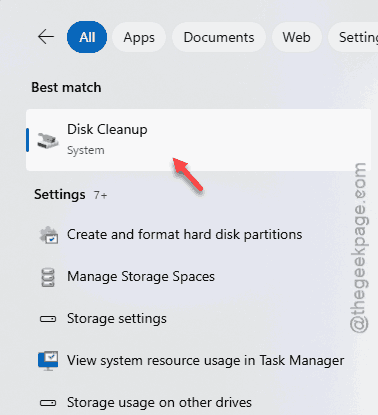
2 – Pick your main system drive (usually C:).
3 – Check the boxes beside the temporary files, internet cache boxes.
4 – Click OK, then confirm.
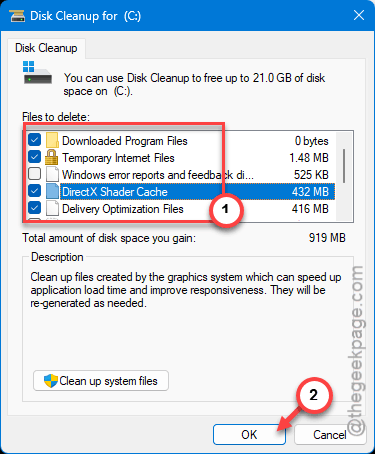
Aim to leave at least 10–15% of the drive free. Tight on space is the second-most-common reason VSS chokes. Easy to overlook.
Fix 3 – Repair System Files With SFC and DISM
Corrupted system files break core services, and VSS is right in the firing line. Two built-in scans fix that. Run them in order.
1 – Press Windows, type cmd, right-click Command Prompt, and choose Run as administrator.
2 – Type this and press Enter. Wait for it to hit 100% (don’t close the window).
sfc /scannow
3 – Then type the next code, and press Enter.
DISM /Online /Cleanup-Image /RestoreHealth
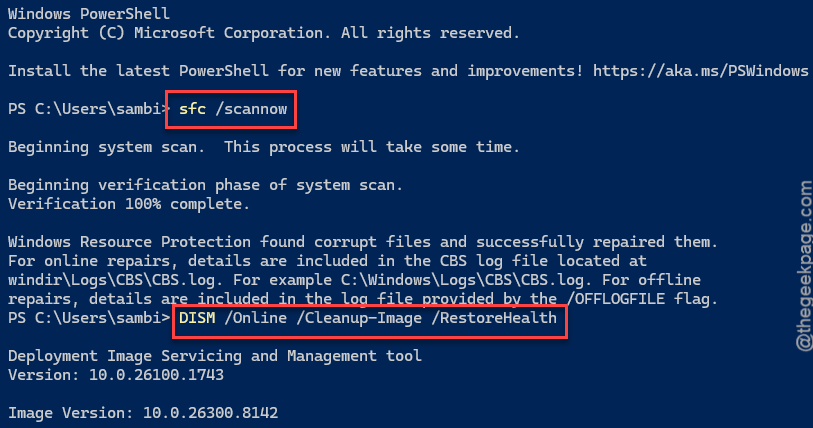
4 – Let DISM finish, then restart your PC.
SFC fixes individual files. DISM repairs the underlying Windows image SFC pulls from. So you run both — that order matters.
Fix 4 – Temporarily Turn Off Security Software
Backup and antivirus tools love to fight over the same files. If your AV is locking what VSS wants, the snapshot fails. So switch it off for a quick test.
1 – Using third-party antivirus? You can disable it briefly from the hidden icons on the taskbar directly.
2 – On Windows Defender, go this way –
Windows Security > Virus & threat protection
3 – Tap the Manage settings tab. Turn off the Real-time protection feature.
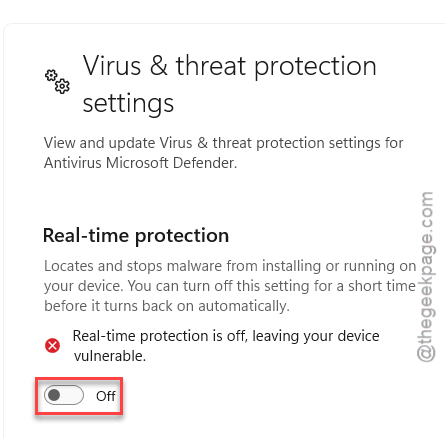
4 – Temporarily disable the Windows Firewall, too.
4 – Retry your backup or restore.
And turn everything back on the moment you’re done. This is a five-minute test, not a way to live. If the backup works with protection off, your security tool is the culprit — add a backup exclusion for it.
Fix 5 – Do a Clean Boot
Still failing? Some background app is probably interfering. A clean boot starts Windows with only the essentials, so you can tell.
1 – Press Windows, type msconfig, and press Enter.
2 – Go to the Services tab. Check the Hide all Microsoft services at the bottom (important — don’t skip this). Then, tap Disable all.
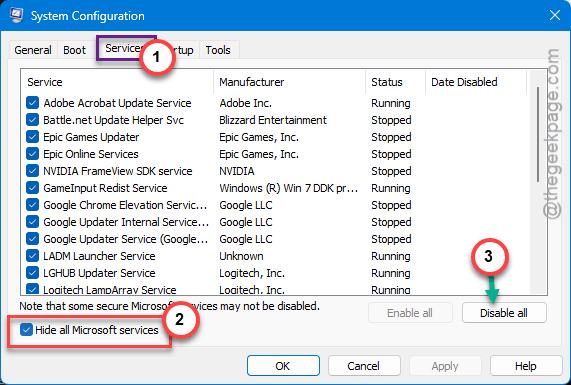
3 – Load up the Task Manager (Ctrl + Shift + Esc). Next, go to the Startup apps tab, and disable everything there.
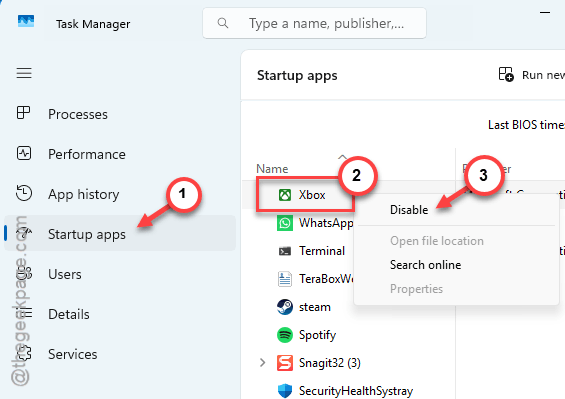
4 – Restart and try the backup again.
If it works now, a third-party program was the problem. Re-enable things in batches to find which one.
Fix 6 – Check Event Viewer (Remember the 64 TB Limit)
When nothing obvious works, the logs tell you why. Event Viewer keeps the detailed VSS errors that the backup tool hides from you.
1 – At first, hit the Windows, type Event Viewer, and open it.
2 – Next, on the left pane, proceed to Windows Logs. Go to the Application section.
3 – Look for red error entries with VSS as the source. Note the Event ID and the message.
4 – See Event ID 12289 or a STOP code like 0x80042306? Those point to a specific cause you can search exactly.
And one hard limit to rule out: VSS does not support volumes larger than 64 TB. If your drive is over that, no fix applies — Microsoft simply doesn’t support snapshots that big. Keep VSS, backups, and chkdsk off those volumes.
So check the size first if you’re on a big array. Saves you hours chasing a fix that can’t exist.
How to Prevent This
- Leave Volume Shadow Copy and its provider service set to Automatic. Don’t let cleanup tools flip them to manual.
- Keep 10–15% of your system drive free. VSS quietly fails the second it runs out of room.
- Add a backup exclusion in your antivirus instead of disabling it. Stops the file-locking fights for good.
- Don’t put VSS or backups on volumes over 64 TB. Split big arrays into smaller volumes if you need snapshots.
People Also Ask
What causes a Volume Shadow Copy service error?
The possible reasons behind this problem is usually a stopped service or dependency, lack of free disk space, or corrupted system files. Antivirus interference is common too. Start with the services and disk space, then run SFC and DISM. The exact Event ID in Event Viewer narrows it down fast.
Will fixing VSS delete my existing backups or files?
No. Starting the service, freeing space, or running SFC won’t touch your data or saved backups. The one thing to know: running out of shadow storage can drop old restore points automatically. But manually fixing the service itself is safe.