You hit End task. The app… stays. You hit it again. Still there. Like Task Manager just shrugged at you.
The process says it ended. But it’s still eating CPU. Still locking files. So annoying.
Why This Happens
Simple reason, actually. “End task” just asks the app to close politely. A frozen or stubborn app ignores the request and keeps right on running.
And some processes can’t be killed the normal way at all. Windows guards them. Security permissions, system protection, dependency chains — all of it gets in the way.
There’s also the tree problem. Kill one process and its child processes keep going, then quietly relaunch the parent. So it looks like nothing happened.
What about the really locked-down ones? Critical processes like wininit.exe and csrss.exe are protected on purpose. Force them and you’d crash the whole machine — so Windows just refuses, to save you from a blue screen.
Fix 1 – Use “End Process Tree” From the Details Tab
The plain End task only hits one process. End process tree takes down the whole family — the app and all its background helpers. That’s usually the difference.
1 – Press Ctrl + Shift + Esc to open Task Manager.
2 – Click the Details tab. This is the advanced view, not the simple Processes one.
3 – Find your process in the list. Right-click it.
4 – Choose End process tree.
5 – Confirm.
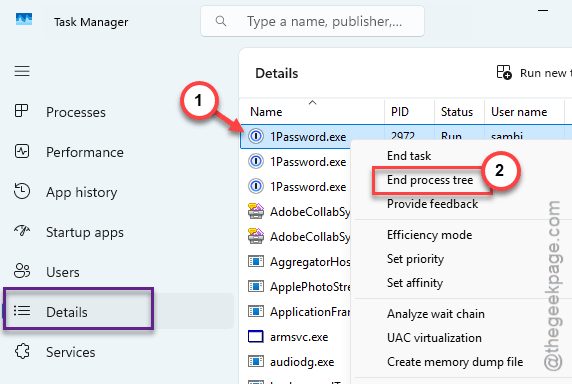
This kills the process and everything it spawned. So it can’t just respawn itself a second later. That’s the trick.
Fix 2 – Force Kill With taskkill
When Task Manager flat-out refuses, the command line gets it done (almost every time). The /f flag means force — no asking nicely.
1 – Press Windows, type cmd, right-click Command Prompt, and pick Run as administrator.
2 – Type taskkill /f /im processname.exe and press Enter. Swap in the real name — for a stuck Chrome, that’s taskkill /f /im chrome.exe.
3 – Watch for the success message confirming it ended.
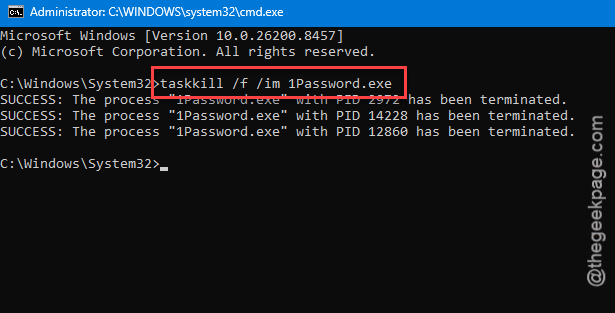
One thing to know — killing by name closes every instance at once. So all your Chrome windows go down together. Gone. Fine for a hung app, just don’t be surprised.
Fix 3 – Kill It by PID
Got several copies running and only want to nuke one? Target it by its Process ID instead of its name.
1 – In the same admin Command Prompt, type tasklist and press Enter. You’ll get every running process with its PID.
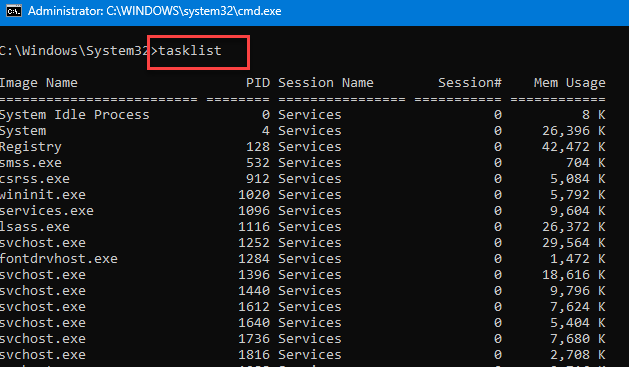
2 – Find your process and note the number in the PID column. Newer or recently opened ones usually sit near the bottom of the list.
3 – Type taskkill /pid 1234 /f — but use your actual PID instead of 1234. Press Enter.
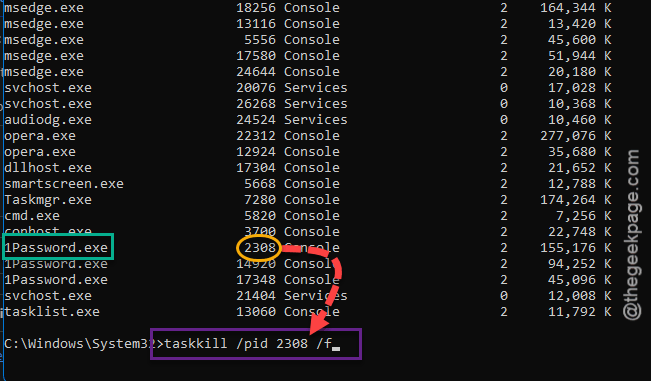
This hits exactly one instance. Surgical (one process, nothing else touched). Handy when you don’t want to take down everything else.
Fix 4 – Launch an Admin Command Prompt From Task Manager
Sometimes a process locks things up so hard you can’t even open the Start menu. No problem — start the command prompt from inside Task Manager itself.
1 – Open Task Manager with Ctrl + Shift + Esc.
2 – Click File at the top left, then Run new task.
3 – Type cmd in the box.
4 – Tick Create this task with administrative privileges.
5 – Click OK.
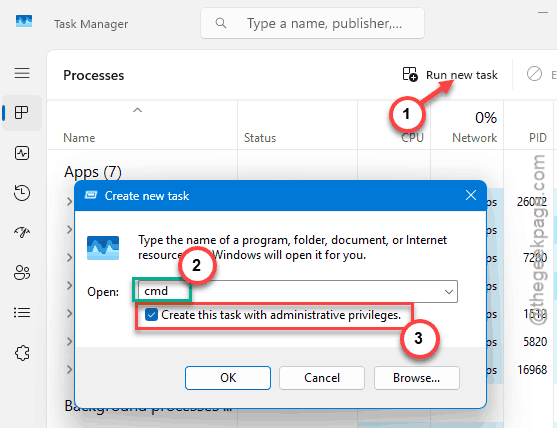
6 – Now run your taskkill command from Fix 2 or Fix 3.
Even with everything else frozen, Task Manager almost always still opens (it runs at a higher priority than normal apps). So this is your back door when nothing else responds.
Fix 5 – If It’s a Protected Process, Just Reboot
Run taskkill and get “Access is denied” even as administrator? Then it’s a protected system process. And you should stop trying to force it.
1 – Don’t keep hammering it. Processes like wininit.exe and csrss.exe are off-limits for a reason — killing them blue-screens the PC.
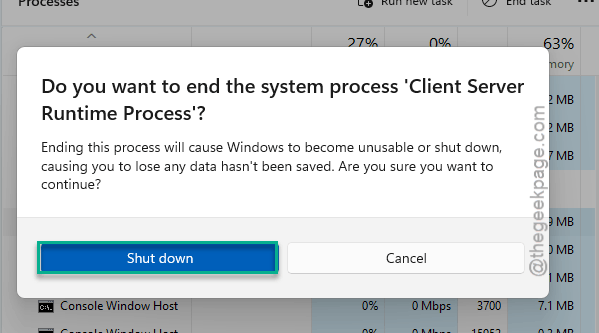
2 – Save any open work (if you still can).
3 – Restart the PC. A reboot clears the stuck process safely, no risk.
Not the glamorous fix, I know. But for a truly protected process, a clean restart is the right call. Don’t fight Windows on the ones it’s protecting.
How to Prevent This
- Reach for End process tree first, not End task. It catches the helpers that let an app respawn.
- Keep an admin Command Prompt habit for stubborn apps. taskkill /f ends almost anything a normal app can throw at you.
People Also Ask
Why can’t I end processes in Task Manager?
You can’t terminate some of the crucial system processes from Task Manager. For the first, use End process tree or taskkill /f. For the second, you can’t — and shouldn’t — kill it. Just reboot.
How do I force end a task that won’t end?
Drop to an admin Command Prompt and use taskkill /f. If even that says access denied, it’s a protected process — a restart is your only safe option.