Fan spinning. System sluggish. You open Task Manager and there it is — OneDrive eating 30–50% of your CPU. For no obvious reason. Just sitting there, chewing through resources. This happens more often than it should. And Microsoft’s own fix is buried so deep most people never find it.
Why This Happens
OneDrive constantly monitors files for changes. If the sync database gets corrupted or if there are thousands of tiny files left to index: the CPU usage spikes up and stays high. There is a chance that this otherwise harmless scanning process can get stuck in a loop, re-scanning the same files again and again. Windows telemetry settings can make it worse too. The data collection service sometimes conflicts with OneDrive’s indexing. And after major Windows updates, the cache often gets into a bad state. So the CPU just never calms down.
Fix 1 – Reset OneDrive
This clears the local sync cache and forces OneDrive to rebuild from scratch. Does not delete any files.
NOTE – Resetting the OneDrive drive won’t delete your documents from the cloud.
1 – Press Windows + R to open the Run dialog.
2 – Paste this command and press Enter:
%localappdata%\Microsoft\OneDrive\onedrive.exe /reset

3 – Wait a few seconds. The OneDrive icon will disappear from the taskbar tab.
4 – If it does not restart automatically after about a minute, open Run again (Windows + R) and type:
%localappdata%\Microsoft\OneDrive\onedrive.exe
5 – Press Enter. OneDrive will restart and begin re-syncing.
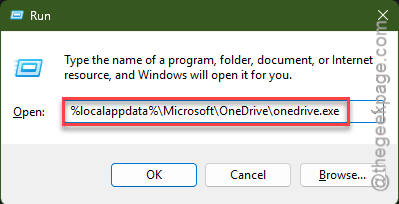
Check Task Manager after a few minutes. CPU usage should drop back to normal. If it spikes during the initial re-sync, that is expected. Give it time.
Fix 2 – Pause Syncing to Get Immediate Relief
Need the CPU back right now? Pause OneDrive temporarily.
1 – Right-click the OneDrive cloud icon in your taskbar (bottom-right corner).
2 – Click the Gear icon for Settings.
3 – Select Pause syncing.
4 – Pick 2 hours, 8 hours, or 24 hours.
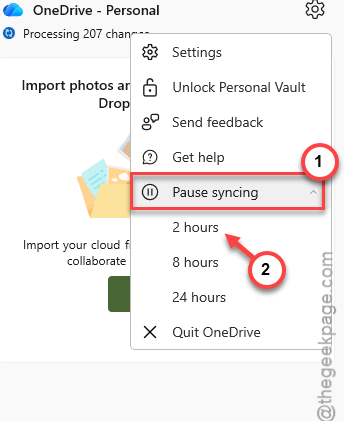
Instant relief. CPU drops immediately. But this is temporary. The underlying problem comes back when syncing resumes. Use this while you apply the other fixes.
Fix 3 – Disable Windows Telemetry via Group Policy
The telemetry service sometimes fights with OneDrive for CPU time. Disabling it can reduce overall system load.
Note: this only works on Windows Pro or Enterprise. Home edition does not have Group Policy Editor. If you are on Home, skip this one.
1 – Press Windows + R. Type gpedit.msc and press Enter. This opens the Local Group Policy Editor.
2 – In the left panel, go to: Computer Configuration, then Administrative Templates, then Windows Components, then Data Collection and Preview Builds.
3 – Double-click Allow Diagnostic Data in the right panel.
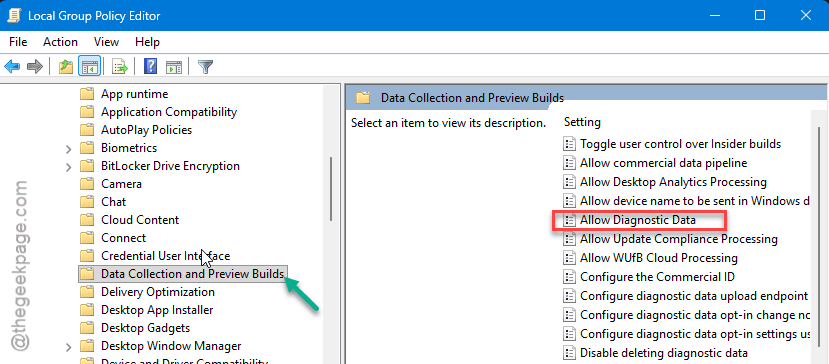
4 – Select Disabled.
5 – Click Apply, then OK.
6 – Restart your PC.
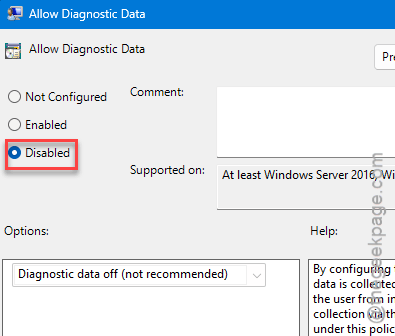
See if this works.
Fix 4 – Reduce the Number of Synced Files
If you have 50,000 files syncing, OneDrive has to monitor every single one. That is a lot of CPU work.
1 – Right-click the OneDrive icon in the system tray.
2 – Open Settings.
3 – Go to Sync and Backup.
4 – Click Manage Backup.
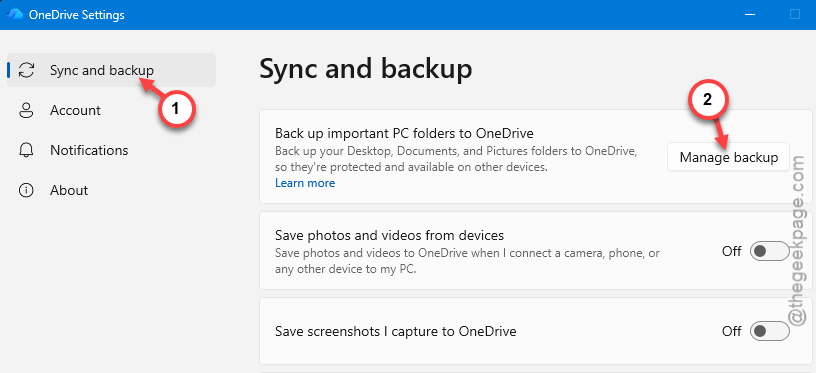
5 – Turn off any folders you do not need synced. Especially Desktop if you have tons of files there.
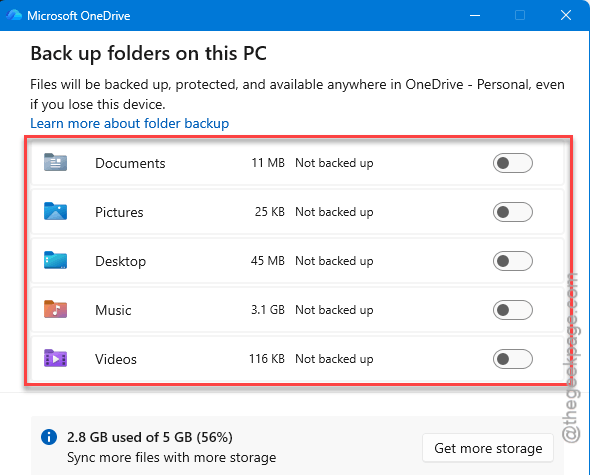
Less files to monitor means less CPU usage. Simple math. And your important stuff stays in the cloud — you are just not syncing everything both directions.
Fix 5 – Unlink and Re-link OneDrive
If resetting does not help, try a full unlink. This disconnects OneDrive from your PC and lets you start fresh.
1 – Right-click the OneDrive icon in the system tray.
2 – Open Settings.
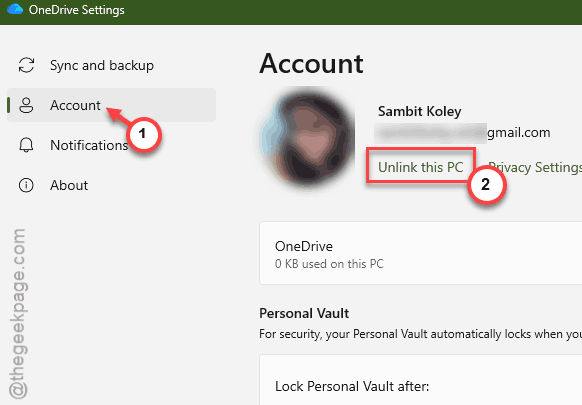
3 – Go to the Account tab.
4 – Click Unlink this PC.
5 – Sign back into OneDrive when prompted.
6 – Choose which folders to sync (pick only what you need).
So yeah, takes a bit longer. But it gives you a truly clean start. The CPU usage should stay low after this because the sync database is brand new.
How to Prevent This
- Reset OneDrive after every major Windows update. The cache gets stale fast.
- Only sync folders you actually need. Do not back up everything.
- If CPU spikes randomly, pause syncing first, then reset. That order matters.
- Keep OneDrive updated. Check for updates in the Microsoft Store.
People Also Ask
How do I stop OneDrive from using so much CPU?
You have to reset the Microsoft OneDrive app. Press Windows + R, paste the reset command, hit Enter. That clears the cache and usually fixes the high CPU. If it comes back, reduce how many folders you are syncing. Less files means less work for OneDrive.
How to fix Windows 11 high CPU usage?
Open Task Manager and check what is using the most CPU. If it is OneDrive, reset it with the /reset command. If it is something else, check for Windows Update processes or antivirus scans running in the background. Disabling telemetry helps too.
Should I disable OneDrive on my PC?
Depends on whether you use it. If you do not need cloud sync, unlink it and save yourself the CPU headache. If you do need it, just reset it periodically and limit how many folders sync. That keeps it manageable.