Apple Pages provides an excellent environment to do your daily documenting works on macOS. But, the same experience can be ruined if the Pages app start to slow down due to unusually high CPU usage. Users have experienced this phenomenon on their Mac systems, where the Pages app is performing very poorly. Upon investigation of reports of such occurrences, we have found the Siri or the iCloud synchronization as the main culprit. So, if you want a deeper insight on the possible fixes, follow the solutions.
Fix 1 – Revoke Permission for Siri to learn from Pages
While Apple Intelligence is turned on, Siri learns from your usage of the Pages app.
Step 1 – At first, tap the Apple logo on the menu bar to load up the Apple menu. Next, tap the System Settings to open it up.
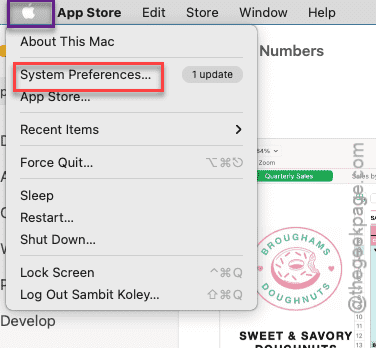
Step 2 – Then, go ahead and load up the Apple Intelligence & Siri tab.
Step 3 – Next, tap the About Siri, Dictation & Privacy settings.
Step 4 – On the following screen, find the Pages app from the left tab. Turn off the Learn from this application option.
Step 5 – Tap Done to save the changes.
After you have saved these changes, check the CPU usage. Pages will take only 3-5% CPU resource.
Fix 2 – Turn off the iCloud sync for Pages app
If the CPU usage is too high for the Pages app, you should disable the iCloud synchronization for the Pages app.
Step 1 – Go to the System Settings page on the macOS.
Step 2 – Then, tap on your Apple ID banner once to load up the Apple ID settings.
Step 3 – On the right-hand pane, load up the iCloud settings.
Step 4 – Find the Saved to iCloud panel. Tap the See All button to explore all the options.
Step 5 – Disable the Pages option there.
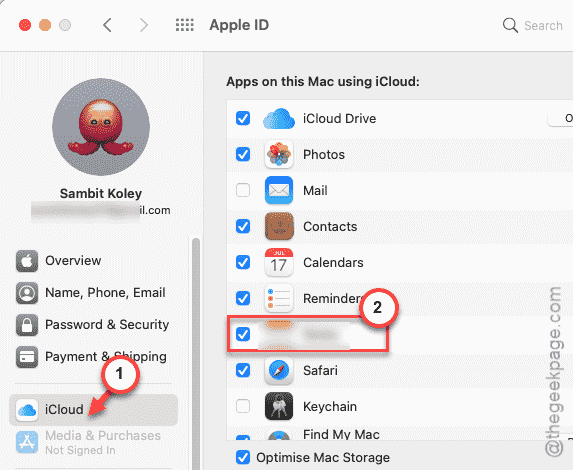
This will restore normalcy for the CPU usage of the Pages app.
Fix 3 – Remove the working document from iCloud
If you are currently working on a document that is in your iCloud account, the synchronization process may cause high CPU power consumption. Instead of having the document directly on the iCloud, get it to your local drive and then proceed with the edits on the Pages app.
Fix 4 – Turn off the Apple Intelligence
Some of the users have found the Apple Intelligence as the main culprit. Disabling it entirely has fixed the issue with the CPU usage issue.
Step 1 – Tap the Apple logo in the menu bar and tap the System Settings option.
Step 2 – In the System Settings page, go to the Apple Intelligence & Siri panel.
Step 3 – Then, turn off the Apple Intelligence feature.
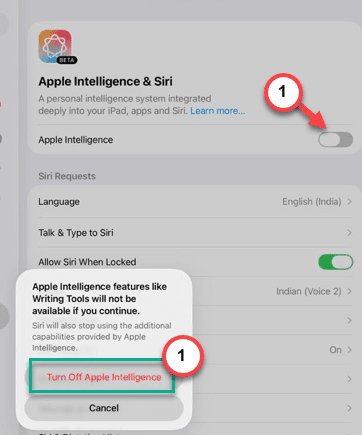
After disabling the Apple Intelligence feature, the CPU usage should go down considerably for the Pages app.