Brave browser has become extremely popular among the Windows users for various reasons. But, just like other browsers, some of the Brave browser users have complained about unusually high CPU, RAM usage on their machines. Faulty cache, corrupted cookies in the browser directory has caused this problem. So, fixing this problem will center on these stuffs.
Fix 1 – End memory-consuming tasks
The more browser tabs or windows you have opened on the Brave browser, the more memory they will consume. You can inspect the memory footprint of each tab and end the high yielding ones.
Step 1 – While you are on the Brave browser, press the Shift+Esc keys together to load up the in-built task manager.
Step 2 – In the browser task manager, you will see all the individual tabs with their memory consumption number.
Step 3 – Check which tabs are eating up more memory, select that and kill it.
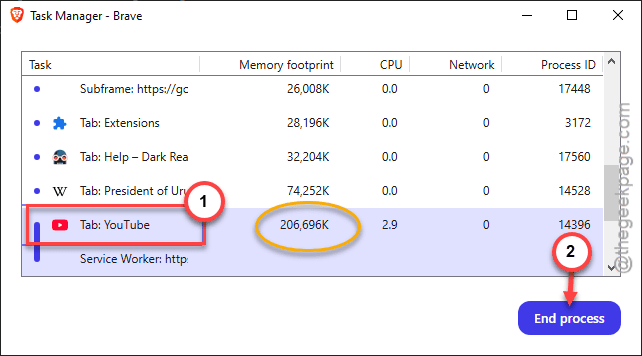
Step 4 – Repeat the same process for all the high-memory consuming tabs on the Brave browser.
This will decrease the memory, CPU consumption for sure.
Fix 2 – Disable the GPU acceleration
Sometimes the GPU acceleration can contradict with some of the installed browser extensions.
Step 1 – On the Brave browser page, open a new tab.
Step 2 – Paste this there and reach the System settings directly on the browser page.
brave://settings/system
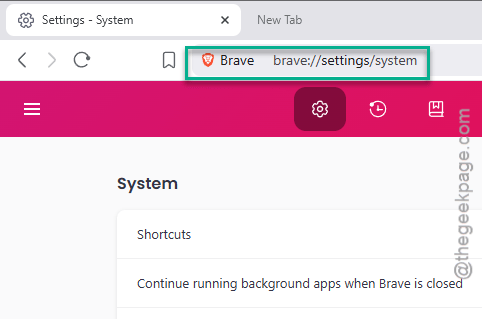
Step 3 – You have to disable the “Continue running background apps when Brave is closed” option.
Step 4 – Later, turn off the “Use graphics acceleration when available” mode.
Step 5 – Tap the “Relaunch” option to relaunch the brave browser on your system.

After it relaunches the Brave browser, check the CPU, RAM metrics. See if this works out.
Fix 3 – Disable certain extensions
Some of the extensions that you use on your Brave browser may conflict with the web page function and cause this problem.
Step 1 – While you are on the Brave browser, tap the three-bar menu.
Step 2 – Next, tap the “Extensions” menu and tap “Manage Extensions“.
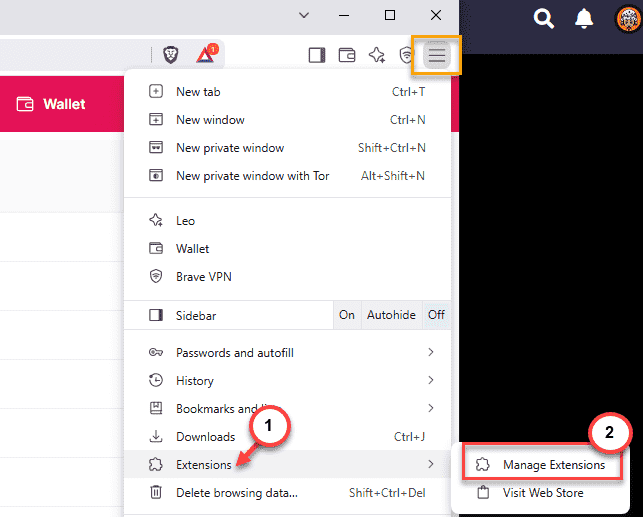
There you will find the list of Brave browser extensions.
Step 3 – You have to turn off each of these extensions one-by-one. Look for any suspicious third-party extensions that may cause this problem and disable them as well.
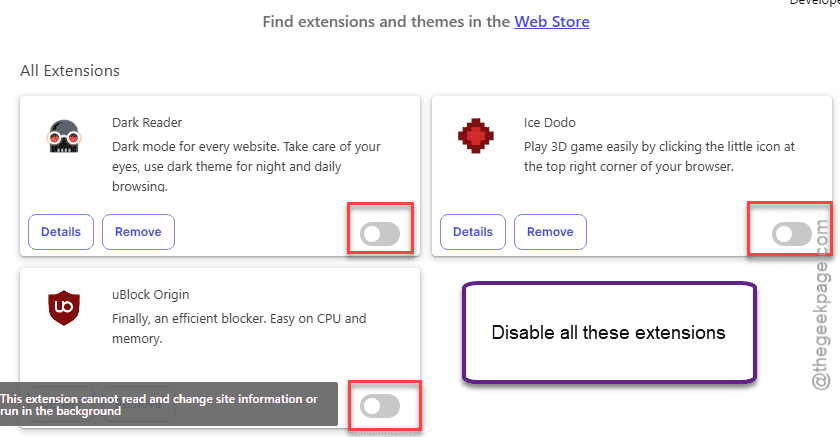
Step 4 – Once you have disabled all the extensions, take a look at the CPU, RAM consumption on the Task Manager.
If you don’t see any high output in CPU, RAM consumptions reflected on the Task Manager, there must be some problem with the extensions.
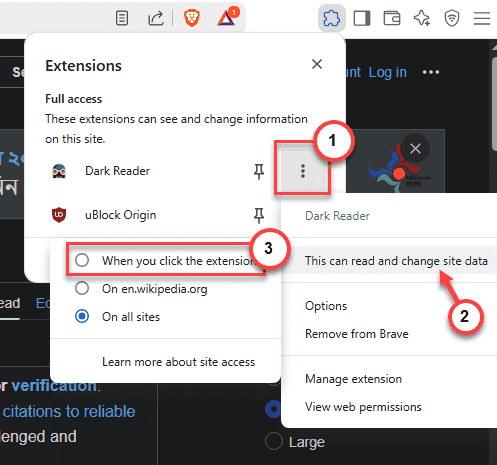
NOTE – You may just limit the usage of some extensions. Like, you may configure Dark Reader to run only on the required, text-heavy websites. Set it to “When you click on this extension” mode to get the desired results. This way, you don’t have to disable or remove such extensions.
Fix 4 – Turn on Memory Saver
The developers of Brave browser has introduced the ‘Memory Saver’ feature that releases the extra memory hoarded by unused tabs.
Step 1 – Load up the Brave browser.
Step 2 – Next, paste this in a new tab and hit Enter.
brave://settings/system
Step 3 – This should take you to the System settings panel.
Step 4 – Find the “Performance” panel.
Step 5 – Turn on the “Memory Saver” in there. Set it to the “Maximum” mode.
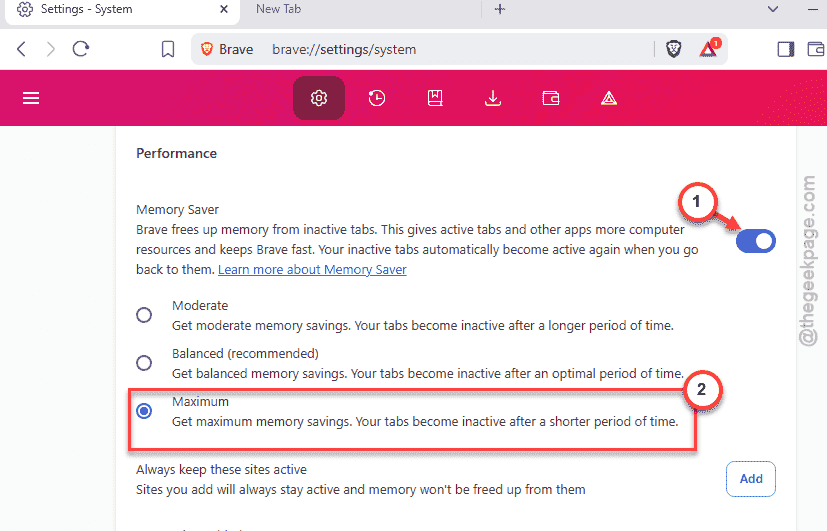
After turning on the memory saver feature, the RAM usage will go down drastically.
Fix 4 – Use ublock Origin or a custom ad blocker
Sometimes, the websites run many scripts in the background, which consume lots of your computer resources. Using a good Ad Blocker should do the job.
Step 1 – We recommend the uBlock Origin.
Step 2 – Install it on your Brave browser. It utilizes the popular ad blocking lists and filters to block out potential ads, trackers, pop-ups etc.

You don’t need any ad-blocker, as Brave’s inbuilt blocking mechanism is quite robust and does the job perfectly.
Fix 5 – Upgrade the device
Chromium-based browser like Brave demands huge amounts of RAM on Windows machines. At times, Brave may eat up 2-3 GB RAM itself, provided you are working with 10–15 tabs. There is no limiter placed on the amount of RAM the browser may use. It just consumes the RAM, CPU according to your user needs.
So, if you have only 8 GB ram on your machine, we recommend you upgrade to 16GBs of RAM on your machine.