If the Microsoft Teams client is consuming more than 60-90% of the CPU resources, it can be tagged as an extreme usage scenario. This abnormal CPU usage count will limit the resources for other apps, eventually slowing down the entire system and user workflow. An MS Teams desktop client should not register more than 10-20% CPU usage in idle condition, while heavy usage can take it up to 50-70%. Enact these solutions to fix the issue.
Fix 1 – Turn off the Read Receipts & Typing Indicators
It seems that Read Receipts and typing indicators is causing this sudden spike in the CPU usage.
Step 1 – In the Microsoft Teams app, tap the three-dot button on the menu-bar. Then, tap the Settings to load up the Teams settings.
Step 2 – Next, go to the Privacy settings.
Step 3 – Then, turn off the Read receipts feature.
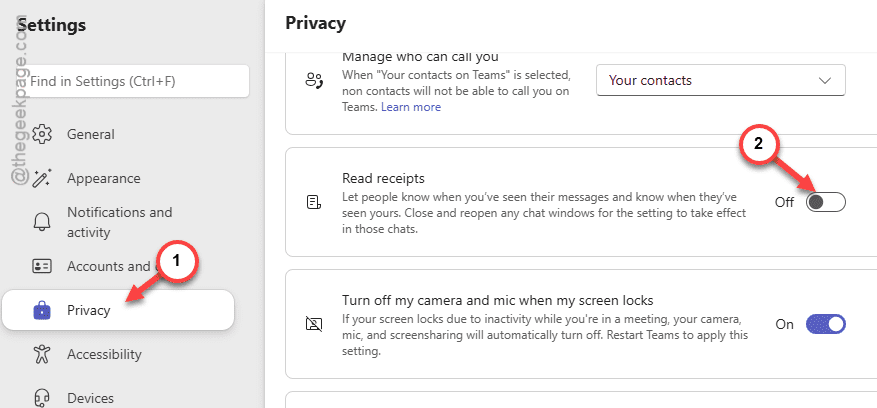
After turning off the read receipts feature, the CPU usage should go down significantly.
Fix 2 – Clear the Microsoft Teams Cache
If there are any corruption in the Teams cache files, it can cause this sudden CPU usage spike.
Step 1 – Close the Microsoft Teams client. Next, tap the arrow button on the taskbar, and find the Microsoft Teams client.
Step 2 – Right-click the Teams app there, and tap Quit Teams.
Step 3 – Now, press the Win+R buttons together. Paste this in the Run box and click OK.
%localappdata%\Packages\MSTeams_8wekyb3d8bbwe
Step 4 – Clear up all the contents in this folder.
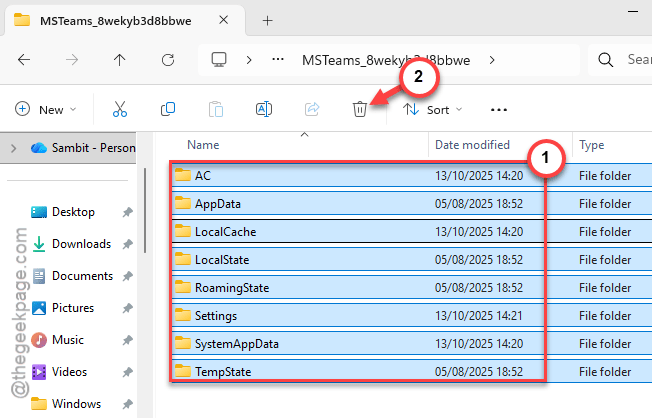
Step 5 – Finally, relaunch the MS Teams client.
You may have to log in to the Teams client using your ID, password. This should return the MS Teams client to normalcy.
Fix 3 – Turn Off Unnecessary Teams Effects
Having too many filters or video effects can put strain on the CPU, and cause the high CPU usage.
Step 1 – Open the Microsoft Teams Settings in the app. Later, proceed to the Devices tab.
Step 2 – In the Video settings, turn off the Adjust brightness and soft focus features.
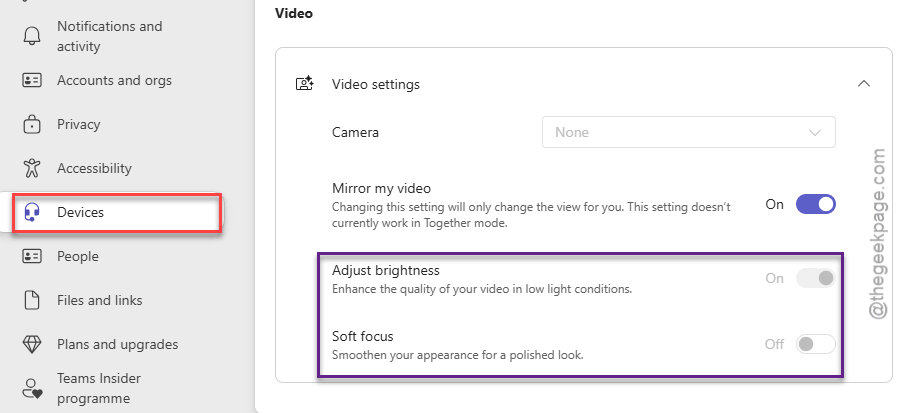
Step 3 – Refrain from using AI backgrounds or other filter or enhancement effects while you are on a call, as they put pressure on the CPU.
This will reduce the strain on the CPU significantly, leaving enough resources for the MS Teams to function properly.
Fix 4 – Disable the automatic startup of Teams
The startup of Microsoft Teams at Windows startup can cause such issues.
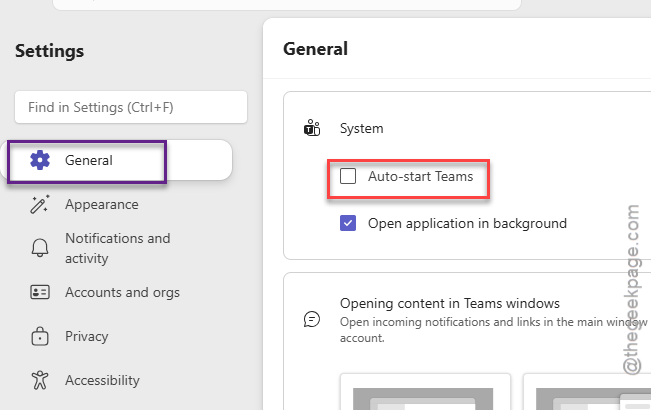
Step 1 – In the Microsoft Teams client, open the Settings.
Step 2 – In the General panel, turn off the Auto-start Teams option.
Step 3 – Additionally, press the Ctrl+Shift+Esc keys together to load up the Task Manager.
Step 4 – Go to the Startup tab. Find the Microsoft Teams client there. Right-click the app there and tap Disable.
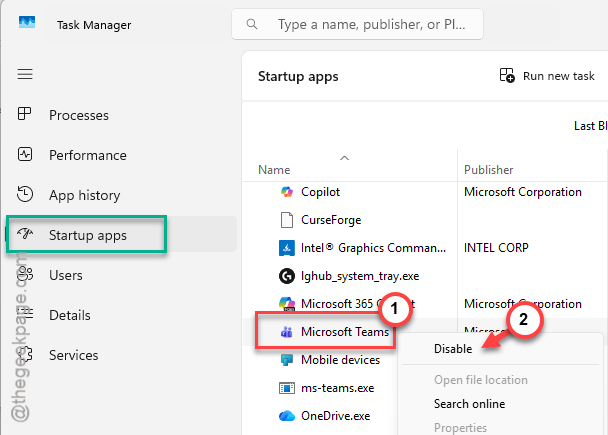
This way, you can disable the automatic startup of the Teams app on your system. You will have a faster startup, with less load on CPU at the system startup.
Fix 5 – Update the GPU driver
If you are using an obsolete version of GPU driver for too long, it can conflict with the latest version of Teams client, and hence the unusual spike in CPU usage.
Step 1 – At first, right-tap the Windows icon, and tap Device Manager.
Step 2 – In the Device Manager console, expand the Display adapters tab.
Step 3 – Right-click the display adapter there, and tap the Update driver option.
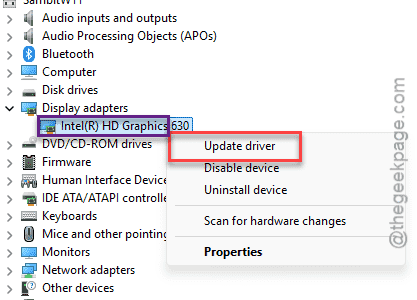
Step 4 – Then, tap the Search automatically for drivers option.
After updating the display driver, test its impact on the CPU. Everything should go back to being normal.