You open Task Manager. The processes are listed. But the CPU column is blank. Memory shows nothing. Disk and Network — all zeros or just missing entirely. Weirdly common. This is usually a display issue, not an actual system problem.
Why This Happens
Task Manager has two views: a simple one and a detailed one. The simple view only shows running apps. No CPU. No memory. No metrics at all. If you accidentally switched to simple mode or if Windows reset it after an update, the columns just vanish.
And sometimes the columns are still there but hidden. Right-clicking the header shows which columns are enabled. If CPU or Memory got unchecked somehow, they disappear. No warning.
Fix 1 – Re-enable the Missing Columns
Already in detailed view but columns are blank? They might be unchecked.
1 – Open Task Manager and go to the Processes tab.
2 – Right-click on the Name header at the top of the list. The one that says “Name” in the column bar.
3 – A dropdown appears. Make sure CPU, Memory, Disk, and Network are all checked.
4 – Click each one that’s unchecked.
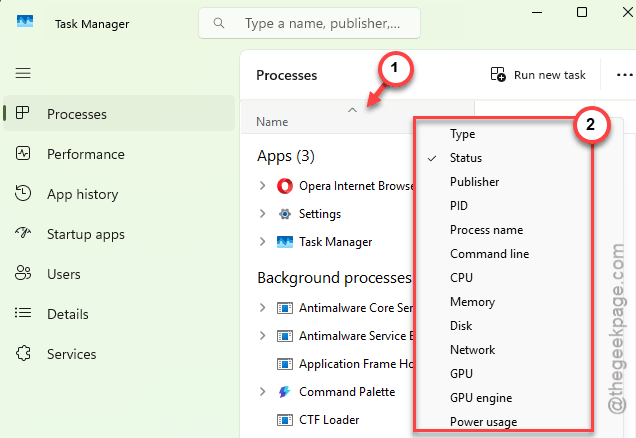
And the columns should reappear with live data. For some reason, Windows updates sometimes uncheck these. No idea why.
Fix 2 – Restart Task Manager and Your PC
Sounds too simple. But frozen metrics are a real thing. Task Manager sometimes gets stuck showing stale or blank data.
1 – Close Task Manager completely.
2 – Reopen it with Ctrl + Shift + Esc.
3 – Check if the metrics are back.
Still blank? Restart your PC. A full restart (not just sleep or hibernate) clears whatever was stuck. Quick and dumb, but it works.
Fix 3 – Switch to Detailed View
First thing. Make sure you’re not in the simple view. This fix will work only on Windows 10 machines, as this has been replaced by the sidebar layout on Windows 11.
1 – Open Task Manager (press Ctrl + Shift + Esc).
2 – Look at the bottom of the window. If you see a button that says More details, click it.
3 – The full view opens with tabs at the side: Processes, Performance, App history, etc.
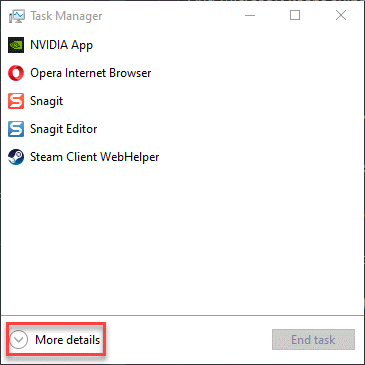
That’s it. If you were in simple mode, this was the whole fix. Done.
Fix 4 – Run System File Checker
If Task Manager is consistently broken across reboots, something in the system might be corrupted.
1 – Right-click the Start button. Pick Terminal (Admin).
2 – Type sfc /scannow and press Enter.
3 – Let it finish. Takes a few minutes.
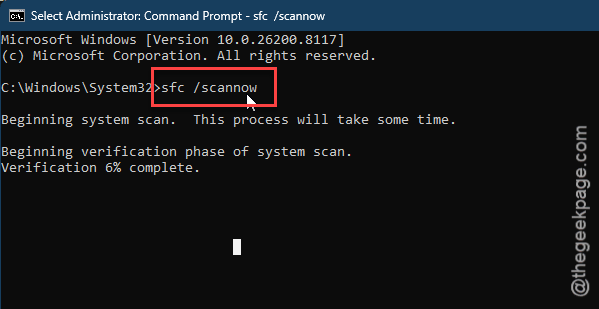
4 – Restart and check Task Manager again.
Not a common cause for this specific issue. But worth a shot if nothing else worked.
How to Prevent This
- After Windows updates, open Task Manager once and make sure all columns are visible.
- Stay in detailed view. The simple view is nearly useless for troubleshooting.
- If you use third-party system monitors, they sometimes conflict with Task Manager’s data refresh. Try closing them temporarily if metrics seem stuck.
People Also Ask
Why does Task Manager not show all RAM usage?
The Memory column might be unchecked. Just right-click the column header in Processes and enable it. Also check the Performance tab — it shows total system RAM usage with a graph. The Processes tab only shows per-app usage.
How to fix a corrupted Task Manager?
Run sfc /scannow from an command prompt terminal with administrative rights. If that doesn’t fix it, try DISM /Online /Cleanup-Image /RestoreHealth. These repair corrupted system files including Task Manager components.
How to fix CPU not displaying?
You have to right-click the column header in the Processes tab in Task Manager. Then, check the box for CPU. If it’s already checked and still blank, restart your PC. A stuck Task Manager process shows stale data until you fully reboot.