If MS Word margins looks perfect on-screen, but it shifts or misalign in the final output print, the margin settings are rarely at fault. It is usually either the gutter margin or the markup space left for the comment balloons that leaves such a big space on the printed document. However, there are other factors like scaling conflicts, wrong type of page setup may result into having wrong margins on the Word document. Here is a quick fix guide that will be helpful for the veteran users, while main fixes are easy to follow as well.
Quick Fixes –
| Issue | Recommend Fix |
| Margins Shifted to left/right | Rectify the Gutter settings in Page Setup console (Fix 4) |
| Unusually big gap on right | Hide Track Changes before printing (Fix 2) |
| Top/Bottom Cut Off | Modify the Header/Footer margins. Must be less than page margins |
Fix 1 – Disable Auto Scaling While Printing
Some users have found that the printer is automatically cropping the document to avoid missing any part of the text while printing.
Step 1 – Tap the File menu. Next, go to the Print settings.
Step 2 – Tap the 1 Page Per Sheet option and choose the Scale to paper size from the pop-up menu. Choose the No Scaling option.
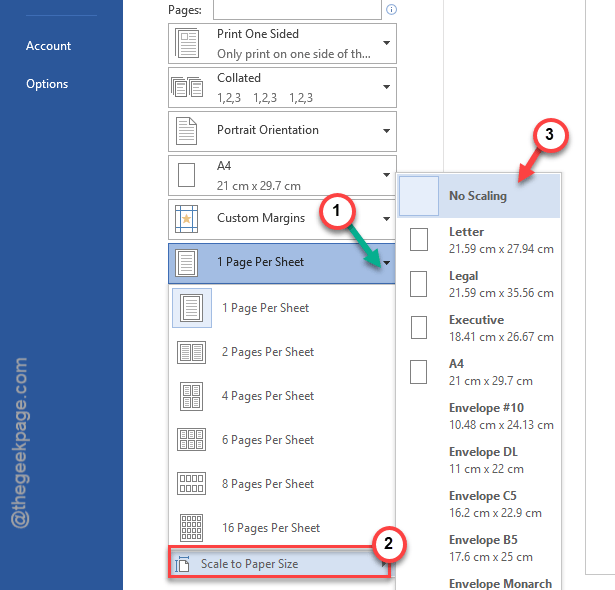
Try to print it now and test the margins.
Alternative steps –
You can also adjust the scaling factore to Actual Size from the printer properties panel.
1. Go this way –
File > Print
2. Choose the printer that you are using to print. Tap the Printer Properties.
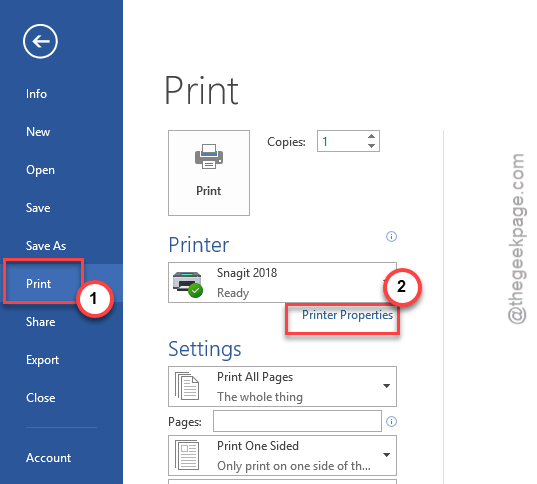
3. In the Printer Properties panel, choose Fit to Page or Scaling option and set it to Actual Size or 100%, whichever is available.
After this, save the changes and try to print the document again. See if this works.
Fix 2 – Set the Tracking mode to No Markup
If the printed page contains an unusually huge margin on the right side, it is due to the comments section space left on the original document.
Step 1 – Go to the Review tab.
Step 2 – In the Markup sub-section, set the markup to No Markup from the drop-down.
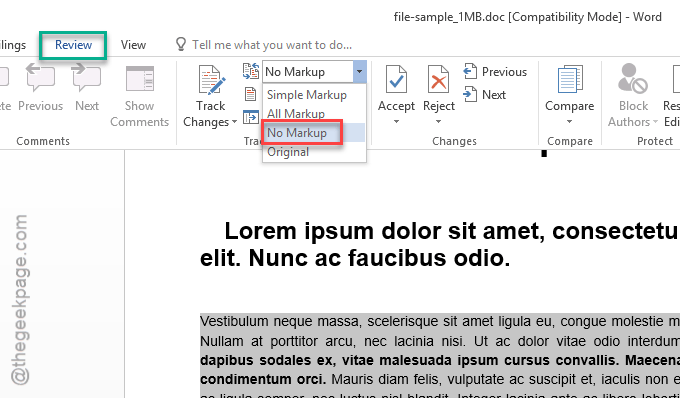
After enacting these changes, re-print the same document.
Fix 3 – Disable Scaling Content for Paper Sizes
Another scaling conflict that many users face is the default page size of A4 vs Letter mismatch, where Word can mis-align your letter document on a A4 page.
Step 1 – While your document is open in MS Word, proceed to the File menu.
Step 2 – Then, go to the Options tab.
Step 3 – Proceed to the Advanced setion. Now, scroll down to the Print section on the right-hand pane.
Step 4 – Uncheck the Scale content for A4 or 8.5*11 paper sizes. Tap the OK button to save the changes.
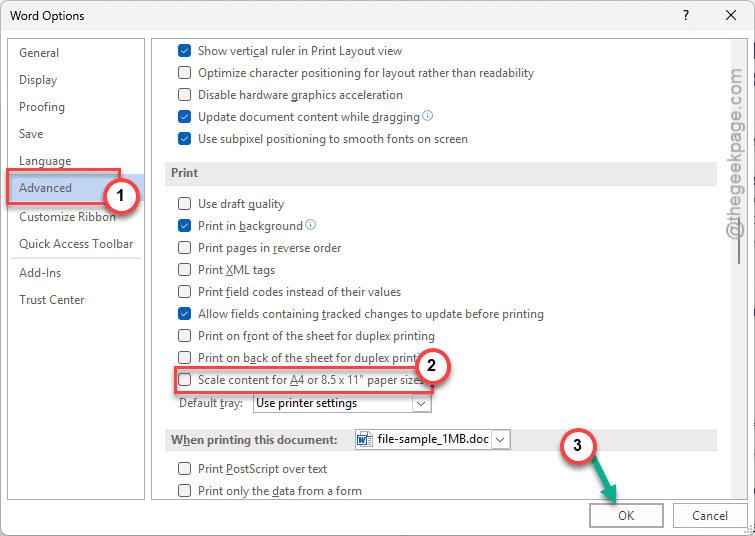
This way, print the document and check. However, you can always change the page type from the Page Setup panel in the Print Setup.
Fix 4 – Delete Gutter Margins
The gutter margins accounts for the space left for the binders to occupy. As the gutter margins won’t show up niether on the Print Preview or Draft View mode, it can mislead users to believe there is something wrong with the margins.
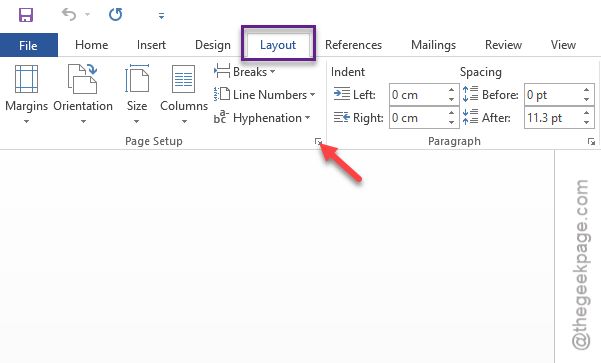
Step 1 – Go to the Layout settings in the Word document.
Step 2 – Then, tap the small arrow button in the Page Setup section.
Step 3 – In the main Page Setup page, go to the Margins tab.
Step 4 – Set the Gutter value to 0. Click OK to save.
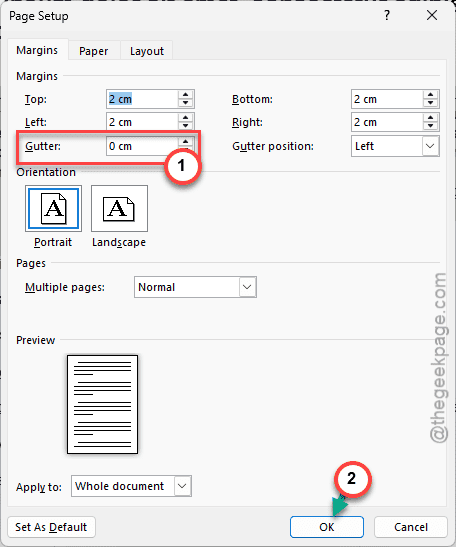
This will delete any gutter margins from the document. Print it and the margins will be all fine.