You type a comment in Excel. Hit Enter. And it vanishes. Like you never typed anything. Absolute madness.
This usually comes down to Excel hiding your notes, a sync issue with the cloud, or worksheet protection blocking comments. Frustrating, but there are several fixes depending on what is actually going on.
Why This Happens
Excel has two different annotation systems: Comments and Notes. They work differently depending on your version. In Microsoft 365, “Comments” are threaded discussions. “Notes” are the old-style yellow sticky notes. If you are adding a Note and it disappears, the display setting might be set to hide them. Or if you are using cloud-synced files, the save operation might not actually be going through. Excel can say “saved” when it is lying. And protected sheets? They silently eat your comments without any error message. Which is dumb.
Fix 1 – Check If Notes Are Just Hidden
Your comments might still be there. Excel could just be hiding them. This is the most common cause.
1 – Click the Review tab at the top of Excel.
2 – Look for the Notes dropdown (it has a small arrow next to it).
3 – Click Show All Notes.
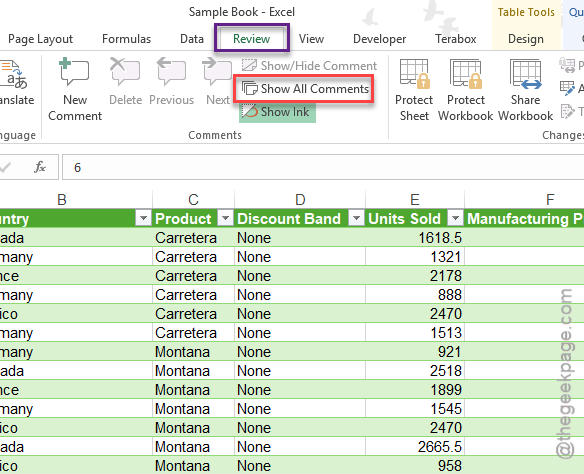
4 – If your notes reappear, the display setting was just off. To keep them visible on hover, go to File > Options > Advanced.
5 – Scroll down to the Display section. Set For cells with comments and notes, show: to Indicators and notes on hover.
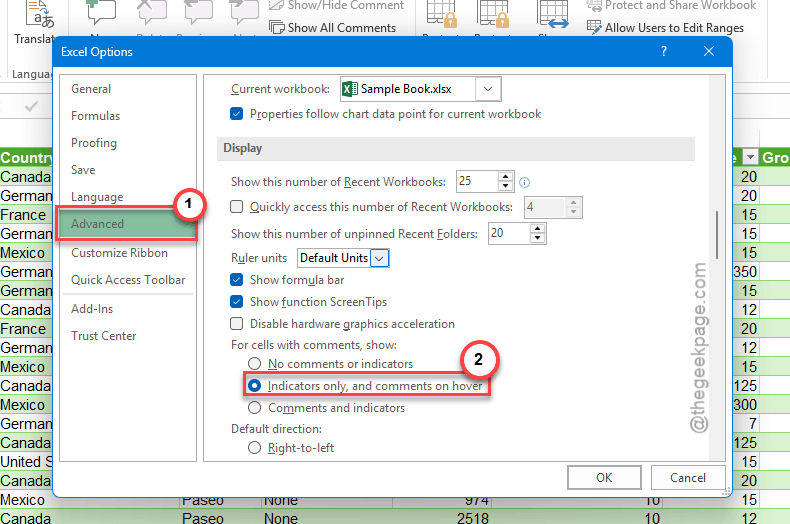
And that should keep them visible going forward. For some reason, this setting sometimes resets after updates.
Fix 2 – Switch to Normal View
Quick one. Some Excel views suppress note popups entirely.
1 – Look at the bottom-right corner of the Excel window. You will see small view icons next to the zoom slider.
2 – Click Normal view (the first icon on the left).
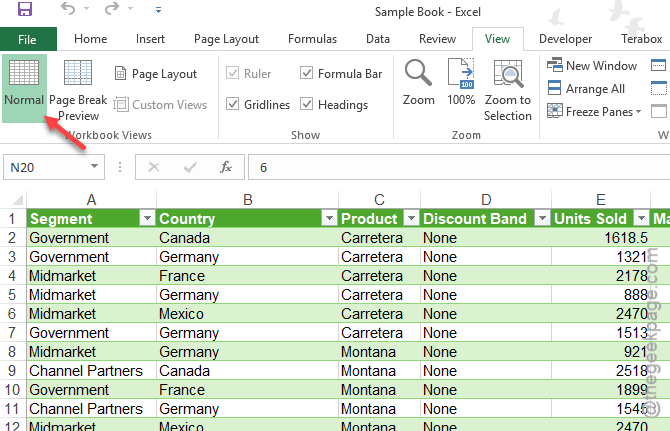
3 – Try adding a note again.
If you were in Page Layout or Page Break Preview, that could have been hiding your notes.
Fix 3 – Check Worksheet Protection
Protected sheets can silently block notes and comments. No error message. They just disappear.
1 – Click the Review tab.
2 – Look for the Unprotect Sheet button. If it is there, the sheet is protected.
3 – Click Unprotect Sheet. Enter the password if there is one.
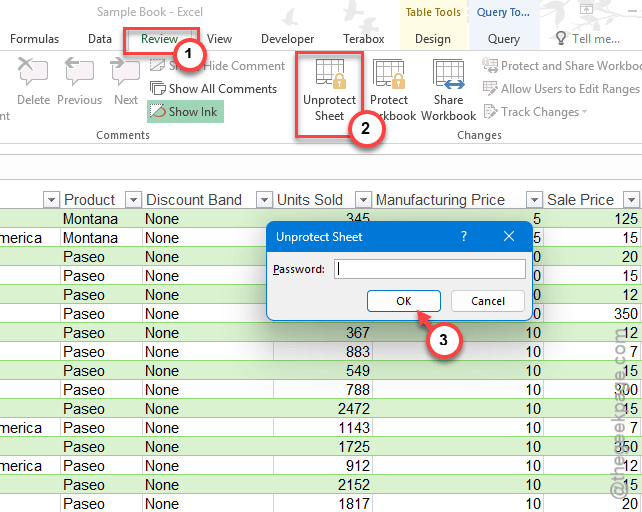
4 – Try adding your comment again.
5 – If you need protection back on, re-protect the sheet but check the box that says Allow users to insert comments in the protection options dialog.
So yeah, protection blocks comments by default. Makes no sense. But that is how it works.
Fix 4 – Close Excel and Reopen the File
Sounds too simple. But multiple users have reported that Excel shows the file as saved when it actually is not syncing properly. Especially with OneDrive or SharePoint files.
1 – Save your work manually. Press Ctrl + S.
2 – Close Excel completely. Not just the file. The whole application.
3 – Reopen the file.
4 – Check if your comments are there now. Add a new one to test.
This forces a full sync with the cloud. Takes about 30 seconds. But if the issue was a sync glitch, this usually resolves it.
Fix 5 – Save As a New Copy
If comments keep vanishing in one specific file, the file might be corrupted. Worth trying a fresh save.
1 – Go to File > Save As.
2 – Choose a new name and save it to your local drive (not a cloud location).
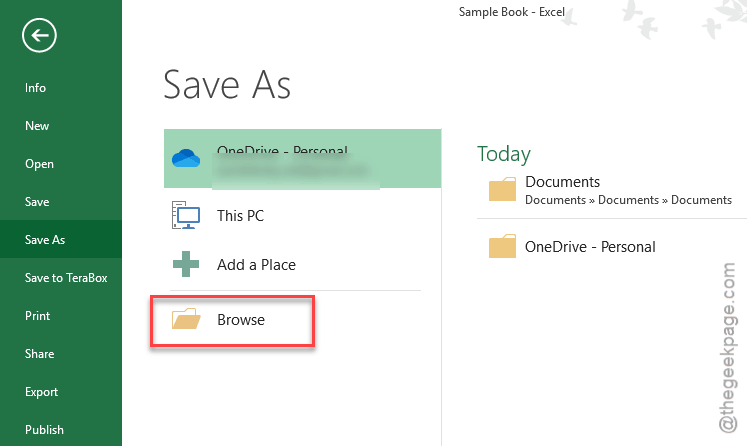
3 – Open the new copy and try adding comments.
Still happening? Then copy just the data (not the whole sheet) into a brand-new workbook. That strips out any hidden corruption.
Fix 6 – Check Overtype Mode
This is a weird one. If you accidentally pressed the Insert key on your keyboard, Excel enters Overtype mode. In this mode, new text replaces existing text instead of pushing it forward. Some users report it interfering with comment input too.
1 – Press the Insert key once to toggle Overtype mode off.
2 – Try typing your comment again.
Not a common cause. But if nothing else is working, check this.
How to Prevent This
– Set note display to “Indicators and notes on hover” in Advanced options. Do this once and forget about it.
– Before protecting a sheet, always enable the option to allow comments.
– If you use cloud-synced files, manually save (Ctrl + S) after adding comments. Do not trust the auto-save indicator.
– Keep your Office version updated. Microsoft has fixed several comment-related bugs in recent patches.
People Also Ask
Why are my words disappearing when I type in Excel?
Probably Overtype mode. Press the Insert key to toggle it off. If that is not it, check if the cell or sheet is protected. Protected cells can eat your input without telling you. Classic Excel behavior.
Why are my comments not showing in Excel?
Go to Review > Notes > Show All Notes. If they reappear, the display was just off. Also check File > Options > Advanced > Display and set it to show indicators and notes on hover.
How do I turn off Overtype in Excel?
Just press the Insert key on your keyboard. That toggles it off. There is no menu option for it. One key press and you are back to normal. Done.