The page numbering system inserts page numbers automatically to the Word documents. So, if this system has skipped any pages or incorrectly placed page numbers in your document, that can be painful to rectify manually. This particular issue occurs due to section breaks, linked header components or mixed page-number settings across the document. However, solving this problem should not take much effort.
Fix 1 – Check and fix the Section Breaks
You have to look for any section breaks in the document that may influence wrong page numbers in the Word document.
Step 1 – Open the Word document where you are having this page numbering issue.
Step 2 – Then, press the Ctrl+Shift+8 keys together to show the formatting marks in the entire document.
Step 3 – Look for any section break (next page/ continuous) in that document.
Step 4 – Delete any of these unnecessary section breaks from the document. Scan the whole documents for such breakups and remove them.
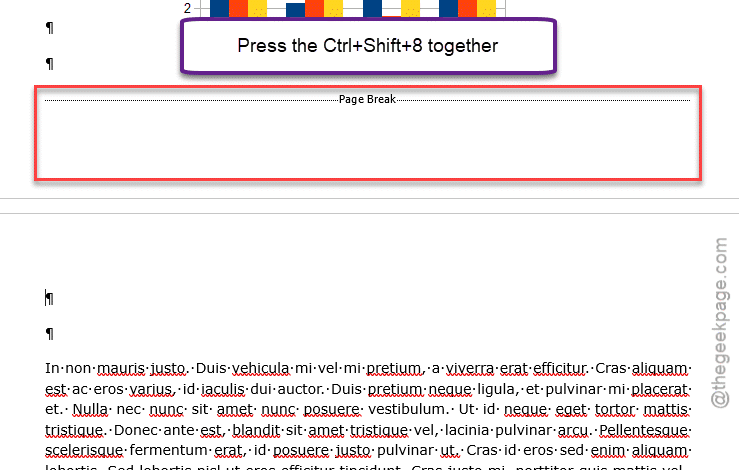
Step 5 – Additionally, if you want to rectify any such breaks, tap the layout button in menu-bar and tap Breaks to add a new one.
After deleting these section breaks, the page numbering issue will be fixed on the document.
Fix 2 – Turn off Link to Previous in Headers/Footers
Linked Header and Footer settings can influence wrong page numbering settings in the document.
Step 1 – In the MS Word document, go to the Header & Footers tab.
It will show up all the header and footer tabs for the entire document.
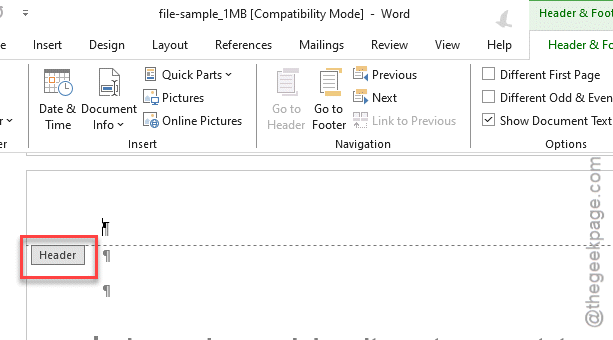
Step 2 – Turn off any Link to Previous mode for the headers and footers.
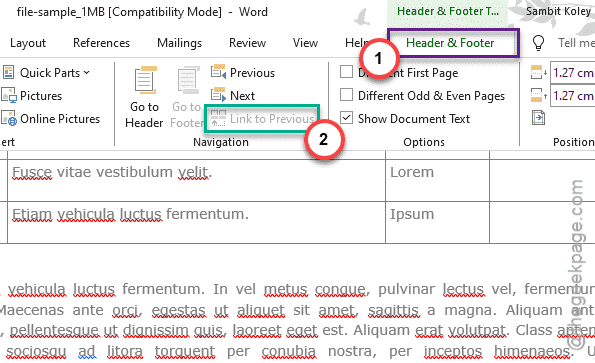
Step 3 – Repeat the same step to disable this feature in all the headers and footers in the document.
Check the page numbers now.
Fix 3 – Rectify Page Number Formatting Per Section
You have to revise the page number formatting for all the sections individually.
Step 1 – Double-tap the wrong page number in the Word document.
Step 2 – Then, tap the Page Number and use the Format Page Numbers option.
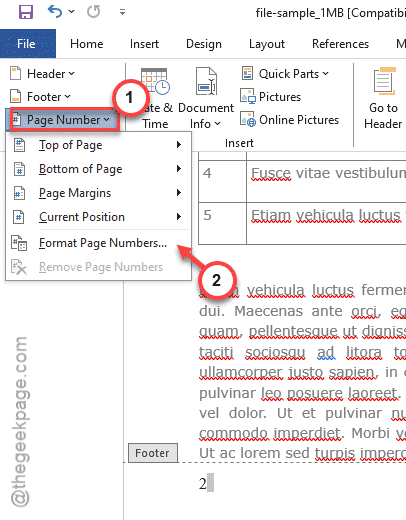
Step 3 – Now, you may choose either the Continue from previous section, if you want the page numbered in accordance to the previous pages.
Step 4 – Otherwise, if you want to begin a separate page section, pick the Start at and choose a page number to start.
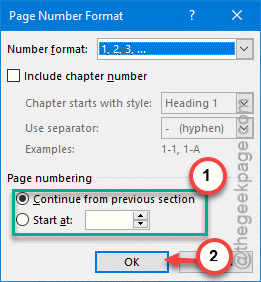
Step 5 – Do this for all the sections of the document.
This will rebuild the entire page numbering system for the document and the issue will be resolved.
Fix 4 – Rebuild the Header and Footer Settings
There are sometimes hidden corruption in the document metadata can fail the entire page numbering system. So, you can just copy-paste all the contents into a new Word file and re-apply the page numbers along with the header, footer settings.
Step 1 – Use the Ctrl+A buttons to select all the contents of the Word document. Copy all the contents from the document, except the final paragraph.
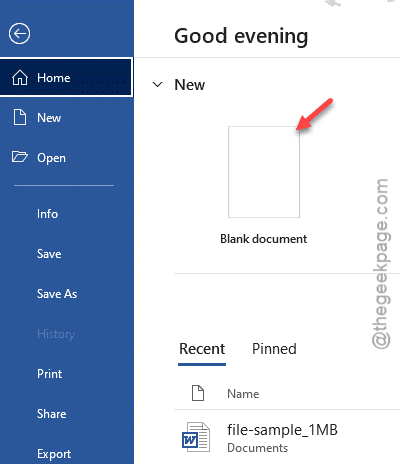
Step 2 – Then, open up a Blank document. Paste the copied document there.
Step 3 – Adjust the header, footer settings manually. Apply the page number exactly as the original document.
Once you have cloned your original Word document, check whether the issue with the page number has resolved or not.