Microsoft Word users can sometimes found some of the pages of their document missing during or after printing it. This anomaly can occur due to wrong page breaks, Word settings misconfigurations and texts hidden in the document. Here is a quick fix table that you can use in accordance to your specific version of the problem that you are having. Use the main fixes, if you still can print the entire file.
Quick Fixes –
| Issue | Recommend Fix |
| Missing only while printing | Save the document as PDF, following File -> Print -> Microsoft Print to PDF or other -> Print. Then, print the PDF. |
| Document ending suddenly | View > Web Layout. If the texts are visible, copy-paste it to a fresh blank document and proceed to print |
| Can’t view the entire document in Print View | Press Ctrl+Shift+8 to check for the ¶ (Show/Hide) to detect any faulty section breaks |
Fix – 1 Clear up Merged Pages
When some pages got merged together, toggling the Hide White Space feature leads to page jump during the printing process.
Step 1 – Hover your mouse on the gray line between two pages until the cursor changes into two arrows pointing at each other (⇄).
Step 2 – Double-tap that line.
This is a toggle that will expand the top and bottom margins and expose the
Fix 2 – Turn off the Keep With Next Feature
Word can glitch out to render long block of texts if it is tweaked to keep with the paragraph.
Step 1 – Select the text where the page has disappeared or look for any open space in that region.
Step 2 – Now, after selecting the paragraph, right-click it and tap Paragraph option.
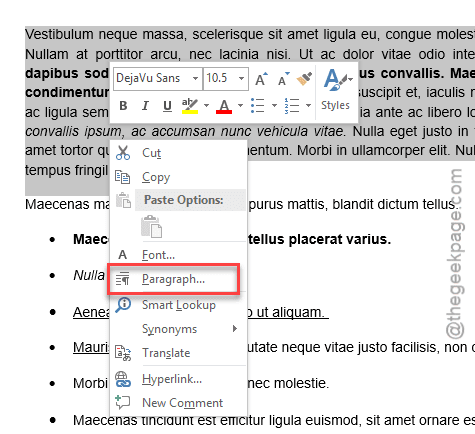
Step 3 – Next, go to the Line and Page Breaks tab.
Step 4 – Now, uncheck the Keep with next and Keep lines together feature. Tap OK to save the changes.
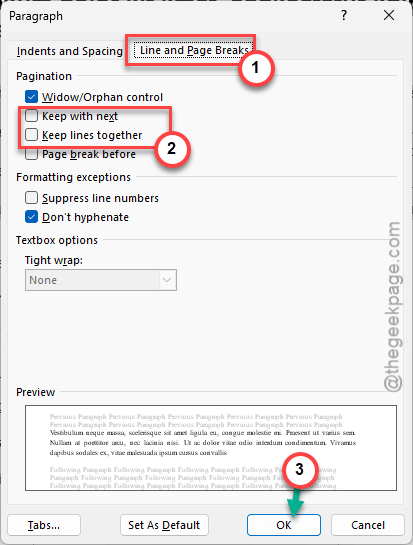
Later, try to print that same file again. Check if this is working or not.
Fix 3 – Unhide any hidden texts
Some users have complained about the content is visible in the Draft View mode, but absent in the Print Layout mode. It is possible some of the text is hidden in the normal draft view mode.
Step 1 – Select all the texts in the document using Ctrl+A buttons. After this, press the Ctrl+D buttons to load up the Font menu.
Step 2 – In the Font tab, make sure to uncheck the Hidden parameter box. Save the changes using the OK button.
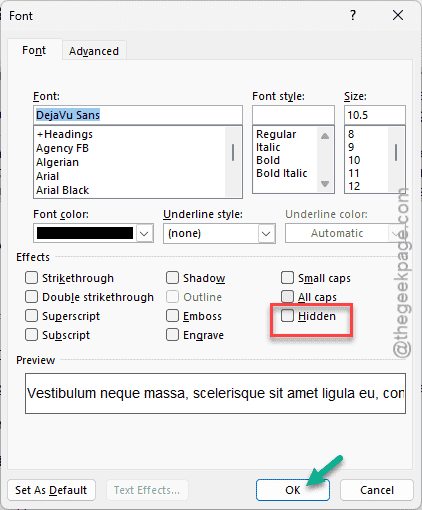
After unhiding the texts, try to print the document once again. There won’t be any missing texts in the Print Layout mode.
Fix 4 – Enable Print Drawings
Users often found some of the images, shapes or text boxes missing from the print preview or the final print output. Word may ignore floating objects while running in fast print mode.
Step 1 – Open the File menu in MS Word. Then, proceed to the Options tab.
Step 2 – Later, go to the Display tab in Word Options page. Locate the Printing options on the right-hand tab.
Step 3 – Make sure the Print drawings created in Word is checked.
Step 4 – Don’t forget to save the changes.
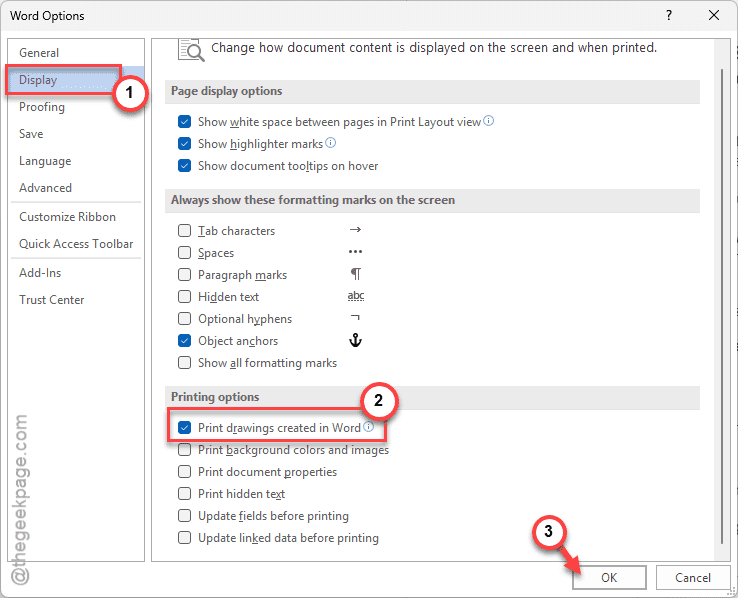
Try to print the document one more time. This time, it won’t miss any of the images or shapes.
Hope these fixes have helped you solve the issue.