Sometimes your document may look picture-perfect in the Print Preview console but shift when you print it; there must be something wrong. It may move the lines to the next page or overlap some of the images. It usually happens due to margin errors, but there are other possible reasons as well. Here is a detailed guide on how to fix this issue.
Quick Fix Guide ~
| Issue | Recommended Fix |
| Bottom of the page is cut | Fix #3: Increase Bottom Margin to 0.5″ |
| Text is smaller than on screen | Fix #1: Set to “No Scaling” |
| Extra White space on the right | Fix #4: Select “No Markup” before printing |
Fix 1 – Disable Scale to Paper Size
Word tries to fit your document onto the paper size. But, the exact composition of the document and the paper size can conflict and Word will shrink and stretch the layout, causing this problem.
Step 1 – Go to the File tab. Then, select the Print tab.
Step 2 – Go to the bottom of the settings. Make sure to set it at 1 Page Per Sheet.
Step 3 –Tap the Scale to Paper Size and set it to No Scaling mode.
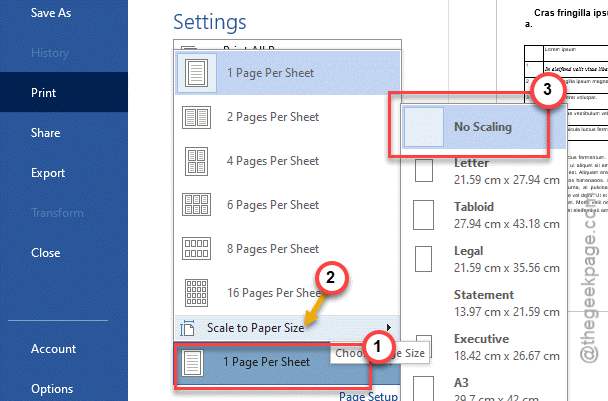
Enabling the No Scaling feature does ensure that MS Word respects the document’s measurements.
Fix 2 – Change Default Tray and Paper Source
If the printer is set to auto-select from the available tray, it might run into different margin constraints.
Step 1 – Go to the Print menu –
File > Print
Step 2 – Then, tap the Printer Properties option.
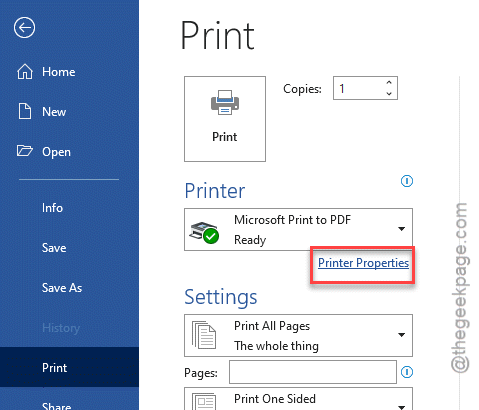
Step 3 – Later, go to the Paper/Quality tab.
Step 4 – Manually select the Tray 1.
Once you have selected the tray, the printer will use the hardware-specific margin values.
Fix 3 – Adjust for Minimum Margins
Every printer has a unprintable area where it cannot print. Adjust the margin of the printable document to prevent the printer from printing there.
Step 1 – Go to the Layout tab. Proceed to the Margins section.
Step 2 – Then, open up the Custom Margins.
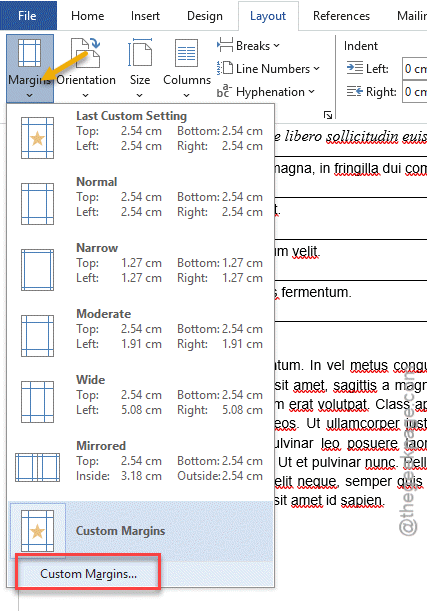
Step 3 – Set all the margins to at least 0.5" (1.27cm).
Step 4 – Now, proceed to the Paper tab. Make sure the proper Paper Size is selected correctly.
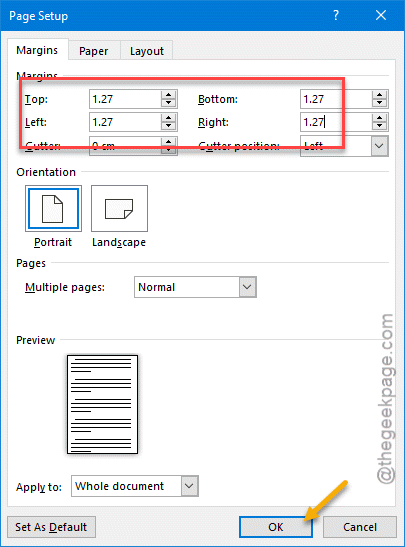
This way, your document design stays properly within the page layout.
Fix 4 – Clear Track Changes or Hidden Formatting
If the Track Changes feature is active, Word may try to reserve some space on the right side of the page.
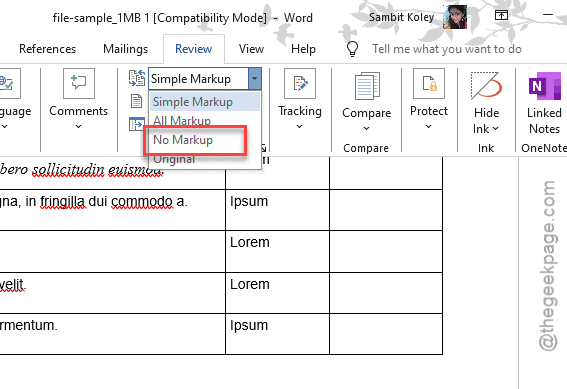
Step 1 – Proceed to the Review tab of the document.
Step 2 – Change the tracking view to No Markup mode.
Step 3 – Tap Accept All Changes before you go to print the document.
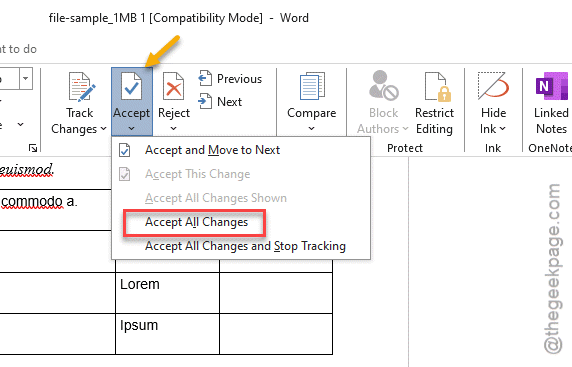
This should omit any hidden formatting or margin modifications from the document that may prevent it from printing it.
Fix 5 – Update the Obsolete Printer Driver
If the printer driver you are using is too old or obsolete, you may run into such issues.
Step 1 – Go to the printer manufacturer’s website (like HP, Canon, Epson).
Step 2 – Then, download the printer driver from there, specifying your printer model number or version.
Step 3 – After downloading the printer driver package file, run it on your system to update the driver.
Once the updated printer driver is installed, try to print the document again. See if this works.