Microsoft Word files stored in users’ OneDrive or Sharepoint cloud can sometimes show up sync issues, modification conflicts or fail to save the intended changes. These issues usually occur due to network interruptions, corrupted local Word cache files, file version mismatch issues. Here is a quick fix table that will help you resolve this issue much faster. But, if these don’t help, proceed to the main solutions.
Quick Fix Table ~
| Issue | Recommend Fix |
| File Path too Long | Lower the saved total path (folder/filename) under 260 characters |
| Install Pending Windows Update | Look for Windows Update. Install any pending feature updates |
| Sign in credentials issue | Go this way ⇾
Windows Settings ⇾ Accounts ⇾ Access Work or School Log out of your work/school account and log in to the same account |
Fix 1 – Disallow Office Apps to sync Office files
When the Office apps like MS Word tries to sync the documents are working, it can create conflict with the existing version of files in the server.
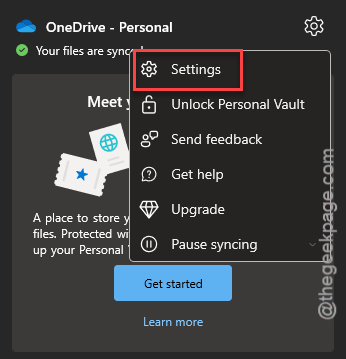
Step 1 – Tap the cloud icon on the taskbar, or the system tray to load up OneDrive. Then, tap the ⚙Settings menu to load it up.
Step 2 – Go to the Sync & Backup on the left tab. Go to the Advanced settings tab.
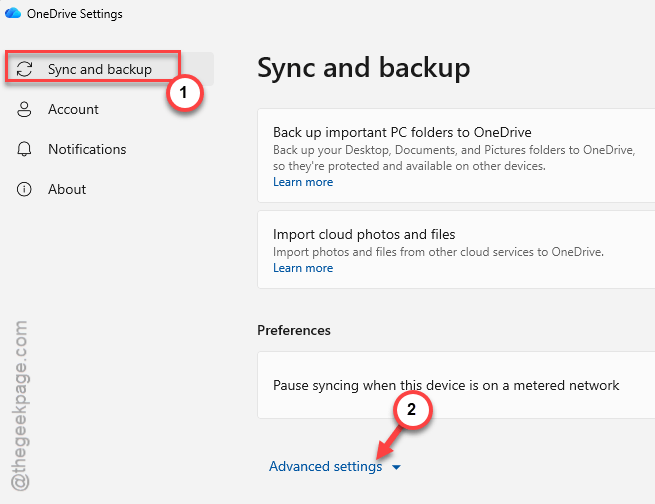
Step 3 – Later, uncheck the Use Office applications to sync Office files that I open option.
OneDrive will now alone manage the file, where in the previous case Word was handling it, causing this conflict.
Fix 2 – Clear the Office Document Cache
If the local Office cache is stuck with the corrupt version of the file, the file upload may run into such issues.
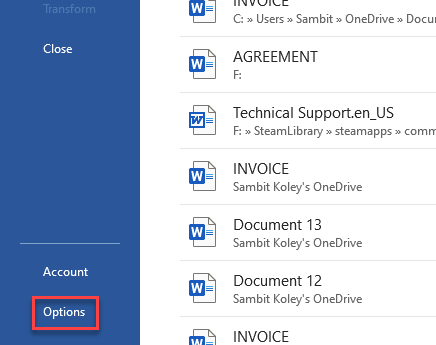
Step 1 – Go to the File tab in Word. Then, proceed to the Options tab.
Step 2 – Then, reach the Save panel. Scroll through the right-hand panel and reach the Cache Settings.
Step 3 – Use the Delete cached files option there.
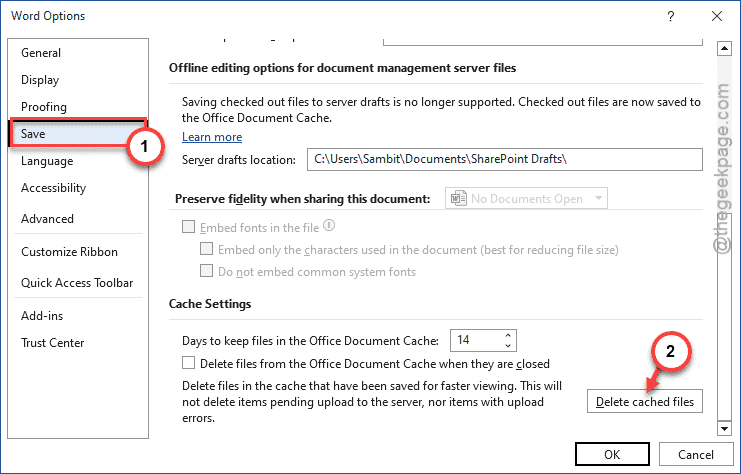
This will delete the corrupt cached file from the Word cache, and recreate a fresh copy when you save the copy next time. It will resolve the issue.
Fix 3 – Unlink and Rename to Recreate it Afresh
Unlink the file from OneDrive and rename it slightly. This trick will force OneDrive to recreate a fresh folder during the next synchronization process.
Step 1 – Tap the OneDrive icon on the taskbar, and tap Settings.
Step 2 – In the OneDrive Settings panel, reach the Accounts panel. Use the Unlink this PC option.
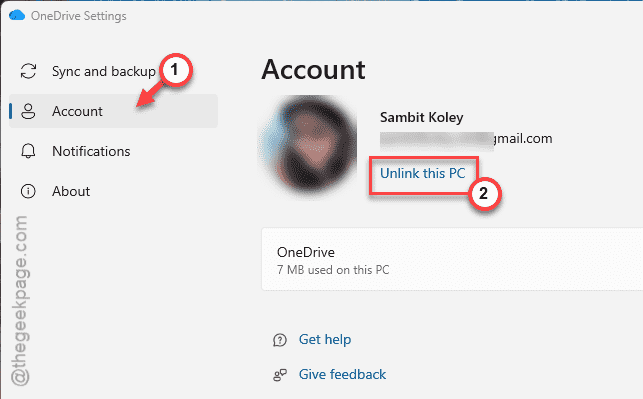
Step 3 – Now, go to the File Explorer and go to the OneDrive/SharePoint folder. Right-click the OneDrive folder, and rename it to something different, like OneDrive1 or OneDrive_old.
Step 4 – Launch the OneDrive normally, and sign in. It will recreate a new OneDrive folder. Let it resync the files.
Step 5 – You can just copy/ move any required files directly to the new folder.
It will resolve this sync issue that you are having.
Fix 4 – Use Add Shortcut button instead of Sync
While saving the changes in Sharepoint, instead of using the Sync option, use the Add Shortcut to OneDrive button to add the shortcut of the file directly in the OneDrive. Many users have found this solution working. This works because the ‘Sync’ system sometime temporarily causes this glitch.