When you are dealing with a large document with a huge number of pages and sections, the ‘Go To’ feature is very useful. But what if the “Go To” takes you to the wrong location on your document? This problem usually occurs if there are multiple sections in your document with the same page number, hidden content, or a faulty section break. Here is a list of instructions you may follow to counter this issue yourself.
Quick Fix Guide~
| Issue | Recommended Fix |
| Jumps to Page 1 of Section 2 | Fix #2: Use the p[number] syntax |
| Lands on a blank area | Fix #3: Toggle the Pilcrow button to see hidden content |
| Go To button is unresponsive | Fix #4: Click Enable Editing at the top |
Fix 1 – Use the Absolute Page Syntax System
If you have multiple Page 1s in a single document, like in different sections, the “Go To” logic may get confused by that.
Step 1 – Press the Ctrl+G buttons together in the Word document.
Step 2 – In the Enter Page Number box, type +5 to move forward five pages. You can also use the absolute postion syntax, if supporeted.
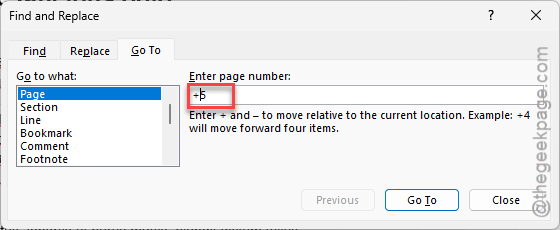
Adding this prefix ensures Word will ignore the standard ‘Restart at 1’ logic while taking you to the desired page.
Fix 2 – Specify Section and Page
When a document has multiple sections, Word needs a specific coordinate to reach the correct place.
Step 1 – In the Go To box, type p2s3 (page 2, Section 3) and hit Enter.
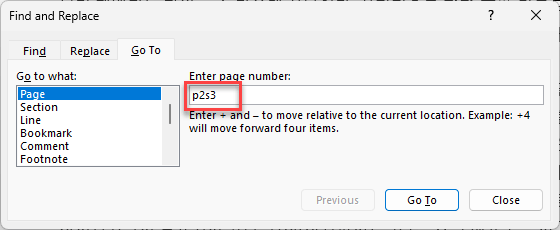
This way, you are pointing out the exact coordinate for Microsoft Word. It will take you there right away.
Fix 3 – Clear the Pagination Cache
Sometimes, Microsoft Word may get stuck due to a complex layout.
Step 1 – Go to the View tab. Then, select the Draft view mode.
Step 2 – Scroll from top of the document to the bottom part as quickly as possible.
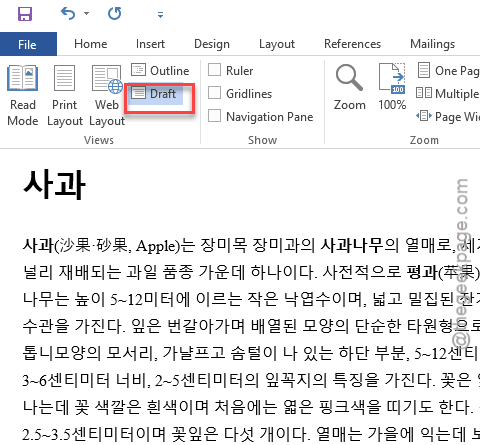
Step 3 – Switch back to the Print Layout mode from the same View bar.
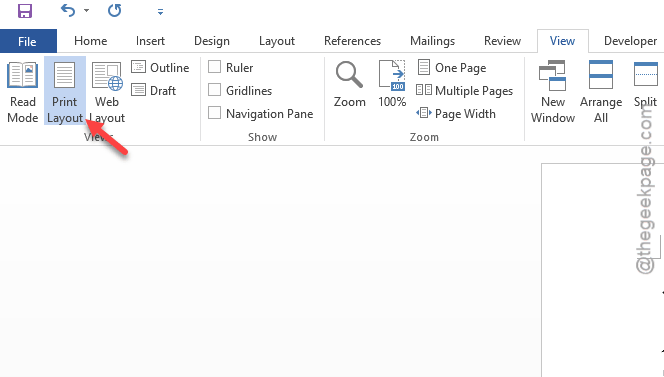
This is a simple refresh workaround that should resolve this problem, if it has originated from a glitch.
Fix 4 – Remove the Hidden Text from the Count
If the document has some large blocks of formatted text hidden from plain view, Word might skip them entirely.
Step 1 – Press the Ctrl+Shift+8 or tap the ¶ button in the Home tab to show up all the formatting marks in the document.
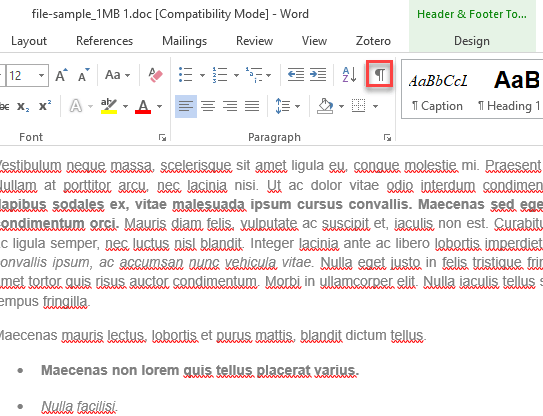
Step 2 – If you see a section of text with a dotted underline, it is hidden from the normal view.
Step 3 – Now, go this way –
File > Options
Step 4 – Proceed to the Display tab in Word Options panel. Uncheck the Print hidden text box there and click OK.
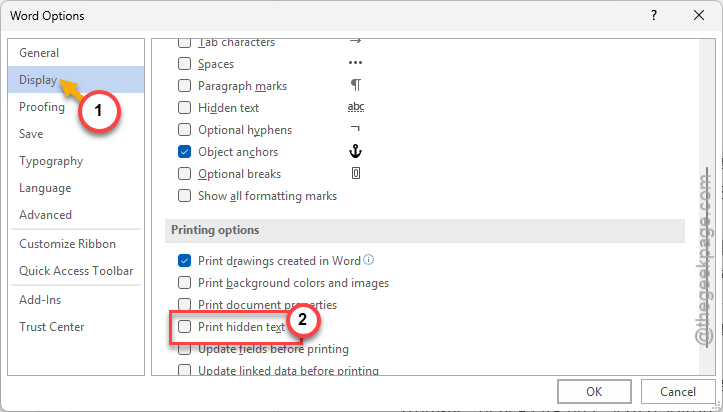
Then, try to use the “Go To” feature again.
Fix 5 – Repair Broken Section Breaks
Sometimes a broken section break can misguide the “Go To” feature in Word. Delete any such broken section break from your document.
Step 1 – Go to the View mode. Select the Draft View mode.
Step 2 – Try to locate any incomplete section breaks in there and delete them.
Step 3 – Now, re-insert a new Section Break (Next Page) from the Layout tab.
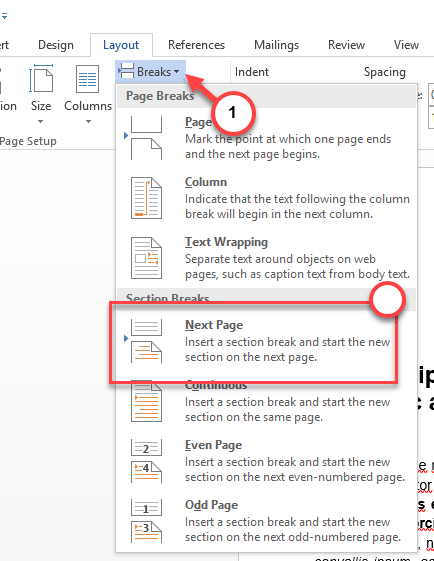
Once you have rectified the wrong section break, the “Go To” function will function properly and take you to the correct place of the document very easily.