Suddenly getting blank pages in the middle of your printed document? Microsoft Word users may get some blank pages while printing their files. This blank pages can be a resultant of misplaced section break, odd/even section breaks placed at the end of the document. Whatever is the reason you are having this issue, you can easily troubleshoot it. Follow these quick fix table for the quickest resolution. You can also proceed to the main solutions for detailed step-by-step instructions.
| Issue | Recommend Fix |
| Blank page at the end of document | Shrink the last paragraph size to 1 and delete any residual ¶ (Fix 4) |
| Blank Page in middle | Delete Odd/Even Section Breaks (Fix 2) |
| Random blank Page | Turn off Separator Page in Printer Properties |
Fix 1 – Delete any Empty Page Breaks, Section Breaks
In most cases, the blank pages are caused by empty paragraph marks (¶) or page breaks that don’t appear in the normal view.
Step 1 – Go to the Home tab in the MS Word and tap the ¶ button. Or, you can just press the Ctrl+Shift+8 buttons together.
Step 2 – Go through the blank page, if you can find any pilcrow ¶ mark or the Page Break marker, highlight them and tap Delete to delete them.
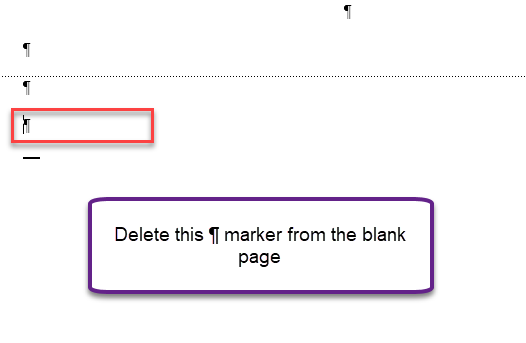
If Word detects even a single ¶ in a blank page, it will consider as a document and print it out.
Fix 2 – Replace Section Breaks (Odd/Even) with normal
When the Odd/Even Page Break system is active, but the document ends with the Odd Page section, it can force-insert a blank even page at the end.
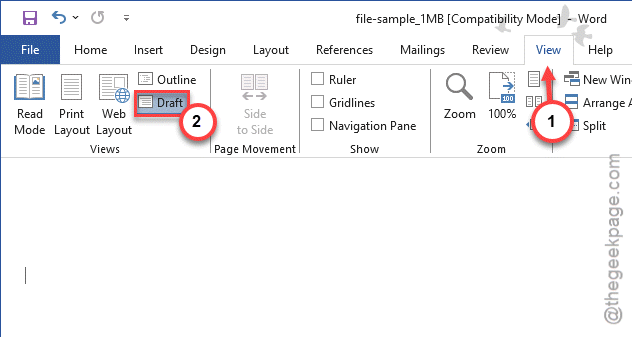
Step 1 – Proceed to the View tab in MS Word. Then, activate the Draft mode.
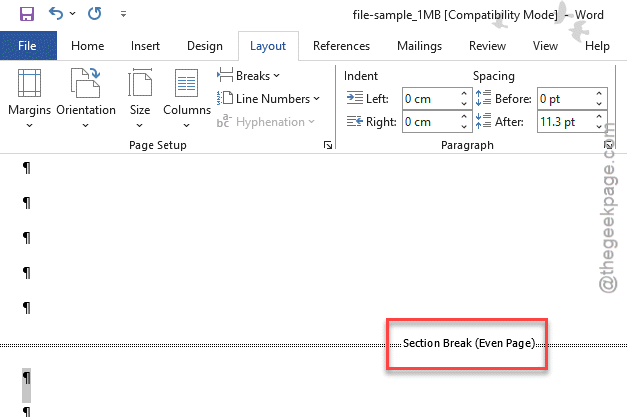
Step 2 – Look for any Section Break (Even Page) or Section Break (Odd Page) where the Word is printing a blank page.
Step 3 – Place the cursor before the section break, and tap Delete.
It will automatically resolve the sudden blank page inclusion issue. If you need a section break there, use the Section Break (Next Page). Try printing the document once again and check it yourself.
Fix 3 – Disable the Print Hidden Text Feature
If some of the texts are hidden in the document, MS Word may not print them in the main output.
Step 1 – At first, go to the File menu in MS Word. Then, proceed to the Options tab.
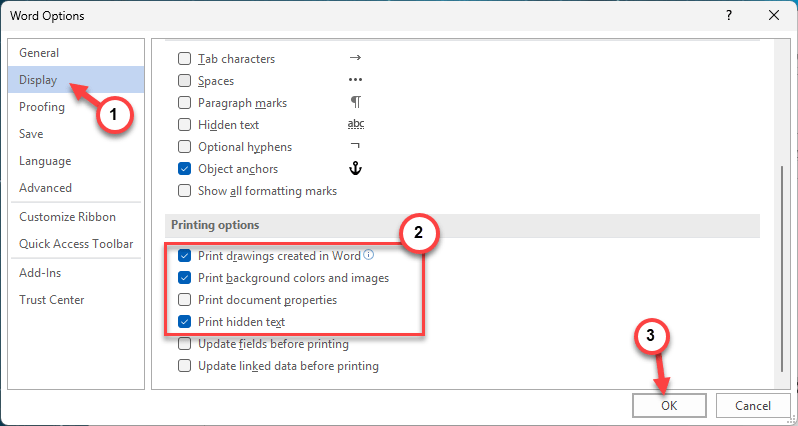
Step 2 – Later, go to the Display tab in Word Options page. Locate the Printing options on the right-hand tab.
Step 3 – Make sure the Print hidden text is checked. Then, tick mark the Print background color and images, if some of your document has text boxes or shapes in it.
Step 4 – Tap OK once to save this change.
After saving these changes, check the print preview. We recommend you print the problematic pages of the document. There won’t be any blank pages now.
Fix 4 – Modify the Final Paragraph after Final Table
If your document ends with a table, Word will look for a paragraph to follow it. It will be pushed back to a page, so you will get a blank page at the end of the document.
Step 1 – Tap Home tab, and show the ¶ marks.
Step 2 – Select the paragraph mark (¶) in the final blank page. Switch the font size to 1 and Line Spacing to 0pt.
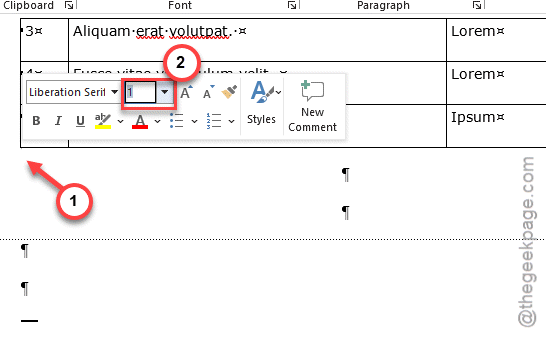
This will reduce the paragraph to the least possible value to fit into the last page of the document. It won’t produce any blank pages again.
Hope these fixes have helped you!