Having problem with the Wi-Fi connection dropping again and again since switching to WPA3 mode? Connects, drops, connects again.
Some devices won’t even join. Others bounce every few minutes. Frustrating, especially when WPA2 worked fine. Let’s fix the conflict.
Why This Happens
Short version: WPA3 is newer, and a lot of gear isn’t fully ready for it. The way WPA3 swaps security keys — it’s called SAE — has bugs in early router firmware. So the handshake fails, and you drop.
Then there’s the mixed-house problem. Got older phones, a smart plug, an old printer? Plenty of them only understand WPA2. Force pure WPA3 and they choke. Some drop, some never connect at all.
Fix 1 – Forget the Network and Reconnect
Easiest one first. Just forget the network and add it again.
1 – Load the Windows + I to load up the Settings. Reach the Network & Internet.
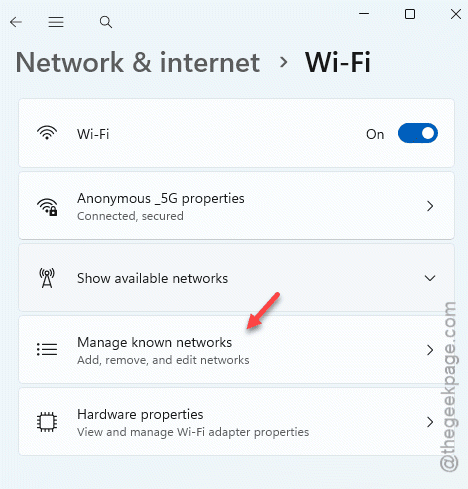
2 –Open the Wi-Fi > Manage known networks.
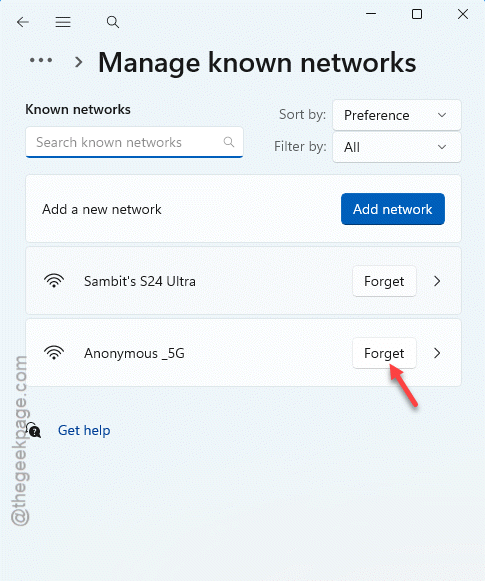
3 – Open the network. Then, tap the Forget to forget the network.
4 – You can reconnect the network using the Wi-Fi password.
Check now.
Fix 2 – Switch to WPA2/WPA3 Mixed Mode
Try switching to the WPA2 or WPA3 encryption type.
1 – Open your router settings. Write the router’s address (like 192.168.1.1 or 192.168.0.1) in a web page and hit Enter.
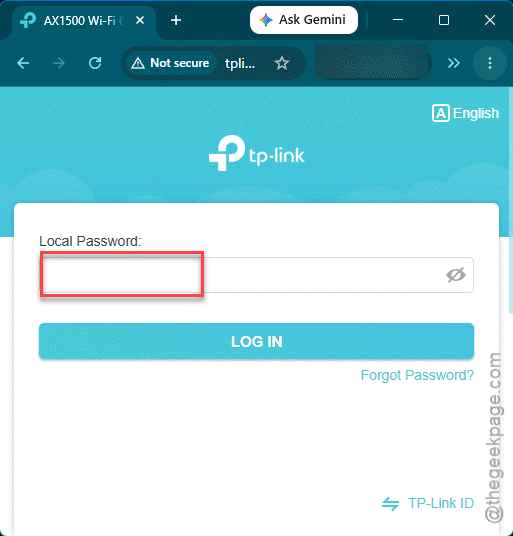
2 – Log in. Find the Wireless or Wi-Fi Security section.
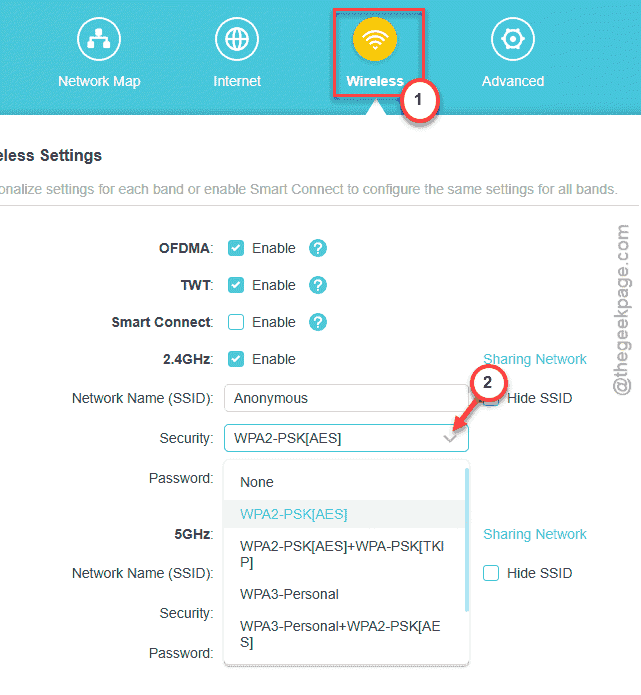
3 – Look at the security mode.
4 – Change it to WPA2/WPA3-Personal (sometimes called Transitional or Mixed Mode).
5 – Save and let the router restart.
Check if this works.
Fix 3 – Update Router Firmware and Wi-Fi Drivers
Try to use the latest version of firware and Wi-Fi chipset drivers.
First the router. Find the Firmware Update. Look for a pending update and apply it. This fixes most of the SAE key-exchange bugs.
Then your PC. You can download the latest version of the graphics driver from the respective manufacturer’r website.
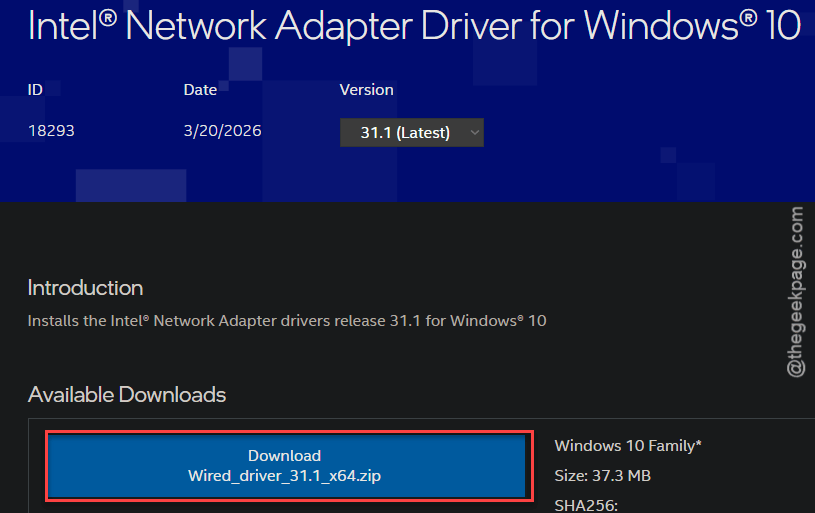
The version bundled with Windows tends to lag behind.
Do both. A patched router talking to an old driver still drops.
Fix 4 – Turn Off Fast Roaming (802.11r)
Fast roaming and WPA3 don’t always get along. If you’ve got mesh or multiple access points, this is a likely culprit.
1 – Open your router settings.
2 – Find the Advanced Wireless or Professional section.
3 – Look for 802.11r (Fast Transition or Fast Roaming). Set it to Disabled.
4 – Check whether the 802.11w (Protected Management Frames) is available or not. If the problem is still not resolved, use the Optional method.
5 – Save and test.
Worth a shot if the drops happen as you move around the house.
Fix 5 – Run a Network Reset on Windows
Still dropping on one specific Windows PC? Then the problem’s local. A full network reset wipes the corrupted WLAN config and rebuilds it from scratch.
Quick path.
1 – Open the Windows Settings.
2 – Load up the Network & Internet settings.
3 – Open the Network and Advanced network settings.
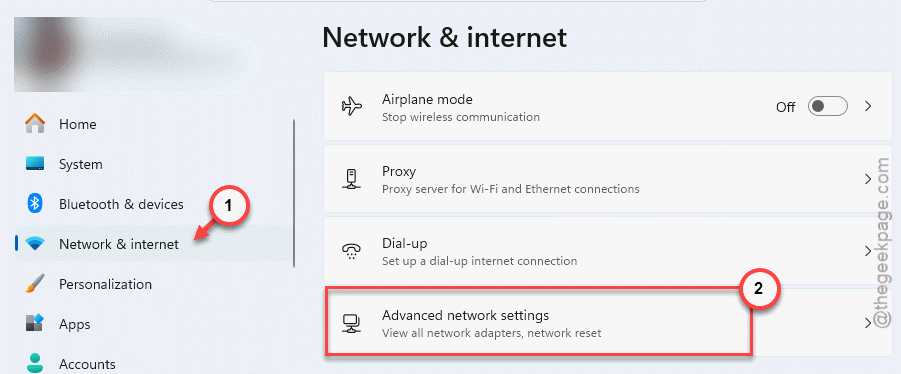
4 – Then, click Network reset and confirm.
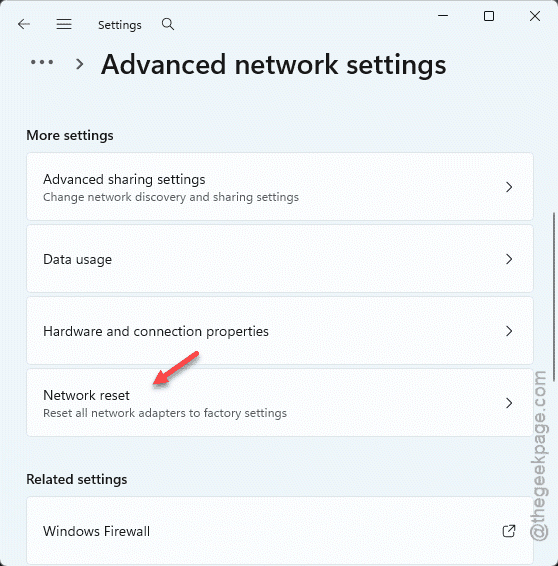
Heads up — it removes all saved Wi-Fi networks and reboots the PC, so you’ll re-enter your password after. Nuclear option for the network stack, but it clears stubborn driver gunk.
How to Prevent This
– Update Wi-Fi drivers from the chip maker, not just Windows Update. The OEM ones are fresher.
– Before flipping a whole network to WPA3, test one device first. Confirm it holds before you change it for everyone.
People Also Ask
Can WPA3 cause connection issues?
Yes, it can — especially on older devices and early router firmware. The first batch for the WPA3’s key exchange has bugs which cause this dropouts for this issue.
How to change WPA2 to WPA3?
You can change the WPA2 to WPA3 or vice-versa only from the router configuration utility. You can either use the respective router app or the website to change the security preference.