You’re mid-session. Levels set, mapping done. And your MIDI controller just… drops.
Gone from the DAW. Like you unplugged it. But you didn’t. Then it comes back. Then it drops again. Painful when you’re actually trying to make something. Let’s stop it.
Why This Happens
Short version: a recent Windows MIDI driver change broke things. And it hit a lot of people at once.
Windows overhauled how it handles MIDI. Good intentions. But the new driver doesn’t play nice with every controller. So devices detach mid-use — usually under load, usually at the worst moment.
And the midisrv service can freeze too. When it locks up, your DAW loses the connection even though the cable’s fine. Why does it pick the middle of a session? No idea. But that’s when it happens.
The fixes here swap to a stabler driver, restart the frozen service, and rule out the cable path. One of them gets you steady again.
Fix 1 – Install the Latest Windows Update
First things first. Microsoft already shipped a fix for this — it rolled out as KB5083631. So you might just need to grab it.
1 – Press Windows + I to open Settings.
2 – Click Windows Update in the left sidebar.
3 – Click Check for updates.
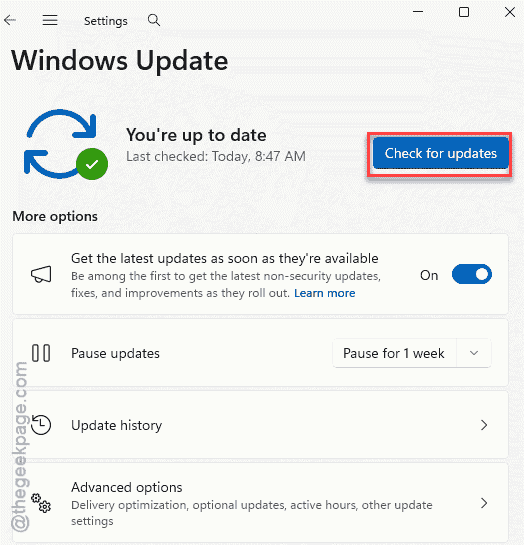
4 – Install anything it offers, especially KB5083631 if you see it.
5 – Restart when it’s done.
Heads up — it’s going out through a 30-day staged rollout. So it might not show up instantly. If it’s not there yet, the next fixes hold you over.
Fix 2 – Switch to the Generic USB Audio Driver
The most reliable fix. Drop the new MIDI driver and use Microsoft’s old class-compliant one instead. It’s boring and rock-solid.
1 – Right-click Start and open Device Manager.
2 – Expand Sound, video and game controllers.
3 – Right-click your MIDI controller and choose Update driver.
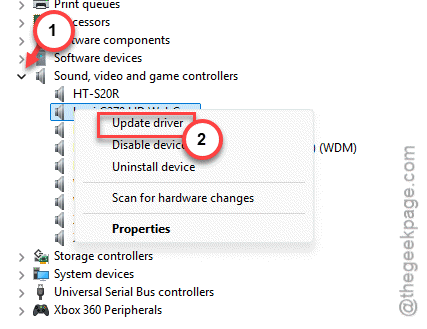
4 – Click Browse my computer for drivers.
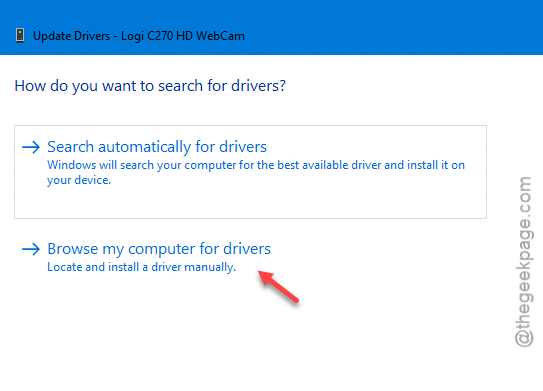
5 – Click Let me pick from a list of available drivers on my computer.
6 – Find USB Audio Device in the list. (If it’s hidden, untick Show compatible hardware.)
7 – Select it, click Next, and accept the warning.
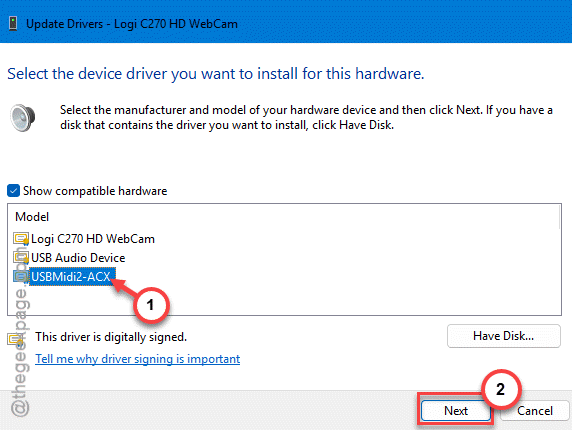
That’s the generic Microsoft driver. It doesn’t have the fancy features of the new one. But it doesn’t drop your controller either. Fair trade.
Fix 3 – Restart the Windows MIDI Service
If the controller dropped and won’t come back, the midisrv service has probably frozen. Kick it.
1 – Close everything first — your DAW, plus tools like LoopMIDI and RTP-MIDI.
2 – Right-click Start and pick Terminal (Admin) or Command Prompt (Admin).
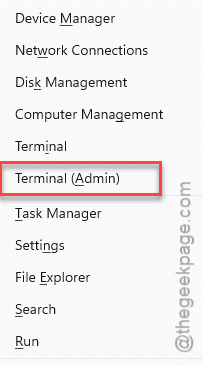
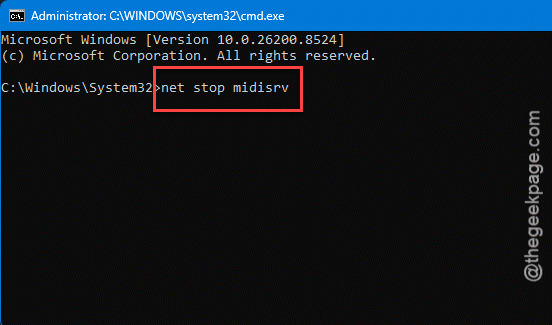
3 – Stop the frozen service:
net stop midisrv
4 – Start it again:
net start midisrv
5 – Now reopen your apps — virtual MIDI tool first, then the DAW.
Order matters. Launch your virtual MIDI tool before the DAW so the connection re-initializes cleanly. Otherwise the DAW might grab a stale link.
Fix 4 – Change the USB Port and Cable Path
Sometimes it really is physical. A flaky hub or a borderline port mimics a driver problem perfectly.
1 – Unplug the controller’s USB cable.
2 – Plug it into a different port — ideally a direct USB 2.0 or 3.0 port on the back of the PC, on the motherboard itself.
3 – Skip unpowered hubs. They can’t always feed a controller enough power, and that causes random detachment.
4 – Restart your DAW to rebuild the MIDI mapping.
And if you’ve got another cable lying around, try it. A worn USB cable drops connections exactly like a bad driver does. Cheap thing to rule out.
Fix 5 – Restart Everything in the Right Order
Quick reset routine. When things get tangled, a clean restart in the correct sequence fixes the mapping. Close your DAW, LoopMIDI, RTP-MIDI, and any other audio or MIDI app completely. Give it a few seconds. Then open your virtual MIDI tool first, let it settle, and only then launch the DAW. This forces a fresh, clean handshake instead of the DAW reconnecting to something half-broken. Simple, but it works more often than you’d expect.
How to Prevent This
– Keep Windows updated — the official fix (KB5083631) is the real cure. Don’t sit on an old build.
– Plug controllers straight into the PC. Skip unpowered hubs. They cause half these dropouts.
– Always launch your virtual MIDI tool before the DAW. Order keeps the connection clean.
– If the new driver keeps misbehaving, just stay on the generic USB Audio Device. Stable beats fancy.
People Also Ask
Is the latest Windows update causing MIDI issues?
It was — a recent change to how Windows handles MIDI caused controllers to drop out of DAWs. Microsoft has since shipped a fix in KB5083631, rolling out over 30 days. If you’re still affected, install the latest update, and switch to the generic USB Audio driver in the meantime.
How do I fix a MIDI driver?
The most reliable route is swapping to Microsoft’s generic USB Audio Device driver in Device Manager — it’s stable even when the newer one isn’t. Beyond that, restart the midisrv service from an admin terminal, and try a different USB port. Installing the latest Windows update fixes the underlying bug for good.
What are the limitations of MIDI?
MIDI sends performance data — notes, timing, controls — not actual audio. So it relies on your computer and instruments to turn that data into sound. It also depends heavily on stable drivers and connections, which is exactly why a bad driver or weak USB port can knock a controller offline mid-session.