You’re mid-match. Ping’s a smooth 20ms. Then out of nowhere it jumps to 300. You rubber-band across the map.
A second later it’s fine again. Then it spikes once more. Over and over. Infuriating in any competitive game. Let’s hunt down what’s causing it.
Why This Happens
Here’s the thing. Your Wi-Fi card is constantly making little decisions to “save power” or “be efficient.” And those decisions wreck your ping.
Interrupt moderation batches up packets instead of processing them instantly. Power management quietly throttles the adapter. Both add latency. Both are on by default. For some reason.
And roaming makes it worse. Every time the card scans for a “better” network, you get a spike. Right in the middle of your game.
Then Windows itself reserves bandwidth and throttles non-multimedia traffic. So even with a perfect connection, the OS holds you back. We’ll strip all of it out.
Fix 1 – Optimize Your Network Adapter Settings
This is the big one. It stops Windows from throttling your card or grouping packets to save power.
1 – At first, hit the Windows key, type Device Manager, and load it up.
2 – Expand Network adapters.
3 – Right-click your Wi-Fi adapter. Click Properties.
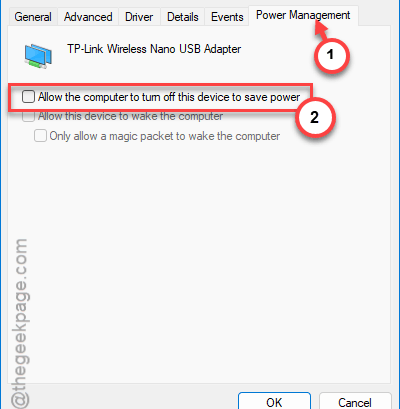
4 – Open the Power Management tab. Then, go ahead and uncheck the Allow the computer to turn off this device to save power feature in there.
5 – Next, proceed to the Advanced tab. Now change these one at a time from the property list:
6 – Set Interrupt Moderation to Disabled. This forces packets to process instantly.
7 – Set Energy Efficient Ethernet to Disabled. Stops the unstable power shifting.
8 – Set Flow Control to Disabled. Kills artificial traffic delays.
9 – Set Jumbo Packet to Disabled. Avoids delays from oversized packets.
10 – Click OK.
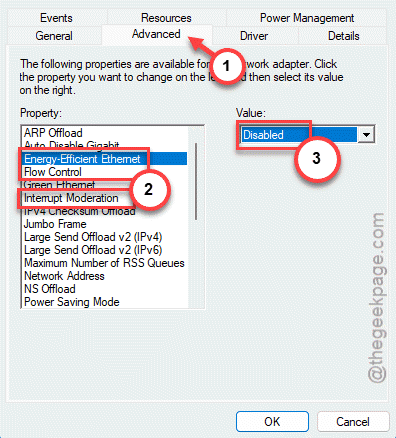
Not every adapter shows all four options. That’s normal. Change whichever ones you’ve got.
Fix 2 – Turn Off Wi-Fi Roaming
Roaming is a sneaky cause. Every time the card scans for a stronger network, you spike. Disabling it stops those scans cold.
1 – Press the Windows key, type Control Panel, open it.
2 – Proceed to the Network and Internet section, then Network Connections.
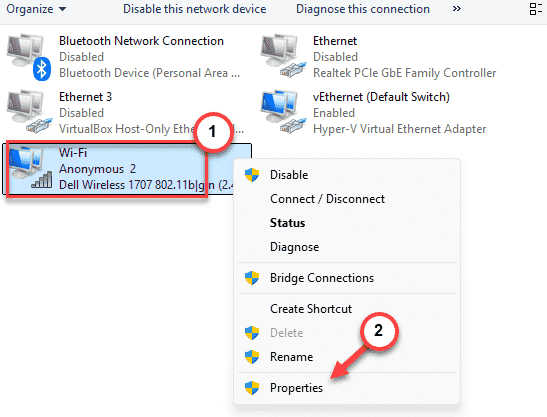
3 – Right-click your Wi-Fi card. Click Properties.
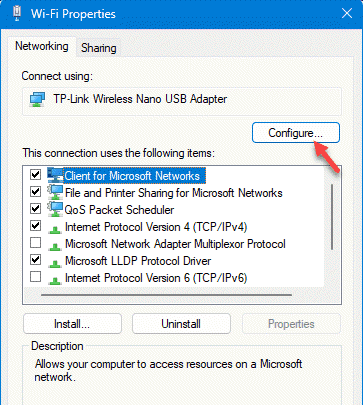
4 – Click the Configure button.
5 – Open the Advanced tab.
6 – Find the Roaming setting (sometimes called Roaming Aggressiveness or Roaming Sensitivity). Set it to Disabled or Lowest.
7 – Click OK.
If your card has it, this alone fixes the spikes that hit every 30 seconds or so.
Fix 3 – Stop Wi-Fi Going Bad After Sleep
Got spikes only after waking the PC from sleep? Classic. The Wi-Fi card comes back half-broken.
Quick fix: set the PC to hibernate instead of sleep. Press Windows + I, go to System > Power & battery, and under Screen and sleep push the sleep timer way out — or use a power plan that hibernates instead. One gamer fixed their post-wake lag just by ditching sleep mode entirely. Worth a shot if that’s your pattern.
Fix 4 – Turn Off Delivery Optimization Uploads
Windows can use your upload bandwidth to share updates with other PCs — in the background, while you game.
1 – Press the Windows key, type Delivery Optimization, and open it.
2 – Find the toggle Allow downloads from other PCs.
3 – Switch it Off.
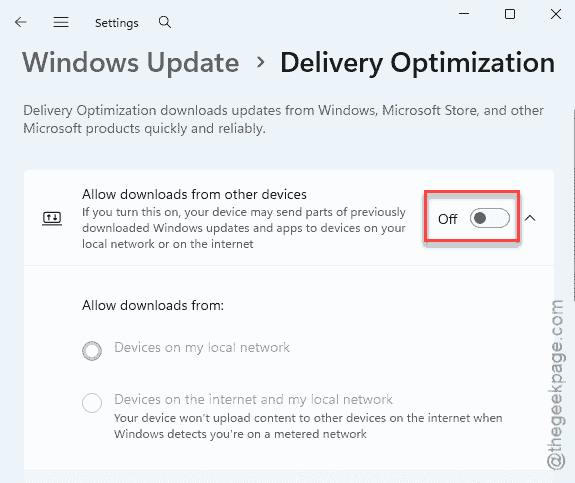
Done. That’s one less thing eating your upstream mid-match.
Fix 5 – Remove the Network Throttling Limit
Windows deliberately throttles non-multimedia network traffic by default. Clearing this limit lets packets flow at full speed.
1 – Use the Windows key, write down Registry Editor. Then, right-click it, and click Run as administrator.
2 – Paste this path into the address bar at the top and press Enter:
HKEY_LOCAL_MACHINE\SOFTWARE\Microsoft\Windows NT\CurrentVersion\Multimedia\SystemProfile
3 – On the right, double-click NetworkThrottlingIndex.
4 – Change the value data to ffffffff (that’s eight f’s). Click OK.
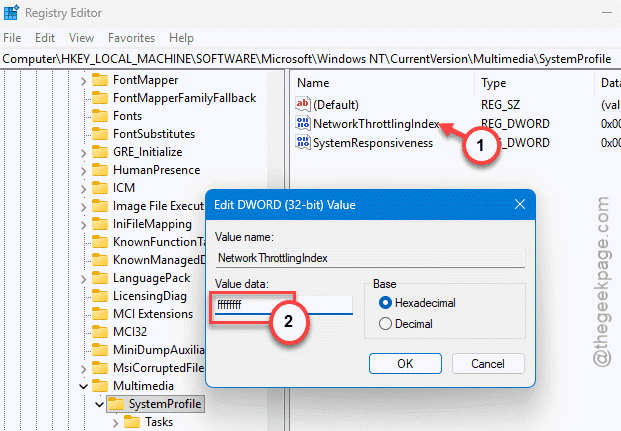
5 – Restart your PC.
Setting it to all f’s effectively turns the throttling off entirely.
Fix 6 – Unlock Reservable Bandwidth (Group Policy)
By default the Windows packet scheduler holds back a slice of your bandwidth. Reclaim it.
1 – Press the Windows key, type gpedit.msc, and open it.
2 – Follow this path to reach the QoS Packet Scheduler –
Computer Configuration > Administrative Templates > Network > QoS Packet Scheduler
3 – On the right, double-click Limit reservable bandwidth.
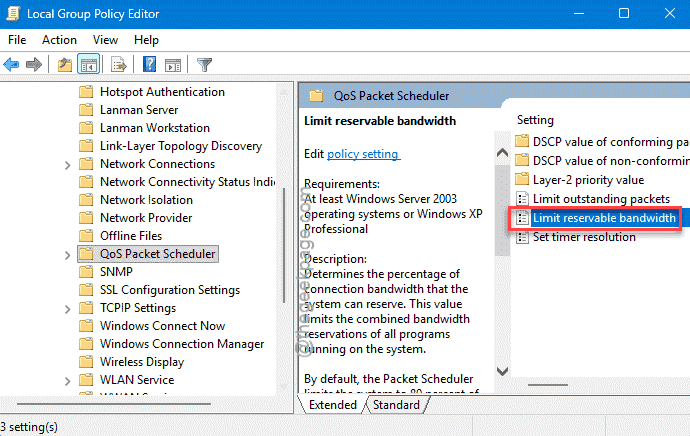
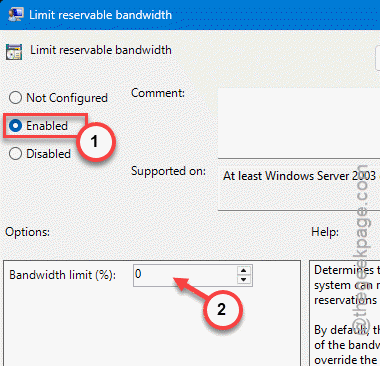
4 – Set it to Enabled.
5 – Change the Bandwidth limit (%) field to 0.
6 – Click Apply, then OK.
Check if this works.
Fix 7 – Force Immediate Packet Delivery (Advanced)
Last one, and it’s the techy one. This disables the algorithm that waits and bundles small messages before sending them. Two registry values do it. Back up the registry first.
1 – Open Registry Editor as administrator again.
2 – Paste this path into the address bar and press Enter:
HKEY_LOCAL_MACHINE\SYSTEM\CurrentControlSet\Services\Tcpip\Parameters\Interfaces
3 – Click through the subkeys until you find the one matching your active connection (it’ll have your IP address in the values).
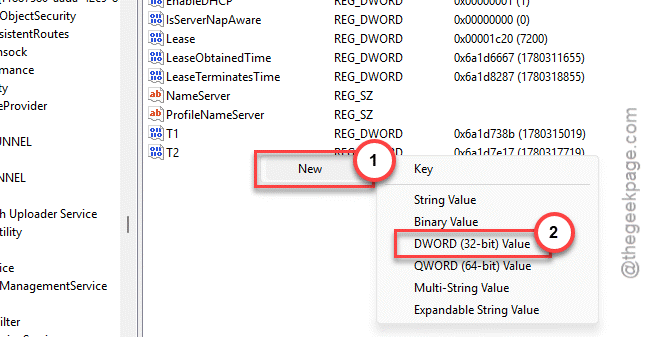
4 – Then, go ahead and right-click an empty spot on the right. Later, Choose New > DWORD (32-bit) Value to create this new value.
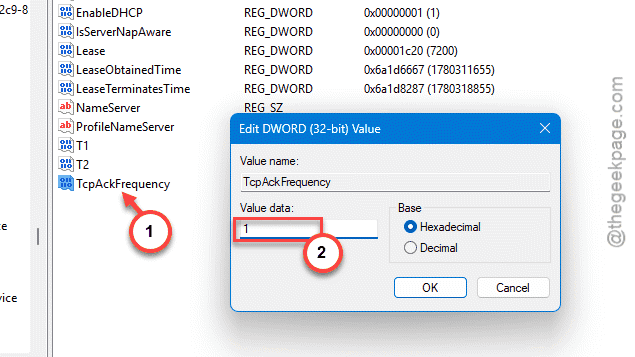
Name it TcpAckFrequency. Set its value to 1.
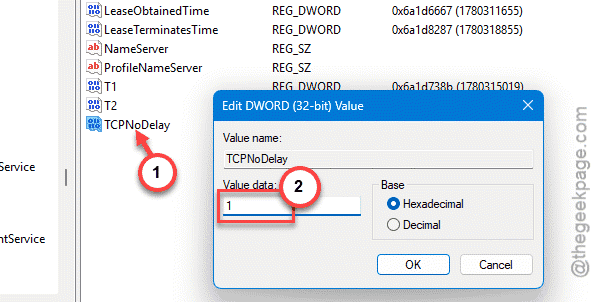
5 – Make another DWORD the same way. Name it TCPNoDelay. Set it to 1 too.
6 – Close the editor and restart your PC.
These tell Windows to fire packets off immediately instead of grouping them. Great for gaming. A touch less efficient for big downloads — but that’s a fair trade.
How to Prevent This
– Directly download the network drivers directly from the manufacturer. The bundled drivers lag behind.
– To completely negate the latency issue, switch to a LAN connection. Just physics.
– Keep roaming and sleep disabled on a desktop. Neither does you any favors when you’re gaming.
People Also Ask
Is 40 latency better than 50 latency?
Yes. The lower latency you have, the better gaming experience you will acheive. In the current competitive gaming scene, even this 10 ms difference is a huge advantage. But, it won’t affect your experience much for the non-competitive games.
Is 200 ping bad for gaming?
Having 200ms in a multiplayer session like Valorant, CS:GO or even standard COD matches can ruin your experience. Your shots won’t connect and other ‘real-time’ activities will be adversely affected by this constant 200ms lag.