Your Windows just got an update, and now Word won’t open. Or Excel. Or all of them. You click the icon, the cursor spins for a second, and then… nothing. Not even an error message.
Frustrating, because you did nothing wrong. The update did. Let’s fix it.
Why This Happens
Updates are supposed to fix things. But every so often, one breaks Office instead. The update swaps out system files while Office is mid-something, and the app’s files or settings get corrupted along the way. Result? Office won’t launch.
Sometimes it’s not even corruption. An old Office process gets stuck running in the background after the update. Invisible. And as long as that ghost process is alive, no new window will open. You click, Windows shrugs.
Add-ins cause it too. A plugin that worked fine yesterday suddenly clashes with the updated version. Why does Microsoft not check for this? Good question.
Fix 1 – Kill Stuck Office Processes
Start here. Takes two seconds.
1 – Press Ctrl + Shift + Esc to open Task Manager.
2 – Stay on the Processes tab.
3 – Scroll down and look for background instances of Microsoft Word, Excel, PowerPoint, or WINWORD.EXE.
4 – Right-click each one and select End task.
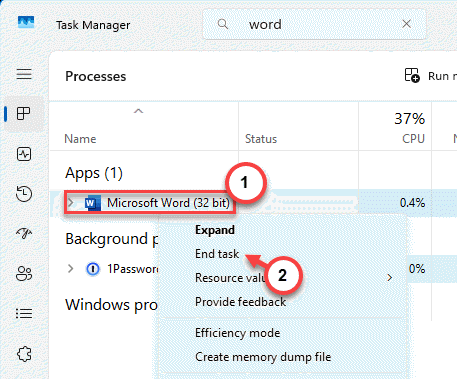
Now try opening the app again. If a ghost process was the blocker, it’ll open normally. If not, keep going.
Fix 2 – Launch in Safe Mode
This tells you whether an add-in is the problem. Office Safe Mode skips all plugins and custom templates.
1 – Press Windows + R to open the Run window.
2 – Type the command for whichever app won’t open:
For Word: winword /safe
For Excel: excel /safe
For PowerPoint: powerpnt /safe
3 – Hit Enter.
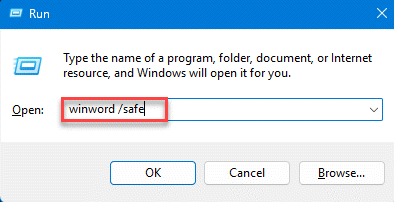
Check if this works.
Fix 3 – Run a Quick Repair
Quick Repair checks for missing or corrupted Office files and replaces them locally. No internet needed, and it does not touch your documents.
1 – Click the Start button and open Settings.
2 – Go to Apps > Installed apps.
3 – Scroll down to your Microsoft Office or Microsoft 365 entry.
4 – Click the three dots (⋯) next to it and select Modify. Click Yes if a prompt appears.
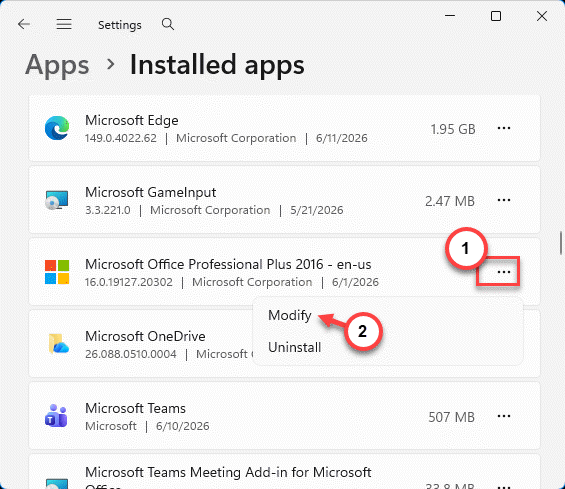
5 – Select Quick Repair and click the Repair button.
6 – Confirm by clicking Repair again.
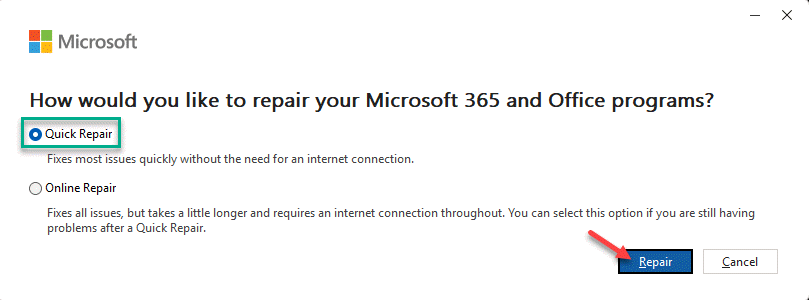
Once it’s finished, close the window and try launching Office.
Fix 4 – Run an Online Repair
Quick Repair didn’t cut it? Online Repair goes deeper. It basically reinstalls Office with fresh files downloaded from Microsoft.
2 – Click the three dots next to your Office entry and choose Modify.
3 – This time, select Online Repair and click Repair.
4 – Confirm by clicking Repair again.
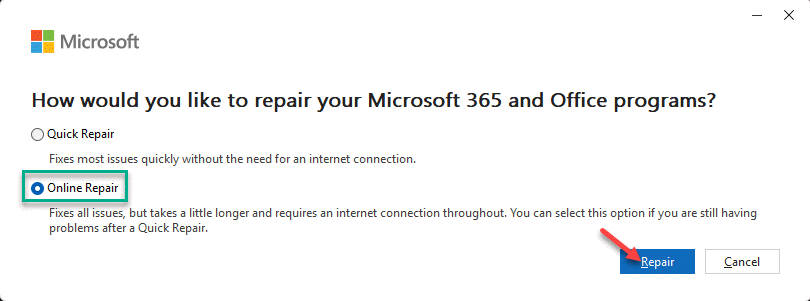
When “You’re all set” appears, click Close and relaunch your apps.
Fix 5 – Reset the Office App
If the app’s deployment data got damaged in the update, a reset cleans it out.
1 – Open Settings and go to Apps > Installed apps.
2 – Find Microsoft 365 or Office in the list.
3 – Click the three dots icon next to it and choose Advanced options.
4 – Scroll down and click the Reset button.
5 – Confirm, then let Windows clean up the app state.
Check your shortcuts after. They should launch properly again.
Fix 6 – Uninstall the Windows Update
If Office broke right after a specific update, you can just pull that update out.
1 – Open Settings.
2 – Go to Windows Update.
3 – Click Update history.
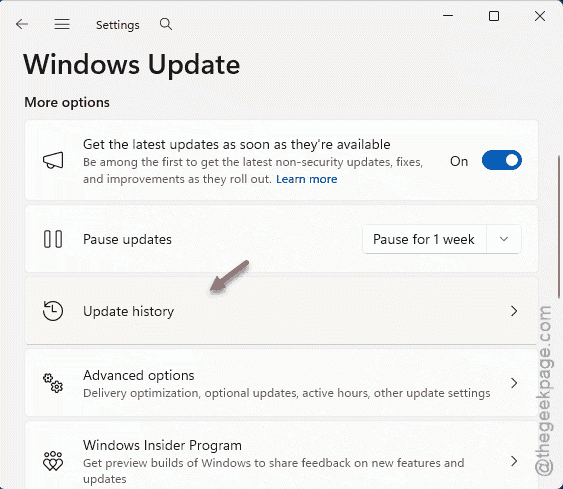
4 – Scroll to the bottom and click Uninstall updates.
5 – Pick the most recent update and uninstall it.
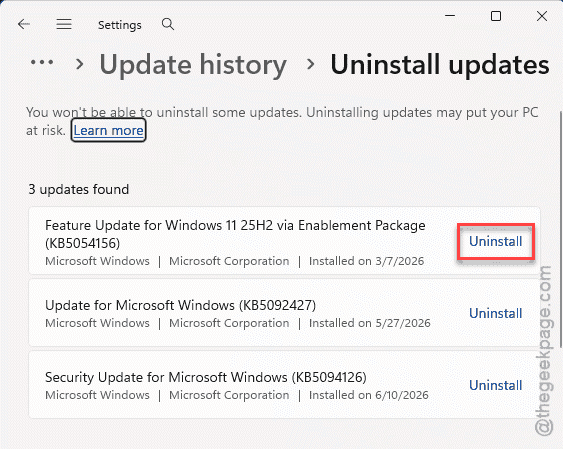
Not a permanent solution — the update will eventually come back, hopefully patched. But it gets you working today.
Fix 7 – Reinstall Office Completely
The last resort. If repairing fails, do a clean reinstall.
1 – Go to the official Microsoft Support portal and download the Microsoft Office Uninstall Support Tool.
2 – Run the tool. It removes every trace of your old installation (regular uninstall leaves leftovers behind).
3 – Restart your PC.
4 – Sign in to your Microsoft account and download a fresh installer.
5 – Reinstall Office.
A clean slate. Whatever the update corrupted is gone now.
How to Prevent This
- Close all Office apps before letting Windows install updates. Half these problems come from updating while something’s open.
- Run Quick Repair right after a big update, even if things seem fine. Cheap insurance.
- Pause updates for a week or two if you’re mid-project. Let other people find the bugs first.
People Also Ask
How do I fix Microsoft Office not opening?
Kill any stuck Office processes in Task Manager first. Then try Safe Mode to rule out the possibility of any faulty add-ins. One of those three handles most cases.
How do I repair Microsoft Office after an update?
You can easily repair the Office package from the Settings utility. If that fails, run Online Repair instead. It downloads fresh files and rebuilds the whole installation.