You plug in your USB DAC. No sound. You open Device Manager and there it is — a little yellow triangle.
“This device cannot start. (Code 10)”. Annoying. And weirdly stubborn. Unplug, replug, nothing. So let’s actually fix it.
Why This Happens
Code 10 is Windows throwing up its hands. Basically? It tried to start the device and failed.
But the cause? Could be a few things. A driver that got corrupted. A USB port that isn’t giving enough power. Or a Windows update that quietly broke the audio stack.
And USB DACs are picky. They pull power straight from the port. So if Windows decides to “save power” and puts the port to sleep mid-session, the DAC drops off. Code 10.
Sometimes it’s even simpler. A generic USB Audio driver loaded instead of the right one. For some reason Windows does this after updates.
Fix 1 – Replug It and Try a Different Port
Quick one. Sounds dumb. Works more often than you’d think.
Unplug the DAC. Wait five seconds. Plug it into a different USB port — ideally one directly on the back of the PC, not a hub or front-panel port. Hubs starve DACs of power. That alone triggers Code 10.
Test the sound. Working? Done. Still dead? Keep going.
Fix 2 – Reinstall the DAC Driver
This is the big one. A corrupted driver is the usual suspect, and reinstalling clears it out.
1 – Right-click the Start button. Click Device Manager.
2 – Find your DAC. Look under Sound, video and game controllers — or under Universal Serial Bus controllers if it shows there.
3 – Right-click it. Click Uninstall device.
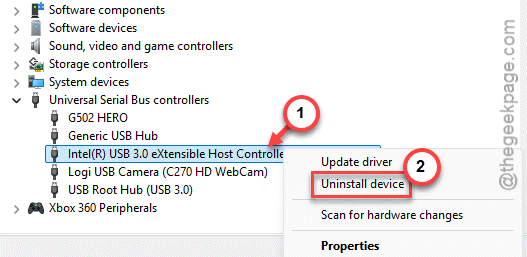
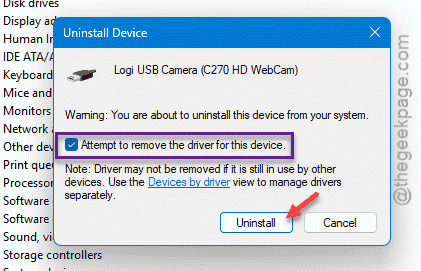
4 – If you see a checkbox for Delete the driver software for this device, tick it. You want a clean slate.
5 – Click Uninstall.
6 – Now unplug the DAC, then plug it back in. Windows reinstalls a fresh driver automatically.
If the DAC
Fix 3 – Stop Windows From Powering Off the USB Port
Windows turns off USB ports to save power. Great for laptops. Terrible for DACs. The port sleeps, the DAC dies, Code 10.
1 – Right-click Start. Open Device Manager again.
2 – Expand Universal Serial Bus controllers at the bottom of the list.
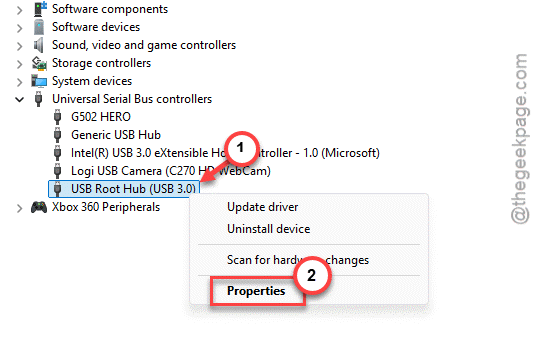
3 – Find every entry called USB Root Hub or Generic USB Hub.
4 – Right-click the first one. Click Properties.
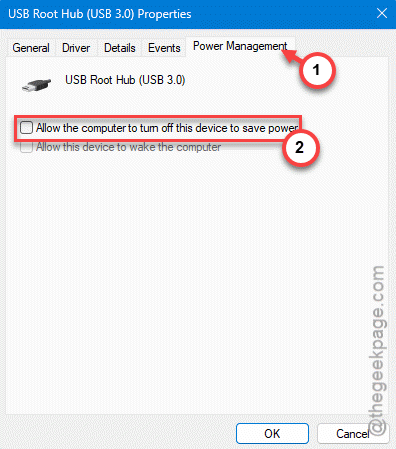
5 – Go to the Power Management tab at the top right.
6 – Uncheck Allow the computer to turn off this device to save power.
7 – Click OK. Repeat for every USB Root Hub in the list.
Tedious, yeah. But this fixes the DACs that work fine for a while and then randomly cut out.
Fix 4 – Update or Roll Back the Driver
Did this start right after a Windows update? Then the driver is probably the problem. You’ve got two directions to try.
First, try updating:
1 – In Device Manager, right-click your DAC.
2 – Click Update driver.
3 – Click Search automatically for drivers.
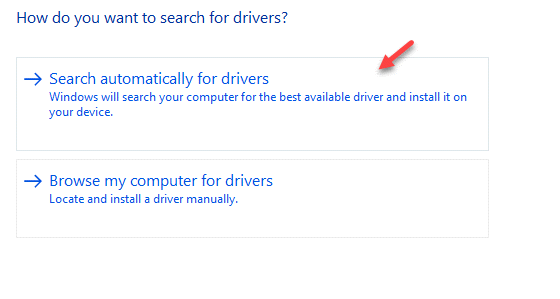
Nothing found? Check the DAC maker’s website. FiiO, Schiit, Topping — most have a dedicated driver download. Grab it there.
You can roll back the Windows Update to a previous version to fix this issue:
1 – Right-click the DAC, click Properties.
2 – Open the Driver tab.
3 – Click Roll Back Driver if it’s available. Restart.
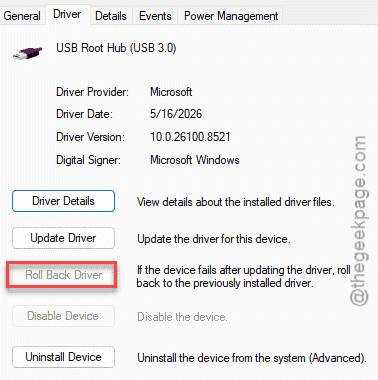
Grayed out? Then there’s no previous version saved.
Fix 5 – Run the Audio Troubleshooter
Windows has a built-in fixer for this. Worth a shot before anything drastic.
1 – Press Windows + I to open Settings.
2 – Click System on the left.
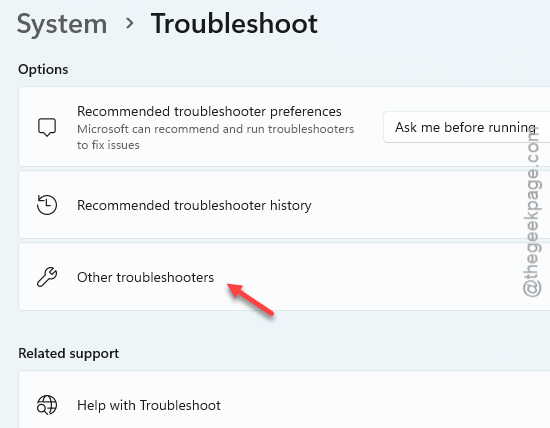
3 – Scroll down to Troubleshoot. Click it.
4 – Click Other troubleshooters.
5 – Find Audio. Click Run next to it.
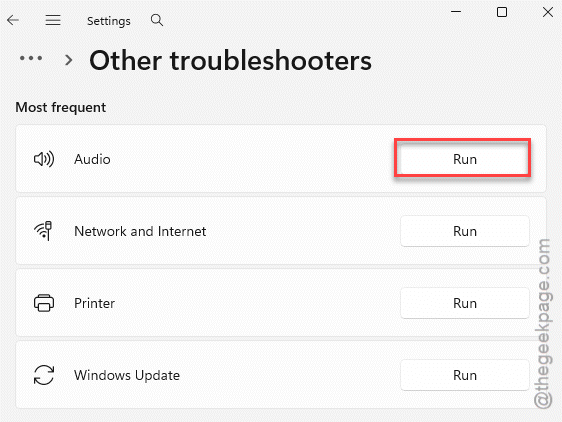
6 – Run the troubleshooter for the problematic DAC device.
Check if this works.
Fix 6 – Make Sure the DAC Is the Default Device
Sometimes the DAC is fine.
Right-click the speaker icon in the bottom-right corner. Click Sound settings. Under Output, pick your DAC. If it’s not even listed? Then it’s still a driver problem — back to Fix 2. If it is listed, select it and play something. Sound should come through now.
How to Prevent This
– Plug the DAC into a rear USB port, straight into the motherboard. Front ports and hubs cause most of these.
– Turn off USB power management once (Fix 3) and leave it off. It rarely needs to be on for a desktop.
– Grab drivers from the DAC maker, not just Windows Update. The manufacturer version is usually more stable.
– After a big Windows update, check the DAC still works. Updates love to reset audio settings. Quietly.
People Also Ask
How do I fix Code 10 this device cannot start?
Start by reinstalling the driver. Open Device Manager, uninstall the device, then unplug and replug it so Windows loads a fresh driver. If that fails, try a different USB port and turn off USB power management. One of those clears most Code 10 errors.
Does Code 10 mean my DAC is broken?
Not usually. Code 10 is almost always a software or power issue, not dead hardware. Try it on another PC to be sure. If it works there, your driver or USB settings are the problem — not the DAC itself. Reinstall the driver first.