When you edit a document in your SharePoint library from two different locations, like the desktop app and the web client, you may find that some of the table header rows have disappeared. The version conflict between the files from two sources may lead to such issues, which are not only limited to header rows but also other formatting attributes as well. These fixes should help you resolve the issue on your own.
Quick Fix Table – Table Attribute errors ~
| Issue | Recommended Fix |
| Header stays on Page 1 only | Fix #1: Re-Click Repeat Header Rows |
| Table ‘Jumps’ or overlaps | Fix #4: Set Wrapping to None |
| Headers vanish after co-editing | Fix #5: Check Out the document |
Fix 1 – Re-enable Repeat Header Rows Feature
SharePoint does not support the multi-page header rendering in the web browser view, which may lead to this problem for the majority of the users.
Step 1 – Load up the document in the Word desktop client.
Step 2 – Highlight (Select) the row of the affected table.
Step 3 – Now, go to the Table Tools Layout tab. Click the Repeat Header Rows button.
This way, Word won’t treat the table header as a standard text.
Fix 2 – Enforce the Keep with Next on the Header Row
If the table headers are appearing but on a new page of the document, that must be due to broken line and page break settings.
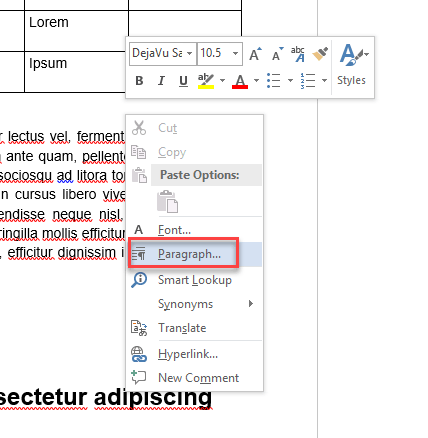
Step 1 – Select your header row and the first row of actual data.
Step 2 – Now, right-click it and tap Paragraph.
Step 3 – Go to the Line and Page Breaks tab. Check the Keep with next feature. Save the changes.
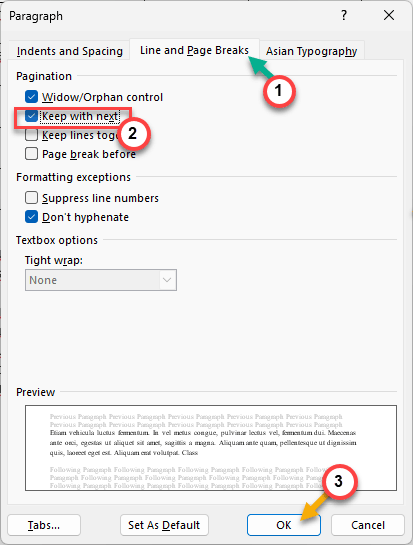
After this, it won’t matter whether you are editing on the web client or the desktop one; the headers will move along with the data.
Fix 3 – Disable Allow Row to Break Across Pages
If the header of the table spans a page break or if any other row of the header does, it can lead to such issues.
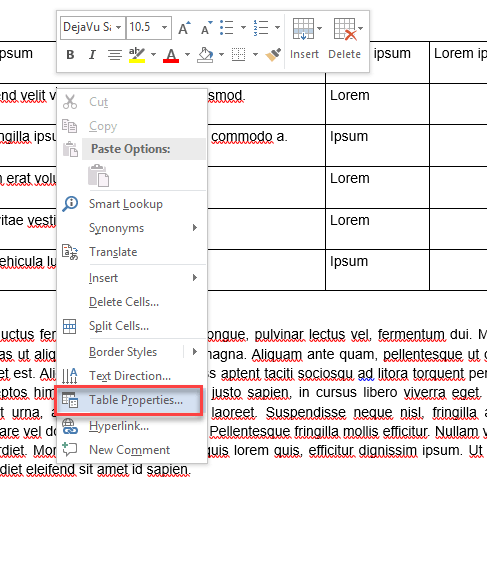
Step 1 – Right-click the problematic table, and tap Table Properties.
Step 2 – Go to the Row tab. Uncheck the Allow row to break across pages option.
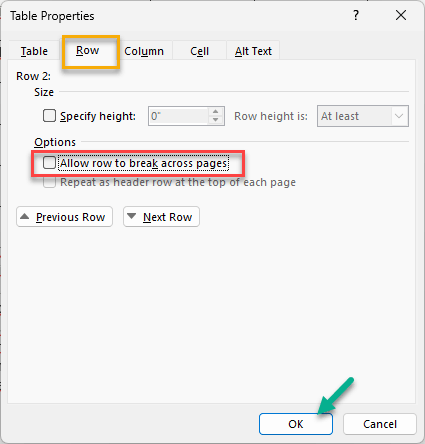
Once you have enacted this, the header row of this table won’t break into new pages.
Fix 4 – Set Table Wrapping to None
If the tables are set to float around, they might be treated as ‘graphic objects’ rather than standard text elements.
Step 1 – At first, right-click the same table and open up the Table Properties.
Step 2 – Go to the Table tab. Under Text wrapping section, ensure None is selected.
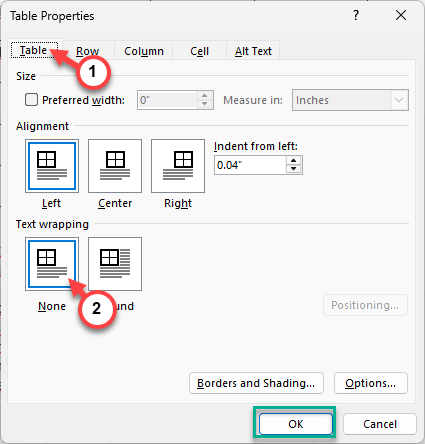
The document in ‘In-Line’ status should do the job. The table headers won’t disappear like that again.
Fix 5 – Use the Check Out Feature for Exclusive Sync
Usually, the files in the SharePoint library are shared with many tenants. Sometimes, one person’s table formatting can be overwritten by another one’s work.
Step 1 – In the SharePoint Library, right-click the file and tap More. Then, tap the Check out option.
Step 2 – Open the file up and fix the headers in the Desktop client.
Step 3 – Save the file and close it. Then, Check in again.
This will prevent SharePoint from trying to merge the files while you are working.