Paint opens, but the tools don’t work. You click the brush or eraser, but nothing happens! Text tool? Same thing. The tools might become completely unresponsive. This started after a Windows 11 update. And it’s not just you. It’s a known bug with the new Paint app. Here are some fixes to fix this problem.
Why This Happens
Microsoft redesigned Paint for Windows 11 and moved it to the Microsoft Store. But some Windows updates break the app’s rendering pipeline. The UI loads fine. You see all the buttons. But the drawing canvas stops responding to input. It’s a conflict between the updated system libraries and Paint’s older rendering code. The tools are technically “working”; they just can’t communicate with the canvas.
Fix 1 – Restart Paint Properly
Don’t just close and reopen it. Kill the process first.
1 – Press Ctrl + Shift + Esc to open Task Manager.
2 – Find Paint under the Processes tab. Right-click it and select End task.
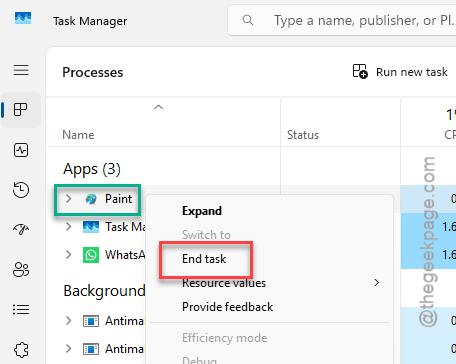
3 – Open Paint again from the Start menu.
Sometimes Paint gets into a bad state where the window is open but the internal process is stuck. Killing it fully and relaunching can fix that.
Fix 2 – Repair Paint
Windows can repair Store apps without reinstalling them. And it fixes more than you’d expect.
1 – Open Settings.
2 – Go to Apps > Installed apps.
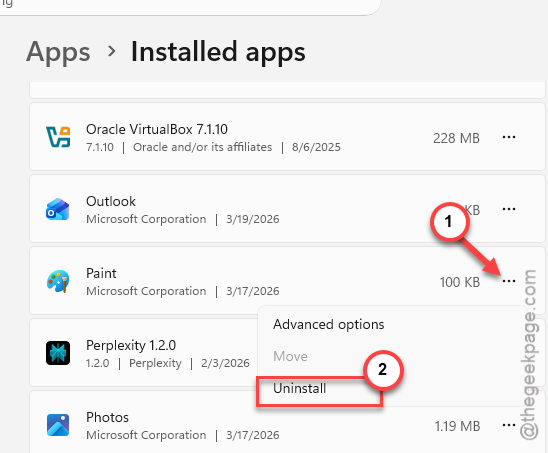
3 – Find Paint. Click the three dots next to it.
4 – Select Advanced options.
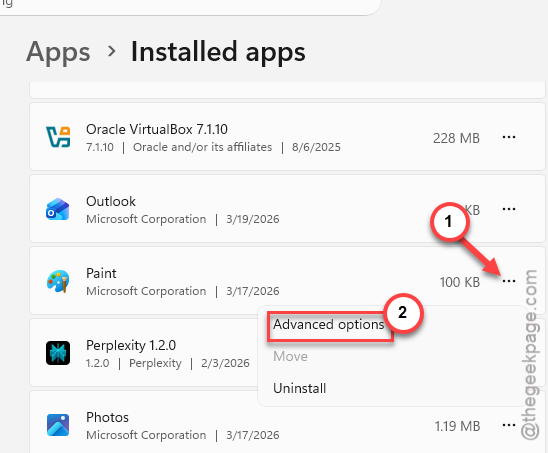
5 – Scroll down and click Repair.
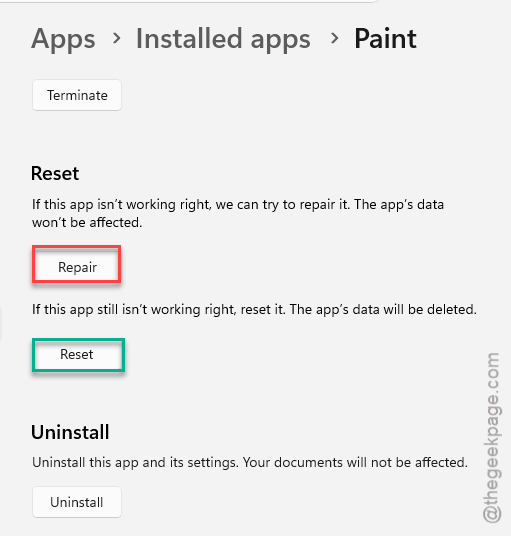
This scans and fixes corrupted app files (takes about 30 seconds). After it finishes, open Paint and try the tools again. Didn’t help? Move on to the next fix.
Fix 3 – Reset Paint
Same location as Repair. But this one wipes Paint’s data completely and starts over.
1 – Go to Settings > Apps > Installed apps > Paint.
2 – Click the three dots. Select Advanced options.
3 – Scroll down and click Reset.
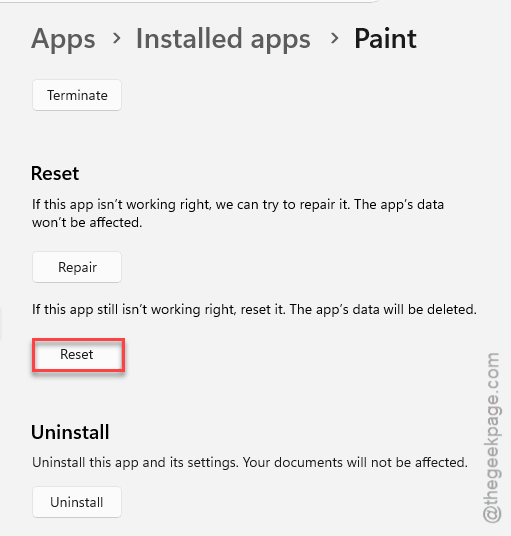
This clears all of Paint’s cached data and settings. You won’t lose any saved files. Just the app’s internal state. And sometimes that’s exactly what’s broken.
Fix 4 – Update Paint from the Microsoft Store
Microsoft has pushed fixes for this specific bug. But the fix only applies if you update Paint.
1 – Open the Microsoft Store.
2 – Click the Downloads icon at the bottom left.
3 – Click Check for updates at the top right corner. Let it check for updates.
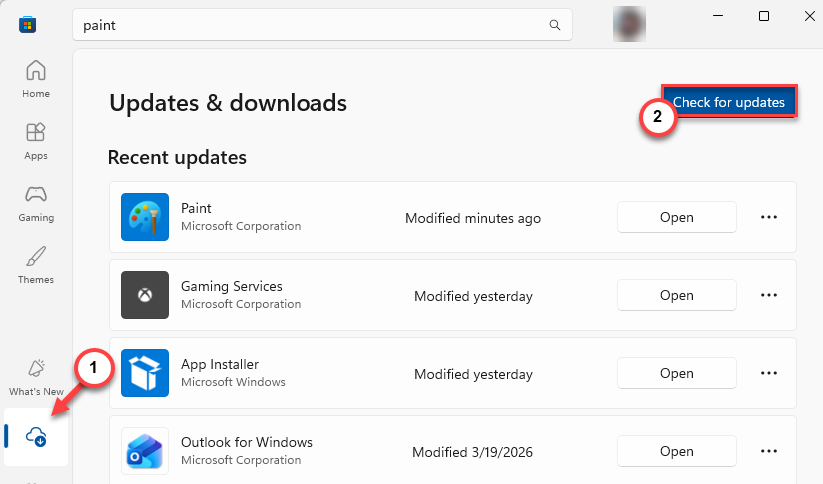
4 – If Paint has an update, it’ll download automatically.
After updating, restart Paint and test the tools. And honestly, this should happen automatically. But Store auto-updates are unreliable. So check manually.
Fix 5 – Reinstall Paint
Full uninstall and reinstall. This replaces all of Paint’s files with fresh copies.
1 – Open Settings > Apps > Installed apps.
2 – Find Paint. Click the three dots and choose to Uninstall.
3 – Restart your PC. Do not skip this.
4 – Open the Microsoft Store and search for Paint. Click Install.
So yeah, it takes a few minutes. But a clean install gives you the latest version with all the bug fixes. And if the tools still don’t work after this? There’s a deeper system issue.
Fix 6 – Reinstall Paint via Command Line
If the Store method doesn’t work — or if Paint doesn’t show up in the Store — use this.
1 – Right-click the Start button. Select Terminal (Admin) or Command Prompt (Admin).
2 – Type the following command and press Enter:
DISM /Online /Add-Capability /CapabilityName:Microsoft.Windows.MSPaint~~~~0.0.1.0
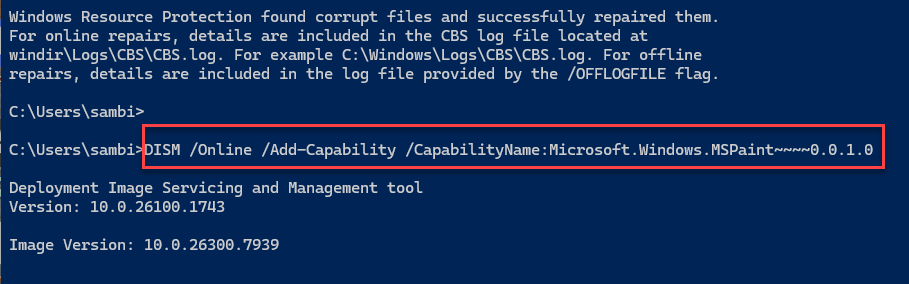
3 – Wait for it to finish. Then restart your PC.
This reinstalls Paint at the system level using Windows’ built-in tools. Bypasses the Store completely. And it’s more reliable in some cases. Not the most user-friendly method. But it gets the job done.
Fix 7 – Check for Windows Updates
If a Windows update broke Paint, another update might fix it. Microsoft patches these things. Eventually.
1 – Open Settings > Windows Update.
2 – Click Check for updates.
3 – Install everything available. Including optional updates, as those sometimes contain the app-specific fixes.
4 – Restart your PC after updating.
Still not working? The old classic Paint might still be on your system at C:\Windows\System32\mspaint.exe. Try running that directly to see if the legacy version works while you wait for a proper fix.
How to Prevent This
- Keep Paint updated through the Microsoft Store. Don’t rely on auto-updates — check manually after Windows updates.
- After major Windows updates, open Paint and test all tools before you need them for real work.
- If Paint breaks often, consider pinning the legacy mspaint.exe from System32 as a backup.
- Turn on automatic store updates: Microsoft Store > Profile > App settings > App updates toggle.
People Also Ask
Why are my Paint tools not responding?
Usually a conflict between a Windows update and Paint’s rendering engine. The buttons appear but the canvas ignores input. Try restarting Paint through Task Manager. If that doesn’t work, repair or reset the app through Settings. And make sure Paint is up to date in the Microsoft Store.
How do I fix MS Paint not working on Windows 11?
Start with Repair: Go to Settings > Apps > Installed apps > Paint > Advanced options > Repair. If that fails, try Reset. Still broken? Uninstall and reinstall from the Microsoft Store. Or use the DISM command to reinstall at the system level. One of those will fix it.
Is there an older version of Paint I can use?
The classic Paint might still be at C:\Windows\System32\mspaint.exe on your machine. Try opening it directly. It’s the old version without the new UI, but all the tools work. Some people prefer it honestly. It’s more stable than the store version.