When you import or copy documents into SharePoint or OneDrive and access them directly on a web client, the browser often struggles to handle the complex metadata of the bullets and lists of the document. This often leads to bullets or numbered lists starting at the wrong numbers, breaking suddenly, or even inconsistent lists on the document. This is because the browser can’t read or execute the hidden markers in the document that is created on the dedicated Word desktop client. Here are some community-recommended solutions that you can apply to solve this issue.
| Issue | Recommend Fix |
| All lists start at 1 | Use the Open in Desktop App |
| Numbers change after Save | Use Set Numbering Value |
| Indents are completely messed up | Clear All Formatting for bullets |
Fix 1 – Use the Open in Desktop Toggle
SharePoint/OneDrive’s web editor is not equipped to handle complex listing sequences in a large document. So, you should always open the file in the dedicated utility, i.e., the MS Word client.
Step 1 – Proceed to the SharePoint/Word Online screen.
Step 2 – Then, go to the Edit document tab. Use the Open in Desktop App feature.
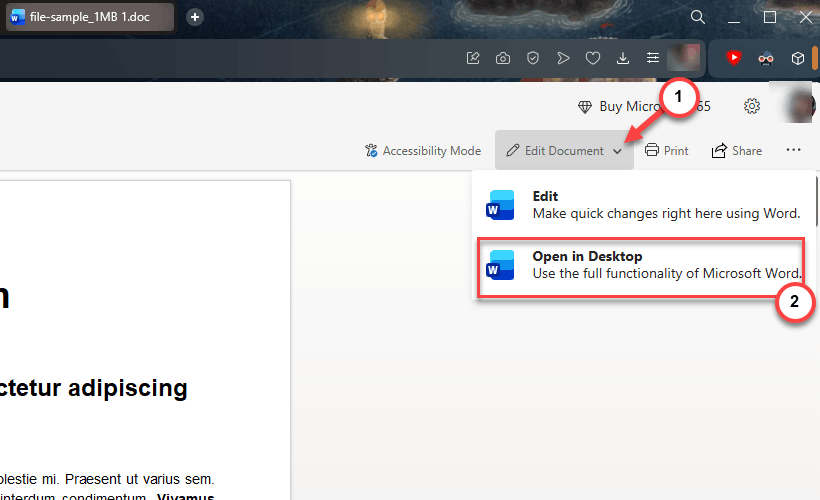
The document will open up in the Word client, where the bullets and lists will show up properly.
Fix 2 – Set the Numbering Values Manually
If there is a limited scope to use the Word desktop client, you can just manually adjust the bullets.
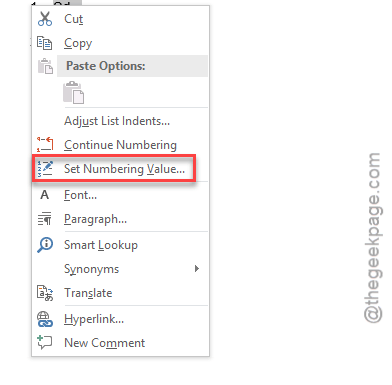
Step 1 – Highlight the wrong bullet number in the list. Then, right-click the value, and tap the Set Numbering Value option.
Step 2 – Then, manually type the correct number in the Set Value box.
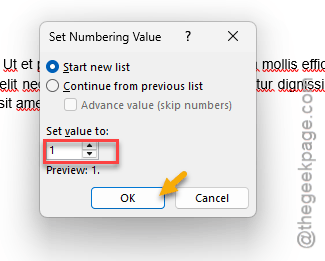
This workaround is excellent if you are dealing with only a few misplaced bullets in the entire document. Manually editing too many bullets or multilevel lists can be bothersome.
Fix 3 – Clear All Formatting for Lists
Importing documents sometimes messes up the intricate formatting of the lists or bullets found in the document.
Step 1 – Find and highlight the disputed list or bullet in the document.
Step 2 – Go to the Home tab. Then, use the Clear All Formatting icon there (A) to clear all the formatting from the selected bullet or number list.
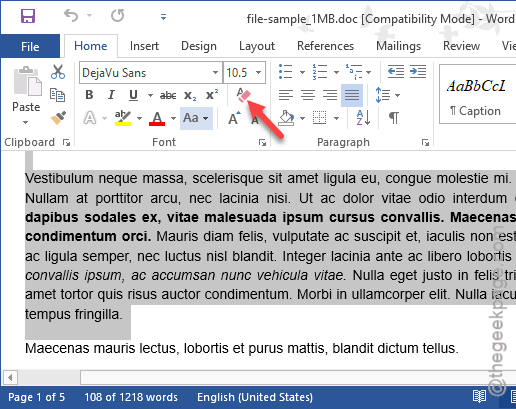
Step 3 – Re-apply the numbered list.
Clearing the formatting should fix the problem. If you are still having issues with the list, you can just remove the formatting manually.
Fix 4 – Use Multilevel LIst
If this happens to all the documents you upload on the Sharepoint, the issue can be with the template that you are using.
Step 1 – Before you upload the file, make sure the lists are tied to a Heading Style (eg. Heading 1, 2, 3).
Step 2 – You can also define and use a multilevel list, if it is required in the document.
Then, you can upload the document without the fear of formatting going wrong or missing bullet points after uploading it to SharePoint.
Hope these fixes have helped you solve the issue.