Do the accessibility shortcuts trigger automatically on your iPhone? It is usually due to misclicks or wrong accessibility settings that causes this issue. If you are experiencing this problem with your iPhone, don’t worry. These types of issues can be easily resolved by enacting these quick fixes on your device.
Quick Fix Table ~
| Issue Source | Quick Fix | Settings Location |
|---|---|---|
| Back Tap | Disable/Adjust Sensitivity | Settings > Accessibility > Touch |
| Click Speed | Slow Down Triple-Click | Settings > Accessibility > Side Button |
| Focus Filters | Remove Auto-Triggers | Settings > Focus > [Mode] |
Fix 1 – Disable or Reconfigure Back Tap
Sometimes the iPhone sensors can be so sensitive that minor movements can register as ‘Double-tap’ or ‘Triple Tap’ gestures.
Step 1 – Load up the iPhone Settings. Then, go to the Accessibility tab.
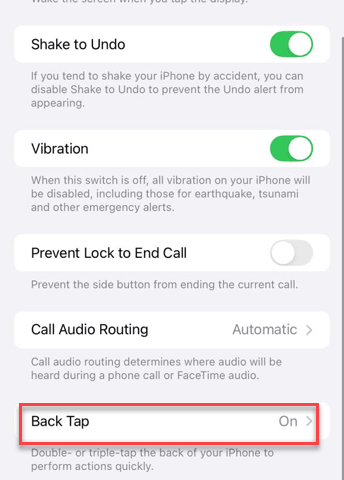
Step 2 – Open up the Touch settings. Find the Back Tap settings to load it up.
Step 3 – Set both the Double Tap and Triple Tap to None. Or, you can change them to any other non-accessibility functions, like camera.
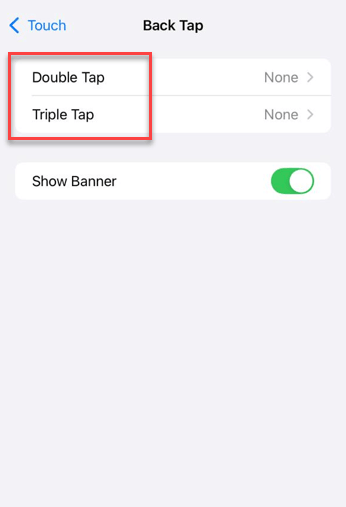
This will stop the random triggers that is causing this issue.
Fix 2 – Slow Down the Side Button Click Speed
Your iPhone can misread the double press of the side button as a triple-tap gesture of the button.
Step 1 – Go to the Accessibility settings on the iPhone.
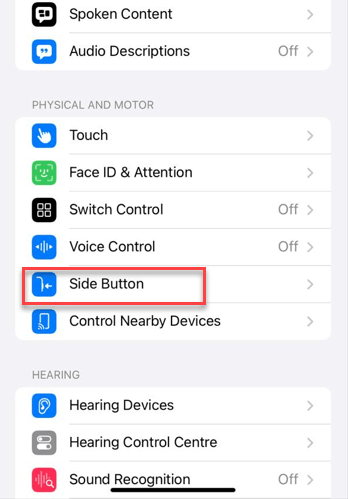
Step 2 – Then, tap the Side button.
Step 3 – After the Click Speed to Slow or Slowest mode.
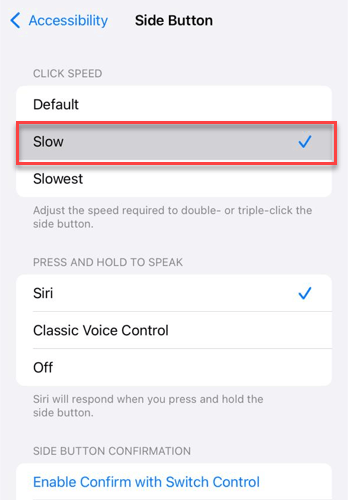
This will prevent ghost activation, but it will take more deliberate clicks.
Fix 3 – Adjust your Focus Mode Filters
On the iPhones running on the iOS 26, the Focus Modes can automatically toggle the accessibility features such as Color Filters or Reduce White Point.
Step 1 – Open the Focus settings on the iPhone Settings.
Step 2 – Next, load up the focus profile that you want to edit.
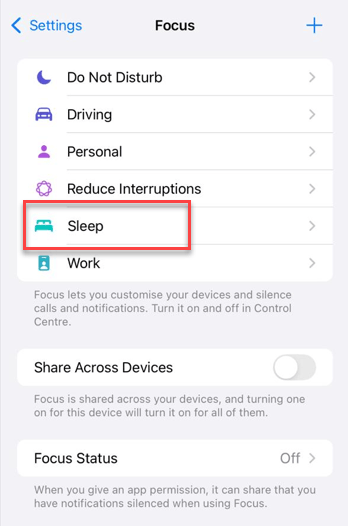
Step 3 – Scroll down to the Focus Filter settings and use the Delete filter command to remove any accessibility filter from there.
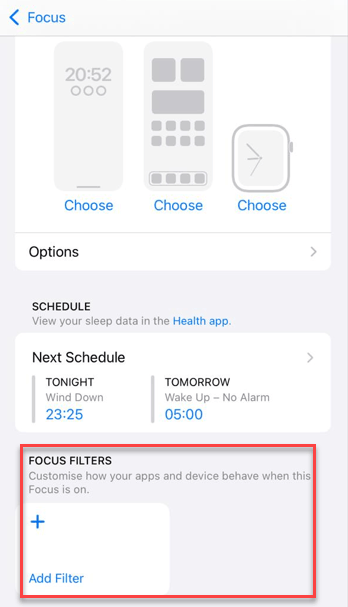
Step 4 – Repeat the same steps for all the focus modes.
See if this resolves the accessibility trigger issue.
Fix 4 – Limit the Accessibility Shortcut to One Item
If you have set multiple accessibility shortcuts up for the triple-click shortcut, a memory leak can trigger multiple accessibility features at once.
Step 1 – Once again, proceed to the Accessibility settings on your iPhone.
Step 2 – Scroll all the way to the bottom and open the Accessibility Shortcut settings.
Step 3 – Make sure only one item is checked.
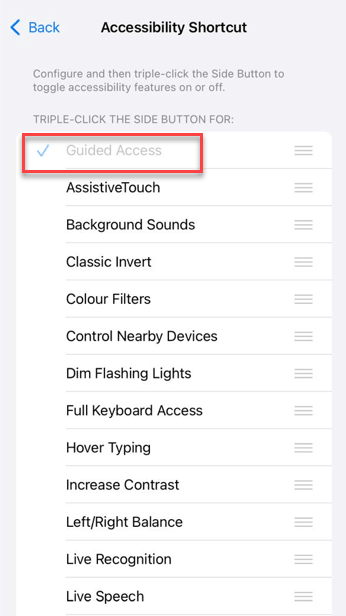
If you don’t use the Triple click feature, uncheck all of them to disable those.
Fix 5 – Force Restart the iPhone
You can just force-restart the iPhone to fix this problem for you.
Step 1 – At first, press and release the Volume Up button.
Step 2 – Then, press and release the Volume Down key.
Step 3 – Finally, hold down the Side button of the iPhone until the device.
After force-restarting the iPhone, this problem will be solved.