Does the private chat option disappears when you join a meeting on your Zoom client? This problem has been shared by a bunch of Zoom users across various forums. The disappearance of this private chat option can be linked with the meeting settings on your Zoom app. But, don’t worry. This issue can be fixed quite easily. All you have to do is just turn on the Private Chat feature for your account, or ask your system administrator to do the same.
Fix 1 – Enable the Private Chat in Zoom
you have to enable the private chat option from the zoom settings on your system.
Step 1 – Open up the Google Chrome and load up the Zoom website on the browser.
Step 2 – Tap the Sign in option in the right top corner on that page.
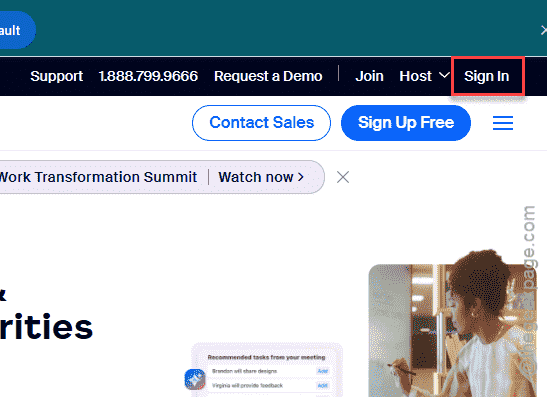
Step 3 – Now use the proper credentials to log into your Zoom account.
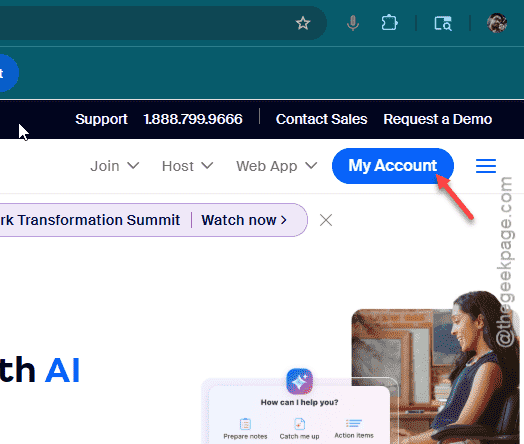
Step 4 – Once you’ve logged in, tap the My account option in the same place.
Step 5 – Navigate to the Settings option from the left column. Then, go to the Meetings section.
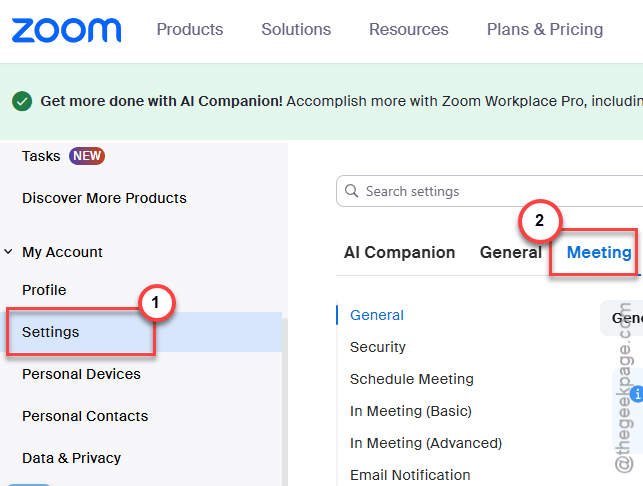
Step 6 – Start to scroll through all the settings until you reach the In meeting (Basic) settings section.
Step 7 – You must find the Private chat option there and turn it On.
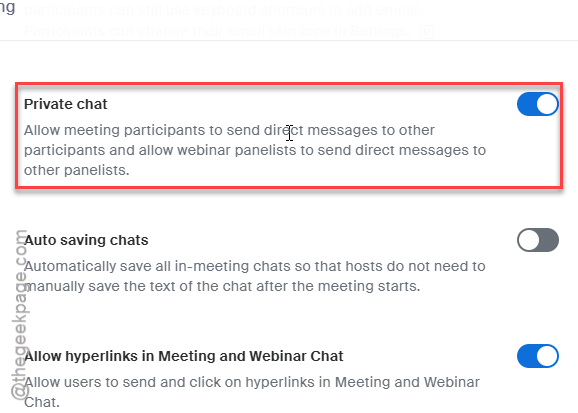
This way, you can easily enable the private chat to add the team meetings on your Zoom account.
NOTE – If you are using the Zoom Workplace for your school or office purpose, these settings may be controlled by your system administrator. In that case, you may have to consult with the IT administrator to enable the private chat option in your Zoom meetings.
Fix 2 – Update your Zoom client
if you’re using an older version of the zoom client, it can cause missing UI or glitches. Update the zoom client to the latest version to fix it.
Step 1 – On the Zoom client on your computer, tap your profile picture there.
Step 2 – Next, use the Check for updates option to run an update check for the zoom client installed on the system.
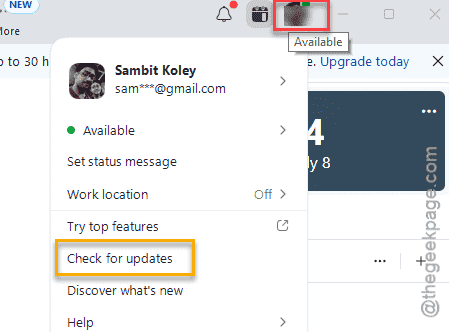
If you have an older zoom client, this will download and install the latest version of it.
Once the update is installed, your Zoom app should be ready for use.
Fix 3 – Ask the host/organizer
The organizer or the host of the Zoom meeting has the liberty of allowing private chats among the participants. So, you may ask them to enable it. Here are the steps to follow-
Step 1 – While a meeting is occurring on Zoom, tap the Chat option to load up the Chat panel there.
Step 2 – The chat panel usually shows up on the right-hand side of the Zoom meeting console. Tap the three dot button at the top of the chat box.
Step 3 – Now, set the participants can chat with: option to Everyone and anyone directly option.
This way, all the participants of that meeting can now check privately among them.
NOTE – As a host or organizer of a meeting, you can also be selective about whom you want to allow the private chat option.
Fix 4 – Private chat is disabled for that meeting
Sometimes, private chat between among the participants of a particular meeting can be disabled by the host or organizer of such. Irrespective of the reasons for disabling it, as a participant you can’t use private chat for that particular meeting.
If you have activated the private chat option for your account following the steps we have mentioned in the previous solution, there is a possibility that private chat itself is banned for the particular meeting.
Fix 5 – Use Zoom on web or on other devices
There’s a chance that the problem is limited to a particular device. So, you should try out resume on your browser all the desktop client, whichever you were not using.
If you are still having problems using the private chat feature, follow these steps to use the Zoom on web. It offers the same facilities as it does on the desktop client. See if whether you can use the private chat feature from there or not.
Hope these fixes have helped you solve the issue.