You make edits in SharePoint. Close the file. Come back the next day. Everything you did? Gone. No warning. No error.
Feels broken. And honestly, it kind of is.
Why This Happens
Here’s the thing. SharePoint saves changes through OneDrive sync or the cloud editor. And both can silently fail.
A few common causes. The library has Require Check Out enabled, so your changes only stick once you check the file back in.
And the worst part? No error message. The interface acts like everything saved. Then your work vanishes. Why? No idea. Microsoft really should warn you.
Fix 1 – Turn On AutoSave (and Confirm It Stays On)
First thing to check. AutoSave should be on at the top left of any Office file.
1 – Open the file from SharePoint.
2 – Look at the very top left corner of Word, Excel, or PowerPoint.
3 – Find the AutoSave toggle. Make sure it’s on.
4 – If it’s grayed out, the file isn’t actually opened from SharePoint or OneDrive. Close it. Reopen from the cloud link, not a downloaded copy.
5 – If it’s off, click to turn it on. Save the file (Ctrl + S) just to be safe.
Look at the top. It should say Saved after each change. If it says Saving… forever, something is broken.
Fix 2 – Check if ‘Require Check Out’ Is Killing Your Edits
This catches teams off guard. SharePoint libraries can require check-out before editing. If you skip the check-out, your changes might save locally but never push to the library.
1 – Open the document library in SharePoint (the folder view, not the file).
2 – Click the gear icon in the top right corner.
3 – Click Library settings.
4 – Click More library settings.
5 – Click Versioning settings.
6 – Scroll to the bottom. Find Require Check Out.
7 – Set it to No (only if your team is okay with that — it’s usually fine).
8 – Click OK.
Now your edits save without needing manual check-in.
Fix 3 – Force a Check-In From the Library
Got a file stuck in a half-checked-out state? It might still hold your changes. Force a check-in to release them.
1 – Open the document library where the file lives.
2 – Click the radio button next to the file. Just select it. Don’t open it.
3 – Click the three dots (⋯) in the top toolbar.
4 – Hover over More and click Check In.
5 – Type a quick comment (anything works).
6 – Click Check In.
Sometimes this releases pending changes that were stuck.
Fix 4 – Clear SharePoint Site Data
Browser cache is the silent killer. Stale tokens, broken session cookies, old script files. Clearing them fixes a lot.
1 – Open the SharePoint page where saving fails.
2 – Press F12 to open Developer Tools.
3 – Click the Application tab at the top.
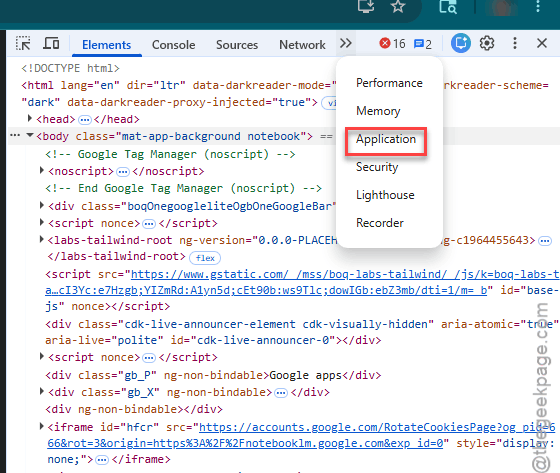
4 – In the left sidebar, click Storage.
5 – Click the Clear site data button (it has a circle-slash icon).
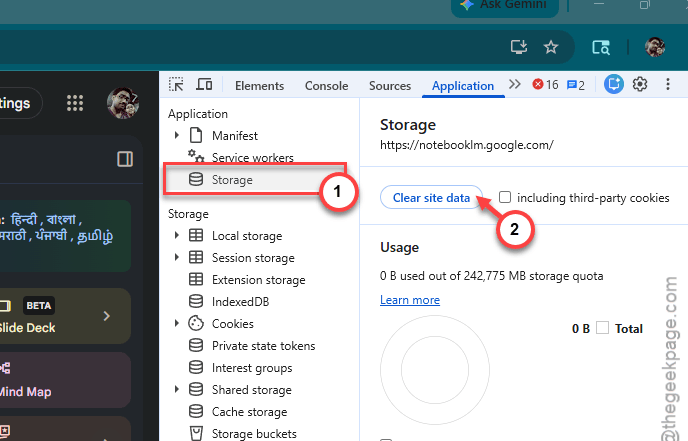
6 – Close Developer Tools.
7 – Press Ctrl + F5 to do a hard refresh.
8 – Sign in again and try editing.
Check if this happens.
Fix 5 – Check Permissions for the Specific File
You can have edit rights on the site. But the file itself might be locked down. Or someone broke inheritance on the folder.
1 – Right-click the file in SharePoint.
2 – Click Manage access.
3 – Look at the people list. Find your name.
4 – Check what it says next to your name. Should be Can edit.
5 – If you don’t have edit rights, ask the owner.
And if the file inherits broken permissions from a custom folder, that’s an admin fix. Get IT involved.
Fix 6 – Re-Upload the File (Last Resort, But Works)
Some files just get into a bad state. Cloud metadata gets out of sync with the actual content. The fix? Upload it fresh.
1 – Download a copy of the file to your local PC.
2 – Rename it (add -v2 or something — don’t overwrite the broken one yet).
3 – Open the SharePoint library.
4 – Drag the renamed file into the library.
5 – Wait for upload to finish.
6 – Open the new file and test editing. Save, close, reopen. Confirm changes stick.
7 – Once you’re sure it works, delete the broken original.
Annoying step. But guaranteed.
Fix 7 – Use the Desktop App, Not the Web
The web editor is fine for small changes. But for anything important? Open it in the desktop app.
1 – In SharePoint, find your file.
2 – Click the three dots (⋯) next to it.
3 – Hover over Open and click Open in app.
4 – Confirm AutoSave is on in the top left (Fix 1).
5 – Edit. Save. Close.
Desktop apps are more reliable. Especially for Excel files with formulas — those are the most likely to fail in the web editor.
How to Prevent This
- Always check AutoSave is on before you start editing. Every. Single. Time.
- Open files from the SharePoint link, not a downloaded copy. Downloaded copies don’t sync back.
- Get your team on the same Microsoft 365 version. Mixed versions cause silent sync failures.
- Ask IT to disable Require Check Out unless you really need it. Most teams don’t.
People Also Ask
Why is SharePoint not saving my changes?
Most common cause? AutoSave isn’t on. Or the file opened from a local download instead of the cloud link. Sometimes it’s a Require Check Out rule on the library blocking your edits. Check AutoSave first — top left of the Office app — then verify you opened from SharePoint directly.
Do changes in SharePoint save automatically?
They should, if AutoSave is on. Check the top left of Word, Excel, or PowerPoint. The toggle has to be on. And the file has to be opened from OneDrive or SharePoint directly. If you downloaded a copy and edited that, nothing syncs back.