While working on a document in Microsoft Word, you may have noticed that the borders of the tables have started to disappear. This is a known bug in the Microsoft Word version 2508, build 19127 where the table borders are going away without any user input. As this is a bug in the current version of MS Word, you can’t fix it manually. But, you can apply some workarounds to tone down the effects of the issue considerably.
Fix 1 – Update the Microsoft Word
Microsoft is currently working a patch that will fix this error. So, check for any pending updates for MS Office and install it right away.
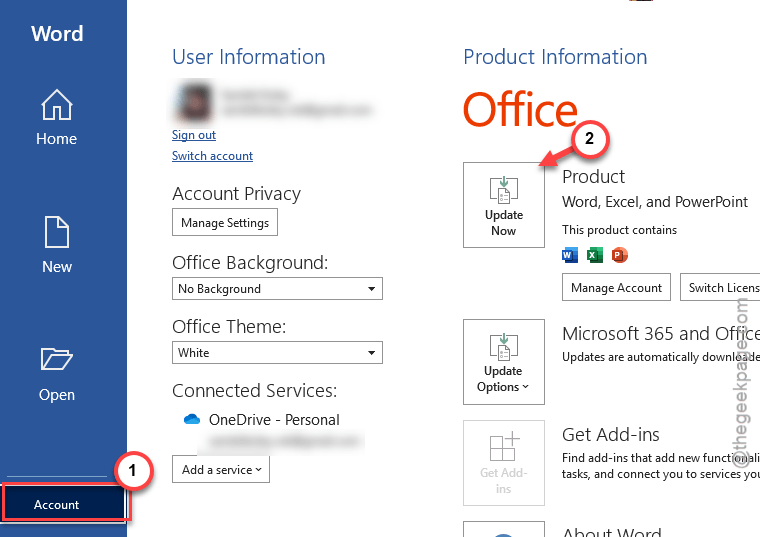
Step 1 – On the Microsoft Word console, tap the File menu. Then, go to the Account tab on the left pane.
Step 2 – On the right-hand pane, Update Now option to update the program.
Step 3 – Now, if you have an Office 365 subscription, tap the Update Options and choose the Update Now button from the drop-down.
This border disappearance issue will be automatically resolved once you have installed the latest patch of MS Word.
Fix 2 – Apply the borders manually
If you are looking for a quick workaround, you can apply the table borders manually on Microsoft Word.
Step 1 – Load up the document in Microsoft Word. Then, select the table.
Step 2 – Go to the Table Design tab on the menu bar in Word app.
Step 3 – Now, tap the Borders in the sub-menu. Then, select the All Borders option.
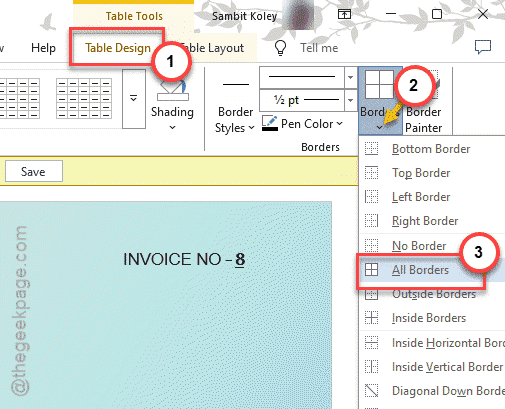
This will retrieve all the borders of that particular table. Repeat the same steps for all the tables to retrieve the disappeared table borders.
Fix 3 – Save the document in newer format
If the document is saved in an older format where borders may not compatible, you should save the file in a modern format (like .docx) for this issue to go away.
Step 1 – While the file is open in MS Word, tap the File button on the menu-bar.
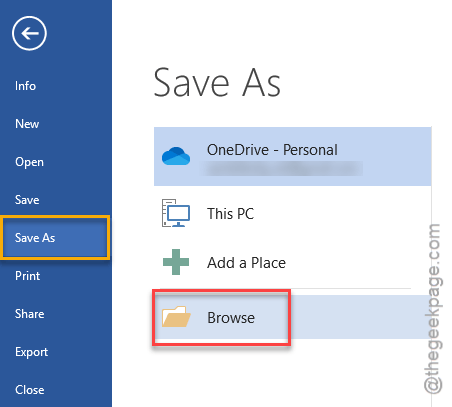
Step 2 – Then, tap the Save As option.
Step 3 – Choose the correct location and tap Browse button.
Step 4 – Now, click the Save as type and select the file as Word document and tap Save.
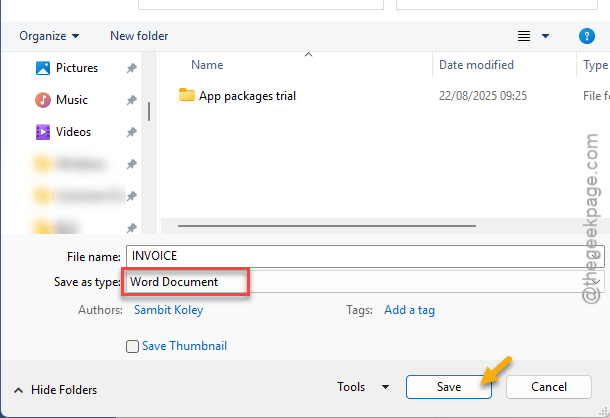
It will clear any compatibility issue that was restricting the previous border modifications. Check whether resolves the border issue.
Fix 4 – Repair the MS Word package
Try repairing the MS Office package to fix the border issue.
Step 1 – At first, hit the Win+R keys together to load up the Run panel.
Step 2 – Then, type appwiz.cpl in there, and click OK.
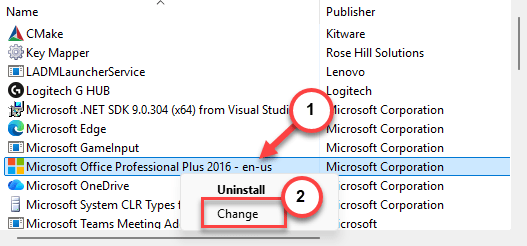
Step 3 – Find the Microsoft Office application package in there.
Step 4 – Right-click that same package, and tap the Change option.
Step 5 – Now, choose the Online Repair function and tap the Repair button.
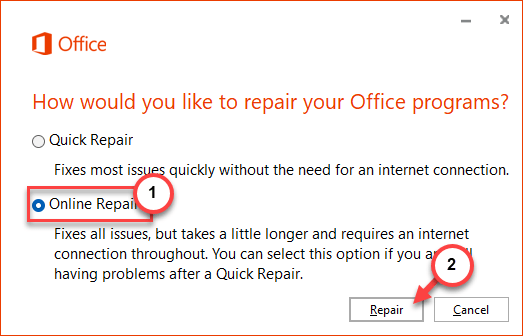
It will repair the Microsoft Office package, along with the Microsoft Word.
Fix 5 – Use MS Word Online (in a browser)
You can access Microsoft Word from a web browser and open the file there. There is no such reported bug in MS Word web console.
Step 1 – Sign in with your Microsoft account or Office 365 credentials.
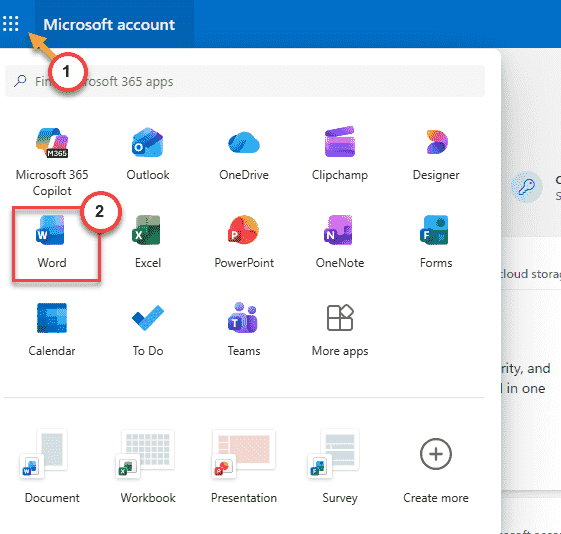
Step 2 – After signing in successfully, tap the menu icon in the top-left corner.
Step 3 –Then, choose the MS Word from the left dock to load it up.
Step 4 – Load up the document in there. You will find the table borders intact.
Though this is just a temporary workaround, it can provide some relief.
Final Words
The table border disappearance issue is nothing but a bug in Microsoft Word. It will be resolved in future updates, for sure.