Some users have complained of the issue with the editing function of the Photos app on both the Windows 11 and 10 system. Usually corruption in the Photos app files lead to this problem on the system, but there are possible reasons that can result into the same issue. These fixes should be helpful in resolving the issue at your end.
Fix 1 – Repair or Reset the Photos App
Repair or resetting the Photos app should help in this case, if the issue has originated from a possible file corruption.
Step 1 – On your Windows Settings page, go to the Apps and later, open up the Installed Apps.
Step 2 – Find the Photos app. Tap the three dot button ⋮, and tap Advanced options.
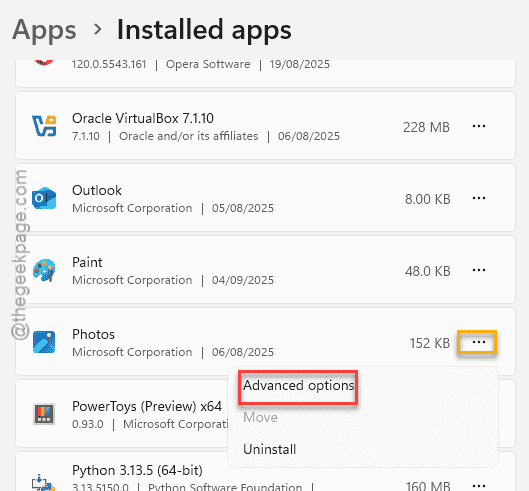
Step 3 – Click the Repair option to run a repairing operation for the Photos app.
Step 4 – But, if this does not work, you use the Reset option next to reset the Photos app.
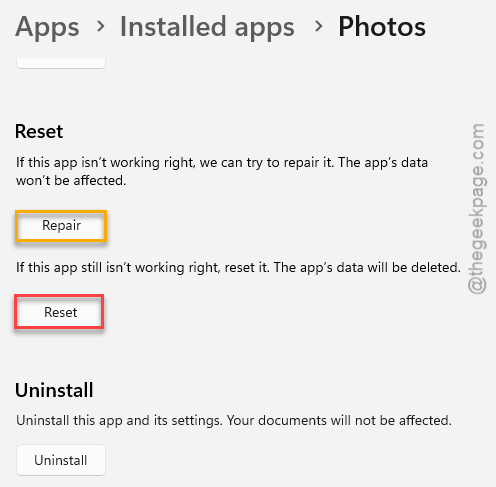
After enacting these changes, try to edit the photo again.
Fix 2 – Uninstall the Photos App and Reinstall from Microsoft Store
It is possible that you are using a wrong version of Photos app.
Step 1 – To do this, just search for Photos app. Next, right-click that and tap Uninstall to uninstall the Photos app.
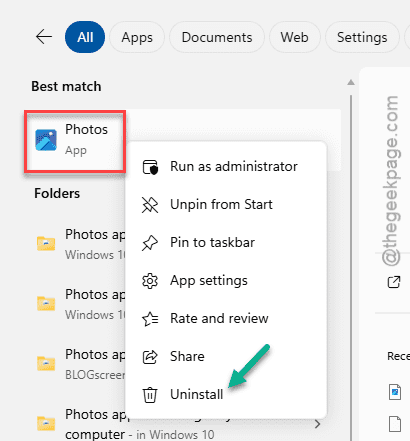
Step 2 – Confirm your action.
Step 3 – After uninstalling the Photos app, go to the Microsoft Store and search for Photos app. Or, you can reach the Microsoft Photos tab directly.
Step 4 – Install it from there.
After reinstalling the Microsoft Photos app, the issue with the editing should be gone.
Fix 3 – Check the Source of the Image for possible corruption
There is a chance that the image that you are editing is corrupt. The image that you are trying to edit, You can copy/move or save the image file in a different location and then try to edit it. Any corruption of the drive where the image file is stored In case if the file is actually corrupted, changing the location of the file may not help.
Fix 4 – Get Windows Photo Legacy version
If you are still facing the problem, we recommend you get the Windows Photo Legacy or the classic version of the Photos app.
Step 1 – Open the Microsoft Photos app from the search box.
Step 2 – Now, tap the ⚙ button at the top to load up the Photos app settings.
Step 3 – Scroll down to find the Photo Legacy section. Tap the Get Photos Legacy option.
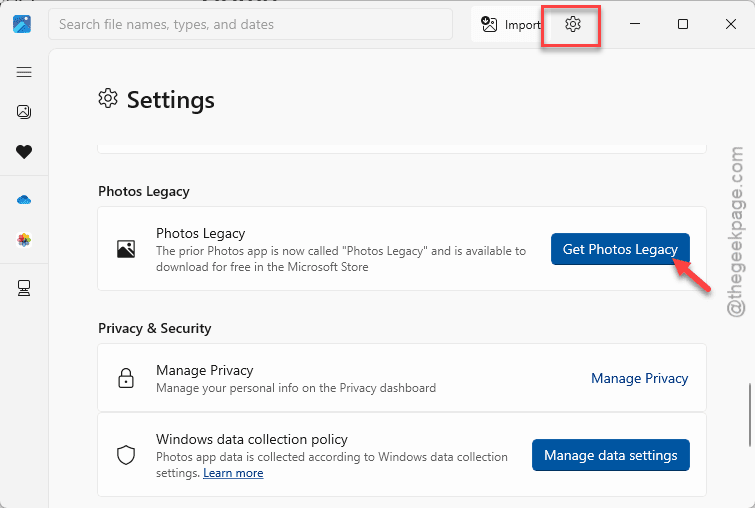
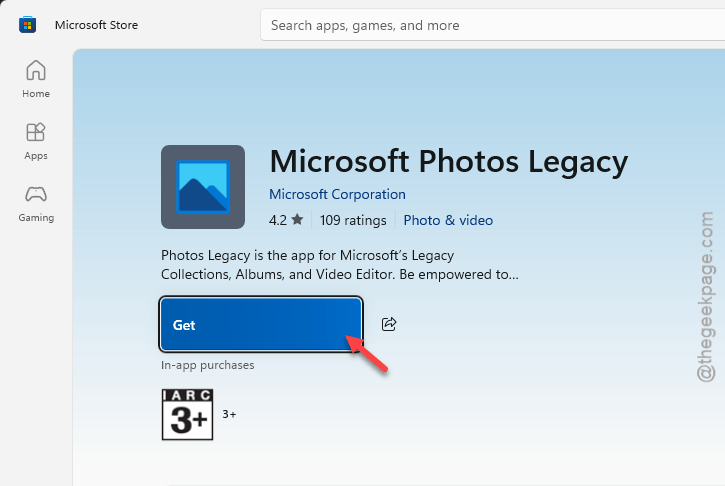
This will take you to the Photo Legacy app on the Microsoft Store.
Step 4 – Install it from there.
After getting the Photos Legacy app, you can do this.
Step 5 – Reach the location of the image file on your system.
Step 6 – Next, right-click the image and tap Open with> and select the Photos Legacy app from the list.
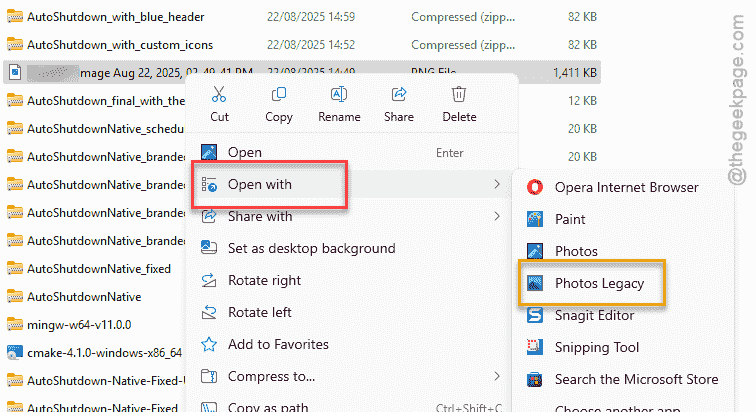
Check whether the image can be opened or edited.
Fix 5 – Use third-party Image Processors to view/edit
If you are still having issues, you must try third-party image processors such as IrfanView, XnConvert Paint.NET, etc. There are many free alternative image editing tools available on Windows. Here are some good alternatives that you can try –
Final Words – The possible issue with the editing function of the image should be resolved at your end.