When a document suddenly gets locked in a ‘Read-only’ or ‘Locked for Editing’ error, it is usually because of any of these reasons, such as owner contradiction, temporary file glitch, or Microsoft Word’s preview pane. Here is a list of solutions with detailed steps that you can easily enact at your end to counter this problem and continue editing the document in Microsoft Word.
| Issue (Error Symptom) | Recommended Solution |
| ‘Locked by Another User’ | Delete the ~$ marked file in the root drive () |
| ‘Locked by Me’ | End Word tasks in Task Manager and relaunch document |
| Buttons are grayed out | Check the status of Office subscription. |
Fix 1 – Disable the Preview Pane View
If the Preview Pane is open in File Explorer, it may show you the preview of the file instead of opening it up completely to edit it.
Step 1 – Load up the File Explorer.
Step 2 – Find out whether the Preview Pane is active or not. If you see the preview pane, go to the View tab. Uncheck the Preview Pane to deactivate it.
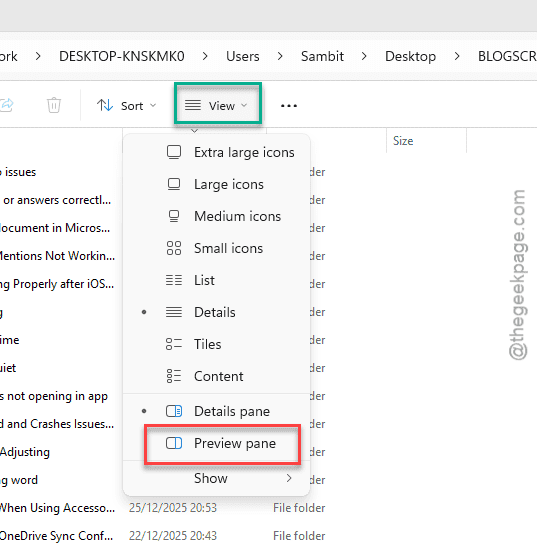
Once you have disabled it, Windows won’t have to open the file to provide you a preview. You can manually open the file and check.
Fix 2 – Delete the Temporary Instance of File
When a user accesses a document, it creates a temporary file (~$Docname.docx) in the root directory. This can sometimes create this problem.
Step 1 – Close the current instance of the document in Microsoft Word, which is locking you out.
Step 2 – Then, proceed to the location of the document in the File Explorer.
Step 3 – Tap the View bar. Go to the Show settings and enable the Hidden items to view the hidden items in there.
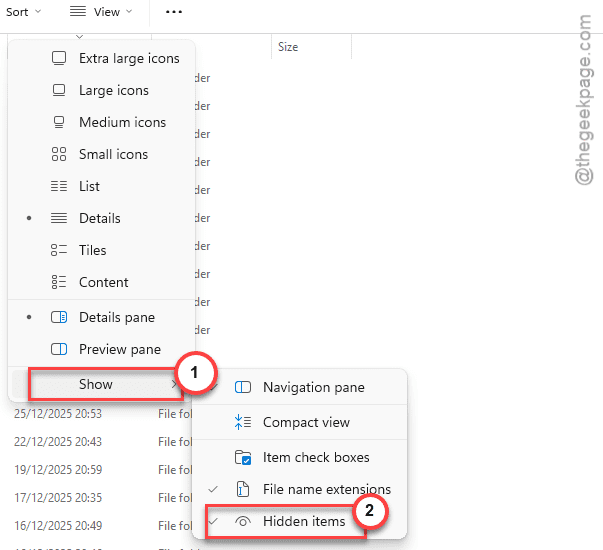
Step 4 – If you can see any file name starting with ~$, delete it.
After deleting such a file, you can return to the office and try to access the document again.
Fix 3 – Disable the Protected View
A file opens up in Protected View mode if it is downloaded or delivered via attachment. This won’t allow you to edit or modify the document.
Step 1 – You will see the Protected View message in the Word document top bar. Tap Enable Editing to start editing the document file.
If that does not work, you have to manually unblock the file manually.
Step 1 – Reach the location of the file in the File Explorer. Next, right-click the file and tap Properties.
Step 2 – Go to the General tab. Uncheck the Unblock box.
Step 3 – Save the changes.
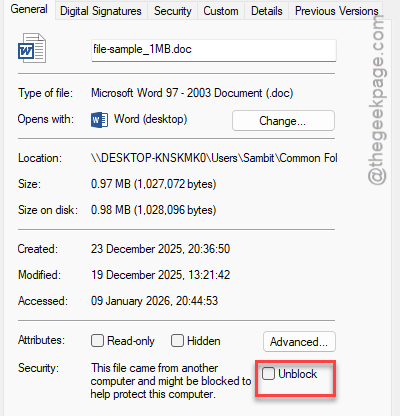
Try to open the same file again and check.
Fix 4 – Delete the Cached Files in Word
If there are some issues with the file cache, clearing the cache should do the trick.
Step 1 – In the Word document, proceed to the File tab. Then, open up the Options menu.
Step 2 – Go to the Save tab.
Step 3 – Scroll down to the Cache Settings. Tap the Delete cached files to delete the cached files.
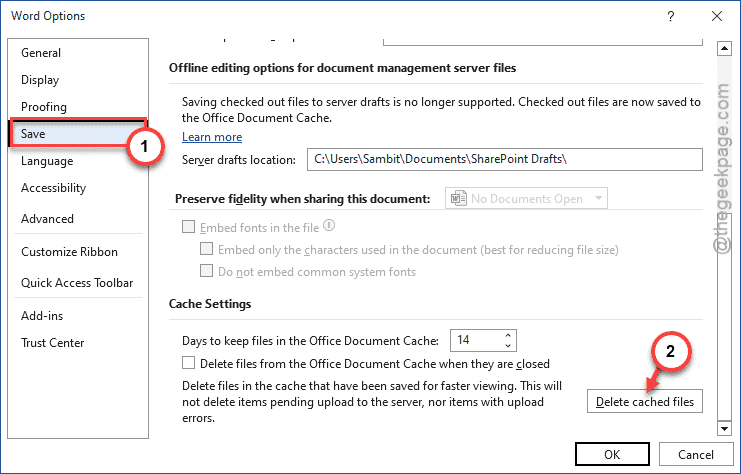
Try to access the same file again.
Fix 5 – Disable the Read-Only Access Mode
Turning off the Read-only mode in Word settings should let you open the document normally.
Step 1 – Proceed this way in Microsoft Word document –
File > Info
Step 2 – Tap the Protect Document option.
Step 3 – Tap the Always Open Read-only mode to toggle it off.
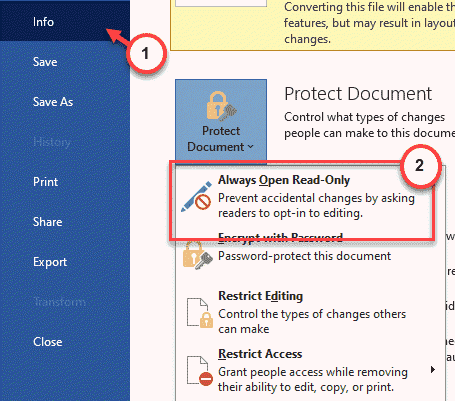
After this, save the changes in the Word settings. Check whether you can access those files or not.