The primary purpose of SpellCheck and Grammar Checker in Microsoft Word is to proofread your document on the go. But what if suddenly it stops detecting the grammar errors and typos? Usually a hidden setting has told Word to ignore specific paragraphs, or simply different proofing language has been set to a language that does not have the proper language. Here are some tips to solve this issue.
Quick Fix Guide ~
| Issue | Recommended Fix |
| Only certain paragraphs are ignored | Fix #1 – Uncheck Do not Check feature |
| Corrected words won’t flag again | Fix #3 – Recheck Document |
| Language keeps switching | Review > Language > Uncheck Detect Language |
Fix 1 – Disable Do Not Check Formatting
Word allows you to mark specific texts to be ignored by the spellchecker, which can mistakenly gets triggered throughout the document.
Step 1 – Use the Ctrl+A buttons to select the entire document.
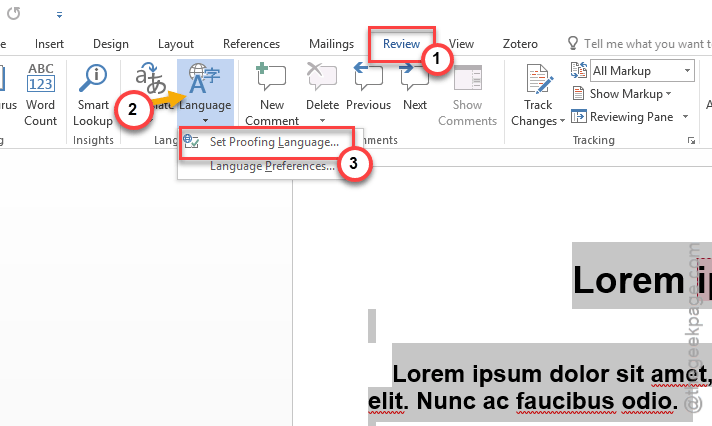
Step 2 – Go to the Review tab. Choose the Language button. Then, click the Set Proofing Language option.
Step 3 – Uncheck the Do not check spelling or grammar box.
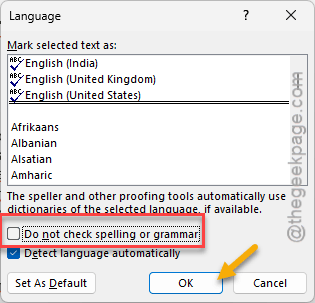
After this, all the grammar errors will show up properly.
Fix 2 – Uncheck Hide Spelling Errors in Document Only
Word can be configured to hide spelling and grammatical mistakes in the document from the main page layout view.
Step 1 – On the Microsoft Word page, follow this path –
File > Options
Step 2 – Then, proceed to the Proofing tab. Scroll to the bottom and find the ‘Exception for:’ section.
Step 3 – Make sure these two options are unchecked –
Hide spelling errors in this document only
Hide grammar errors in this document only
Step 4 – Tap OK to save the changes.
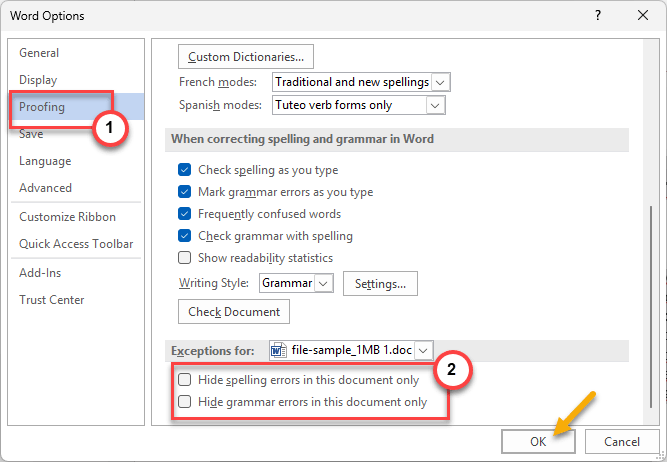
After enacting these changes, all the spelling mistakes will be highlighted in the document.
Fix 3 – Force a Recheck Document
If you have asked Word to ignore some texts, Word won’t underline them in the spell-checking process.
Step 1 – Go this way –
File > Options
Step 2 – In the Word Options page, proceed to the Proofing tab.
Step 3 – Use the Check Document button there.
Step 4 – Tap Yes if any warning appears, and then click OK.
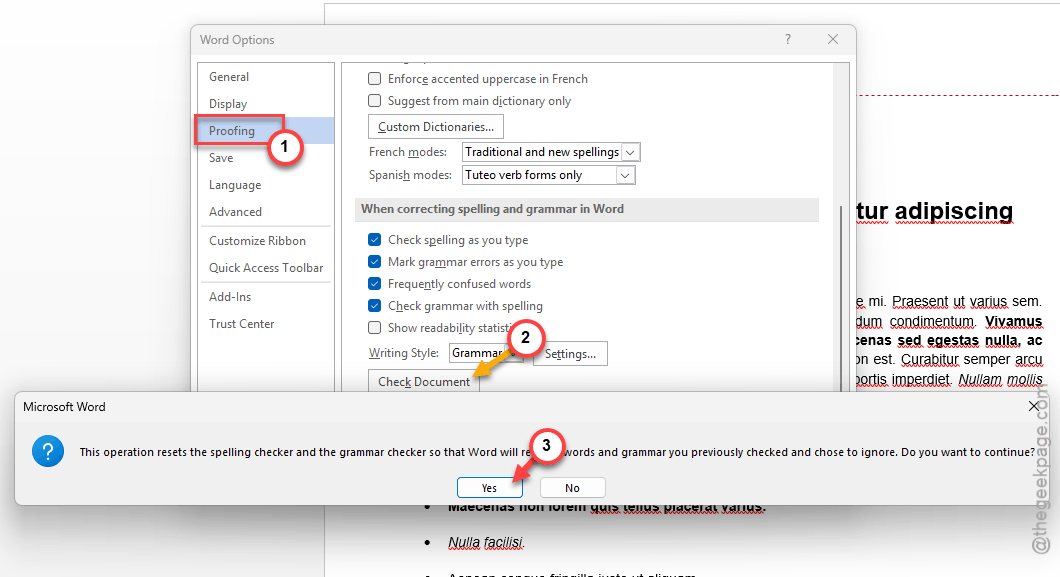
This will force the engine to scan everything in that document.
Fix 4 – Verify that the Proofing Dictionary is installed
Check whether the proofing dictionary, which is vital for the entire proofreading process, is installed in Microsoft Word.
Step 1 – Take a look at the Status bar at the bottom of the Microsoft Word document.
Step 2 – If it shows up any language that you have not used in the document, tap it once.
Step 3 – Ensure the selected language has a small checkmark with an ABC icon next to it.
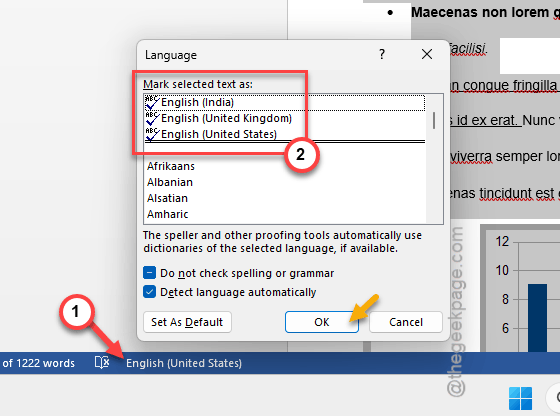
This indicates that the physical dictionary file is present and active on the machine.
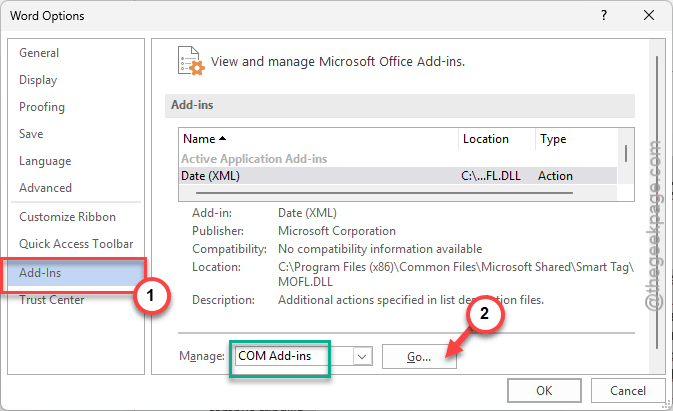
Fix 5 – Disable COM Add-ins for potential conflicts
Third-party app COM Add-ins (like Grammarly, medical or any other specialized dictionary tools) can sometimes interfere with the normal spell-checking process.
Step 1 – Go this way –
File > Options
Step 2 – Select the Add-ins from the left column. Then, select the COM Add-ins from the Manage drop-down element. Tap Go.
Step 3 – Uncheck any third-party grammar or spell-checking tools there. Click OK to save this.
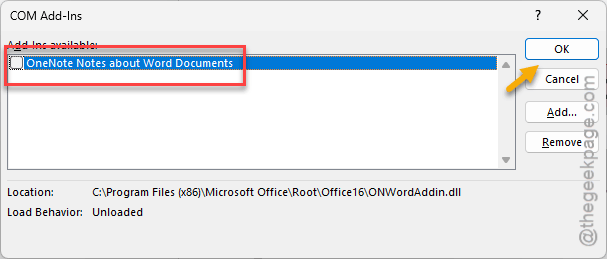
Then, restart the Microsoft Word. This should negate the influence of the third-party dictionary that was influencing this problem. Hope these fixes have helped you solve the issue.